
Color grading photography is the creative process of shaping color and tone after the image has been corrected. It helps a gallery feel cohesive, but it should not cover up weak exposure, strange white balance, or inconsistent editing decisions.
The practical goal is simple: make the photos feel intentional while keeping people, products, places, and details believable. A wedding gallery, portrait session, event set, or commercial delivery can have a clear style without turning every image into the same heavy filter.
Color Correction vs Color Grading
Color correction comes first. It makes the image accurate enough to edit. Color grading comes after. It gives the image a deliberate mood.
- Color correction: Make the file balanced and usable. Examples: White balance, exposure, highlight recovery, lens cleanup.
- Color grading: Create style and consistency. Examples: Tone curves, HSL changes, split warmth, muted palette, contrast direction.
If a photo has a green skin cast, fix that before adding a creative grade. A bright preview does not necessarily mean the source is irrecoverably clipped: check the original file and recovery controls. A creative grade cannot recreate detail that was never captured. If every image was shot under different light, the first job is to make the set compatible.
Build the Grade Around the Gallery
A single hero image can tolerate a bold grade. A client gallery needs consistency. Before editing, choose the visual direction for the whole set.
Ask:
- Should the gallery feel bright and clean, warm and romantic, cool and editorial, or deep and moody?
- Which colors are part of the story?
- Which colors should be quieter?
- How should skin look across indoor, outdoor, and mixed-light images?
- Will the client view mostly on mobile, desktop, print, or all of them?
Choose an anchor image for each major lighting condition. Edit it carefully, then compare the set against those references. Aim for compatible contrast and color rather than making candlelight and daylight identical.
Step 1: Set Exposure and White Balance
Start with global corrections. The grade will be easier if the image is already balanced.
Check:
- Are important highlights protected?
- Is the face too dark compared with the background?
- Does white clothing look neutral or tinted?
- Do skin tones look believable?
- Are shadows carrying unwanted green, blue, or magenta?
Do not chase perfect neutrality if the scene is intentionally warm or cool. A candlelit reception should not necessarily look like noon daylight. The goal is believable color, not sterile color.
Step 2: Use Tone Curves for Contrast
Tone curves are one of the most useful tools in photography color grading because they affect mood without relying only on saturation.
Common curve choices:
- Gentle S-curve: Adds contrast and depth.
- Lifted black point: Softens deep shadows.
- Protected highlights: Keeps skin and white clothing from feeling harsh.
- Lowered midtones: Adds mood, but can make faces too dark.
- RGB channel curves: Adds subtle color shifts to shadows or highlights.
Work slowly. Too much contrast can make the grade look dramatic on one image and brittle across a gallery.
Step 3: Control Color With HSL
HSL controls let you adjust hue, saturation, and luminance for specific color ranges. Use them to reduce distractions and refine the palette.
- Grass pulls attention: Reduce green saturation or luminance.
- Skin looks too orange: Reduce orange saturation slightly.
- Background blues dominate: Lower blue saturation or darken blue luminance.
- Reds are too loud: Lower red saturation or shift hue carefully.
- Yellow indoor light feels heavy: Reduce yellow saturation and correct white balance.
Do not make color decisions in isolation. Skin, wardrobe, background, and brand colors can all share similar ranges. A change that improves the wall may damage the face.
In Lightroom Classic, the Color Mixer adjusts existing color ranges. A global change to orange can affect skin, clothing and a wall together. Use a local adjustment when only one area should change.
Documented Color Grading Example
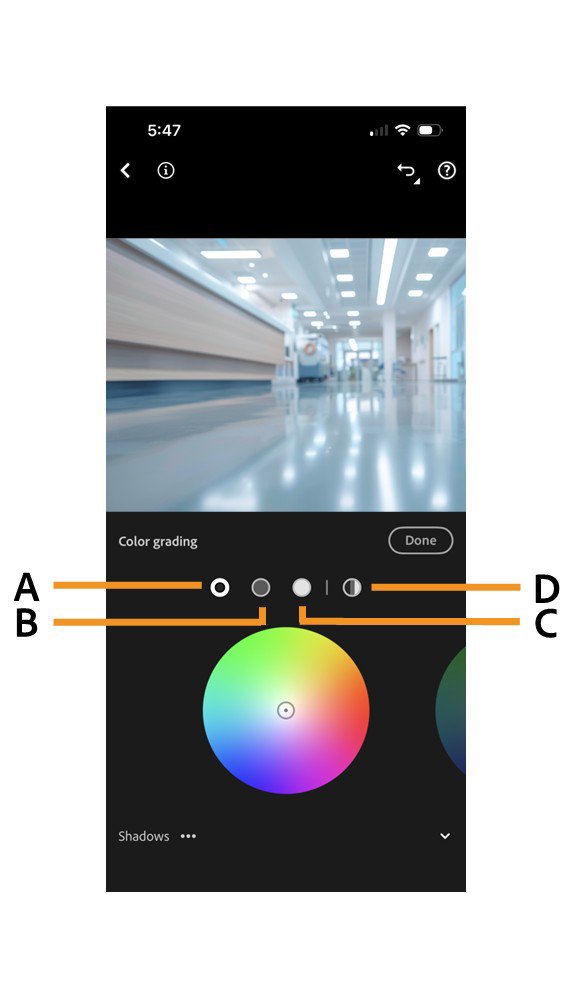
Color Mixer and Color Grading answer different questions: which existing colors should change, versus which tint to add to a tonal range. Adobe's Lightroom mobile screenshot below identifies the tonal controls: A is Shadows, B is Midtones, C is Highlights and D is Global.
For a photographic demonstration, watch Kenneth Hines Jr.'s Adobe color-grading tutorial. At 2:36 he demonstrates a greenish vintage treatment of a Grand Central interior; at 3:12 he discusses a warmer London image and a wedding example. These are Adobe's published examples, not SendPhoto client work.
When trying the controls, begin with a small tint and compare with it disabled. Blending changes the transition between tonal adjustments; Balance favors lighter or darker tones. Recheck neutral objects and skin after each change rather than copying a value from an unrelated photograph.
Step 4: Protect Skin Tone
Skin tone needs particular care during a grade. It can become too orange, too gray, too red, too yellow, or too green when global edits are pushed too far.
Use these checks:
- Compare faces across multiple lighting situations.
- Check the grade at normal viewing size and closer zoom.
- Avoid over-smoothing color variation in skin.
- Keep warmth intentional rather than accidental.
- Use local adjustments when the background needs more styling than the person.
For portrait-heavy work, this is where editing discipline matters most. A stylish background cannot rescue skin that looks unnatural.
Step 5: Use LUTs and Presets Carefully
LUTs and presets can speed up a workflow, but they should not replace judgment. Treat them as starting points.
After applying a preset or LUT, check:
- Exposure.
- White balance.
- Skin color.
- Shadow detail.
- Highlight harshness.
- Saturation in greens, reds, oranges, and blues.
- Whether the look matches the rest of the gallery.
A preset is a saved collection of editing settings; a LUT maps input colors to output colors in a compatible tool. They are not interchangeable file types. Check the tool and expected input before using a LUT, then adapt the look for each lighting group rather than forcing one strength across the entire set.
Step 6: Shape Attention With Local Adjustments
Local adjustments help control where the viewer looks. Use masks, brushes, radial adjustments, or gradients to refine the image without changing everything.
Good uses include:
- Brightening the face slightly.
- Darkening a bright background edge.
- Reducing saturation in a distracting object.
- Adding contrast to clothing texture.
- Softening a strong color cast in one area.
- Guiding attention toward hands, eyes, or product details.
Inspect mask edges around hair, clothing and bright boundaries. If an unintended halo appears, refine the selection, soften the transition or reduce the effect. Compare with the adjustment disabled.
Step 7: Match the Full Set
After grading individual images, review the gallery together. This is where many good single-image edits fail.
Look for:
- One image that is much warmer or cooler than the rest.
- Shadows that shift from blue to green to magenta.
- Skin that changes across scenes.
- Blacks that are crushed in one section and lifted in another.
- Saturation that jumps between indoor and outdoor images.
- Crops and aspect ratios that feel unplanned.
Use collections or sequence groups while reviewing. For example, compare getting-ready images together, then portraits, then reception or event images. This makes mismatches easier to see.
Color Grading Workflow Checklist
- 1: What is the gallery mood?
- 2: Which image is the reference edit?
- 3: Are exposure and white balance corrected?
- 4: Does the tone curve support the mood?
- 5: Are distracting colors controlled?
- 6: Does skin still look believable?
- 7: Do local edits guide attention naturally?
- 8: Does the set match across lighting conditions?
- 9: Are exports appropriate for delivery?
- 10: Is the gallery organized for client viewing?
For broader editing technique, pair this workflow with the photo editing masterclass. For image clarity and output decisions, read how to improve photo quality.
Export and Client Delivery
Color grading does not end when the image looks good inside the editing app. Export a few test files and view them in the same way the client will view them. A grade that looks subtle on a calibrated monitor may feel too dark on a phone in daylight.
For final delivery, a gallery delivery workflow can organize the finished set for browsing. A clearly labeled folder can also suit a simple file handoff. In SendPhoto, download controls govern available downloads and photo quality. Check the actual downloaded file; a preview may be a derivative, and the Original photo option refers to the file you uploaded, not a restored camera master.
If the job needs an access gate, configure password protection before sharing. A link and password can be forwarded; they do not establish individual identity or prevent copying. Collections organize the set but are not separately private areas. If your current handoff is a shared storage folder, the Google Drive alternative for photographers guide can help you evaluate when a client-facing gallery is the clearer fit.
Common Color Grading Mistakes
- Grading before correcting exposure and white balance.
- Applying the same preset intensity to every image.
- Making skin follow the background grade too aggressively.
- Overusing orange and teal.
- Removing too much color and making the gallery feel lifeless.
- Ignoring mixed lighting.
- Editing only one hero image and not checking the full set.
- Exporting without reviewing on common viewing devices.
Practical Example: Warm Portrait Gallery
This is a suggested exercise, not a gallery we edited or a measured before-and-after result. For a warm portrait set, you might aim for soft highlights, gentle contrast, believable warm skin and quieter greens.
A restrained workflow could be:
- Correct white balance so skin is warm but not orange.
- Add a gentle S-curve for depth.
- Lower green saturation in the background.
- Keep orange luminance high enough that skin does not look heavy.
- Add a subtle face mask if the background is brighter than the subject.
- Compare every image to the reference edit.
- Export and view the gallery on mobile before delivery.
Save a baseline and a graded version, then compare faces, white clothing, foliage and shadow detail at equal size. Keep a change only when it supports the brief. There is no universal slider recipe or promised client outcome.
FAQ
What is color grading in photography?
Color grading in photography is the creative adjustment of color and tone after basic correction. It shapes mood, palette, contrast, and consistency across an image or gallery.
What is the difference between color correction and color grading?
Color correction makes the photo balanced and believable. Color grading adds a creative look once the file is technically ready.
Should photographers use presets for color grading?
Presets can be useful starting points, but they need adjustment for exposure, white balance, skin tone, lighting, and the rest of the gallery.
How do I keep skin tones natural while color grading?
Correct white balance first, avoid extreme global color shifts, compare faces across the set, and use local adjustments when the background needs more styling than the subject.
How do I make a gallery look consistent?
Choose a reference image, edit in a repeatable order, compare images side by side, group similar lighting conditions, and check the final exports before delivery.