Photography Articles

3x5 Picture Size Your Guide to Pixels Prints and Ratios

Master the 3x5 picture size. Learn the correct pixel dimensions, aspect ratio, and DPI for perfect prints. Avoid cropping and deliver flawlessly to clients.

Published July 1, 2026
3x5 Picture Size Your Guide to Pixels Prints and Ratios

The common film-era 3x5 picture size is usually 3.5 x 5 inches, not a literal 3 x 5, and that difference changes the aspect ratio, crop, and export settings needed for a clean print. If the job is a true 3 x 5 inch print, the professional 300 DPI target is 900 x 1500 pixels.

That mix-up catches people at the worst possible moment. The file looks fine on screen, the client says “just send it as a 3x5,” and the print comes back slightly cropped, slightly soft, or just wrong for the frame that was already purchased. Most of the avoidable problems in small-format printing start with one simple mistake: treating “3x5” like it means one thing.

In lab work and client delivery, that assumption causes reprints, framing issues, and unnecessary back-and-forth. The practical fix is straightforward. Confirm the physical size first, match the aspect ratio before export, and only then worry about resolution, bleed, and delivery. That full chain matters because a print spec isn't just a number in inches. It's a set of decisions that starts with the capture and ends in someone's hand.

Table of Contents

The Two Meanings of a 3x5 Picture

A client says, “I need a few 3x5s by Friday.” Before I touch the crop tool, I ask one question: do you mean a true 3 x 5 print, or the older 3.5 x 5 photo size that labs and frame suppliers still shorthand as 3x5? That distinction decides the crop, the file dimensions, and whether the print drops cleanly into the frame the client already bought.

Why the name and the print don't always match

In lab work, “3x5” often refers to a print that is physically 3.5 x 5 inches, a naming habit carried over from older consumer photo formats. Dotphoto's explanation of the 3.5 x 5 print standard lays out that history and the ratio behind it.

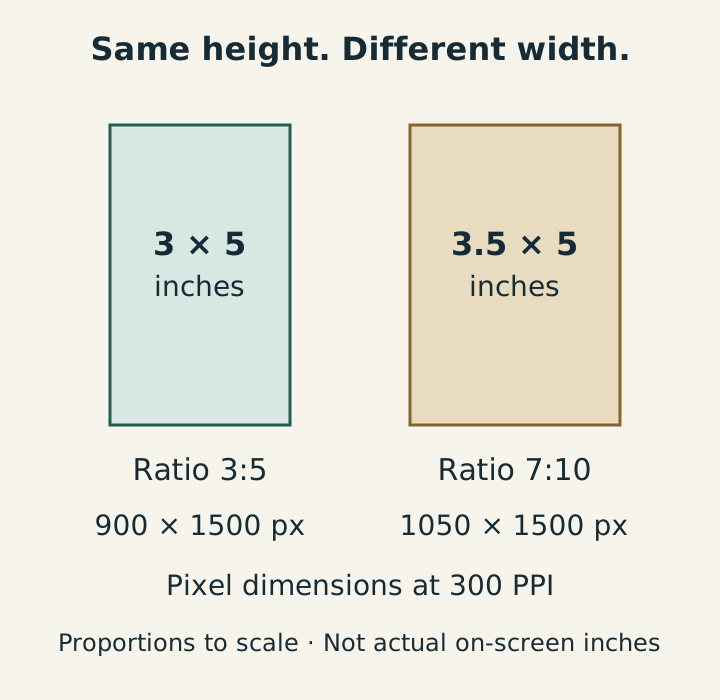
That mismatch causes real production problems. A file cropped for a literal 3 x 5 has a 1.67:1 ratio. A 3.5 x 5 print is 1.43:1. Those are not close enough to treat as interchangeable. If the order is wrong at this stage, someone loses image area, adds borders, or forces the lab to make the decision at the printer.

An infographic explaining 3x5 picture sizes by physical dimensions and aspect ratio for print or digital use.

Practical rule: When someone says “3x5,” ask for the exact inch measurement before exporting anything.

For file prep, the older 3.5 x 5 size has its own ratio targets. At 300 dpi, a clean native file for that print is 1050 x 1500 pixels. Other pixel dimensions can work if they keep the same proportion and the print is scaled correctly. If you need a plain-English refresher on how print resolution interacts with output size, the That Blanket Co resolution guide and this photo resolution guide for print file sizing are both useful references.

When 3x5 means a literal 3 x 5 print

Sometimes the request really does mean 3 x 5 inches. In print catalogs and some frame listings, that size shows up as 3R. It is smaller than the older 3.5 x 5 convention, and it fits different use cases.

I usually see true 3 x 5 prints in compact frames, proof sets, event handouts, and small display pieces where a 4 x 6 would feel oversized. The job is simple once the physical target is confirmed.

Three checks prevent the usual mistakes:

  • Confirm the print size in inches: Ask whether the order is 3 x 5 or 3.5 x 5.
  • Confirm the frame opening: Frame packaging is not always precise. Measure the visible opening or mat window.
  • Confirm the crop expectation: Some clients want edge-to-edge coverage. Others want the full image retained, even if that leaves a white border.

A 3x5 order starts as a terminology problem. Good client delivery starts by resolving that before you resize, export, or print.

Translating Inches to Pixels DPI Explained

A print size in inches doesn't tell the whole story. The file still needs enough pixels to hold detail at that physical size, and that's where DPI becomes useful.

What DPI actually controls

DPI means dots per inch. In plain terms, it tells the printer how tightly image detail is packed into each inch of paper. More dots in the same space usually means finer detail and smoother edges.

A good working analogy is tile. If a floor is covered with large tiles, the pattern looks coarse. If the same floor uses much smaller tiles, the image looks cleaner and more refined. Pixels behave the same way when translated to print.

For day-to-day production, the usual quality checkpoints are straightforward:

  • 72 DPI: Screen-oriented reference size, useful for web previews.
  • 150 DPI: Acceptable for casual printing and proofing.
  • 300 DPI: Standard target for professional photo output.
  • 600 DPI: Higher-density file prep for demanding reproduction workflows.

For a broader plain-English refresher on what print resolution settings mean in practice, That Blanket Co's resolution guide is a useful companion read. For a deeper walkthrough on file sizing decisions before export, this photo resolution guide is also worth keeping bookmarked.

Pixel Dimensions for 3x5 Print Sizes by DPI

The numbers below give the exact pixel dimensions for both meanings of the 3x5 picture size.

Print Size 72 DPI (Web/Screen) 150 DPI (Good Quality) 300 DPI (Pro Standard) 600 DPI (Archival)
3 x 5 inches 216 x 360 450 x 750 900 x 1500 1800 x 3000
3.5 x 5 inches 252 x 360 525 x 750 1050 x 1500 2100 x 3000

A few practical points matter more than the table itself.

First, DPI doesn't rescue a badly cropped file. It only determines how much detail the print can hold at the chosen size. Second, the ratio has to be correct before these pixel dimensions help. A high-resolution file with the wrong shape still gets cropped.

If the print lab has to choose between cropping and leaving borders because the ratio is wrong, the client usually assumes the photographer made the mistake.

That's why export settings should always follow the print spec, not the other way around.

Mastering Aspect Ratio to Avoid Unwanted Cropping

Cropping problems usually aren't resolution problems. They're aspect ratio problems. A file can be large, sharp, and beautifully edited, then still print badly because its shape doesn't match the paper.

Why sensor shape matters more than file size

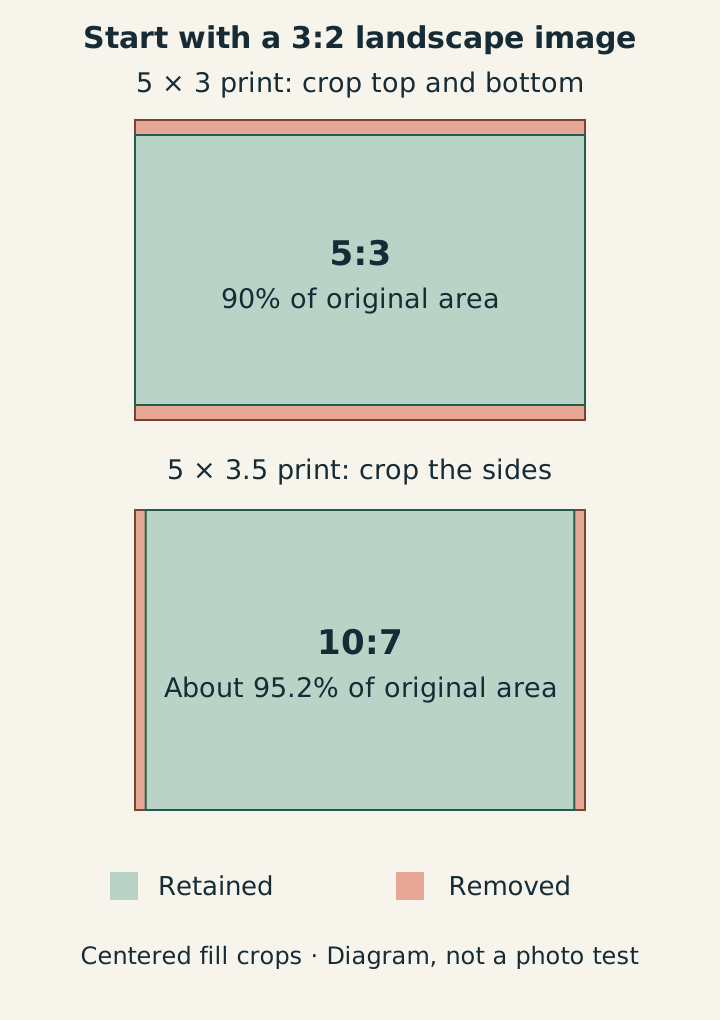
A true 3 x 5 print uses a 3:2 aspect ratio. Most digital cameras also capture in that same 3:2 shape, which is why this print size is so easy to produce cleanly. According to CanvasDiscount's photo size guide, matching that camera ratio to a 3 x 5 print avoids awkward cropping, and the professional 300 DPI target for that output is 900 x 1500 pixels.

That alignment is the easy case. A photographer can take a standard camera file, scale it properly, and keep the entire composition with no forced trim.

The trouble starts when the output target is the older 3.5 x 5 format. That print has a different shape than the camera file. The mismatch is small enough to look harmless and large enough to cut into heads, hands, bouquet edges, table settings, or product spacing.

A professional photographer adjusting the aspect ratio settings on a digital camera mounted on a tripod.

How to preview the crop before export

The reliable way to manage this is to crop intentionally before the lab does it automatically. Every serious editor, whether that's Adobe Lightroom, Capture One, or Photo Mechanic plus an external editor, gives enough control to preview the final shape.

Use this workflow:

  1. Set the crop overlay first: Choose the final aspect ratio before adjusting exposure or local edits around the edges.
  2. Check edge details: Look at fingertips, hair, horizon lines, logos, and background symmetry.
  3. Decide between crop and borders: For some images, preserving the full composition matters more than edge-to-edge fill.
  4. Recenter with the print in mind: A centered digital composition can look slightly off once a tighter print crop is applied.

A near-match ratio is usually more dangerous than a completely different ratio, because it encourages people to skip the preview.

This is especially true with portraits and event work. Small-format prints don't leave much room for sloppy edge management. If the client ordered a desk frame print, every millimeter counts because the viewer sees the image up close.

Printing Prep Bleed Framing and Final Checks

A file can be perfectly sized and still fail at the physical stage. Paper handling, trim tolerance, and frame fit all sit outside the editing software, but they affect the final result just as much as export settings do.

Where bleed helps and where it causes confusion

Bleed is extra image area that extends past the final trim line. Commercial printers use it so that color or image detail runs cleanly to the edge after cutting. Without bleed, a tiny trim shift can leave a thin white sliver on one side.

For small photographic prints, bleed isn't always handled the same way. Some consumer labs auto-crop to fill. Some kiosks ignore bleed settings entirely. Some pro labs want a clear trim-safe approach only for mounted pieces, cards, or press-printed items.

That leads to a practical rule set:

  • For lab photo prints: Confirm whether the lab crops to fill automatically.
  • For press-printed products: Add extra image area if the printer asks for bleed.
  • For home printing: Don't assume borderless mode is borderless on every printer-paper combination.

A useful reference for how prepress thinking applies when trim accuracy matters is integrated book prepress and design from Marquis Book Printing. The context is book production, but the discipline is the same. Build files to the production spec, not the file name.

Frame fit is a production issue not a decor issue

Framing errors usually start with the same confusion as print errors. A frame marked “3x5” may not match the print that the client expects. According to NexFoto's guide to choosing and styling 3x5 picture frames, the safe move is to select frames that explicitly list an opening or mat size of 3 x 5 inches, because frame guides can confuse that with the 3.5 x 5 inch postcard size. The same guide notes that 3 x 5 is slightly smaller than 4 x 6 and works especially well on small surfaces such as a bedside table.

That's why final checks should happen in this order:

  • Measure the intended display method: Frame opening, mat opening, or album slot.
  • Match the print to that opening: Don't rely on shorthand labels.
  • Inspect edge content after crop: Borderless prints and tight mats both hide image edges.

A small print is unforgiving. The tighter the format, the less room there is for a casual assumption.

How to Resize and Export for 3x5 Prints

Export should feel boring. If it feels improvised, something earlier in the workflow wasn't nailed down.

A clean export workflow that works in any editor

The safest workflow works across Lightroom, Capture One, Adobe Camera Raw, and most other serious editors. The menu names vary. The underlying decisions don't.

Start with the final print spec, then export for that exact target:

  • Choose the physical size first: Decide whether the file is for 3 x 5 or 3.5 x 5.
  • Crop to the correct ratio: Don't leave this to the print lab.
  • Set the long and short pixel dimensions: Use the exact dimensions that match the chosen size and DPI target.
  • Set resolution metadata to 300 DPI: That keeps the file aligned with standard photo print expectations.
  • Export in a practical format: JPEG for typical lab delivery, TIFF when a printer specifically wants a less compressed file.
  • Use sRGB unless the lab states otherwise: It remains the safest handoff color space for mixed client and lab environments.
  • Apply output sharpening for print: Moderate print sharpening usually works better than leaving a file soft.

If a client hands over DNG originals or asks for a simpler print-friendly file set, this guide on converting DNG to JPG is a practical reference to keep the handoff clean.

Settings that usually cause trouble

Most failed exports don't come from exotic mistakes. They come from a few routine ones.

One common problem is resizing by percentage instead of by exact dimensions. Another is leaving “resize to fit” enabled in a way that changes one side but not the intended aspect ratio. The third is over-compression. A tiny JPEG might still meet the nominal pixel count, but it can show artifacts in skin, gradients, and fine texture.

Keep one export preset for true 3 x 5 prints and a separate preset for 3.5 x 5. A single “small print” preset invites mistakes.

For photographers who also deal with display and preservation concerns after printing, archival movie poster framing from POPvault is a worthwhile example of how presentation choices affect the longevity and appearance of printed work. The format is different, but the principle carries over. Print prep doesn't end when the file exports.

Delivering Print-Ready Files to Clients

The final failure point isn't editing or printing. It's delivery. A photographer can prepare perfect files, then undo the professionalism by sending an unlabeled folder full of mixed resolutions and hoping the client guesses correctly.

Screenshot from https://sendphoto.io

Separate screen files from print files

Clients rarely misuse files because they're careless. They misuse files because the handoff wasn't explicit enough. The clean fix is to deliver two clearly named sets.

A practical structure looks like this:

  • Web-resolution folder: Smaller files for phones, email, and social sharing.
  • High-resolution print folder: Files cropped and exported for the intended print use.
  • Naming that states the purpose: “Smith Family 3x5 Print Files” works better than “Final Edits 2.”

That sort of separation reduces support questions and protects the print result. It also makes reorders easier months later because the intended use is preserved in the folder structure. For photographers refining that client handoff process, this client photo delivery guide for professional photographers gives a useful framework for organizing galleries and downloads cleanly.

One more practical asset helps show clients what a polished gallery experience can look like:

Why delivery structure now matters more than ever

Photography is now overwhelmingly digital-first. According to the referenced industry shift summary on Reddit, smartphones capture 92.5% of all pictures worldwide, digital camera sales have dropped 87% from 2010, and the world takes 1.72 trillion photos per year in 2024. Whether every client orders prints or not, those numbers reflect the reality photographers work inside. Clients often receive images digitally first and think about printing second.

That changes the job. Delivery isn't just a transfer step anymore. It's where the photographer teaches the client which files are for screens, which are for print, and how to avoid accidental low-quality orders from a phone gallery or messaging app.

A professional handoff usually includes:

  • Clear folder labels: So the client doesn't confuse print files with social files.
  • Download guidance: A short note telling the client which folder to use for labs and frames.
  • Consistent naming: Helpful for weddings, family sessions, school portraits, and product catalogs.
  • Access controls when needed: Especially for client work that shouldn't circulate loosely before approval.

When delivery is organized, clients assume the rest of the workflow was organized too. That's good business because the delivery experience is often the only part of the technical workflow they see.


SendPhoto gives photographers a polished way to deliver both web-ready galleries and print-ready files without the usual confusion of generic transfer links. It supports bulk uploads, clean folder organization, download controls, password protection, and branded presentation, which makes it easier to separate screen files from high-resolution print files in one client-friendly gallery. For studios that want faster handoffs and fewer “which files should we print?” emails, SendPhoto is built for exactly that job.

Need a cleaner way to deliver the finished gallery?

SendPhoto gives photographers client galleries with passwords, watermarks, collections, and download controls.