
To edit photos like a movie, start with the feeling of the scene before touching color sliders. Cinematic editing is not only teal shadows or faded blacks. It comes from controlled contrast, intentional color, believable skin tones, strong framing, and a final grade that supports the story of the image.
Choose one existing photo and use this guide to decide which look suits it, compare a corrected version with a creative version, and know when to stop. Keep the original and save an editable copy before experimenting. The worked visual example below is credited to Adobe and photographer Cyn Lagos; it is not our own shoot or editing test.
For detailed explanations of the individual controls, use our cinematic editing techniques guide. For planning and photographing a scene from scratch, use the shoot-to-export cinematic photo tutorial. Here, the task is choosing and evaluating the treatment for a photo you already have.
What Makes a Photo Look Cinematic?
Cinematic photos usually share a few traits:
- Light has direction and shape.
- The frame has a clear subject.
- Contrast is controlled, not accidental.
- Colors feel intentional and limited.
- Skin tones remain believable.
- Highlights and shadows support the mood.
- Cropping guides the eye.
- The final set feels consistent from image to image.
Write a short brief for your selected frame: "Keep the face readable, quiet the bright background, and retain the room’s warm light." Name one feature you must preserve, such as shirt detail or the actual color of a product. Editing can change the mood, but it cannot reliably recover detail absent from the source file.
Cinematic Editing Workflow
- Select: Choose a frame with a readable subject and useful light or depth.
- Correct: Balance exposure, white balance and recoverable highlights; save this neutral version for comparison.
- Shape: Use a curve or local adjustments to direct attention without losing important detail.
- Choose: Try one color direction that suits the existing scene.
- Protect: Compare skin, clothing and other important colors against the corrected version.
- Finish: Judge crop and texture at the intended viewing size, then reopen an exported copy.
Keep three states if your editor supports versions or copies: the original, the corrected base and the graded candidate. Compare the last two to judge the creative change fairly; a brighter image is not automatically a better grade.
Start With a Cinematic Frame
Before investing time in your chosen frame, inspect the light, subject and edges. These checks also help you decide what to photograph differently next time.
Look for Directional Light
Side light, window light, backlight, practical lamps, street lights, and golden-hour sun all create shape. Flat light can still work, but it often needs stronger composition or color to feel cinematic.
Use Foreground and Background
Shoot through doorways, windows, fabric, reflections, plants, or architecture. Layers make the frame feel more like a scene than a snapshot.
Keep the Background Intentional
Look for a bright sign, cut-off limb or competing face near the edges. For an existing image, try a reversible crop before adding a heavy grade. When reshooting is possible, moving the subject or camera can solve the distraction more cleanly.
Step 1: Build a Clean Base Edit
Do not start with a heavy preset. First, make the photo technically stable.
Adjust:
- Exposure so the subject is readable.
- Highlights so bright areas keep detail when possible.
- Shadows so important parts of the image are not blocked up.
- White balance so skin does not look accidentally green, gray, or overly orange.
- Lens corrections if distortion distracts from the subject.
Save this as your corrected base. Check the histogram and the picture together: a deliberately dark background can be appropriate, while a clipped face may undermine the image. Highlight recovery depends on what the file actually contains.
Step 2: Shape Contrast With Intention
Choose the first place the viewer should look, then compare it with the brightest area in the frame. If a window or sign wins instead of the subject, solve that local distraction before increasing global contrast.
Use the Tone Curve
The tone curve lets you shape shadows, midtones, and highlights more carefully than a single contrast slider. A gentle S-curve can add depth. A lifted black point can soften the shadows for a quieter mood. A deeper black point can make the image feel more dramatic.
Dodge and Burn
Brighten the face, hands, or important details slightly. Darken distracting edges, bright patches, or background elements. Small local changes often make a photo feel more cinematic than a global preset.
Avoid Crunchy Midtones
Too much clarity or texture can make skin and backgrounds look harsh. Use local adjustments where detail matters instead of applying heavy structure to the whole image.
Step 3: Choose a Color Direction
Try one of the directions below on a copy of your corrected base. Use the scene’s existing light as the starting point; you do not need to make all four versions. Compare the candidate with the base before adding grain or changing the crop.
Warm Highlights and Cool Shadows
This is a familiar cinematic direction because it creates separation. Warm and cool areas can separate visually, although their emotional effect depends on the scene. Keep it subtle so skin does not turn orange and shadows do not turn neon blue.
Earthy and Muted
Lower saturation in greens and yellows, keep warm skin, and use soft contrast. This works well for lifestyle sessions, documentary weddings, and outdoor portraits.
Night and Neon
Use rich shadows, colored practical lights, and careful highlight control. This look works best when the original image includes street lights, signs, lamps, or colored reflections.
Clean Editorial
Use neutral whites, controlled contrast, and restrained saturation. This style works for fashion, branding, studio portraits, and galleries where the images need to feel polished without looking heavily filtered.
Step 4: Keep Skin Tones Believable
Skin is where many cinematic edits fail. If the grade makes people look gray, green, or overly red, the image feels less professional.
Compare the same facial area before and after each major color move under the same display conditions. Skin varies with the person and lighting; there is no universal target hue. A broad orange, red or yellow adjustment may also change clothing and background objects. If only the background needs a shift, use a local mask instead.
Practical skin-tone checks:
- Compare before and after at normal viewing size.
- Zoom out and see whether the face still feels alive.
- If the edit introduces an unwanted red cast, first reduce the adjustment that caused it.
- If the face becomes too cool relative to the intended light, compare with the corrected base before changing white balance again.
- Mask color grading away from faces when needed.
Step 5: Crop Like a Scene
Cropping can make an ordinary frame feel more cinematic. Use the crop to create intention, not just to remove distractions.
Try:
- Wider crops with negative space for quiet images.
- Tight crops for emotional portraits.
- Centered composition for formality or tension.
- Off-center composition when the environment matters.
- Horizontal crops for a film-still feeling.
Compare the original crop with one alternative at the same display size. Keep the version that clarifies the subject and still suits the intended print or screen. Do not force a vertical portrait into a wide frame merely to imitate a movie still.
Step 6: Add Texture Without Hiding the Photo
Grain, halation-style glow, soft vignettes, and gentle blur can support a cinematic mood. They can also become gimmicks if overused.
Turn each finishing effect off and on separately. Check a full view for mood and a close view for halos, smeared edges or coarse grain. Judge the exported size too: resizing can change the apparent texture. Keep the effect only when it improves the brief you wrote at the start.
Study a Real Before-and-After
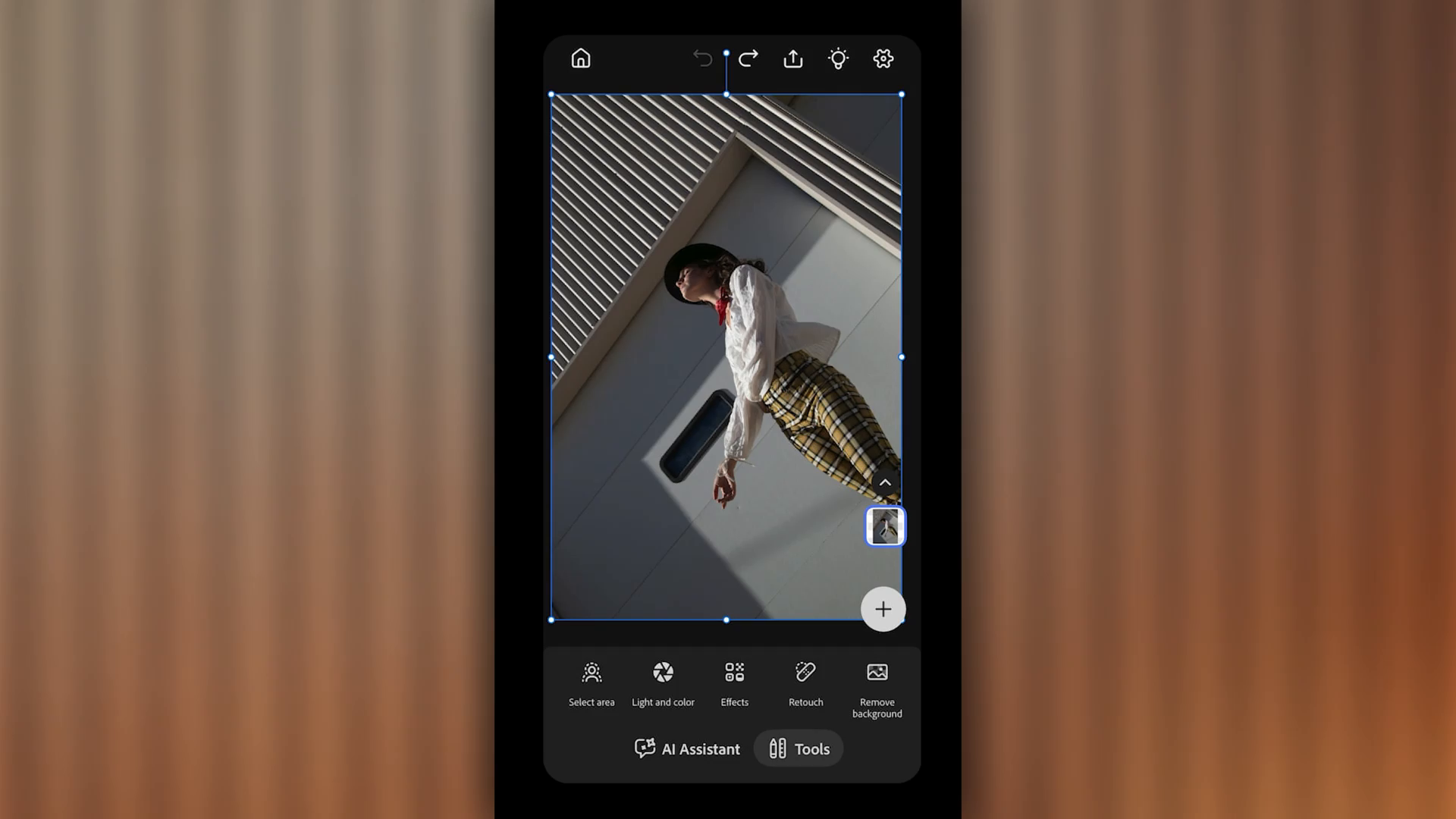
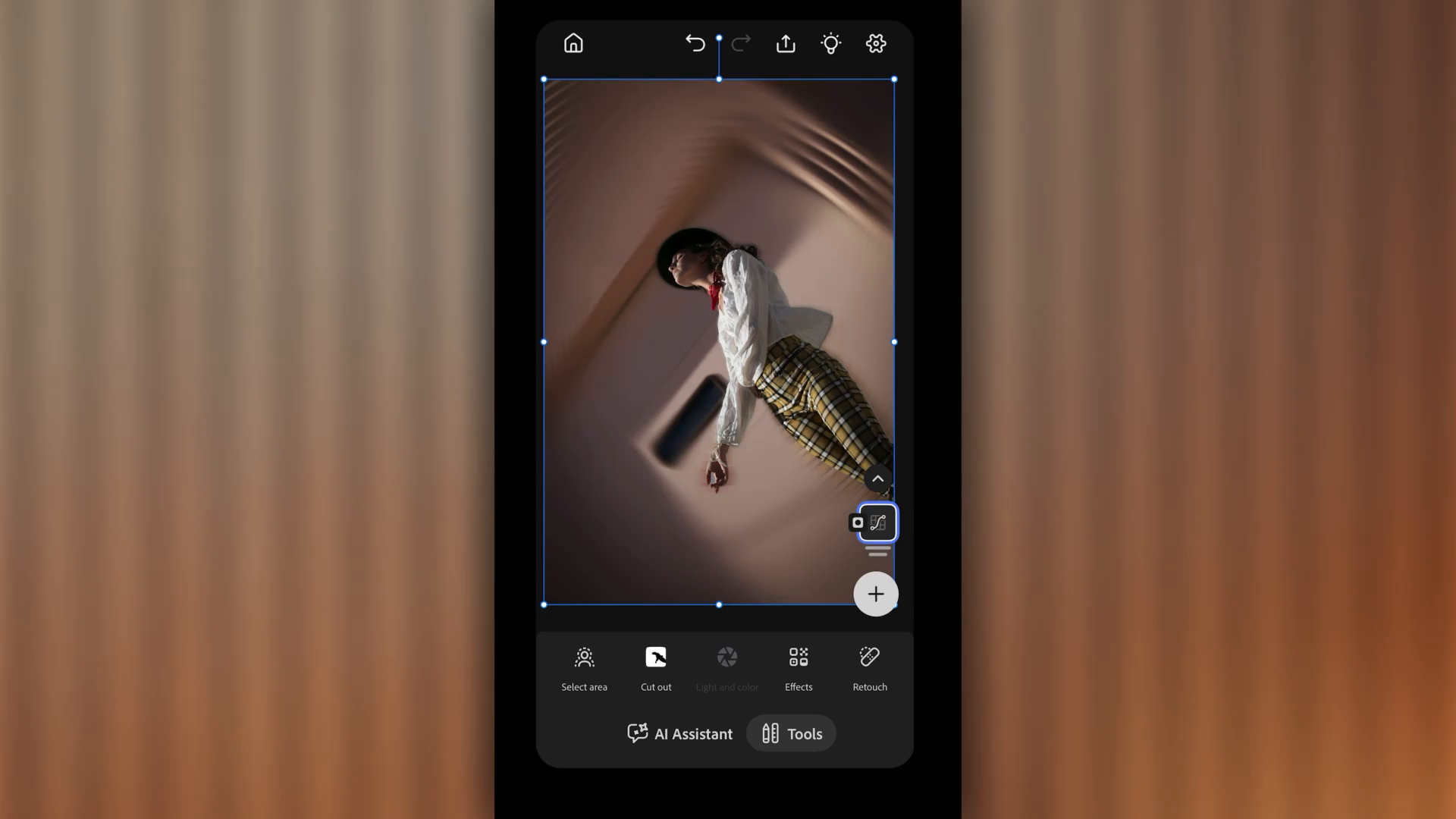
In Cyn Lagos’s Adobe lesson, the same portrait changes through vignetting, selected-background blur and curves in Photoshop mobile. These unaltered video frames show the starting view at 0:32 and later result at 2:40. They demonstrate a combined lighting and color treatment, not a color-only comparison.
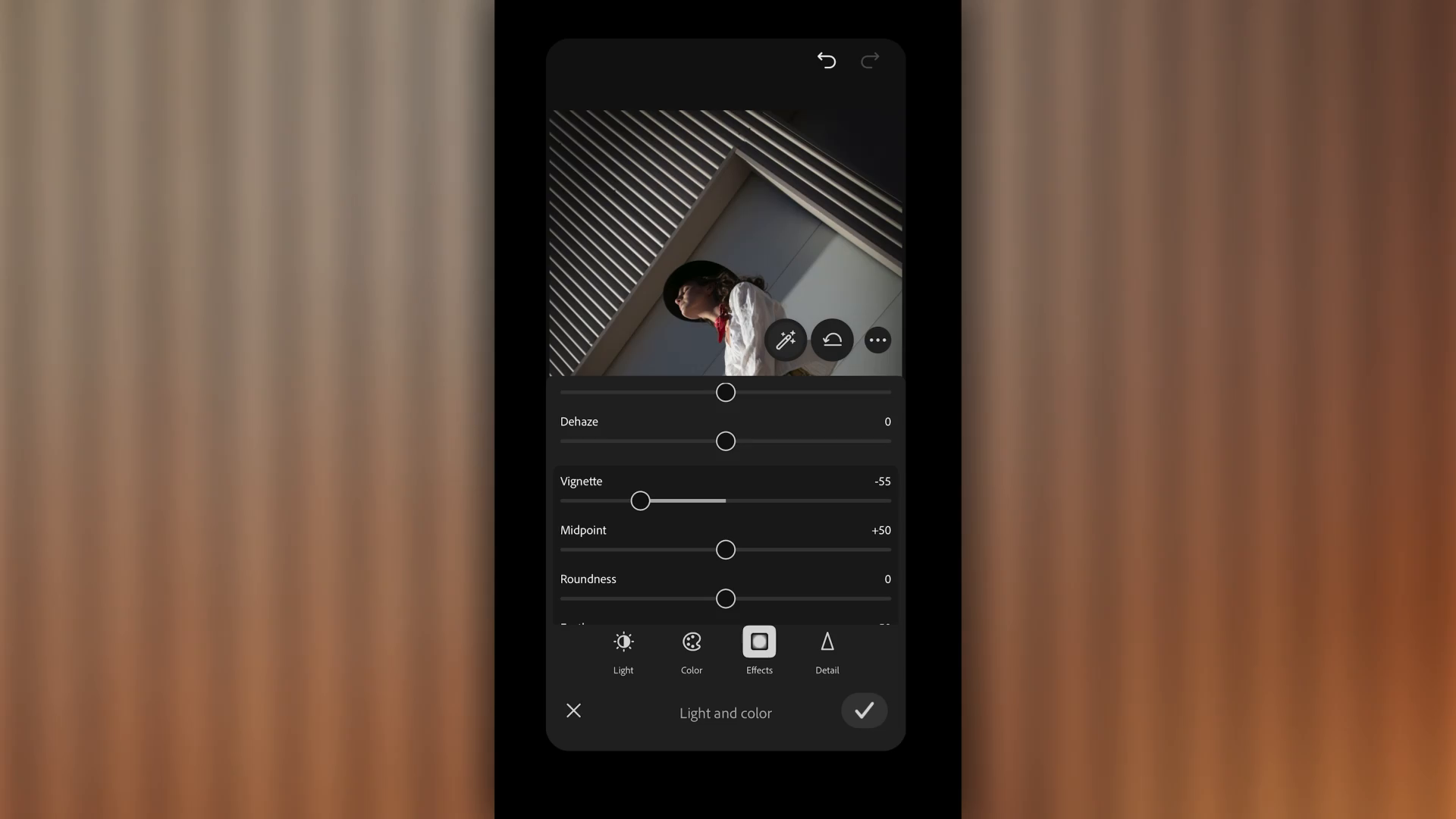
At 0:42, the displayed controls show Vignette −55, Midpoint +50 and Roundness 0; see the genuine settings frame. These are intermediate values, not a complete final recipe. The video demonstrates curve changes without a full numeric record.
For your own comparison, ask whether attention moves toward the subject, whether important texture survives, and whether the treatment suits the photograph’s purpose. A fashion illustration can support stylized blur; a documentary record may require a more restrained approach.
Example Cinematic Looks
Use these as decision prompts for your chosen image, not guaranteed slider recipes. Keep only the moves that support the existing light and the agreed use.
Romantic Golden Hour
Try when: the photo already has warm backlight. Use soft contrast and reduce competing greens if needed. Reject the change when: faces become orange or the glow erases important outlines.
Moody Indoor Portrait
Try when: the face has useful directional light but room edges compete. Quiet the edges and retain the lamp’s warmth. Reject the change when: the face looks spotlighted by an obvious mask or the room loses its intended atmosphere.
Urban Night Session
Try when: neon or streetlights already shape the scene. Retain readable signs and reflections while separating the subject. Reject the change when: colored highlights clip or deepened blacks swallow clothing and expression.
Documentary Wedding Reception
Try when: the warmth and mixed light are part of the event’s atmosphere. Correct distracting casts without making every light neutral. Reject the change when: the grade alters the mood or colors so much that the image misrepresents the scene.
Cinematic Editing Checklist
- Pick images with strong light and clear subject separation.
- Make a clean base edit before color grading.
- Use contrast to guide the eye.
- Choose a limited color palette.
- Protect skin tones.
- Crop with intention.
- Use grain and glow sparingly.
- Apply the look consistently across the gallery.
- Export the candidate and reopen it before applying the treatment to the set.
Record the decision in one sentence, for example: "Keep the warmer candidate because the face is clearer; reduce the vignette because it hides the jacket." If you cannot name what improved, return to the corrected base before making further changes.
Delivering Cinematic Photo Sets
Cinematic edits often work best as a cohesive story. Group images by scene, light, or location so the client experiences the set in the order you intended. A gallery delivery workflow can help present finished images in a polished client-facing format, and download settings let you configure available downloads. Organize and label preview and final exports deliberately; a permission setting does not explain which edit the client should use.
For private portraits, an optional gallery password gates entry but does not verify the viewer’s identity; recipients can forward it. Download settings do not prevent screenshots or later sharing of saved files. Keep the editable master in your own archive and tell clients which exports are intended for print or web use.
FAQ
How do I edit photos like a movie?
Start with a strong frame, balance exposure and white balance, shape contrast, choose a limited color palette, protect skin tones, crop intentionally, and add subtle finishing texture.
What colors make a photo look cinematic?
Many cinematic edits use controlled contrast between warm and cool tones, muted backgrounds, or a restrained palette. The best color choice depends on the light, subject, and mood of the image.
Do I need presets for cinematic editing?
No. Presets can be useful starting points, but cinematic editing depends more on light, contrast, color control, and consistency than on a single preset.
Why do my cinematic edits look muddy?
Muddy edits usually come from weak contrast, too many midtones, heavy color shifts, or oversaturated shadows. Rebuild the base edit, add tonal separation, and reduce global color effects.