
Good Instagram photo editing is less about a dramatic preset and more about repeatable choices: crop for the post format, keep skin tones believable, use consistent contrast and color, sharpen lightly for small screens, and export a clean file that still looks natural after upload. If you are editing for a brand, client, or personal portfolio, build the look before you start posting so every image feels connected without looking copied.
Use this workflow to make deliberate editing choices and keep social exports separate from client masters. The Adobe screenshots below are a credited documentary example; the export recipe and carousel exercise are proposed steps, not an upload test or evidence of increased engagement.
Start With the Feed Goal
Before editing, decide what the photo needs to do. A single portrait, a product launch carousel, and a wedding preview all need different editing choices.
Ask three questions:
- Should the image feel warm, clean, moody, bright, editorial, or natural?
- Will it sit next to older posts that already define the feed style?
- Is the subject a person, product, place, food item, or event moment?
Let the intended use guide the edit. Product listings may need faithful color; an expressive portrait or landscape may suit a stronger grade. For client previews, agree on the intended treatment rather than assuming every subject should fit one preset. A consistent feed can repeat a few choices without making every photograph identical.
Crop Before You Fine-Tune
Edit with the final crop in mind. A photo can feel balanced in the full camera frame but weak once it is cropped for a post, Reel cover, story, or carousel.
Check these before final color work:
- The subject is not too close to the edge.
- Important details are not cut off in the crop.
- Faces and product labels remain easy to read on a phone.
- Carousel images feel consistent when swiped.
- Negative space supports captions, tags, or overlays if you use them.
For client work, save a master edit first, then create the social crop from that version. Keep faces and text clear of the intended crop and interface overlays. Review the selected posting surface’s preview before sharing; feed, profile, Story and Reel-cover displays should not be assumed to crop identically. A scheduling tool can also have its own requirements.
A documented square crop in Lightroom mobile
Adobe’s Instagram editing lesson demonstrates this square workflow: open a photo, tap Crop, choose 1 x 1 Square, reposition the photo and confirm. Fine-tune Light and Color, then compare with the original. Menus can vary by app version.
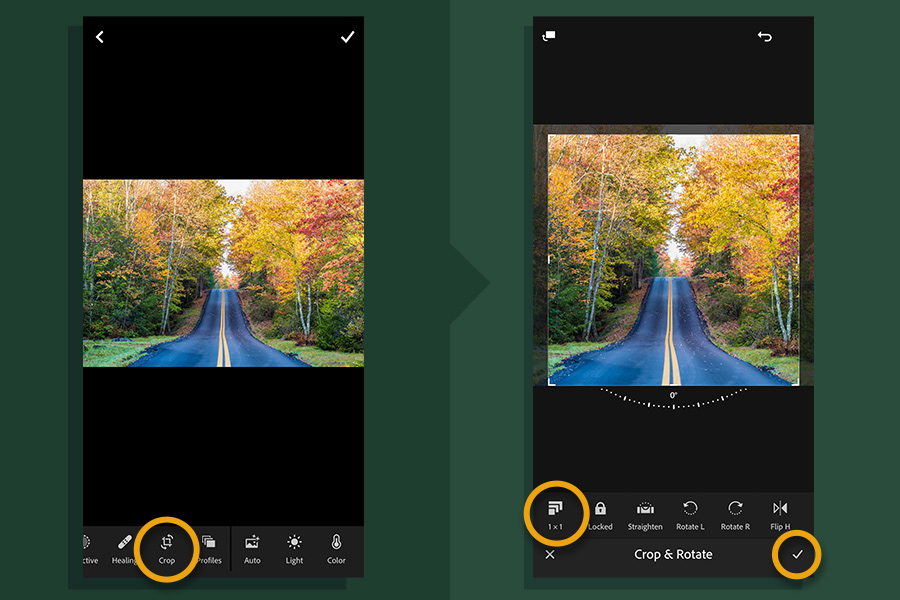
Choose a different available crop when it suits the photograph and posting surface. Check each carousel slide rather than assuming the same crop preserves every important detail.
Build a Consistent Color Base
Uneven white balance can make a set feel inconsistent. Lighting, exposure, subject color and grading also matter. Try this adjustment order, then revisit earlier choices if later changes alter the balance:
- Set white balance so whites and skin tones look believable.
- Adjust exposure before adding contrast.
- Reduce distracting highlights where recorded detail remains; a slider cannot recover detail absent from the source.
- Open shadows only enough to show useful detail.
- Apply a small color grade once the image already looks balanced.
If you use presets, treat them as a starting point. A preset made for golden-hour portraits can make indoor skin look orange or product photos look inaccurate. Adjust each image after applying it.
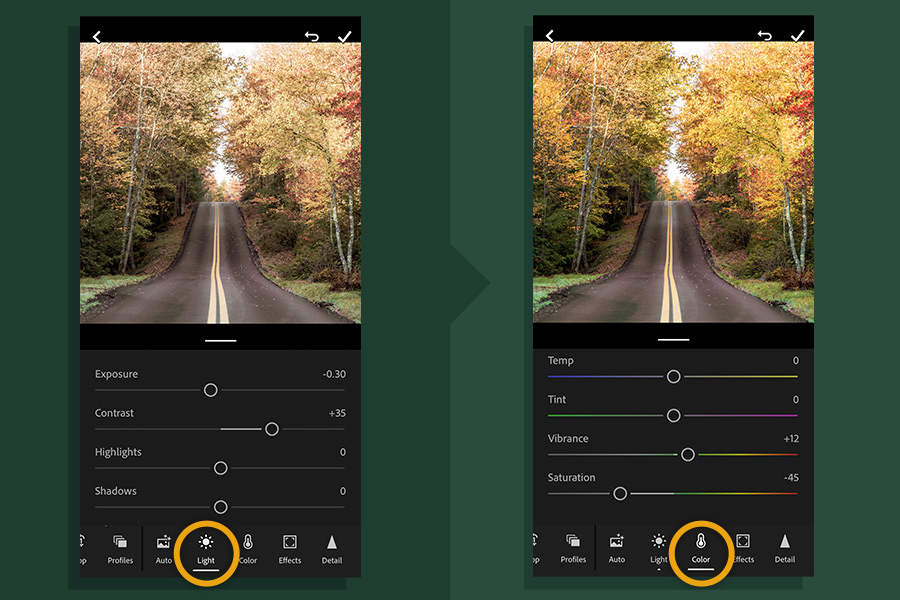
Read the example as a set of choices: the road and trees remain the subject while brightness and color treatment change. It does not establish that this treatment suits a portrait or product photograph.
Keep Skin Tones Natural
Skin tone problems are easy to miss when chasing a feed aesthetic. Before exporting, zoom out and compare the face to the rest of the image.
Watch for:
- Orange skin from too much warmth or saturation.
- Gray skin from heavy desaturation.
- Green or magenta casts from mixed indoor light.
- Over-smoothed texture that looks artificial.
- Eyes and teeth that are brightened beyond the rest of the edit.
For client previews, use the agreed treatment and avoid making skin fit a preset at the expense of recognizable appearance. Mixed lighting may require local correction instead of one global white-balance change. Skin varies across people and scenes; do not target one supposedly universal color value.
Use Contrast and Sharpness for Small Screens
Instagram photos are usually viewed quickly on phones, so the edit needs clarity without harshness.
Use contrast to guide attention. Global contrast can establish the overall look; local changes can emphasize a subject without changing every area equally. Check fine edges for sharpening halos and coarse-looking texture. Review the exported file at its intended viewing size and inspect the posting preview rather than assuming platform processing leaves it unchanged.
A simple export check:
- View the image at phone size.
- Step away from the monitor or zoom out.
- Ask whether the subject reads immediately.
- Check whether highlights, skin, or text look harsh.
A proposed social export in Lightroom Classic
For an ordinary SDR image, use a separate social-export folder and a consistent filename suffix such as -social-square. Adobe’s color-management guidance gives sRGB as an option for sharing online; it does not guarantee identical color on every display.
Use Lightroom Classic’s Export controls for this proposed recipe:
- Crop the social version to your chosen shape; for this square example, use 1:1.
- Choose JPEG and sRGB in File Settings. Quality 85 is a proposed starting value, not an Instagram requirement or measured optimum. JPEG compression is lossy; inspect the result.
- For the square example, set Resize To Fit → Width & Height to 1080 × 1080 pixels and enable Don’t Enlarge. Smaller sources will stay smaller. This is an illustrative output size, not a claim about every current Instagram placement.
- Choose screen output sharpening if useful and inspect edges. Remove location metadata when it should not travel with the file.
- Export, open the actual JPEG and check its dimensions, crop and color before selecting it for posting.
Keep the master separately. Avoid repeatedly resaving the social JPEG. If you work in HDR, use a workflow appropriate to that output and preview its SDR appearance where relevant; these SDR choices do not guarantee identical HDR display or platform behavior.
Editing Workflow by Photo Type
| Photo type | Main editing priority | Common mistake |
|---|---|---|
| Portrait | Skin tone, eyes, natural contrast | Making skin fit the preset instead of the person |
| Product | Accurate color, clean whites, visible detail | Adding a mood grade that changes the product |
| Food | Fresh color, texture, controlled highlights | Oversaturating greens, reds, and yellows |
| Landscape | Light direction, depth, atmosphere | Pushing clarity and saturation too far |
| Event | Batch consistency across lighting changes | Editing every image as if it came from the same scene |
Make Carousels Feel Intentional
A carousel should feel like one small story. Do not edit each slide in isolation.
Start with a strong opener, then vary the frames: wide scene, medium moment, detail, close-up, and final image. Keep color and contrast close enough that the swipe feels smooth. If one image was shot under very different light, edit it to belong with the set, not to match perfectly.
For photographers, a short carousel can preview a gallery while leaving the full set for delivery. Use only images you are permitted to publish. For a practice sequence, choose an opener, a wider scene and a detail from one shoot. Compare their white balance, brightness and crop together, then adjust the outlier without forcing every lighting condition to look identical. This is an exercise, not a measured feed result.
Separate Social Edits From Client Delivery
The file you post on Instagram is not always the file you should deliver to a client. Social edits may be cropped, sharpened for phone viewing, compressed, or adapted to your feed style. Client galleries should keep the agreed final images organized and easy to download.
SendPhoto’s gallery delivery organizes supported media into collections. Use its download control for the intended gallery and applicable collection permissions. Photo download options Original and Scaled down do not create a separate Instagram edit for you; upload the agreed delivery files. With a gallery watermark applied, Original may select a generated marked image rather than the clean uploaded source.
For restricted access, configure optional password protection before sharing. A forwarded link and password can grant access, and download restrictions do not prevent screenshots. Collections are not separate passwords. Keep an independent archive and obtain any required permission before posting client images publicly.
Final Instagram Photo Editing Checklist
- Crop works for the intended post format.
- White balance is consistent across the set.
- Skin tone looks natural.
- Product or brand colors are not distorted.
- Contrast supports the subject without crushing shadows.
- Highlights are controlled.
- Sharpening looks clean at phone size.
- Carousel slides feel like one story.
- Social export and client delivery files are kept separate; the actual exported JPEG and posting preview have been checked.
For more workflow guides, visit the SendPhoto blog.