
A file size limit can apply to one photo, one video, the whole account or an email message. Before shrinking a client file, identify which limit stopped the transfer. A smaller batch will not make an oversized individual file acceptable, and deleting old files does not necessarily restore an upload allowance.
SendPhoto's current per-file ceilings are 1 GiB for a photo and 30 GB for a video, subject to enough remaining account storage and, on Free, remaining upload credits. The photo ceiling is 1,073,741,824 bytes; the video ceiling is 30,000,000,000 bytes. These limits were checked on September 28, 2026. They describe accepted upload size, not a guarantee that every file format or video will process successfully.
Find the limit before choosing a workaround
Start with the exact error and the point where it appears:
- One file is rejected immediately: check its byte size and format against the receiving service's per-file rules. A file extension, image dimensions or unsupported format can cause rejection even when its byte size is small.
- The message mentions remaining storage: compare the whole upload with the account's available space. Files already stored and uploads in progress can leave less room than the headline plan capacity.
- The message mentions upload credits: check the remaining allowance separately from storage. Deleting a completed upload can free storage without refunding the credits used to upload it.
- You cannot create another gallery: check the gallery allowance. Moving the same files into a new gallery does not increase account storage.
- The transfer starts and then stalls: check the connection, device sleep and the failed item in the upload job. Retry failed files after the current attempt settles; do not immediately re-upload the whole selection.
- Only the email fails: check the sender and recipient's message limits. Send a gallery or cloud link when the files already uploaded successfully elsewhere.
Record the filename, extension, size, error text and approximate failure time. Those details help distinguish a size rejection from a network interruption or processing failure. Keep the original files while troubleshooting.
SendPhoto limits: file size, storage and credits
The per-file ceiling applies to each item, while storage and upload credits apply across the account. A small file can therefore be refused when the account has no room left.
- Photo upload: up to 1 GiB per file. The application may express this as a 1024 MB upload limit. Supported RAW files use the photo upload path; RAW does not mean exempt from the size limit.
- Video upload: up to 30 GB per file, with enough remaining storage and credits. A 30 GB ceiling does not mean a Free account can hold a 30 GB video.
- Free account: 5 GB storage, one gallery and 10 GB lifetime upload credits, as listed on the current pricing page.
- Paid storage: current tiers range from 20 GB to 1 TB. Choose capacity for all active projects and check the gallery allowance shown for your account rather than treating storage as a per-gallery allocation.
- File count: the upload workflow accepts batches and queues their items. There is no separate fixed photo-count allowance in the current upload checks; available bytes, credits and file validity still constrain the batch. This is not a promise that any size of selection will upload instantly or without interruption.
Storage and lifetime credits measure different things. Storage concerns files currently retained. Lifetime upload credits concern bytes uploaded over time. On Free, removing an old delivery does not reset the lifetime allowance. An upload can also be blocked by space reserved for items still in progress, so let the current job finish before comparing the meter with a new batch.
As an illustrative calculation, 600 exports averaging 12 MB require about 7.2 GB before adding video or alternate versions. None is near the individual photo ceiling, but together they exceed a 5 GB account. A smaller individual-file limit would be irrelevant to that particular problem.
Read the upload error and take the matching next step
SendPhoto can show an “Upload failed for” notification with the affected filename and a more specific detail. The following messages identify different next steps:
- “Upload limit is 1024 MB.” The photo exceeds the per-file ceiling. Export a suitable smaller delivery copy if that meets the brief, or use an agreed alternative for the unchanged master. A larger storage plan does not raise this photo ceiling.
- “Video upload limit is 30 GB.” The video exceeds the per-file ceiling. Make an appropriate delivery export, agree on meaningful separate parts, or arrange a different transfer for the unchanged master.
- “Storage limit has been reached” or “Upload exceeds remaining plan storage.” Review the active library and pending uploads. Increase capacity or remove files you have independently backed up and no longer need online. Splitting into more galleries does not create space.
- “Upload credits limit reached” or “Upload exceeds remaining upload credits.” Review the Free lifetime allowance and plan options. Repeatedly deleting and re-uploading will not reset it.
- “Large video uploads require the latest app version.” Refresh the app after active work has settled, then retry the failed video.
- “Upload queue is busy. Please retry shortly.” Wait before retrying. This is a temporary queue condition, not proof that the file is too large.
- “Uploaded file size does not match the selected file.” Keep the source file and retry the failed item on a stable connection. If it repeats, contact support with the filename, size and error.
If the detail instead reports an unsupported format, reducing the byte size alone will not resolve it. A file that uploads but remains in processing needs a different diagnosis from one refused before transfer.
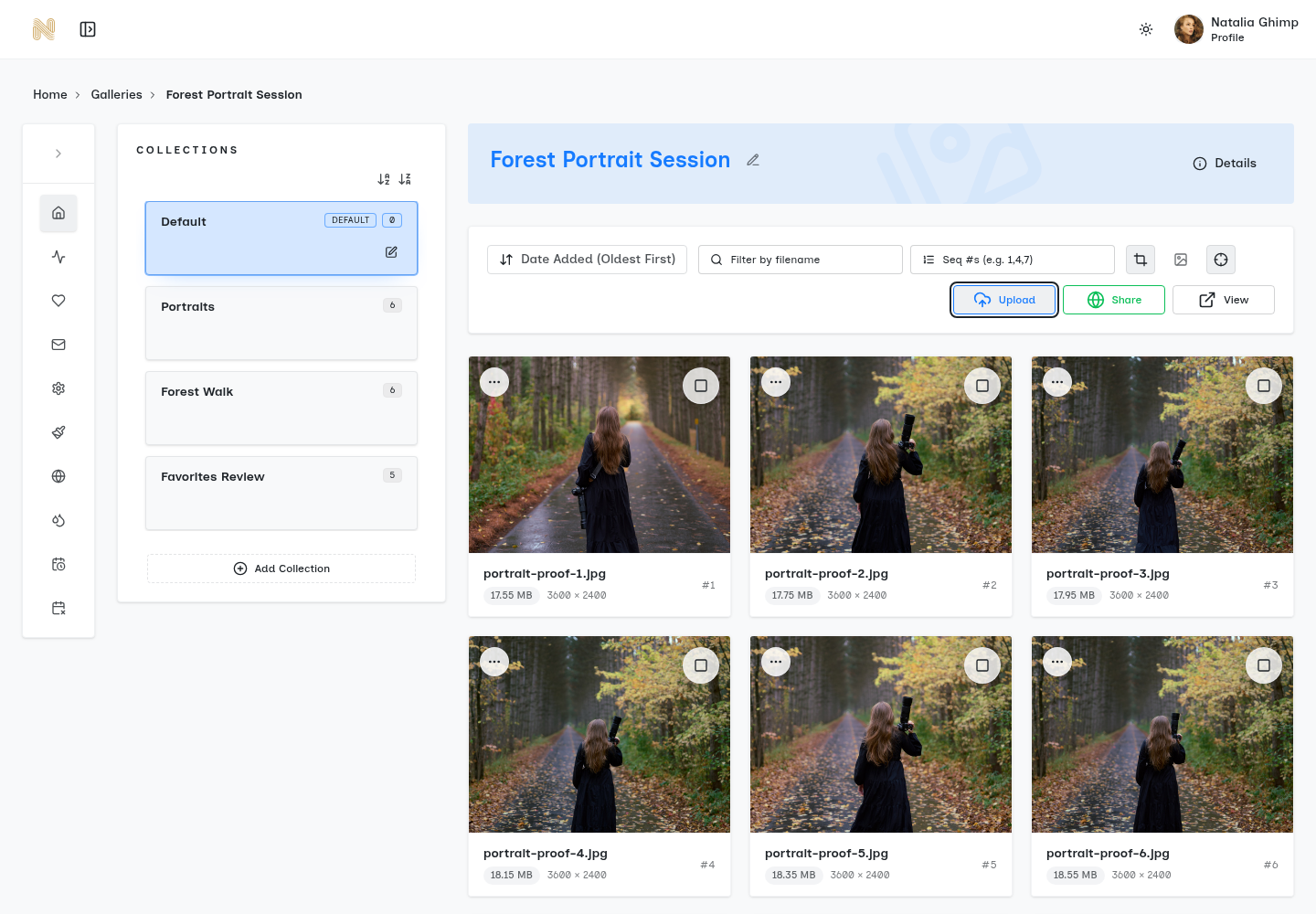
Use the getting-started guide for the ordinary upload steps. For a persistent failure, contact SendPhoto support with the error details; do not include passwords or unrelated client material.
Compare the upload path, not just the advertised maximum
Provider limits below were checked on September 28, 2026. Use the rule for the actual account and application receiving the file. Account storage remains a separate constraint.
Dropbox: its upload-limit documentation lists a 2 TB maximum per file, within available storage. It recommends the desktop app or API for large files and warns that browser uploads above 375 GB can time out or be interrupted. That is an upload-path recommendation, not additional storage included with every account.
Box: its maximum-file-size guide lists 250 MB for Free personal, 5 GB for Personal Pro, 2 GB for Starter, 5 GB for Business, 15 GB for Business Plus, 50 GB for Enterprise, 150 GB for Enterprise Plus and 500 GB for Enterprise Advanced. Check Account Settings → Account details → Max file size. Box Mobile and Box Sync have a 15 GB application limit, and email uploads have a 50 MB limit. In a shared folder, the folder owner's plan determines the file-size allowance.
A service suited to a single large master may not be the most convenient place to review a whole portrait selection. Compare file acceptance, total space, client browsing and the download arrangement. The photo-hosting comparison covers more of those workflow differences.
Email limits apply to the message you send
Personal Gmail: Google's attachment instructions list a 25 MB attachment limit. When the total exceeds the limit, Gmail substitutes a Google Drive link. Work and school accounts have administrator-controlled sending and receiving limits, so do not assume a personal-account rule applies to a client's organization.
Outlook.com: Microsoft's Outlook.com attachment guidance gives a 25 MB email limit including text, inserted content and attachments. This is a rule for Outlook.com, not every mailbox opened in the Outlook desktop application. Workplace mail systems can enforce different limits.
The recipient's rules can be lower than the sender's. Leave room for message overhead rather than assuming a file exactly equal to a published limit will pass every mail system.
Use an attachment for a small agreed preview or document. Use a gallery link for a finished selection and a suitable file-transfer link for a large master when needed. Check the link's recipients and download permission; converting an attachment into a cloud link changes how the recipient gets the file.
Reduce size only when it preserves the agreed deliverable
Keep your working originals. Export copies with dimensions and quality appropriate to the client's purpose. A web preview and a print file have different requirements, while an agreed RAW or video master should not silently become a smaller derivative.
For photographs, review pixel dimensions, compression quality and format. For video, duration, resolution, frame rate and bitrate all affect size. Renaming an extension does not convert a file. Putting JPEGs or compressed video into a ZIP often saves little; it also changes how the recipient opens the delivery. Do not upload an archive to a photo-gallery uploader unless that format is supported.
Separate previews from finals with clear filenames and collections. Split a large project when it improves navigation, permissions or the recipient's ability to download manageable sets. Splitting a batch does not bypass a per-file cap, and splitting a gallery does not bypass account storage or lifetime credits.
If a file cannot be copied to a local disk before upload, troubleshoot that disk's free space and format first. If it copies and opens locally but the service rejects it, use the receiving service's error rather than changing the workstation's filesystem. If transfers are simply slow, the bandwidth-efficiency guide explains the connection side of delivery.
Plan the complete handoff
- Estimate the active workload: add the selected photos, videos and alternate exports, with room for projects that overlap.
- Choose the right files: preserve originals separately and upload only the versions promised to the client.
- Organize for review: use useful collection names such as Portraits, Ceremony or Final Video. A collection label does not itself restrict viewing access.
- Check the finished gallery: confirm the intended files are present and ready, then review Sharing and download settings. A completed progress bar alone does not explain which version a client can download.
- Send clear instructions: identify the final selection, whether a response is needed, how to download and any agreed deadline. Keep archive and retrieval terms separate from gallery availability.
An adaptable handoff message is: “Your finished selection is in the linked gallery. The Final Photos collection contains the agreed exports. Please download and keep a copy by the date we agreed, and tell me if any file is missing or will not open.” Add the actual date, link and any password through your agreed communication channel.
Password protection and download controls help manage access; they do not prevent an authorized viewer from copying or forwarding photographs. Expiring access is not the same as deleting files or maintaining a backup.
Create a SendPhoto gallery when its file limits and account capacity suit the delivery. Check the largest item, the total batch and the remaining allowance before committing to a client handoff.