
SendPhoto has two email workflows you can configure for gallery delivery: gallery invitations and client reminders before share expiration. Start with these controls rather than looking for a general notification dashboard. This guide explains the current settings, what their history records mean, and where a manual follow-up still belongs.
The invitation workflow requires an active paid plan and a verified account email. This guide is based on the current interface and implementation, with an existing SendPhoto screenshot. It does not report a new email delivery or recipient-access test.
Why Smart Notifications Matter for Photographers
A useful message tells a client what changed and what to do next. A gallery link without context can leave them wondering whether they should browse, choose favorites, approve a selection, or download finished photographs.
Give each message one job:
- Confirm the moment: explain that a preview, proofing gallery, or final delivery is ready.
- Reduce follow-up questions: state the task and any deadline you have agreed.
- Make the next step obvious: direct the recipient to the gallery and explain how to reply if they need help.
Email history helps you investigate delivery, but it is not a substitute for client approval. A sent invitation and an agreed selection are different events.
What Smart Setup Changes
Treat notifications as part of your client delivery workflow. Write the message around the stage of the job, then use SendPhoto's invitation controls to send it. If a client must approve a selection by Friday, say that explicitly rather than expecting their gallery visit to communicate approval.
The settings below configure invitation emails and expiration reminders. They do not provide switches for automatic photographer alerts on every view, comment, favorite, or selection. Plan those follow-ups separately when they matter to the job.
Enabling Your Core Notification Channels
For this workflow, the configurable client channel is email. SendPhoto's interface also displays feedback when you save a setting or perform an action; that feedback is not a client notification center.
There is no push or SMS setup step in these gallery controls. If you and a client use another communication channel, agree when to use it and handle that communication separately.
Turn On the Channels That Match the Job
To prepare a gallery invitation:
- Verify your account email and confirm that your paid plan is active.
- Open the gallery's Sharing settings and choose Open email invites. The gallery's email settings contain its invitation composer.
- Under Compose email, write the Message for this delivery stage.
- Add each recipient's email address. First and last names are optional; check the address before choosing Add recipient.
- Choose the presentation you want and review Email preview.
- If the gallery has a password, inspect Include gallery password in email and decide whether the password belongs in that same message.
- When the message and audience are correct, choose Send invites. Sending invitations also enables sharing for the gallery.
Sending is a deliberate delivery action. Check the recipient list and gallery contents before pressing the button, especially when a gallery contains private work. The application can warn about recipients who have already been invited; use that warning to avoid unintended duplicates.
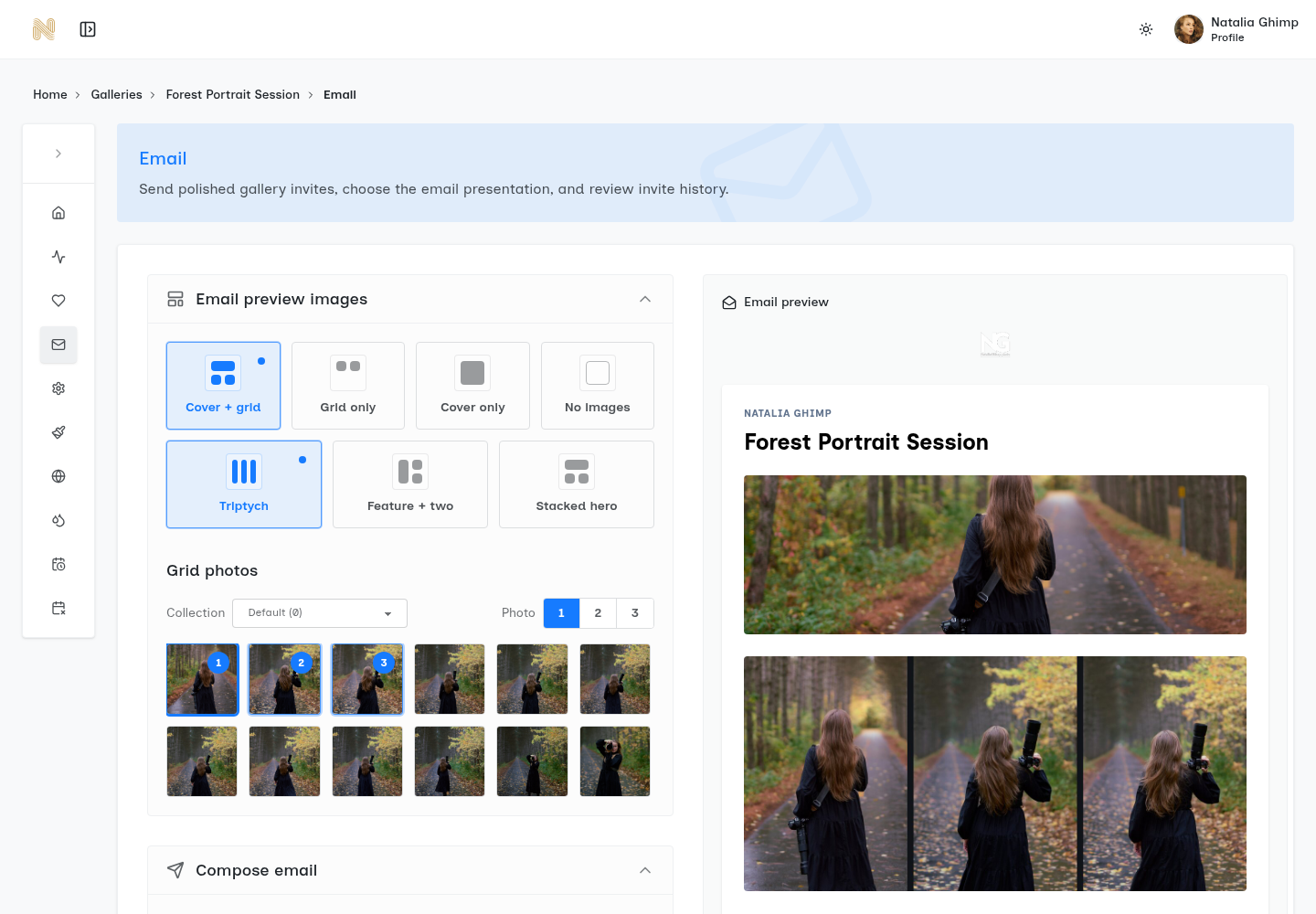
Existing SendPhoto interface screenshot. It shows image presentation and the email preview; the recipient list, delivery history, and message editor are further down the page. This is an interface example, not evidence that a new invitation was sent.
Configure Defaults First, Then Override Where Needed
Account settings and gallery settings have different jobs:
- Account email delivery: Email Delivery Method controls the sender used for gallery invitation emails. If you use custom SMTP, follow the account setup requirements; acceptance by an SMTP server does not prove delivery to an inbox.
- Account footer: Gallery Email Footer → Footer Message adds business details to gallery invitation emails. Keep contact details and your studio identity current.
- Gallery invitation: the gallery's message, recipients, and image presentation belong to that particular delivery. Update them for a proofing request or a final handoff.
- Gallery expiration: the share expiration date and client reminder are configured separately in Share Expiration. They are not global notification preferences.
Do not assume that choosing a sender for invitations changes every email the platform sends. The setting describes gallery invitation email delivery specifically.
Choosing the Right Triggers for Client Events
An invitation is sent when you choose Send invites. A client expiration reminder is scheduled through the gallery's expiration settings. Those are different actions from recording that somebody visited a gallery.
Stop Notifying on Every Event
Choose communication around a decision or deadline. For example, invite a client when proofs are ready, ask for an explicit selection confirmation, and send an updated invitation when final photographs are ready. This is a suggested workflow, not an automated sequence built into a notification dashboard.
Delivery history separates Status, Sent, and Visited. A status of SENT records that the sending operation succeeded; it does not confirm inbox placement or that the person read the email. FAILED indicates a sending failure that needs attention. A recorded visit is activity associated with an invitation, not proof that the named recipient reviewed every image or approved your work.
Recommended Notification Triggers for Photographers
Use this table to distinguish actual email controls from useful manual follow-ups:
| Event | Current control or record | Client communication | Studio next step |
|---|---|---|---|
| Gallery delivered | Send invites | Explain what is ready and the next action | Review delivery history for sending failures |
| Gallery viewed | Recorded Visited information | Usually no extra message is needed solely because of a visit | Follow up against the agreed deadline, not an assumed approval |
| Client comment | No comment-alert switch in this invitation setup | Reply through the communication method agreed for feedback | Review feedback deliberately |
| Favorites chosen | No favorite-alert switch in this setup | Explain whether favorites are a working shortlist | Request explicit confirmation before treating a shortlist as final |
| Selection confirmed | Agree an explicit reply or sign-off | Confirm the final selection and next stage | Record the agreement in your job workflow |
| Final photographs ready | Send a suitable gallery invitation | State that final delivery is ready and explain downloads | Check the gallery's download settings before announcing availability |
| Share access expiring | Enable client reminder in Share Expiration | Scheduled reminder for invited clients | Confirm the date and available reminder lead time |
For the expiration reminder:
- Open the gallery's Share Expiration settings.
- Switch on Enable share expiration and choose the Expiration date.
- Under Client reminder, switch on Enable client reminder.
- Choose One day prior, Three days prior, or One week prior, as available for the date you selected.
- Check the saved state and any notice that adjusts the reminder to an available lead time. A date too close to today cannot support every option.
The reminder goes to the gallery's invited clients. It does not automatically collect email addresses from everyone who received a copied public link. Do not promise a particular inbox arrival time: scheduled sending and recipient delivery are separate things.
Disabling expiration also disables its reminder. If you reactivate a gallery after it expires, review the reminder again; the interface notes that it turns off automatically after reactivation. Expiration ends shared access, but it cannot recall files somebody already downloaded.
Customizing Notification Templates for Your Brand
Customize the invitation's Message, image presentation, studio details, and footer. The current invitation form does not offer an editable subject field or a documented dynamic-tag editor.
The subject is generated from the gallery name, using the form Gallery "Gallery name" has been shared with you. Give the gallery a clear, appropriate name instead of trying to configure a subject in a nonexistent notification template menu.
Write Like a Studio, Not a System
Four parts of the email deserve attention:
- Gallery name: it affects the generated subject and should identify the delivery clearly.
- Message: write the task, deadline, and reply instructions in ordinary language. Do not insert invented merge tags such as
{client_name}and expect automatic replacement. - Presentation: choose Cover + grid, Grid only, Cover only, or No images, and review any selected photographs. The preview is for the email's layout, not a separate inbox preview-text editor.
- Studio identity and footer: use your actual branding and business contact details. Check the sender configuration at account level.
A weak message leaves the client to infer the task:
Your gallery is ready. Let me know what you think.
A stronger message makes a proofing request explicit:
Your portrait proofs are ready in this gallery. Please choose your shortlist by Friday and reply to confirm when it is final. I will then prepare the selected photographs for delivery. If you need more time, reply before Friday so we can agree a new date.
These are writing examples, not messages from a completed client job. Replace the deadline and process with what you actually agreed. An invitation body shared with several recipients should make sense to all of them; avoid addressing the whole group as one named person.
Before sending, check that the message:
- States what is ready.
- Gives one clear next action.
- Matches the actual deadline and access settings.
- Uses the gallery link purposefully and avoids unrelated promotional distractions.
Collect the Right Contact Detail Early
Ask which email address should receive the gallery and whether anyone else needs an invitation. An optional recipient name helps you organize the list; a correct email address is still essential.
Keep password-protected gallery access separate from assumptions about identity. Including a password in the same email makes the handoff convenient, but anyone with that email may have both pieces of information. If your client expects separate delivery of the password, use the communication method you agreed and leave it out of the invitation.
Do not put sensitive job notes into an email preview or footer. Choose preview images with the intended audience in mind, particularly when multiple people receive an invitation.
Testing, Troubleshooting, and Privacy Settings
This section is a preflight checklist for your own delivery. It does not report a test performed for this article, and it does not require you to send unnecessary messages to real clients.
Run a Delivery Preflight Before Client Delivery
Use these five checks at a meaningful delivery milestone:
- Check the audience and message. Confirm addresses, gallery name, deadline, and password-in-email choice. If you decide to send a practice invitation, use an address you control and a gallery appropriate for that recipient.
- Check the gallery handoff. Verify that the intended access and download settings match what your message promises. A preview of an email is not a test of recipient access.
- Interpret history correctly. Investigate FAILED entries. Treat SENT as a sending record and Visited as recorded activity; neither establishes selection approval.
- Check expiration and reminders. Leave enough time for the chosen lead time, confirm the settings saved, and review them again after changing or reactivating access.
- Plan the human follow-up. Agree who checks feedback and what happens if a deadline passes without a reply. That task is not created by an automatic comment or favorite alert in this setup.
If an invitation is missing, first confirm the address and delivery history. Ask the recipient to check spam and their email filters before resending repeatedly. Google's official missing Gmail messages guide covers searching Spam and Trash, checking filters, and looking for storage problems. Use the equivalent guidance for the recipient's provider.
For a sending failure, review the account's email delivery configuration and any error shown. With custom SMTP, check the provider's requirements and the account validation state. Avoid interpreting an SMTP acceptance message as proof of inbox delivery.
Privacy Rules That Keep Trust Intact
Keep these practical communication habits:
- Agree the channel and audience. Send gallery invitations to the intended recipients. Do not assume that access to a link authorizes unrelated communication.
- Separate delivery from marketing. A client gallery message should explain the current job; handle promotional communication through your separately agreed process.
- Keep private details out of previews. Check the gallery title, selected images, message, and footer for information that does not belong in the recipient's inbox.
- Record communication preferences. Note the correct address, who may receive the photographs, and the agreed follow-up method in your studio workflow.
These are workflow suggestions, not a jurisdiction-specific SMS or legal compliance guide. The gallery invitation controls do not configure SMS consent categories or push preferences. A password and expiration date also do not prevent an authorized recipient from keeping or forwarding material they received.
Advanced Strategies and Final Best Practices
Start with a repeatable communication routine before adding more messages. The useful measure is whether the client understands the next action, not how many notifications you send.
Build One Workflow, Not Random Alerts
A suggested five-stage plan is:
- Preview: invite the intended recipients and explain what kind of gallery they are seeing.
- Proofing: give the selection deadline and define whether favorites are only a shortlist.
- Final delivery: send an invitation explaining what is final and how the configured downloads work.
- Expiration: use the actual client reminder controls if shared access has a deadline; review the audience and lead time.
- Check-in: follow up manually when the agreed job milestone needs a reply.
This plan combines supported email actions with studio tasks. It does not imply an automatic drip campaign, a selection-complete trigger, or measured improvements in client response rates.
Before the next delivery, check your account sender and footer, write the gallery-specific message, review the recipients and preview, and configure expiration only if the job calls for it. SendPhoto's gallery email invitations give you the delivery controls; your message supplies the context the client needs.