
What SendPhoto’s search function searches
SendPhoto’s client-gallery search filters folder names. It helps you find a collection in a gallery with a long folder list; it does not search the photographs inside those folders by subject, filename, camera settings, star rating, or embedded keywords.
The distinction matters. Searching for “ceremony” can reveal a folder named “02 Ceremony.” It will not find every photograph of a ceremony if those images are stored under unrelated folder names. Start with the folder list, then browse the photographs in the selected folder.
The search field appears for larger lists with more than eight navigable folders. A gallery with fewer folders can show direct navigation without a search box. A missing search field is therefore not, by itself, evidence that something failed.
Find a folder on desktop
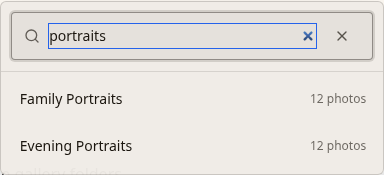
Open the client gallery using the sharing link you received. Complete any access step requested by that gallery, then look for its folder navigation. In a large folder list, open the folder picker and use the field labeled “Search folders…”.
Type a short part of the folder’s displayed name. For example, enter ceremony to narrow a list that contains “02 Ceremony,” or portraits to find “Family Portraits” and “Evening Portraits.” Select the matching folder to open its photographs.
The filter ignores capitalization and surrounding spaces. It looks for the text you entered within the displayed folder name. Start with one distinctive word instead of a sentence describing the image.
Clear the search when you want to see the full folder list again. Filtering the list is not deleting folders, changing the gallery’s contents, or making a client selection.
Find a folder on a phone
Open the gallery’s folder navigation. When the folder list is large enough to offer search, use “Search folders…” to narrow the choices, then choose the folder you need.
If no folders match, clear the field or shorten the word. Check the visible names instead of assuming the photographer used your preferred wording: “Getting Ready” and “Bride Prep” may describe similar parts of a day, but they are different text.
Once a folder is open, browse its photographs normally. Folder filtering does not turn the photo grid into a results page for the words in your query. If you are trying to find one frame, the photographer may need a filename, an approximate position, or a visual description.
Examples that match the actual filter
These examples describe folder-name matching, not a special query language. A folder called “03 Family Portraits” matches family or portraits. A folder called “Product A123” matches A123. A folder called “Evening Portraits” does not match sunset unless that word also appears in its displayed name.
Enter ordinary text. AND, OR, NOT, tag:, folder:, date: and rating: are not commands for this folder filter. Typing folder:ceremony does not tell it to search inside the ceremony folder; it asks for a folder name containing that literal text.
A date can work when it is part of a folder name. For example, 2026-09 can match “2026-09 Launch Event.” That is still a name match, not a search of capture dates stored in photographs.
Do not add keywords to image metadata expecting them to become searchable here. Your editing or archive software may have its own metadata search, but that is a separate tool with its own documented behavior.
When you need one specific photograph
Use the folder filter to get close, then identify the frame within that folder. A request such as “Family Portraits, the image where everyone is looking left” gives the photographer more useful context than an unsupported search expression.
If the viewer shows a filename or identifier, include it in your message. Keep that identifier unchanged when asking for another size, a replacement, or an edit. If you cannot see one, describe the folder and the photograph rather than guessing a file number.
Favorites can help you mark a photograph while reviewing it, but they are not a text-search index or a fixed approval record. For selection work, agree how to confirm the final list with the photographer.
For a studio searching its own working archive, use the search tools in the software that manages that archive. Find the original there, then map it to the delivered gallery. Do not assume that an archive’s keyword, face, or rating filters are also available in the client gallery.
Name folders so clients can find them
Choose names that make sense to the person receiving the gallery. For a wedding, a short sequence such as “01 Getting Ready,” “02 Ceremony,” and “03 Family Portraits” can explain both the order and the contents.
For a product shoot, use a product name or agreed SKU when that is how the client identifies the work. “Product A123” is more useful than “Export 7” if the client knows the product code. Keep the format consistent across the delivery.
For a portrait session, describe useful groups without exposing unnecessary personal details. “Individual Portraits” and “Family Groups” may be enough. A public-facing folder name need not include sensitive information just to make it searchable.
Do not create extra folders solely to make the search field appear. A small, clear set may be easier to browse directly. The aim is understandable navigation, not the largest possible folder list.
Before sharing, read the names as a client would. Replace internal shorthand, remove duplicate labels where they cause confusion, and explain any unavoidable abbreviations in your delivery message.
Troubleshoot an empty folder list
First, clear the field. If the folders return, the entered text did not match their displayed names. Try a shorter fragment, check spelling, and remove any query syntax copied from another application.
Second, confirm that you are looking at the correct gallery. Folder search is scoped to the current gallery’s navigation; it does not search all work delivered by the photographer.
Third, distinguish an empty search result from an access problem. A password prompt or unavailable sharing link needs the photographer’s help. Changing the search phrase will not grant access to another gallery.
Finally, ask for the folder name if you cannot locate the requested image. “Which folder contains the evening group photographs?” is a useful question. Repeatedly adding tags or operators to this filter will not search the images themselves.
A quick check before sending a gallery
Open the sharing link as a recipient, not only in the photographer’s management view. Check that the intended folders appear and that their names make sense on a phone as well as a larger screen.
If the folder list has search, type a known fragment, open the expected result, and clear the field to restore the list. Also test an unmatched phrase so you recognize the empty-result message.
Tell the client what navigation is available. For example: “Open Family Portraits for the group photographs. If you use the folder search, enter family. Reply with the image identifier or a description if you need help finding a frame.”
SendPhoto’s folder filter is useful when its scope is clear. Use it to find a collection, use the photo grid to review the images, and use a separate, agreed confirmation process when the client is selecting final photographs.
Related guides: organizing gallery collections; confirming a client’s photo selections; SendPhoto gallery delivery.