
For a broadly compatible client viewing copy, start with MP4 containing H.264 video and AAC audio, then check the destination’s requirements. Use the agreed resolution and frame rate: 1080p is a useful option, not a substitute for a promised 4K deliverable. No extension or preset guarantees playback on every device.
This guide is based on the linked official documentation reviewed September 27, 2026. The export screenshot is Adobe’s example, not a SendPhoto test or an export we performed. Use a short representative section to check your own result before rendering a long project.
Quick Decision Guide
- Client viewing copy: MP4/H.264/AAC is a practical starting point; check the recipient’s player and gallery rules.
- Social post or advertisement: match the specific placement’s aspect ratio, duration and file rules.
- Portfolio website: choose an encoding and delivery method that fits the viewing size and connection, with a poster image and deliberate loading behavior.
- Editing handoff or archive: retain source media and project files; create a high-quality master in an agreed production format if needed.
Your Go-To Video Format for Client Delivery
Decide what the file is for before choosing a preset. A client watching a finished film needs a different handoff from an editor who needs source footage, separate audio or an alpha channel. Name those deliverables separately rather than trying to make one compressed file serve every purpose.
A Broadly Supported Starting Point
MDN’s web codec guide identifies MP4 with H.264/AVC video and AAC audio as a common compatibility choice. Actual support still depends on the operating system, browser, decoder and encoding details. Resolution, profile, bit depth and audio format matter alongside the file extension.
For a standard SDR viewing copy, preserve the intended framing and project frame rate, include the required audio, and inspect a sample on the intended device. Do not lower resolution solely because an article calls 1080p the default; follow the delivery agreement.
What Is a Video Container?
A container organizes streams such as video, audio, subtitles and metadata. The MDN container reference distinguishes the file format from its encoded contents.
- MP4: commonly used for distribution; it can contain different video codecs.
- MOV: the QuickTime container, used in both acquisition and production. A MOV file is not necessarily ProRes.
- AVI: an older container; its file size and playback requirements depend on its contents, not simply the extension.
An MP4 containing H.264 video and AAC audio is a more useful description than “MP4” alone. Renaming `.mov` to `.mp4` does not convert its container or codec. A compatible stream may sometimes be repackaged without re-encoding; changing the codec requires an encoding step.
What Is a Video Codec?
A codec encodes and decodes a media stream. Video and audio can use different codecs within the same file. Ordinary delivery compression usually discards some information to reduce size; more aggressive compression can reveal blocking, banding or loss of detail.
Mathematically lossless means the decoded image data is reproduced exactly. Visually lossless describes an appearance judged indistinguishable under stated viewing conditions; it does not mean identical data. Apple’s ProRes white paper makes that distinction. ProRes 422 HQ is a high-quality production codec with visually lossless goals, not a mathematically lossless replacement for your source files.
Choosing the Right Format for Your Project
Use destination requirements as the starting point, then inspect your content. Fine detail, grain, fast motion and gradients stress an encoder differently. A preset that works well for a static interview can show artifacts in a confetti-filled wedding exit.
Delivering Final Videos in a Client Gallery
Check both upload acceptance and what the client receives. A gallery may process an upload for playback while offering a different downloadable copy. Accepted extension, codec, duration, per-file size and account allowance are separate constraints.
SendPhoto supports videos alongside photos, with a gallery player and permission-controlled downloads. Its current video download path uses the original uploaded video asset; photo download-size settings should not be assumed to convert a video into smaller variants. This is not a guarantee that every codec is accepted or that originals remain stored permanently. See the video gallery comparison for provider-specific distinctions and the setup guide for sharing controls.
For your own delivery check, open the intended client link, play the beginning and a later section, listen to the sound, and inspect the permitted downloaded file. Keep your own master and backup.
Posting on Social Media like Instagram and TikTok
A 1080 × 1920, 9:16 export is a useful design choice for a full-screen vertical composition. It is not a universal rule for every post or advertisement. Confirm whether you are delivering a Reel, feed post, story or paid placement, and preview where interface elements cover the frame.
For example, TikTok’s Non-Spark in-feed ad specifications recommend vertical 9:16 but also list horizontal 16:9 and square 1:1. These are ad specifications, not a universal rule for organic TikTok posts or Instagram. For Instagram work, check the chosen placement’s current requirements in its publishing interface before exporting.
Reframe deliberately rather than stretching a landscape image. Leave room for captions and controls, and review the processed upload before publishing. A correct aspect ratio does not prevent the service from re-encoding the video.
Embedding on Your Website Portfolio
For a downloadable or progressively loaded web copy, MP4/H.264/AAC is a reasonable starting point. The codec is H.264. Choose resolution for the displayed size and intended quality, and avoid forcing every visitor to fetch a large master.
Consider a poster image and playback controls. A hosted streaming player may offer multiple quality levels; a single self-hosted MP4 does not become adaptive streaming merely because it uses a variable bitrate. Measure the actual page and playback experience before reducing image quality. A slow first frame can also involve file layout, server delivery or preload behavior.
Archiving Master Files for Safekeeping
Keep the camera originals, project file and required linked assets. An exported master preserves a finished result; it does not preserve every editing decision or replace all source material.
ProRes 422 HQ in MOV can be an agreed production master, but select the codec for the source and recipient: bit depth, chroma, transparency, resolution and color workflow can require a different choice. Apple describes different ProRes variants for different needs. Exporting compressed footage into a larger codec does not recover detail already lost, and “visually lossless” is not proof of exact source preservation.
Getting Your Export Settings Right in Editing Software
In Premiere, use File > Export > Media, choose H.264 for an MP4 output, and select a suitable preset. Review Video and Audio settings before exporting. Adobe’s export procedure covers the controls shown below.
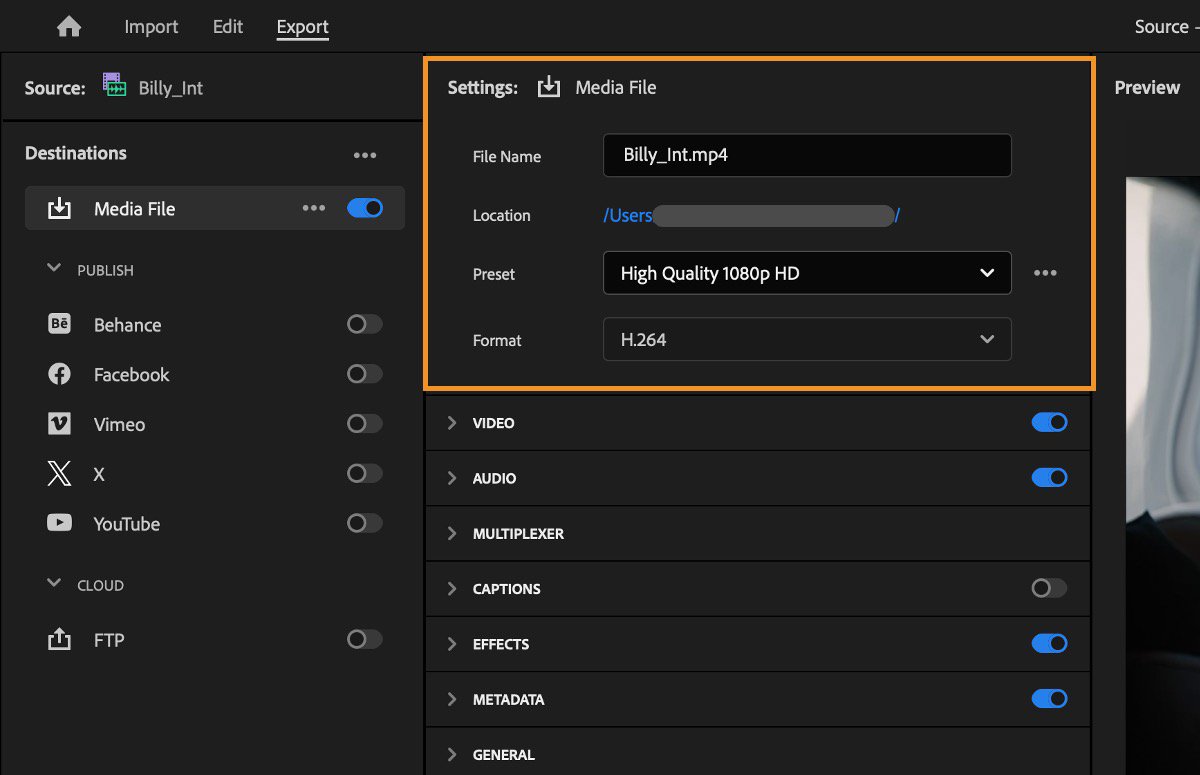
Adobe’s official example: the orange outline highlights output settings; the preset shown is High Quality 1080p HD. It does not expose bitrate or profile details. Image credit: Adobe export documentation. Open the full-size screenshot.
Read the screenshot in three parts: File Name and Location identify the output; Preset and Format choose its starting configuration; the separate Video and Audio switches control included streams. Expand those sections to check the actual settings. This example is not evidence that a particular bitrate or destination was tested.
In Final Cut Pro or DaVinci Resolve, apply the same delivery requirements through that editor’s export controls; labels and available encoders differ. Do not look for Premiere’s exact preset name in another application.
Decoding Bitrate: CBR vs. VBR
Bitrate is data per second. For a given duration, a higher average total bitrate generally means a larger file; it does not automatically mean a better result across different codecs and encoders.
CBR targets a relatively steady data rate. VBR lets the rate vary with the material. Two-pass VBR uses an additional analysis pass to help allocate the data budget, but it costs encoding time and is not always available with the chosen encoder. Adobe’s export settings reference describes these choices.
Use the delivery specification and available encoder, then compare a representative export. One-pass or hardware encoding can be appropriate; “always use two-pass” is not a reliable rule. Also keep average bitrate separate from a maximum bitrate setting: the latter is not the expected rate for the entire file.
Understanding Profile and Level
H.264 profiles describe encoding features, while levels constrain properties such as resolution, frame rate and bitrate. A recipient needs a decoder compatible with the result.
Adobe’s encoding reference describes High as widely supported by HD devices, alongside Baseline, Main and High10. High and High10 are not interchangeable compatibility promises. Start with a destination preset or the recipient’s specification rather than selecting the highest profile or level available.
A Destination-Specific H.264 Export Example
For a YouTube SDR upload, YouTube’s encoding recommendations list MP4, H.264, progressive scan, High Profile, 4:2:0 and variable bitrate. Its video bitrate recommendations distinguish:
- 1080p at 24, 25 or 30 fps: 8 Mbps.
- 1080p at 48, 50 or 60 fps: 12 Mbps.
These are YouTube upload recommendations, not universal client-gallery settings or measured quality results. Its audio guidance includes AAC-LC at 48 kHz; stereo audio has a separate bitrate recommendation. The page also calls for MP4 Fast Start and has different figures for HDR and higher resolutions.
For another destination, replace those values with its specification. Before saving your own preset, verify:
- The output container, video codec and audio codec.
- Resolution, aspect ratio and intended frame rate.
- Whether the delivery is SDR or HDR and how color is managed.
- Profile, level, rate-control mode and any file-size restriction.
- Audio channels, sample rate and whether the full intended timeline is included.
- Playback, sound and visible detail in your exported sample.
This checklist is proposed validation for your work, not a claim that we exported the same project in three editors.
Troubleshooting the Export and Upload
First separate the local export from the hosted result. If the local file is wrong, investigate the timeline or export. If it works locally but fails after upload, check processing status, destination support and the specific player before changing the whole project.
My Exported Video Has No Sound
Check player mute, device volume and output selection first. Then determine whether the file contains an audio stream. If it does not, inspect track mute/solo, routing and the export Audio switch. If it does, check the codec, channels and player compatibility. A small re-export with the intended audio settings is more informative than repeatedly rendering the full film unchanged.
The Colors Look Washed Out After Uploading
Compare the same frame in the editor, local player and hosted version. Check source interpretation, sequence color management, output tags and whether the destination expects SDR or HDR. A proper HDR-to-SDR conversion may be needed for an SDR deliverable; merely relabeling the file Rec.709 is not that conversion.
Display and viewer behavior can also change the appearance. Adobe’s washed-out export guidance explains viewer gamma differences and notes that Viewer Gamma changes Premiere’s display, not the exported file. There is no setting that guarantees identical appearance on every screen. Preserve your original grade while investigating, rather than adding a compensating adjustment blindly.
The Video Is Choppy or Won’t Play
- It fails locally too: check whether the file is complete and whether the player supports its video/audio codecs, profile and bit depth. Inspect frame-rate interpretation and decoding capability.
- It works locally but buffers online: check connection speed, server or gallery processing, and the selected playback rendition. A smaller viewing copy may help, but does not diagnose every cause.
- It stutters at the same point everywhere: inspect that section of the timeline and the exported file for a render or source problem.
- It uploads but is rejected: check container, codec, duration, size and account allowance separately.
Lower bitrate only when it addresses the observed problem and the resulting quality still meets the assignment.
Frequently Asked Questions About Video Formats
Should I Use H.265 Instead of H.264 for Everything?
No single codec suits every handoff. HEVC/H.265 can be useful when the destination supports it, including suitable higher-efficiency or HDR workflows. Check the actual device, browser and platform requirements. H.264 remains a practical compatibility option; neither codec comes with an every-device guarantee.
When Does Delivering in 4K Make Sense?
Use 4K when it is part of the agreement, benefits the viewing or editing task, or preserves the intended master resolution. You may provide a smaller viewing copy alongside the agreed master. Festival, broadcast and exhibition submissions have their own specifications; do not infer those from a generic client-gallery preset. Upscaling a 1080p export does not restore missing source detail.
Can I Send the MOV File My Camera Creates?
Sometimes, particularly for an agreed source-footage handoff. Inspect what is inside it: MOV may contain H.264, HEVC, ProRes or another supported codec. Check file size, playback requirements and whether the recipient expects camera originals or a finished edit. Avoid an unnecessary lossy re-encode when the existing file already satisfies the brief; export a separate viewing copy when needed.
Once your deliverable meets the client’s requirements, use the SendPhoto setup guide to organize and share the gallery. Check current plans and the actual file requirements before promising a delivery size or format, then create an account when you are ready to prepare the handoff.