
To compress photos for web, choose the display size, export a separate copy, and compare its appearance and file size before applying the settings to a whole job. Keep your edited masters and any promised full-resolution deliverables separate.
A web page image and a client download have different jobs. A gallery can display smaller previews while offering a larger file for download. Uploading only a small web export cannot give your client the detail of a larger original later.
Why Web-Ready Photos Matter for Client Experience
Smaller display files can reduce the amount of data a browser transfers. That matters on mobile connections and image-heavy pages, but file size alone does not determine gallery speed. Preview generation, caching, page design and the connection also matter. Reducing an upload does not necessarily change the preview a service generates.
Before exporting, identify the destination: a blog image, a portfolio preview, a social copy or a full-resolution client deliverable. Optimize the first three for their viewing context; follow the agreed resolution and format for the last. Keep a recoverable master in every case.
Foundations of Web Image Optimization
Three decisions work together: format, pixel dimensions and compression settings. Changing one can affect both appearance and file size. There is no universal percentage saving or quality-slider value that works for every photograph.
Format decides the starting point
JPEG is a practical starting point for photographic downloads and destinations that require JPG files. It uses lossy compression: a visually acceptable copy still does not preserve every original pixel value.
WebP offers lossy and lossless options and supports transparency. It can be useful for website display, but check the destination's upload and download requirements before replacing JPEGs. Support in a browser does not prove that a particular gallery accepts the format or that a client's print workflow wants it.
PNG is useful for graphics, transparency and cases that require lossless raster storage. A detailed photograph often produces a large PNG. Transparency is not exclusive to PNG, and JPEG quality 100 is not lossless or automatically the best delivery choice.
Use the format your actual destination supports. Keep format experiments separate from the agreed client handoff.
Dimensions control wasted bytes
Choose pixel dimensions from the display requirement, allowing for high-density screens and any intended zoom. For example, an image displayed at 800 CSS pixels wide might need a 1600-pixel version for a 2× display. This is sizing arithmetic, not a universal gallery preset.
- Full gallery photos: determine whether you are supplying a display copy or the downloadable deliverable. Preserve the resolution needed for the latter.
- Blog images: account for content width and display density; responsive variants can avoid sending the largest file to every phone.
- Thumbnails: use separate smaller variants where the publishing system supports them. Do not replace the only full-size copy with a thumbnail.
Changing a PPI label alone does not reduce an image's pixel dimensions. The photo resolution guide explains the relationship between pixels, viewing size and print requirements.
Quality is a visual decision, not a slider race
Compare candidates at their intended display size and at 100% when checking artifacts. Look at skin transitions, sky gradients, hair, foliage, lace and high-contrast edges. Watch for blocks, banding, smeared detail and ringing around edges.
A setting of 80 in one tool is not necessarily equivalent to 80 in another, or even across two codecs in the same tool. Record the application, format and settings with your preset. Avoid repeatedly reopening and resaving a lossy export; return to the edited master for a new candidate.
Lossless compression preserves the encoded image's pixel data. Resizing, color conversion and earlier lossy saves can still have changed the image before that lossless encoding step. “Lossless” does not mean that a resized copy contains all the detail of the camera original.
The Core Workflow Resize First Then Compress
Decide the output dimensions before tuning compression. An export application may perform resizing and encoding in one operation; you do not need an extra intermediate JPEG save.
A repeatable export order
- Finish the edit. Start from the edited master, with the intended crop, exposure, color and retouching.
- Choose the destination size. Define the web display requirement while retaining separate full-resolution delivery files where needed.
- Pick the format. Check the destination's accepted formats and the recipient's needs.
- Make a few quality candidates. Keep their dimensions equal so you can compare compression fairly; record bytes as well as the slider value.
- Review difficult photographs. Include a portrait, smooth sky and textured scene. Raise quality or adjust dimensions if the result fails the viewing requirement.
A useful starting experiment is two or three quality settings within the same encoder. The winning setting is the one that meets your visual requirement at an acceptable size, not a number copied from an unrelated benchmark.
A practical size target for galleries
Start with the platform's documented requirements. If it generates its own display previews, determine what the uploaded file will also be used for. Full-resolution download delivery may justify a larger upload even when the browser normally shows a smaller preview.
For a page you control, calculate the largest intended display width and density, then consider smaller responsive variants. A 1600-pixel file may suit one layout and be insufficient for another. A long-edge limit also produces a narrower portrait image than a landscape image with the same long edge.
Keep names clear: a filename ending in “web” should not be mistaken for the full-resolution file. Preserve a stable image identifier across both versions.
A published source-and-output comparison
Google's WebP gallery publishes a cherry-tree photograph as a prepared PNG source and two compressed outputs. We downloaded those exact files and checked their dimensions and byte counts; we did not recreate Google's encoding run.
- Prepared PNG source: 1024 × 772 pixels; 1,802,689 bytes.
- JPEG output: 1024 × 772 pixels; 257,056 bytes.
- WebP output: 1024 × 772 pixels; 176,972 bytes.
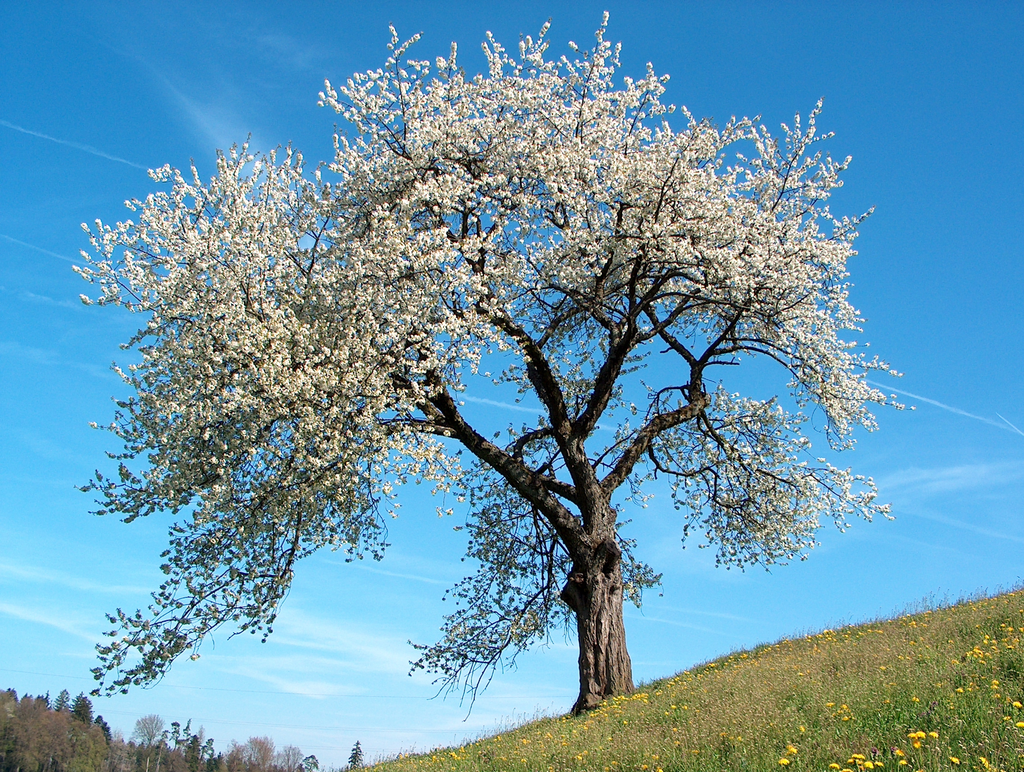
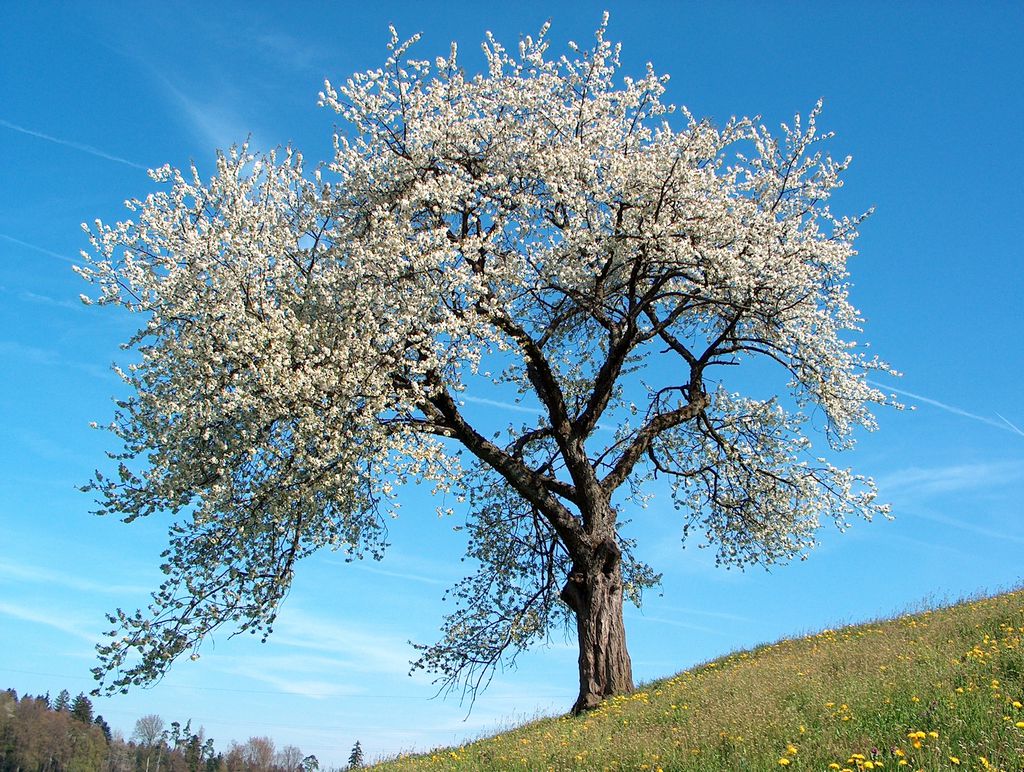
JPEG output. Inspect the blossoms, grass and fine branches against the sky at full size.
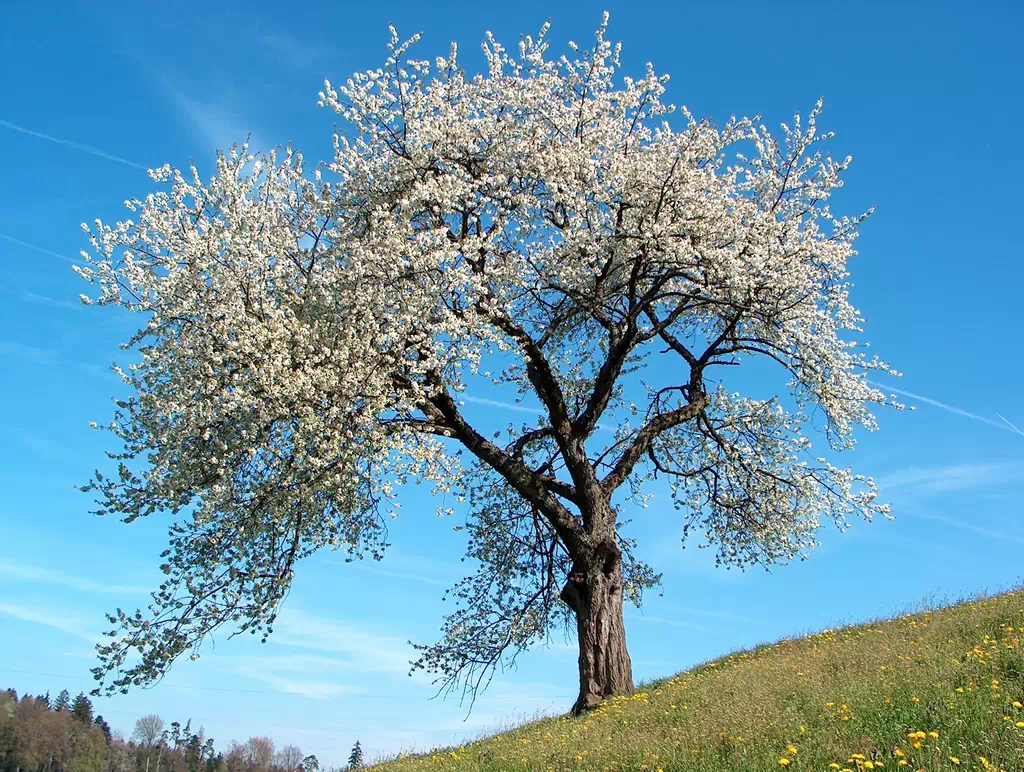
WebP output. Open both files at 100% to compare texture; the reduced page view is not a pixel-level comparison. The prepared source is already resized, not a camera original.
Google used older encoders and deliberately targeted smaller WebP files with image-specific settings. This example shows a measurable tradeoff, not a universal saving or a current Lightroom/Photoshop benchmark. Both outputs differ from the source; inspect your own photographs before choosing settings.
Photo: Benjamin Gimmel, flowering cherry tree, CC BY-SA 3.0. Google prepared these resized/encoded versions; our copies are unchanged and retain that license.

Export Settings for Common Photography Tools
The following routes are based on tool documentation. They are not a claim that we ran the same photo through every application. Verify the controls available in your installed version.
Lightroom
In Lightroom Classic, select the photos and choose File → Export. A web-copy preset should record these five decisions:
- File format: JPEG for this workflow; do not assume Classic's native export dialog offers WebP.
- Color space: sRGB for a conventional SDR web copy.
- Image sizing: choose the needed long edge and use Don't Enlarge when appropriate.
- Quality: compare candidates on Classic's own scale. Limit File Size To is a cap, not a guarantee that all scenes retain equal detail.
- Output sharpening: compare Screen sharpening with a modest amount against the unsharpened export.
These controls are described in Adobe's Lightroom Classic export documentation. Save web copies to a separate destination. Use a different preset for full-resolution delivery, and inspect a textured image before applying either preset to a large set.
If your source is Nikon RAW, the NEF-to-JPG guide covers the conversion stage. Compression settings cannot substitute for developing the RAW file.
Photoshop
For individual images, use a copy of the edited document and follow this sequence:
- Set the intended pixel dimensions.
- Convert to the intended output color space rather than merely assigning a different profile.
- For JPEG, use the relevant JPEG export/save route and inspect the preview.
- For WebP, use File → Save a Copy → WebP with an 8-bit RGB document.
- Open the resulting file and inspect dimensions, size and critical detail.
Adobe documents the distinct Photoshop WebP Save a Copy route. Do not expect WebP to appear merely because you opened Export As or Save for Web. Choose lossy or lossless deliberately and review the metadata options; those decisions are separate from the format name.
Use the result at normal display size to judge presentation, and 100% to diagnose artifacts. Avoid declaring an image acceptable solely because defects are hidden by a very small preview.
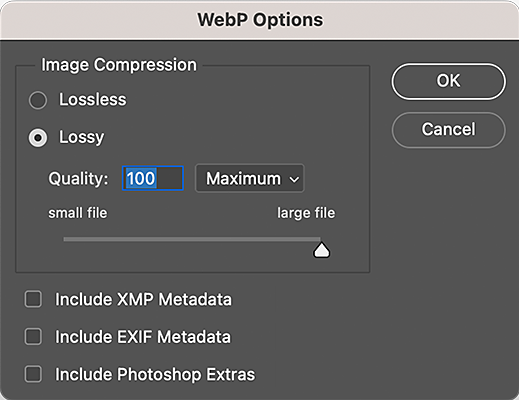
Adobe documentation screenshot. The visible Quality 100 value is an example in Adobe’s interface image, not our recommended preset. Source: Adobe WebP instructions. We did not run a Photoshop export for this article.
Squoosh
Squoosh is useful for comparing a small number of export candidates:
- Open a photograph you are authorized to use.
- Set the intended output dimensions.
- Compare JPEG and WebP candidates, keeping dimensions equal.
- Inspect important detail in the comparison view and check the reported sizes.
- Download the chosen result and reopen it to confirm the actual file.
Treat codec-specific controls separately. Squoosh is a way to explore the tradeoff, not evidence that a matching numeric setting in Lightroom or Photoshop produces the same output. For confidential work, follow your organization's rules for browser tools and file handling.
ImageMagick
ImageMagick can make a tested batch process repeatable. Establish the input color profile, orientation, target dimensions, encoder settings, metadata rules and output names before processing an entire delivery.
Use a separate output directory and test one copy first. Avoid a batch operation that overwrites masters. The official command-line options reference describes resizing, profiles and quality; the same quality argument has different meanings for different output formats.
A blanket metadata strip can also remove the ICC color profile. Do not treat “remove private metadata” and “remove every profile” as interchangeable instructions. Confirm the resulting pixels, orientation and profile as well as file size before expanding a command to the whole job.
Advanced Details Output Sharpening and Metadata
Resizing and compression are only part of export preparation. Check sharpening, privacy and color handling on the files you will actually publish.
Sharpen for the exported size
Apply output sharpening for the resized destination, then inspect the encoded result. Hair and fabric can benefit from restrained sharpening, but halos, rough skin and bright edge outlines indicate too much. A preset that suits a detailed building may be excessive for a smooth portrait.
Compare a few demanding files rather than judging only one easy image. Output sharpening cannot restore detail discarded by aggressive resizing or compression.
Keep useful metadata and drop the rest
Separate three decisions:
- Rights and context: retain appropriate creator and copyright fields. Review contact details before making them public.
- Unneeded capture information: decide whether exposure, equipment, timestamps and editing details serve the recipient.
- Sensitive information: explicitly check GPS location, names, captions and other identifying information. Removing GPS alone is not a complete privacy review.
In Lightroom Classic, metadata export choices and Remove Location Info are separate controls. Inspect a representative exported file rather than assuming that a checkbox removed every sensitive field. Keep the intended ICC color profile even when removing private EXIF or descriptive metadata.
Convert to sRGB before delivery
For conventional SDR web copies, sRGB is a practical compatibility choice. Convert from the known source profile and embed the intended output profile; assigning sRGB to pixels encoded for another space can change their interpretation.
Do not promise identical appearance on every screen. Browser color handling, display calibration and HDR behavior can differ. Keep a separate print export when a lab specifies different requirements.
The final checks are straightforward: modest sharpening at output size, appropriate rights/privacy metadata, and intentional color conversion with its profile preserved.
Integrating Compression into Your Client Gallery Workflow
Keep the web-display decision separate from the download promise. A web preview is not a substitute for the resolution a client needs for printing, cropping or publication. Gallery settings also do not add detail missing from the file you uploaded.
Build one preset and trust it
Use a reviewed preset as a starting point, then check exceptions. Save these six items with it:
- Destination dimensions and whether enlargement is allowed.
- Output format accepted by the destination.
- Application-specific quality settings that you have compared visually.
- Output color conversion and profile handling.
- Metadata retention and removal rules.
- Output sharpening for the intended display.
Keep full-resolution and web presets clearly named. Recheck after a major application update or when the job changes from simple portraits to detail-heavy scenes. A repeatable preset should reduce decisions, not eliminate inspection.
Target size matters when galleries scale
If a destination imposes a per-file limit, record the exact limit and units. Check each output against it. A smooth sky and a detailed crowd scene will not necessarily produce the same file size at the same dimensions and quality.
If a candidate is too large, compare a lower quality setting, smaller dimensions or another supported format. Reject changes that fail the visual or delivery requirement. Do not meet an arbitrary byte budget by silently reducing a promised full-resolution deliverable.
For planning, multiply representative file sizes by the number of images, but label that as an estimate. Total upload bytes are not a measured page-load time: galleries may generate previews and load images only as needed. See how to share photos online for the wider handoff choices.
Your New Standard for Web-Ready Photos
Keep masters safe, identify the destination, size a separate copy, compare compression candidates, and inspect the exported result. Record the settings that work for your photographs instead of promising a fixed percentage reduction.
Use SendPhoto to present a client gallery, with the intended files and sharing settings. Tell clients which files are web copies and which are the full-resolution deliverables. File preparation and gallery delivery should support the same promise.