
To convert NEF to JPG, open the Nikon RAW file in a compatible editor, finish the image adjustments, then export a separate JPEG copy. Keep the NEF and its editing records. Changing the filename extension does not convert the image.
For a Nikon-centered workflow, start with NX Studio. If your edits already live in Lightroom Classic, export from that catalog so the JPEG reflects those edits. In-camera processing can help with field copies on supported models; RawTherapee and darktable offer other desktop routes.
This guide uses official documentation and a genuine Nikon settings screenshot. It does not present a hands-on NEF conversion benchmark or promise that every camera, recording mode and software version behaves identically.
Why and When to Convert NEF Files
Understanding the NEF format
NEF is Nikon's RAW format. A RAW editor interprets its image data using processing choices such as white balance, tone and color. The embedded preview and another editor's default rendering can look different without the original being damaged.
JPEG stores a rendered picture with lossy compression. It is useful for viewing and delivery, but it cannot retain the full editing latitude of the RAW source. Keep your NEF, the relevant catalog or sidecar files, and a backup independent of the working drive.
When conversion makes sense
Choose the output for its purpose:
- Client proofs: export a clearly labeled selection at the agreed review size. Proofs may still need final edits.
- Finished delivery: export the approved image at the requested dimensions, color profile and compression level.
- Field sharing: create a quick JPEG copy when a recipient needs a preview before the desktop edit is complete.
- Repeated production: use a reviewed export preset or queue to apply consistent output settings across an edited set.
For ordinary web delivery, sRGB is a common starting point. A lab or production partner may specify another profile. Confirm the destination rather than exporting every job with one universal setting. Our sRGB explanation covers the color-space choice.
Using Professional Editors Like Lightroom and Photoshop
Use the editor that contains the approved adjustments. Opening a NEF in a different application does not necessarily reproduce the previous application's rendering or edit history.
Lightroom for batch delivery
In Lightroom Classic, work through these six steps:
- Import and protect the originals. Locate the copied NEFs and maintain a separate backup. Confirm that the installed version supports the camera and RAW mode.
- Select the intended photographs. Check the selection count and exclude rejected frames or earlier alternatives.
- Finish the adjustments. Review white balance, exposure, crop and detail. Synchronize only settings that make sense for the selected lighting and compositions.
- Open File > Export. Choose a separate destination and a naming rule that identifies the delivery version. Resolve existing-name conflicts deliberately.
- Set JPEG output. Review quality, color space, dimensions, output sharpening and metadata. For a conventional SDR delivery, use an SDR export rather than enabling HDR solely because the option exists.
- Export and reopen samples. Inspect the rendered JPEGs at their intended display size and at full size, then reconcile the output names with the selected inputs before delivery.
Adobe documents these controls in its Lightroom Classic export guide. A preset saves output choices; it does not confirm that every selected picture is finished.
Photoshop for single-image finishing
Open the supported NEF through Camera Raw, make the RAW adjustments, then open the rendered image in Photoshop when the job requires layers, compositing or detailed retouching. Save a layered working version separately before creating the delivery JPEG.
For conversion without further Photoshop work, Camera Raw can also queue JPEG copies through its Save Image options. Set the destination, filename and JPEG format. Done accepts the RAW adjustments; it is not the same as exporting a JPEG. See Adobe's Camera Raw opening and saving instructions. Control placement can vary by version.
Settings that matter most
Make these four decisions before running a batch:
- Quality: compare detail and file size at the intended use size. The same number in two applications need not mean the same compression; Camera Raw's documented JPEG scale is 0–12, while Lightroom Classic uses 0–100.
- Color space: convert to the recipient's required space and include the appropriate profile. Assigning a profile is not a substitute for converting colors.
- Dimensions: retain the required pixel dimensions for finals; make a separate smaller version for web use when needed. A resolution label such as 300 ppi alone does not add image detail.
- Metadata: keep agreed authorship or rights information and omit unnecessary location or personal details. Inspect the exported file; a checkbox label is not proof of what a later service retains.
Avoid repeatedly editing and resaving the JPEG. Make revisions from the master and export a fresh delivery copy.
Converting with Nikon's Free Software Suite
NX Studio offers Nikon's own NEF editing and export workflow. Check that your installed version supports your camera and recording mode before processing a shoot. The instructions below are based on Nikon's documentation; the screenshot is Nikon's example, not a conversion performed for this article.
Why Nikon software still matters
NX Studio is an option when you want to adjust Nikon RAW files using Nikon's controls and produce JPEG copies. Keep the original NEFs and the files that store your edits backed up. Exporting a JPEG does not replace that archive, and opening a file in another editor may produce a different rendering.
Desktop workflow in NX Studio
Use this four-step sequence for a selected set of photographs:
- Browse a copied shoot folder. Select the photographs you intend to deliver. Keep a separate backup before processing the set.
- Finish the edits. Review exposure, white balance, Picture Control and crop. Check individual images before copying adjustments across different lighting conditions.
- Choose Export, then JPEG. Set quality and pixel dimensions for the recipient. In folder mode, leave the option to delete originals disabled. Review metadata and color-profile settings rather than accepting an old preset blindly.
- Save into a separate output folder. Check destination names before exporting, then reopen representative JPEGs and reconcile them with the selected source files. Keep the originals.
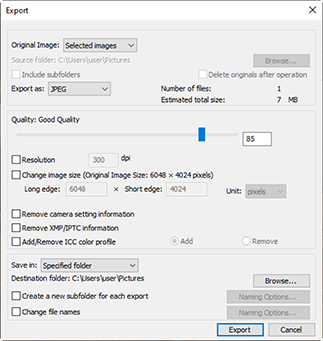
Source: Nikon's NX Studio export documentation. This genuine screenshot shows one selected file and quality 85 as a documentation example, not a recommended preset or measured result. The size and metadata checkboxes are visible but unchecked. Open the original-size screenshot.
For ordinary SDR web delivery, review NX Studio's sRGB conversion and ICC-profile options using the linked instructions. Adding a profile and converting colors are different operations. Nikon documents separate handling for HLG recordings; use the instructions for your recording mode rather than assuming every NEF follows the same color path.
NX Studio handles RAW development; keep a separate layered working file in a suitable editor when the assignment also requires compositing or detailed retouching.
In-camera conversion for field use
Some Nikon cameras can create JPEG copies without a computer. On the Z5, Nikon documents NEF (RAW) processing in the retouch menu: select photographs, dates or a folder, choose the JPEG settings and confirm the copy operation. The destination-card choice appears only when two cards are inserted. This Z5 function accepts eligible NEFs made by that camera, not arbitrary NEFs from other bodies. Follow the Z5 processing instructions, or your own model's manual if different.
Choose the route that fits the handoff:
- NX Studio on a computer: useful for reviewing a set on a larger display and controlling exports; requires access to a compatible computer and software.
- In-camera processing: useful for a field preview or immediate JPEG copy; available controls and supported files depend on the camera, and a small screen makes detailed review harder.
Treat field copies as previews when a final edit is still due. Label the version clearly so the recipient does not mistake an early JPEG for the finished delivery.
Free and Open Source Converters
When free tools make sense
RawTherapee and darktable provide alternatives for RAW development without an Adobe subscription. Check operating-system requirements, camera support and your familiarity with the editor before choosing a production workflow. A free tool still requires time to establish dependable rendering and export settings.
RawTherapee and darktable in real workflows
- RawTherapee: develop the image, review its processing profile and use the processing queue to render a selected set. Keep the processing records with the originals. A profile suitable for one lighting situation may need changes for another.
- darktable: select the edited images and configure the export module's destination, JPEG format, profile and dimensions. Its documented conflict controls include creating unique filenames, skipping existing names and overwriting. Choose deliberately so an older delivery is not silently replaced. See the darktable export manual.
These are different editing systems, not interchangeable renderers. Compare a few representative photographs before moving an entire job between them.
Four habits make either route easier to repeat:
- Use a consistent starting profile, then inspect each image's exceptions.
- Keep the RAW originals and their editing records together in the backup plan.
- Save an export preset for a named purpose, such as web preview or full-size delivery.
- Check a small export first, including color, crop, detail, metadata and filename behavior.
Fast Methods for Single Files or Automated Scripts
Online converters for quick turnaround
A browser converter may suit a non-sensitive one-off image when desktop software is unavailable. Before selecting a file, establish whether it stays on your device or is uploaded to a service. A browser interface alone does not answer that question.
Do not upload confidential or unreleased client RAW files to an unapproved converter. Use an approved local workflow when you cannot establish permission and acceptable handling. Do not assume an advertised deletion period covers backups or every secondary use.
Check four things before using a service:
- File compatibility: the specific camera and RAW mode, supported input size and any batch limits.
- Data handling: where processing occurs, who can access uploads, retention and reuse terms, and whether your client agreement permits that transfer.
- Output controls: dimensions, color rendering, compression and metadata options sufficient for the intended handoff.
- The downloaded result: a readable JPEG with the expected crop, color and pixel size, without unwanted metadata or an unexpected watermark.
For a one-off preview, convenience may justify fewer editing controls. For finished client work, use the approved master edit and a repeatable export. Our photo sharing guide covers the subsequent handoff.
Scripts for repetitive batch jobs
Automation is useful after the renderer and export settings are settled. ImageMagick lists NEF reading support, but RAW decoding depends on the installed build and its supporting decoder. Its format reference and delegate documentation explain that dependency. A filename loop alone does not establish correct camera support, white balance, color handling or compatibility with another editor's adjustments.
For most photographers, the editor's queue is the simpler first choice. If a production system needs a script, define these requirements before processing a client archive:
- Enumerate actual input files, including both .NEF and .nef. An empty directory must report no work instead of passing a literal wildcard to a decoder.
- Prove the configured decoder can render the exact camera and recording mode. Treat unsupported or corrupt files as failures, not successful conversions.
- Write into a separate destination with a collision policy. Files from different folders can share a basename; do not silently overwrite them or previous deliveries.
- Specify the intended rendering and output profile. Do not expect a generic decoder to reproduce Lightroom, Nikon or another editor's saved appearance automatically.
- Check each process result and record the input-to-output mapping. Reopen the JPEGs, check dimensions and metadata, and retain a failure list rather than declaring the whole batch successful.
This is an automation acceptance checklist, not a tested script or a claim that a sample batch passed. Validate those cases on expendable copies before using a custom workflow for delivery. Keep the originals throughout.
The choice is practical:
- Browser converter: convenient for an approved, non-sensitive one-off; controls and data handling vary by service.
- Automated desktop workflow: useful for repeated work with known settings; requires decoder compatibility, error handling and output review.
Neither route fixes an unfinished edit. Convert from the version you actually intend the recipient to see.
Your NEF to JPG Conversion Questions Answered
Will converting NEF to JPG reduce image quality?
JPEG uses lossy compression and stores a rendered result. A carefully chosen export can look excellent at its intended size, but it does not preserve all RAW information. Compare detail, smooth gradients and fine edges; keep the NEF for future changes. A smaller file is not automatically the right tradeoff for every delivery.
Which color space should be used for delivery?
For ordinary SDR web viewing, sRGB is commonly appropriate. Follow a print lab's or production partner's explicit specification when it differs. Convert into the chosen space and include its profile; mismatched display conditions and unmanaged software can still change the appearance.
Can a JPG be turned back into a NEF?
A JPEG cannot reconstruct the original sensor data or restore discarded editing latitude. Renaming it, or wrapping rendered pixels in another format, does not recover the original capture. Restore the NEF from your archive if you need to redo the RAW processing.
What is the best way to convert large batches?
Use the editor containing the approved edits, with a saved export preset and a small representative export first. Include portraits, bright highlights, dark areas and any unusually cropped images in that check. Then export the selected set, reconcile filenames and resolve failures before sharing.
For example, a proposed delivery workflow might keep a full-size final set and a smaller web set in separate versioned folders. That is a planning example, not a measured conversion result; choose dimensions and quality from the actual recipient's requirements.
Once the JPEGs are ready, SendPhoto can be the gallery handoff for the finished photographs. Export and review the files in your editor first, then organize the delivery and choose its sharing settings. A photo gallery does not replace your RAW archive or the conversion step.