
Converting a Canon CR2 file to PNG means developing the RAW capture into a finished image. Keep the CR2 and its editing instructions: a PNG preserves the rendered pixels without lossy compression, but it cannot restore the original RAW editing choices.
This guide covers Lightroom Classic, Photoshop, free RAW processors and a tested command-line route. The measured example uses a public-domain Canon EOS 350D photograph processed locally with RawTherapee 5.13. Adobe and darktable instructions below are based on their documentation, not a claim that we ran the same file through every application.
When PNG is the right output
Use PNG when a recipient specifically requests a lossless raster, when an image includes crisp text or graphics, or when you need transparency after editing a background. Converting an ordinary CR2 does not automatically make its background transparent.
For a photographic web preview, compare PNG with an appropriately sized JPEG or WebP. PNG can be much larger without providing a visible benefit at the intended viewing size. A design handoff may need a 16-bit TIFF or layered PSD instead; ask which format and color space the next editor expects.
RAW is for editing and PNG is for output
CR2 contains Canon RAW image data and camera metadata; describing all RAW data as uncompressed or untouched is misleading. A RAW processor interprets the capture using choices such as white balance, tone, color profile and demosaicing. A PNG stores the resulting image, not that complete processing flexibility.
PNG compression is lossless relative to the pixels being saved. The preceding RAW development, resizing and conversion to a chosen bit depth can still change or discard information. An 8-bit PNG is not equivalent to a RAW master simply because its compression is lossless.
When not to convert yet
- The edit is unfinished: settle exposure, white balance and the intended look in the RAW editor first.
- Another color treatment may be needed: retain the CR2 and its sidecar or catalog edits, even after exporting.
- The image is only a quick photographic proof: consider a smaller JPEG instead of a full-resolution PNG.
- The work is private or unreleased: use a local workflow unless third-party processing is appropriate for that assignment.
For everyday screen delivery, sRGB is a practical starting point. Agree on other requirements with the recipient; see sRGB versus Adobe RGB for client delivery.
A real CR2 conversion and file-size comparison
The example is the Canon EOS 350D RAW sample in the raw.pixls.us repository, released under CC0 public-domain terms. Its camera metadata reports ISO 100, 1/30 second and f/4.5. The source is a canal photograph, not a SendPhoto client shoot.
We decoded it with RawTherapee 5.13 using neutral command-line settings, then exported separate 8-bit and 16-bit PNGs. Both contain the RTv4_sRGB profile. RawTherapee produced 3466 × 2306 pixels; the camera's embedded image-size metadata says 3456 × 2304. RAW processors can use different crop boundaries, so compare the actual exported dimensions rather than assuming every app produces an identical frame.
The full-resolution files measured:
- Original CR2: 10,586,467 bytes.
- 8-bit PNG: 9,919,735 bytes.
- 16-bit PNG: 38,864,026 bytes.
- JPEG, quality 85: 1,012,040 bytes, encoded from the 8-bit PNG with ImageMagick.
- WebP, quality 85: 597,622 bytes, encoded from that same 8-bit PNG with ImageMagick.
These are measurements from one photograph, not expected savings for every image. JPEG and WebP quality numbers are codec-specific; choosing 85 in each does not establish equal visual quality. Neither smaller file is pixel-identical to the PNG.
Compare the same 1200-pixel preview
The following previews come from the same 8-bit render resized to 1200 × 798 pixels. They are separate exports, not screenshots or a before-and-after edit. Open the linked files to compare foliage, water reflections and fine branches at the same zoom. Browser scaling can hide differences.
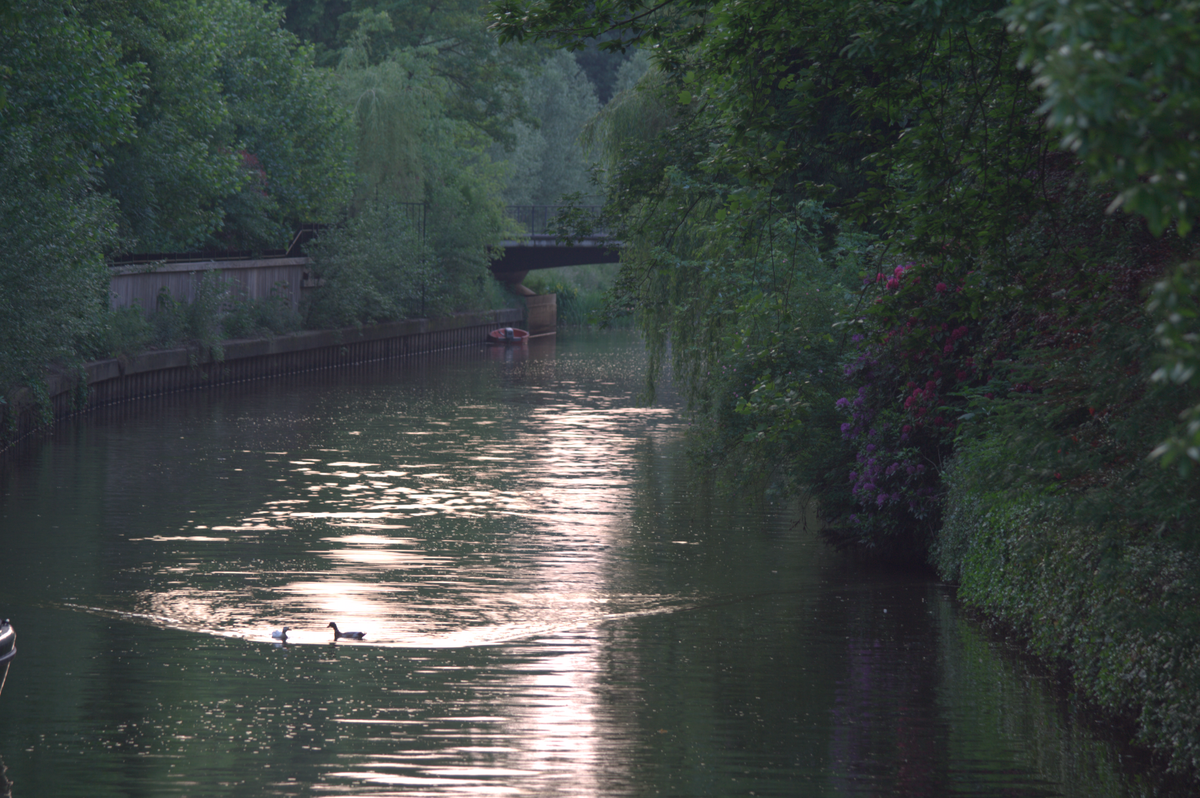
PNG preview: 1,529,301 bytes. Open the PNG.
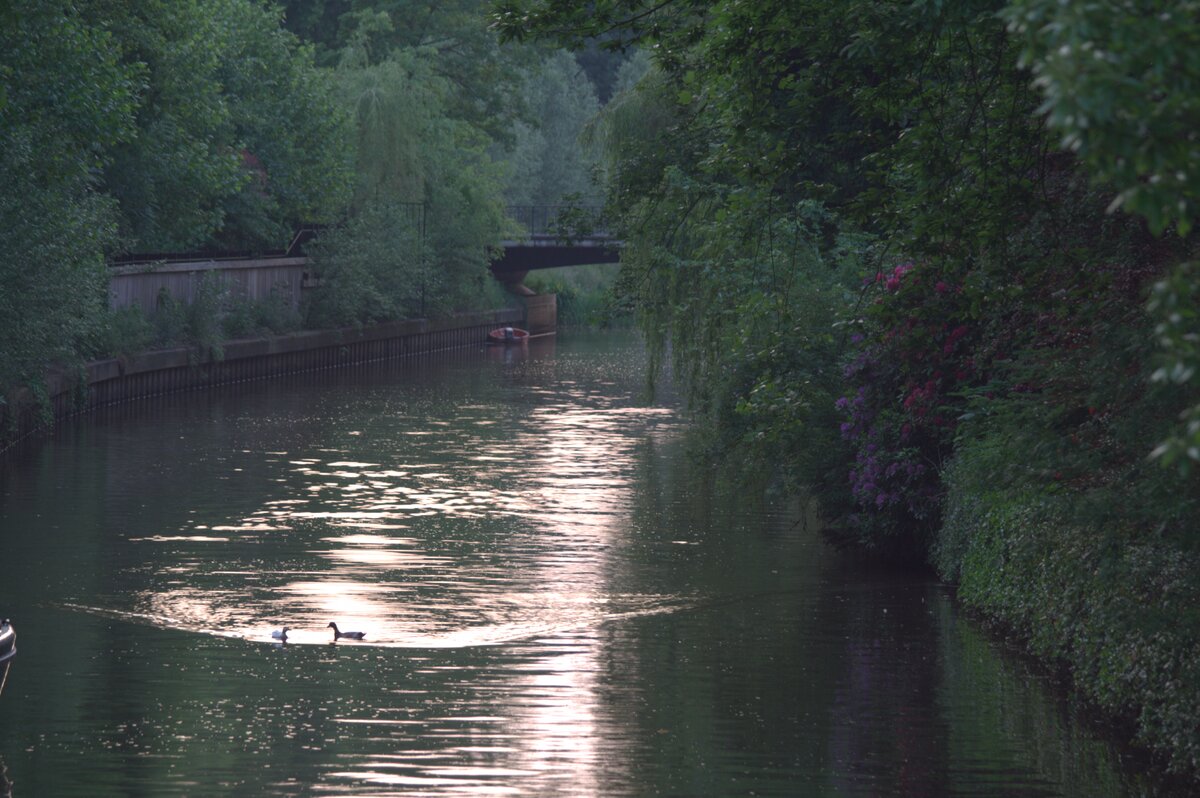
JPEG preview, quality 85: 186,457 bytes. Open the JPEG.
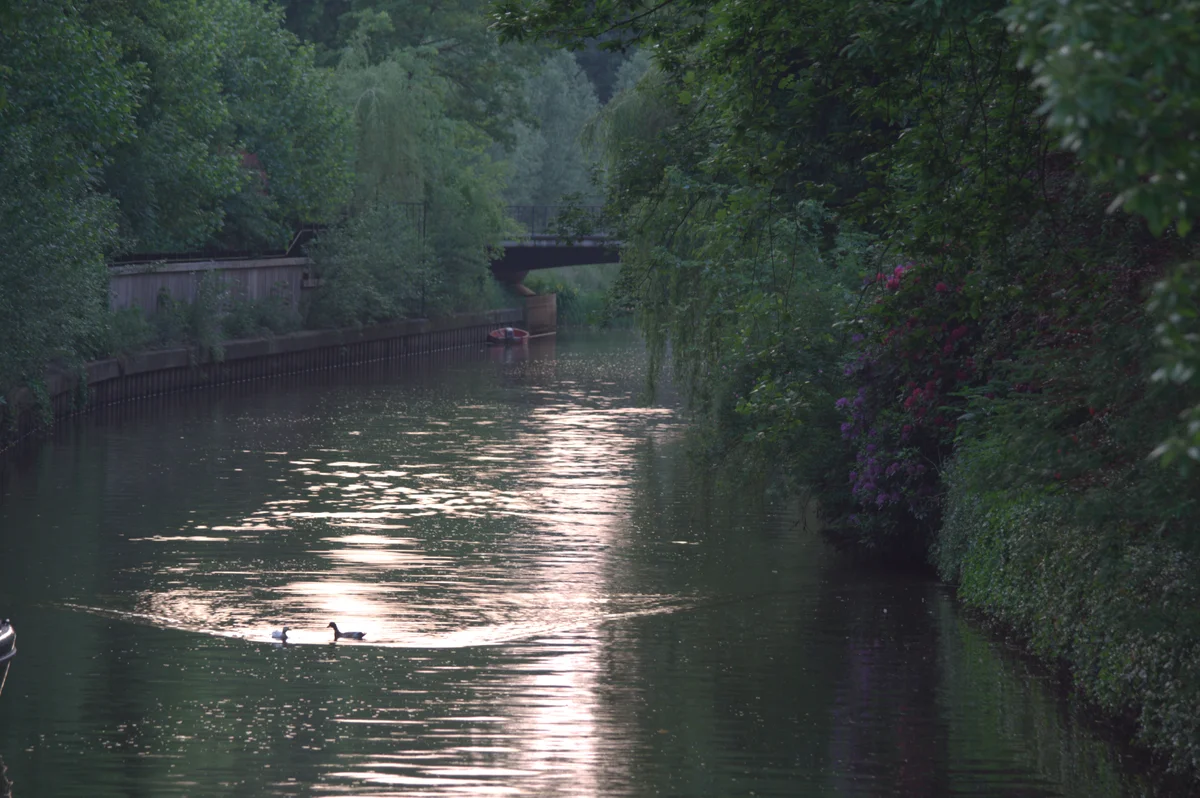
WebP preview, quality 85: 149,574 bytes. Open the WebP.
Image credit: raw.pixls.us Canon EOS 350D sample, CC0. These versions were RAW-developed, resized and encoded for this comparison. The 16-bit export is measured above; an ordinary web preview is not evidence that a display shows all 16 bits per channel.
Choose a conversion method
- Lightroom Classic: useful when the CR2 files and edits already live in its catalog. It offers batch export and reusable settings; it requires access to the paid application.
- Photoshop: useful for retouching or graphic assembly after Camera Raw development. Preserve the layered working document separately from PNG output.
- RawTherapee or darktable: free local RAW processors with editing and export controls. Expect a different starting rendering from the camera preview or Adobe defaults.
- Command line: useful for a repeatable recipe and controlled folders. It does not replace visually checking color, exposure and framing.
- Browser converter: convenient for an occasional file, provided its processing, retention and upload limits suit the image. Confirm whether it processes locally in the browser or sends files to a server.
Do not assume that a camera's RAW-processing menu exports PNG. Check the exact camera manual for its available formats. Canon's Digital Photo Professional batch-conversion instructions describe JPEG and TIFF output; that desktop workflow is not proof of native PNG output in a camera.
Export from Lightroom Classic
Adobe's current Lightroom Classic export documentation lists PNG, color-space selection and 8- or 16-bit output. This refers to Lightroom Classic, not every Lightroom product or older release.
- Finish the CR2 edits and select the photographs to export.
- Open File > Export and choose an output folder separate from the originals. Set a naming rule that makes the deliverables recognizable.
- In File Settings, choose PNG. Select the agreed color space, such as sRGB for ordinary screen viewing.
- Choose 8 bits for a compatible finished screen asset, or 16 bits when the recipient needs the additional precision for further raster work. Confirm that their application supports the file.
- Review Image Sizing and Output Sharpening for the destination. A pixel dimension controls screen size; changing only the resolution/PPI field does not make a large image lightweight.
- Review Metadata, including location information. Export one image, reopen it, and check dimensions, color, file weight and included metadata before exporting the selection.
Save a reusable export preset after checking it. Keep separate presets for small proofs and requested full-resolution assets instead of making PNG the default for every gallery. The photo editing guide covers the earlier editing stage.
Use Photoshop when the image needs retouching
Open the CR2 through Adobe Camera Raw, make the RAW adjustments, then open the image in Photoshop for the required retouching or composition. Keep a PSD or other suitable working file if layers matter.
For PNG delivery, use File > Save a Copy and choose PNG when available for the document. Adobe's saving instructions explain how this creates a separate flattened deliverable. Its format overview lists PNG among formats supporting 16-bit images through Save a Copy. Check document mode and bit depth if an expected format is missing.
For folder-based production, first verify one complete Camera Raw-to-PNG result. An action or batch must use the intended edits, destination and naming rules; a generic Photoshop automation command is not automatically a PNG export recipe. The tested batch-friendly alternative below uses RawTherapee. If the edits already live in Lightroom Classic, exporting there avoids unnecessary transfers between applications.
Convert with free RAW processors
RawTherapee and darktable can develop CR2 files locally. Start with a supported file from your camera, adjust the image, and inspect a single output before committing a whole folder. Different processors need not match the embedded camera JPEG: profiles, tone curves and crop boundaries can differ.
RawTherapee
Browse to the CR2 and open it in the editor. Set the intended white balance, exposure, color treatment and crop, then save or queue a PNG output with the required bit depth and destination. Keep the processing profile alongside the source if you want to repeat the edit. The command-line example below demonstrates PNG output in version 5.13; it uses neutral settings rather than a manually finished client edit.
darktable
Use the export module for selected images, choose file on disk as the destination, select PNG as the file format, and review bit depth, size and output profile. The darktable export documentation describes these controls. Names and layout can differ by version; this is a documented route, not a second hands-on test of the sample.
What works and what does not
Choose the format for the next task: a small photographic proof, a lossless graphic, or a higher-precision raster handoff. Finish and save the RAW edits before export. Check skin tones, bright areas and shadow detail in a color-managed viewer rather than assuming a new file extension improves them. Keep both the original and the editing instructions; a rendered copy alone is not a complete archive.
Tested command-line conversion
Install RawTherapee with its command-line executable available as rawtherapee-cli. These commands were run with version 5.13 on Linux, using the CC0 sample saved as sample.CR2. Output filenames must be available; the commands intentionally do not enable overwriting.
rawtherapee-cli \
  -o rendered-8.png \
  -n -b8 -c sample.CR2
rawtherapee-cli \
  -o rendered-16.png \
  -n -b16 -c sample.CR2
The official RawTherapee command-line manual defines -n as PNG, -b8 and -b16 as channel depth, and -o as the destination. Keep -c last, followed by the input path or paths. Quote paths containing spaces.
These commands use neutral parameters. For your own edited images, supply a saved processing profile with -p, or use -S to process only inputs with an existing matching sidecar. A folder can be supplied after -c with an output directory, but first check one representative file and use a dedicated output folder. Do not apply one person's portrait edit blindly to an entire mixed-light shoot.
Our sample completed successfully with a warning about an unexpected next pointer in a Canon metadata directory. We checked the decoded image, dimensions, profile and bit depth; this is not a promise that every damaged or unusual RAW file will decode correctly.
Browser converters and private photographs
Before selecting a browser service, check supported camera models, file-size limits, output controls, retention terms and where processing occurs. A browser interface alone does not tell you whether the RAW leaves your device. Avoid uploading confidential work until its handling fits the assignment, and do not treat a provider's deletion claim as a substitute for your own source archive.
Check the export before delivery
- Keep the source: retain CR2 files and the relevant catalog, sidecar or processing profile, with backups.
- Check the image: reopen the export and inspect framing, orientation, color and detailed areas at an appropriate zoom.
- Check the file: confirm actual dimensions, bit depth and color profile. Compare file weight with the intended destination.
- Check metadata: inspect the exported file for location or personal information and for the attribution you intend to retain. Do not assume every format or app preserves the same fields.
- Name and separate versions: keep proofs, final PNGs and working documents distinguishable. Save a tested preset for each recurring output need.
For a client preview, choose PNG only when its lossless raster characteristics are useful enough to justify the size. For a design layout, agree on PNG versus TIFF or a layered document. For a long-term RAW archive, keep the CR2. An early edit review usually does not need a full-resolution PNG.
Once the deliverables are ready, compare ways to share photos online. SendPhoto gallery delivery can organize finished images for a client handoff; agree on the files and access settings separately from the conversion recipe. Keep your RAW archive outside that delivery workflow.