
A cinematic photo suggests a scene: a person doing something, a place with atmosphere, or a moment that invites a question. Choose that idea first, then use framing, light and editing to support it. A wide crop, teal shadows or film grain is an option, not a requirement.
This guide helps you choose a look. For the full shooting-to-export sequence, use the nine-step cinematic photo tutorial. The worked example here comes from Adobe’s published lesson; no original shoot, edit or camera test is claimed.
Understanding Cinematic Photography
Think in terms of mood and visual relationships rather than a filter. Decide what should attract attention and what the viewer should infer. A quiet portrait can feel cinematic with soft light and restrained color; a tense portrait may depend on dark space, a concealed expression or opposing lines.
Write one sentence before shooting: “A person waits for news beside a window,” for example. Choose an action, expression or object that makes that premise visible. It is a proposed brief, not a photographed result. If the picture still communicates without its grade, the editing has something useful to support.
Essential Techniques
| Choice | When it helps | What to check |
|---|---|---|
| Wide framing, such as 2.35:1 or 2.39:1 | People and environment need space to relate | Does the crop remove hands, heads or story details? Keep an uncropped master; a taller composition may work better |
| Warm/cool color contrast, including orange and teal | The scene already has contrasting warm and cool light or surfaces | Keep complexions and important objects believable; monochrome or a single restrained palette may suit the scene |
| Directional light and shadow | A face, doorway or object needs shape or tension | Preserve important detail and readable expressions; dramatic darkness is a choice, not an exposure mistake to hide |
| Added grain | You deliberately want visible texture | Review at delivered size. Grain does not recreate a particular film stock or repair compression |
| Shallow depth of field | A distracting background competes with the subject | Keep the important eye or object sharp; deeper focus can be better when the setting tells the story |
A proposed crop calculation: a 6000 × 4000 photograph cropped to about 2.39:1 at full width becomes roughly 6000 × 2510 pixels. It retains about 62.8% of the original pixel count. That says how much frame is removed, not whether the composition improves. Black bars change presentation without creating the missing scene outside the frame.
Color Grading Workflow
Correct technical problems before choosing a treatment. Do not automatically apply an S-curve, teal-orange palette or fixed saturation reduction. Contrast, color and lighting interact; revisit earlier decisions when the subject stops looking right.
- Keep the original and make a reversible edit or separate version.
- Set exposure and white balance so the subject reads clearly. Lower highlights only to reveal detail still retained in the source.
- Choose a restrained contrast shape. A gentle curve may help a flat file; an already contrasty scene may need no added S-curve. Preserve purposeful shadows without crushing every dark texture.
- Choose color or monochrome. In Lightroom Classic, B&W Mix controls how source colors become gray tones; a color photo does not need to lose a fixed percentage of saturation.
- For color, distinguish Color Mixer from Color Grading. Mixer adjusts color ranges; Color Grading tints shadows, midtones and highlights. Start with a low tint strength and check skin and neutral objects. Blending controls overlap and Balance shifts the tonal emphasis.
- Compare with the starting edit at normal size, then inspect texture and edges closely. Recheck a small set for consistent mood; grain and sharpening should survive the final resize.
Adobe’s tone, grayscale and color-grading reference explains these controls. Slider names and available options differ in other editors.
Read Adobe’s Film-Noir Example
Adobe’s film-noir lesson starts with a posed color portrait and applies the Classic–B&W Filter Orange Filter preset in Lightroom Classic. These unchanged published screenshots show the setup and the chosen result; their interface is older than current releases. The lesson page lists Adobe Stock contributors Ruslan Solntsev and weedezign.
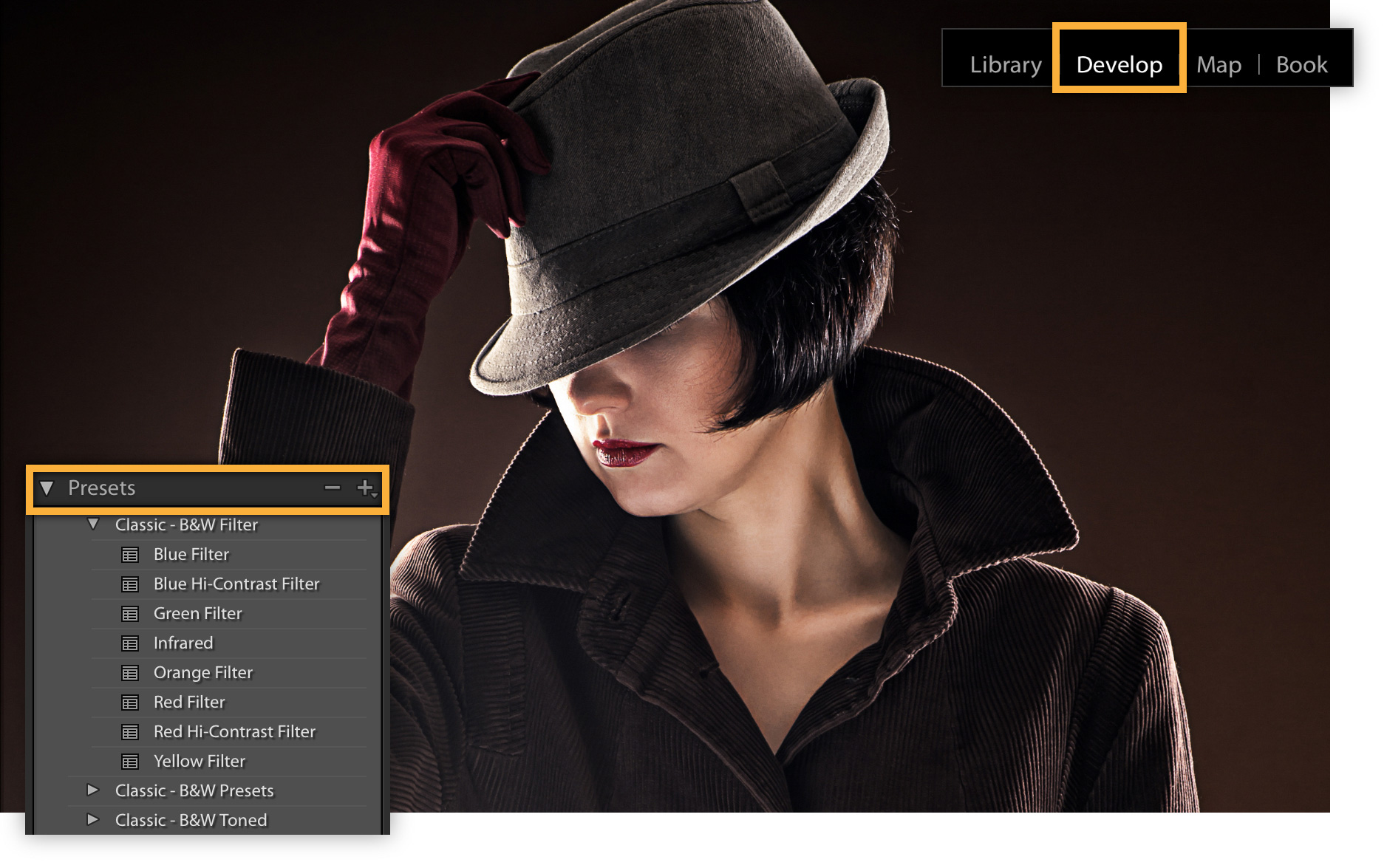
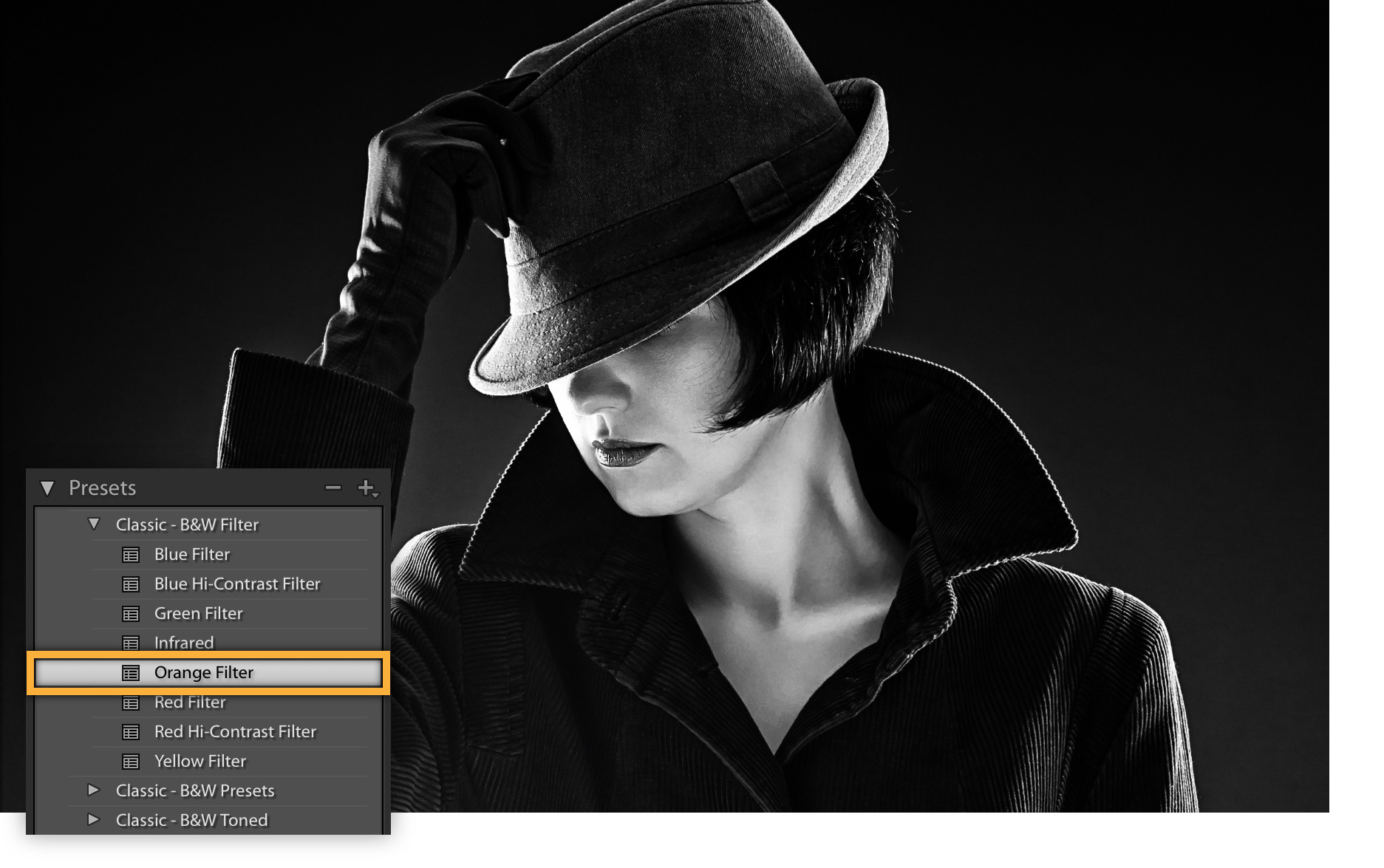
Notice what stayed constant: the hat, hand, collar and face position. The scene’s design carries the look before editing. This example needs neither a wide crop nor a teal-orange grade. Do not assume the preset will produce the same mood on a softly lit smiling portrait.
Common Mistakes to Avoid
- Rushing the brief: choose an action, mood and useful setting before searching for a filter.
- Following a trend without a reason: wide framing, shallow focus and warm/cool grading should support this scene rather than erase its useful context.
- Over-editing: inspect clipped highlights, empty shadows, unnatural skin and distracting grain; reduce the treatment when those compete with the story.
- Losing the source: keep an uncropped original and independent backup so the cinematic version does not become your only copy.
- Leaving expectations unclear: agree whether the client wants a stylized grade, neutral alternative, wide crop or print-ready proportions before final delivery.
Next Steps
For a practice exercise, photograph a window portrait with a simple action. Keep the face’s important features in focus and watch the bright window. Make a neutral edit and one mood-based version; compare which communicates the premise more clearly. This is an exercise to try, not a reported session or tested setting.
Export for the agreed destination. JPEG with embedded sRGB is a common starting choice for ordinary screen delivery; preserve dimensions and profile when a client or lab specifies different requirements. Reopen the delivery copy to inspect tone, texture and crop. Use the photo-quality and export guide for concrete checks.
For a set, review the pictures together before presenting them through gallery delivery. A gallery presents the finished work; it does not create the grade or replace your archive. Explore six cinematic approaches for other mood choices.