
To improve photo quality, first identify the problem. A blurry photo, noisy photo, low-resolution file, compressed image, dull edit, and badly exported image all need different fixes. The right workflow is diagnosis first, editing second, export third.
Some problems can be reduced; missing capture information cannot be reliably restored. A slightly soft file may benefit from sharpening, and distracting noise can be reduced. An upscaler may infer plausible detail, but a tiny screenshot does not become the recovered camera original. The credited Adobe examples below show specific controls and tradeoffs; they are publisher demonstrations, not edits or benchmarks performed by SendPhoto.
Start With a Quality Diagnosis
First check the file’s pixel dimensions and view it at 100%: one image pixel per screen pixel. Then review the intended display or print size. A defect at an extreme zoom may not matter in the final use. Diagnose one cause at a time; compare the source with the exported file to separate a capture problem from a delivery problem.
| Problem | What it looks like | Best first fix |
|---|---|---|
| Missed focus | Subject is soft but background may be sharper | Choose a better frame if available |
| Motion blur | Directional smear from camera or subject movement | Choose a sharper frame; sharpening adds edge contrast, not reliable missing motion detail |
| Noise | Speckles or color blotches, often in shadows | Reduce noise, avoid over-brightening |
| Low resolution | Image looks blocky or lacks detail when enlarged | Find original file or export larger from source |
| Compression | Blocky artifacts, smeared detail, rough gradients | Use a less compressed source if available |
| Flat color | Image looks dull or lifeless | Adjust exposure, contrast, and white balance |
| Bad export | File looks worse after saving or uploading | Re-export with better size and quality settings |
If you are still learning the capture side, how to take good photos covers the habits that prevent many quality problems before editing begins.
Fix Blur the Right Way
Blur has different causes. The fix depends on which kind you have.
Missed focus happens when the camera focused on the wrong area. For portraits, the background or clothing may look sharper than the eyes. Editing can add edge contrast, but it cannot create real detail that was never captured.
Motion blur happens when the camera or subject moved during the exposure. It often has a direction, like a small streak. Sharpening may help a little, but strong motion blur usually needs a different frame.
Camera shake can affect the whole image. If every detail is soft, the shutter speed may have been too slow or the camera was not steady enough.
Practical blur fixes:
- Compare nearby frames before editing.
- Use mild sharpening only after exposure is corrected.
- Avoid extreme sharpening, which creates crunchy edges.
- Reduce noise before sharpening if the image is noisy.
- Export at a realistic size so mild softness is not exaggerated.
For the editor controls and deeper blur diagnosis, use the fix blurry photos tutorial. This article covers the wider decision: whether the problem is blur, noise, insufficient pixels, compression or export.
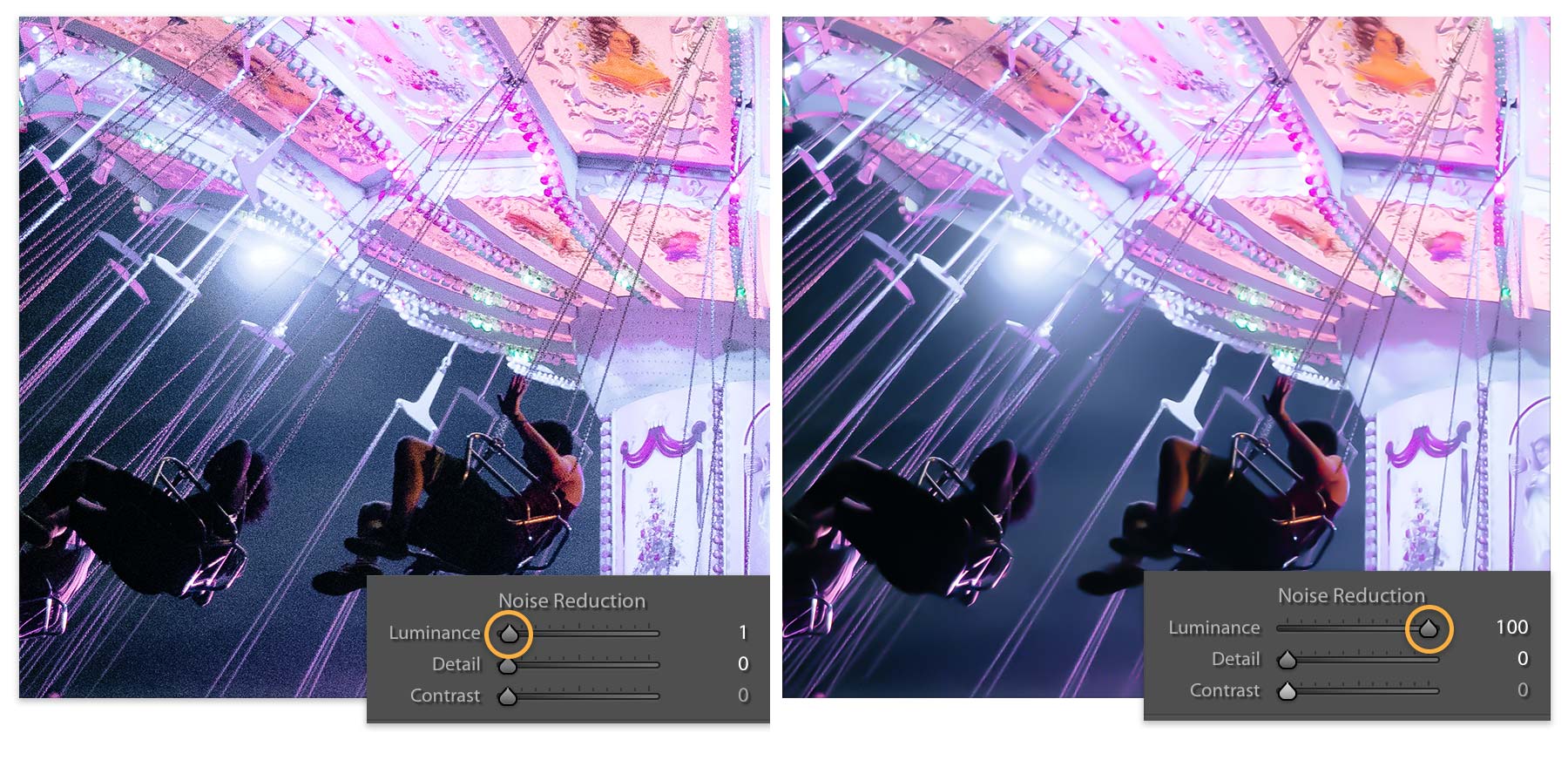
Reduce Noise Without Smearing Detail
Noise is common in low light, underexposed files, and heavily lifted shadows. It appears as grain, colored speckles, or rough texture.
Noise that was recorded at capture is not removed by lowering Exposure; it may simply become less visible. Review brightness and detail at a realistic output size. For conventional noise-reduction sliders, compare the result after adjusting exposure. AI Denoise may have a different processing order and source-format requirements: Adobe currently places Lightroom Classic Denoise in Detail and recommends it before AI masks and Remove. See its Enhance documentation.
Noise reduction tips:
- Review conventional noise reduction after brightness changes; follow the editor’s order for AI Denoise.
- Use less on faces, hair, fabric, and detailed textures.
- Check the image at normal viewing size, not only zoomed in.
- Avoid combining heavy noise reduction with heavy sharpening.
- Consider black and white only when it fits the photo, not as a default rescue.
The goal is to make noise less distracting while retaining useful texture. Compare smooth shadows with fine hair or lettering; a clean-looking preview can still lose detail.
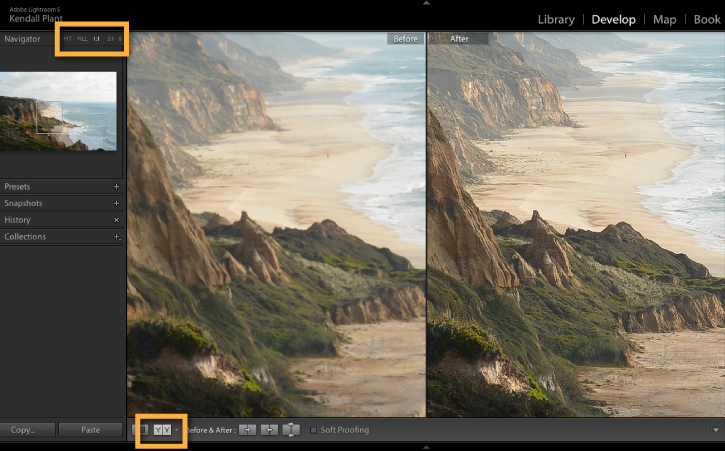
Improve Sharpness and Detail
Sharpening increases edge contrast. It can make a good file look crisper, but it cannot turn a bad file into a perfect one.
A practical sharpening order:
- Correct exposure and white balance.
- Reduce visible noise if needed.
- Apply moderate sharpening.
- Check eyes, text, edges, and fine detail.
- Export a test file and inspect the result.
Choose sharpening for the subject, noise and output size. Already processed JPEGs may need little or none. Inspect edges for halos and grain for exaggeration; do not assume every final file needs another pass. Capture sharpening and sharpening after resizing serve different purposes.
Fix Low Resolution Problems
Pixel dimensions count the width and height of the file; they do not measure how much trustworthy scene detail it contains. A large file can still be blurred. Changing a ppi label alone does not add pixels or repair softness.
Before editing, find the best source:
- Original camera or phone file.
- Full-size export from the editing app.
- Downloaded original rather than a preview.
- Uncompressed or less compressed version from the sender.
- Final file from the photographer instead of a social media copy.
If only a small file exists, keep the original and compare an upscaled copy at the requested size. Treat inferred eyes, text and fine patterns cautiously; they may look plausible without being accurate. Adobe’s Super Resolution documentation describes doubling width and height, which makes four times as many pixels. A hypothetical 1200 × 800 file becomes 2400 × 1600 (0.96 to 3.84 megapixels); that arithmetic does not prove four times the captured detail.
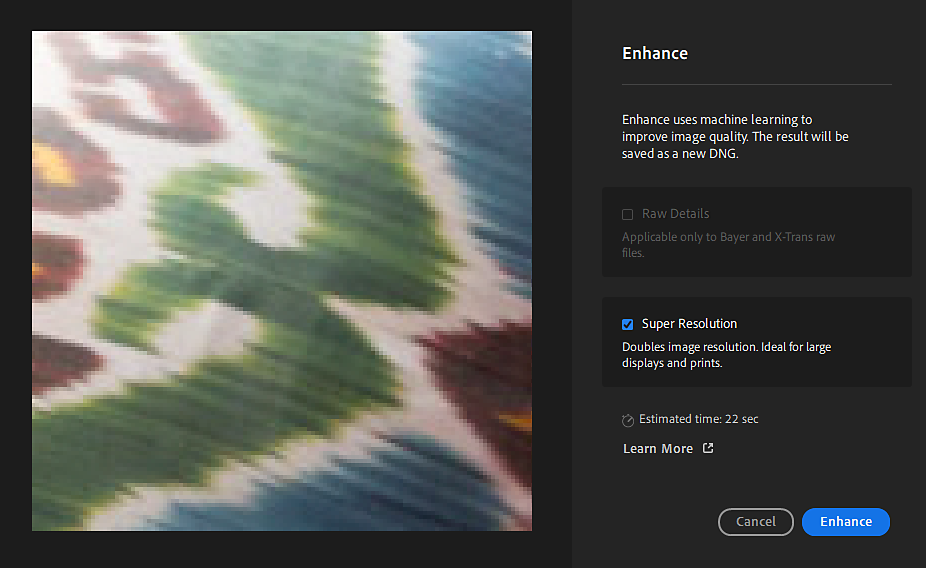
For pixel dimensions and delivery needs, read the photo resolution guide.
Avoid Compression Damage
Lossy JPEG encoding discards information and can cause blocky edges, rough gradients or smeared fine detail. Lossless compression, such as ZIP-compressed TIFF, reduces bytes without discarding decoded image data. A high JPEG quality setting reduces damage but does not make JPEG lossless. Copying an existing file unchanged is different from repeatedly decoding and re-encoding it.

To reduce compression problems:
- Edit from the original, not a screenshot.
- Avoid repeatedly saving the same file through messaging apps.
- Export once from the final edit.
- Use a file size appropriate for the delivery use.
- Keep an archive copy of the highest-quality edit.
For client delivery, choose the intended rendition through SendPhoto’s download controls. Gallery and collection settings are delivery choices, not image repair. Review the actual delivery file rather than judging a screen preview as if it were the final export.
Correct Color and Tone
Quality is not only sharpness. A sharp photo can still look poor if color and tone are wrong.
Common tone fixes:
- Raise exposure if the subject is too dark.
- Lower highlights to reveal retained bright detail; all-channel clipping at capture can leave nothing to recover.
- Lift shadows only where important detail is hidden.
- Add contrast if the image feels flat.
- Set a believable black point so the image has depth.
Common color fixes:
- Adjust warmth if the photo is too yellow or blue.
- Adjust tint if the photo is too green or magenta.
- Lower saturation if skin, grass, or sky looks unnatural.
- Match color across a set before delivery.
In Adobe’s light and color lesson, Seán Duggan adjusts a Maine lighthouse raw file. The two unchanged lesson frames below show a brighter rocky foreground and stronger sunset colors after tone and color changes. They do not establish a blur, resolution or compression repair.
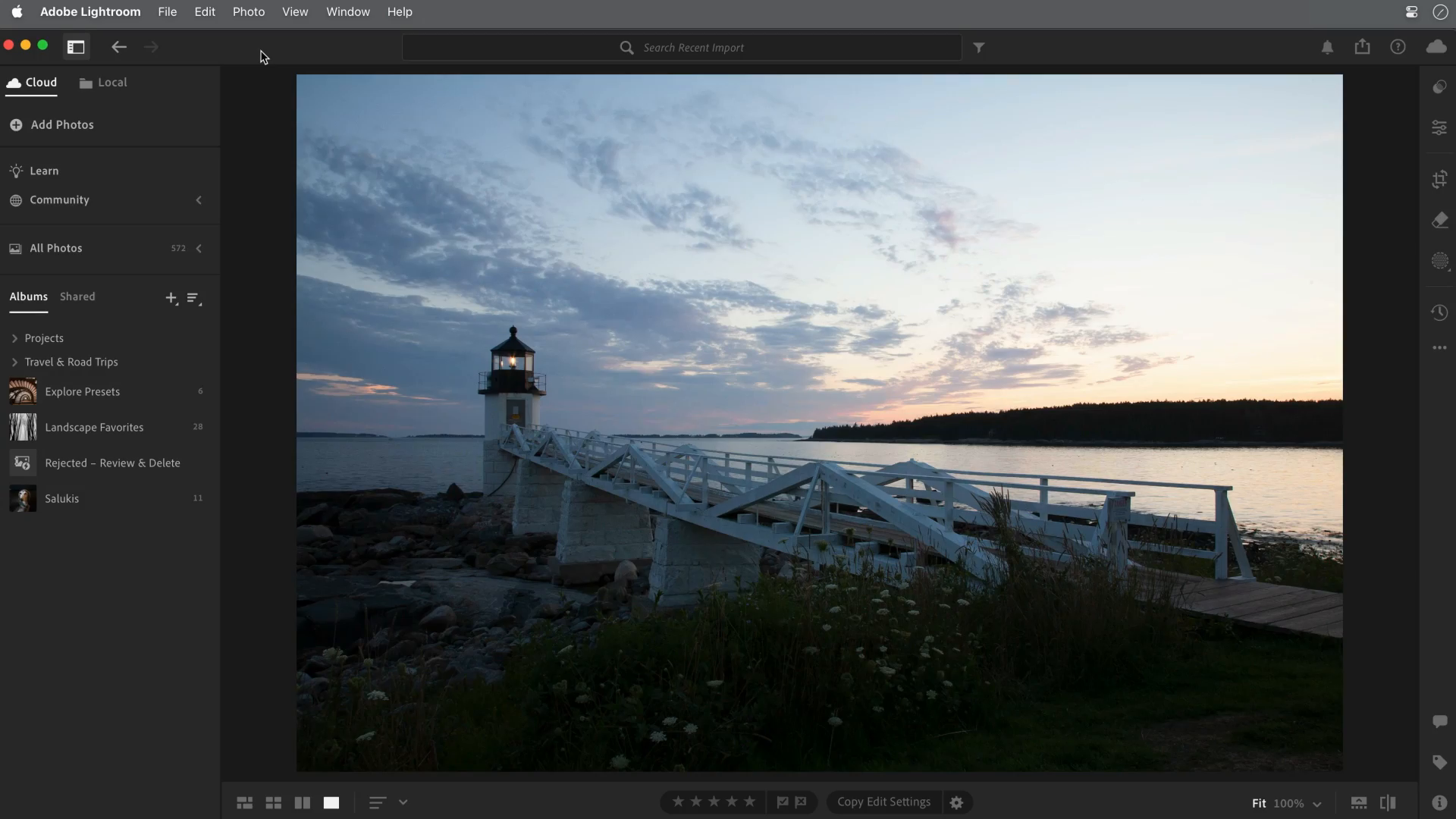
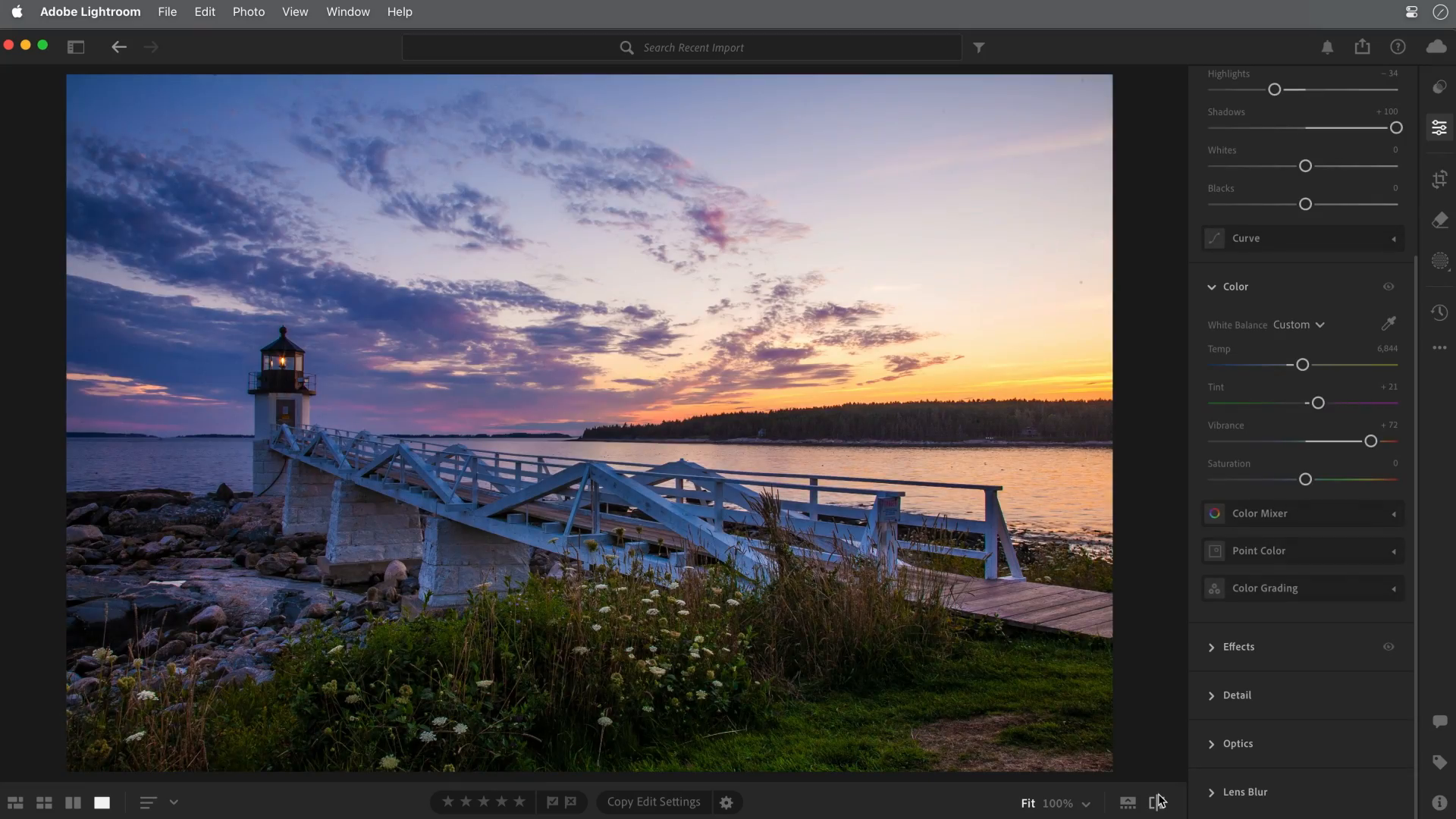
For the full introductory sequence, use how to edit photos for beginners.
Improve Quality Before You Shoot
The best quality fix is prevention. Small habits at capture time make a bigger difference than heavy editing later.
Capture checklist:
- Clean the lens.
- Hold the camera steady.
- Tap or choose focus carefully.
- Use enough light whenever possible.
- Avoid extreme digital zoom.
- Shoot multiple frames of important moments.
- Watch the frame edges for distractions.
- Keep the original file before sending or compressing.
These habits matter for both phones and cameras. They also make editing faster because the file starts closer to finished.
Export Settings Matter
Many quality complaints happen after editing, when the final file is exported too small or compressed too heavily.
These are starting suggestions for ordinary SDR photographs, not specifications for every website, lab or client. In Lightroom Classic, File → Export provides File Settings, Image Sizing and Output Sharpening. Adobe documents those controls in its export reference. Embedded profiles help compatible software interpret color; they cannot make every display identical.
| Use | Starting export choice | Acceptance check |
|---|---|---|
| Website or blog | JPEG, embedded sRGB, actual displayed size; compare Quality 80–90 | Inspect gradients/detail at intended size and check the site’s byte budget |
| Client preview | JPEG, sRGB, 2400-pixel long edge if allowed; Quality 85 starting point, Don’t Enlarge | Enough detail for selection; label it preview, not full-size final |
| Final client delivery | Agreed format and dimensions; for JPEG compare Quality 90–100 and retain edited dimensions if full-size was promised | Count files, check dimensions and inspect edges; Quality 100 remains lossy |
| Lab-specified profile and format; a 12 × 8-inch print at requested 300 ppi needs 3600 × 2400 pixels after crop | Confirm ratio, pixel count and lab requirements; changing ppi alone creates no detail | |
| Archive | Original plus editable adjustments; keep a separate high-quality final export, or lossless TIFF if appropriate | Independent backup and a reopening check; TIFF does not restore a damaged JPEG |
Check an Export Without Confusing Size and Quality
For a hypothetical 6000 × 4000 source, a 2400-pixel long-edge preview should be 2400 × 1600 if the 3:2 crop is retained. That is 3.84 megapixels versus 24 in the source. This is a worked calculation, not a measured export from our examples.
- Export a separate preview copy with the chosen size, profile and quality; keep the source untouched.
- Reopen the exported file, not the editor preview. Confirm dimensions, embedded profile and byte size in a viewer or file inspector.
- Compare the same area at matching magnification: look for halos, block boundaries, lost hair texture and rough sky gradients. Also review at intended viewing size.
- If compression is the problem, export another copy from the source with the same dimensions and a higher quality setting. If detail is absent from the source, stop treating export settings as a repair.
- Review the intended delivery copy and confirm it is the preview or full-size version you agreed to supply.
SendPhoto’s gallery passwords add an access barrier to gallery delivery. Passwords and links can be forwarded; later settings do not revoke copies already saved. Download controls operate at gallery or collection level, not as unique viewing permissions for each person. Keep a separate archive.
What Cannot Be Fully Fixed
Be realistic about these problems:
- Strong motion blur.
- Completely missed focus.
- Highlights with no recorded detail.
- Tiny files exported far below the needed size.
- Heavy compression artifacts from repeated sharing.
- Extreme underexposure with severe noise.
You can often make these files look better at a smaller display size, but you should not promise perfect recovery.
Photo Quality Improvement Checklist
- Diagnose the problem before editing.
- Compare nearby frames for a sharper original.
- Correct exposure before sharpening.
- Reduce noise before adding sharpness.
- Use the highest-quality source file available.
- Avoid repeated compression.
- Fix white balance and contrast for a cleaner look.
- Export at the right size for the use.
- Review final files on the device or gallery where they will be viewed.
- Keep an archive version of important finished images.
FAQ
Can I improve the quality of a blurry photo?
You can sometimes improve mild softness, but strong motion blur or missed focus cannot be fully repaired.
Why does my photo look bad after exporting?
It may have been exported too small, compressed too heavily, or saved from a low-quality source instead of the original.
Should I sharpen every photo?
No automatic extra pass is required. Some files are already sharpened, and additional sharpening can exaggerate noise or halos. Decide from the source processing, subject, output size and intended viewing distance.
How do I make low light photos look better?
Correct color, brighten only as much as needed, reduce noise gently, and avoid heavy sharpening on noisy areas.
What is the best way to keep photo quality when sharing?
Share from the highest-quality final export and use a delivery method that does not force unnecessary compression.