
A private portrait session, a contract and a laptop full of RAW files need different kinds of protection. Before adding a password, decide whether you need to protect a lost device, an attachment or access to an online gallery.
For working files, use suitable device or volume encryption. For a one-off confidential attachment, use an encrypted archive or a document's open password. For client viewing, configure gallery access and downloads separately. A password cannot compensate for choosing the wrong kind of protection.
The procedures below follow the vendors' documentation. Microsoft and Adobe images are their published examples; the SendPhoto image is an existing product screenshot. They illustrate the controls rather than a test of a particular client's device or delivery.
Why Password Protection Matters for Photographers
Consider who should have access and what happens after delivery. A portrait client may share a gallery with family; a commercial client may need confidential selects kept away from other suppliers. Those are different handoffs.
Three protection jobs recur:
- Local working files: reduce exposure if a laptop or storage device is lost. Encryption helps with data at rest; an unlocked session still gives the signed-in user access.
- One-off transfers: encrypt an archive or document before sending it when the recipient can use compatible software. Protect the key as well as the file.
- Client galleries: require a password for browser access when the session should not be open to anyone with its link. Decide independently whether visitors should download.
HTTPS protects a connection in transit; it is not evidence that the provider cannot access stored photos. A gallery password is an access control, not proof of end-to-end encryption. Once an authorized recipient downloads a file, changing the gallery password cannot retrieve that copy.
Choose the protection for the exposure you want to reduce, then choose a password that suits that tool.
Everyday Protection Using Your Operating System
Device encryption belongs near the start of a studio workflow, before the laptop leaves for a shoot. Keep recovery information and a recoverable backup: losing the key must not mean losing the only copy of a job. Our photography backup workflow covers that separate responsibility.
Protecting Files Before They Leave the Studio
For a compatible Windows 11 device, sign in as an administrator and open Settings → Privacy & security → Device encryption, then turn it on. If the option is missing, check eligibility and account privileges rather than assuming encryption is active. Qualifying Windows Home devices can support Device Encryption; the separate BitLocker Drive Encryption management feature is available on Pro, Enterprise and Education. Locate the recovery key before relying on the setup. See Microsoft's Device Encryption instructions.
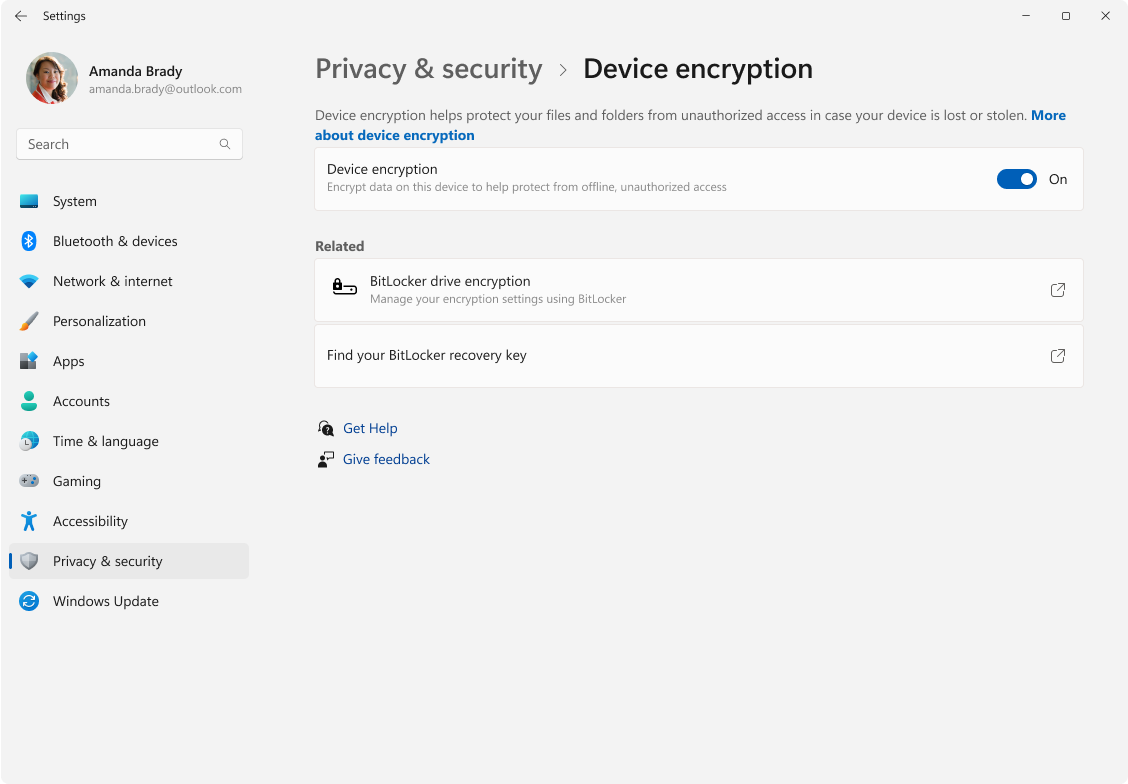
Microsoft's documentation screenshot shows the Device encryption toggle and recovery-key link. It is Microsoft's example device, not a photograph of a configured studio laptop.
On a Mac, open System Settings → Privacy & Security → FileVault and follow the recovery choice when turning it on. Apple silicon and T2 Macs already encrypt data automatically; FileVault adds protection requiring login credentials. Older Macs need FileVault enabled for that volume encryption. Keep a recovery key separately from the startup disk. Apple's FileVault guide explains the account and recovery options.
What These Tools Are Good For
Windows EFS encrypts supported NTFS files using a user's keys. Back up those keys if you use it. It is not a portable encrypted attachment: Microsoft documents copy behavior that depends on destination support, available keys and copy options. Do not assume every exported or copied file remains encrypted.
| Tool | Useful studio role | Important limit |
|---|---|---|
| Windows EFS | Selected files on a supported NTFS installation | Key-dependent; copying is not a universal encrypted-delivery method |
| Windows Device Encryption / BitLocker | Data at rest on a supported device or volume | Does not turn an exported attachment into an encrypted archive |
| macOS FileVault | Protection for the startup volume at rest | Logged-in access and exported copies need separate consideration |
| Encrypted disk image | A password-protected container for chosen files | Originals outside the image remain separate; a mounted image is accessible |
For a Mac folder image, use Disk Utility → File → New Image → Image from Folder, choose the folder, set encryption and save to a new image file. Store the password safely, open the image when needed and eject it afterwards. Follow Apple's disk-image instructions. This creates a protected copy; it does not retroactively protect unencrypted originals, backups or exports.
An encrypted computer and an encrypted delivery file solve different problems.
Creating Encrypted Archives for Delivery
An archive is useful when a recipient needs files rather than a gallery and has agreed to the format. Ask which device and application they will use before sending several gigabytes. The archive, extracted files and originals may all occupy space at once.
ZIP Versus 7Z in Real Use
The extension alone does not tell you whether an archive is encrypted. 7-Zip's format documentation confirms AES-256 support for 7z. The bundled 7-Zip manual also distinguishes ZIP encryption methods and filename protection.
- ZIP with AES: can encrypt file contents using AES, but the recipient's application must support that ZIP encryption method. Do not confuse it with older, weaker ZipCrypto.
- 7z with AES-256: supports encrypted contents and an Encrypt file names option. Filename protection needs to be enabled when names are confidential.
- A routine compressed folder: should not be treated as password protected merely because it ends in ZIP. Confirm the encryption choices in the application creating it.
7-Zip's manual says ZIP does not support its filename-encryption feature. A ZIP recipient may therefore see names even when file contents are encrypted. Use neutral filenames if that information should not be exposed.
How to Build the Archive Correctly
For the Windows 7-Zip interface, use the current release from the official 7-Zip download page. Its Add to Archive dialog contains password, encryption-method and filename-encryption controls. These choices are documented controls, not a report of an archive created for this article.
- Prepare a delivery folder. Include only approved exports; remove private notes and unintended files. Keep your working originals and backup.
- Open Add to Archive for that folder. Give the output a new, neutral name and choose 7z or ZIP according to the recipient's agreed application.
- Set a unique password. Enter and confirm it in the encryption controls. Store it in your password manager rather than naming the archive after it.
- Check encryption explicitly. For ZIP choose AES-256 when supported by the recipient. For 7z, enable Encrypt file names if the names are private. Do not rely on an assumed default.
- Reopen the saved output as a delivery check. Confirm the requested file cannot be extracted without the password, then extract with it and compare file counts and a sample against the approved folder. If filename encryption was requested, check that names are hidden too.
- Agree the handoff. Tell the recipient the required application, how the password will arrive and how to report a problem. Ask them to confirm access before the deadline.
This is a checklist for your delivery, not a claim that the recipient checks have already been performed. Compression and encryption are separate settings; adding a password to the wrong option is not enough.
Where Archives Break Down
Archives ask the recipient to download, store and extract a package before reviewing photos. On a phone, available storage and compatible software can make that inconvenient. There is no universal gallery-traffic percentage that decides the choice for your client.
A recipient can copy extracted files, and changing your local archive password does not alter an archive already sent. If permissions may change later, consider whether controlled online access is a better fit. For file-size planning, see our guide to sending photos without losing quality.
Agree the format and reader application before making the archive the client's only route to their files.
Securing Individual Documents and PDFs
A contract or invoice can need protection even when the accompanying photographs do not. Use the document's opening restriction when the content is confidential; an editing restriction answers a different question.
When Document Passwords Make Sense
These are common document handoffs:
- Contracts and invoices: an open password can restrict casual access to private terms or contact details.
- Editable Office files: use file encryption when the recipient should need a password to open the document.
- Proof PDFs or lookbooks: an open password can restrict viewing; printing or editing permissions are additional settings rather than guarantees against copying the screen.
Adobe distinguishes a document-open password from a permissions password controlling actions such as editing and printing. See Acrobat's password-security overview. A recipient able to read a document can still record what they see.
A Simple Workflow for Admin Files
In Acrobat, open All tools → Protect a PDF → Protect with password. Select Viewing if a password should be needed to view the document, enter and confirm it, then apply protection and save the intended delivery copy. Reopen that saved file before sending. These are based on Adobe's password instructions; availability depends on your Acrobat product.
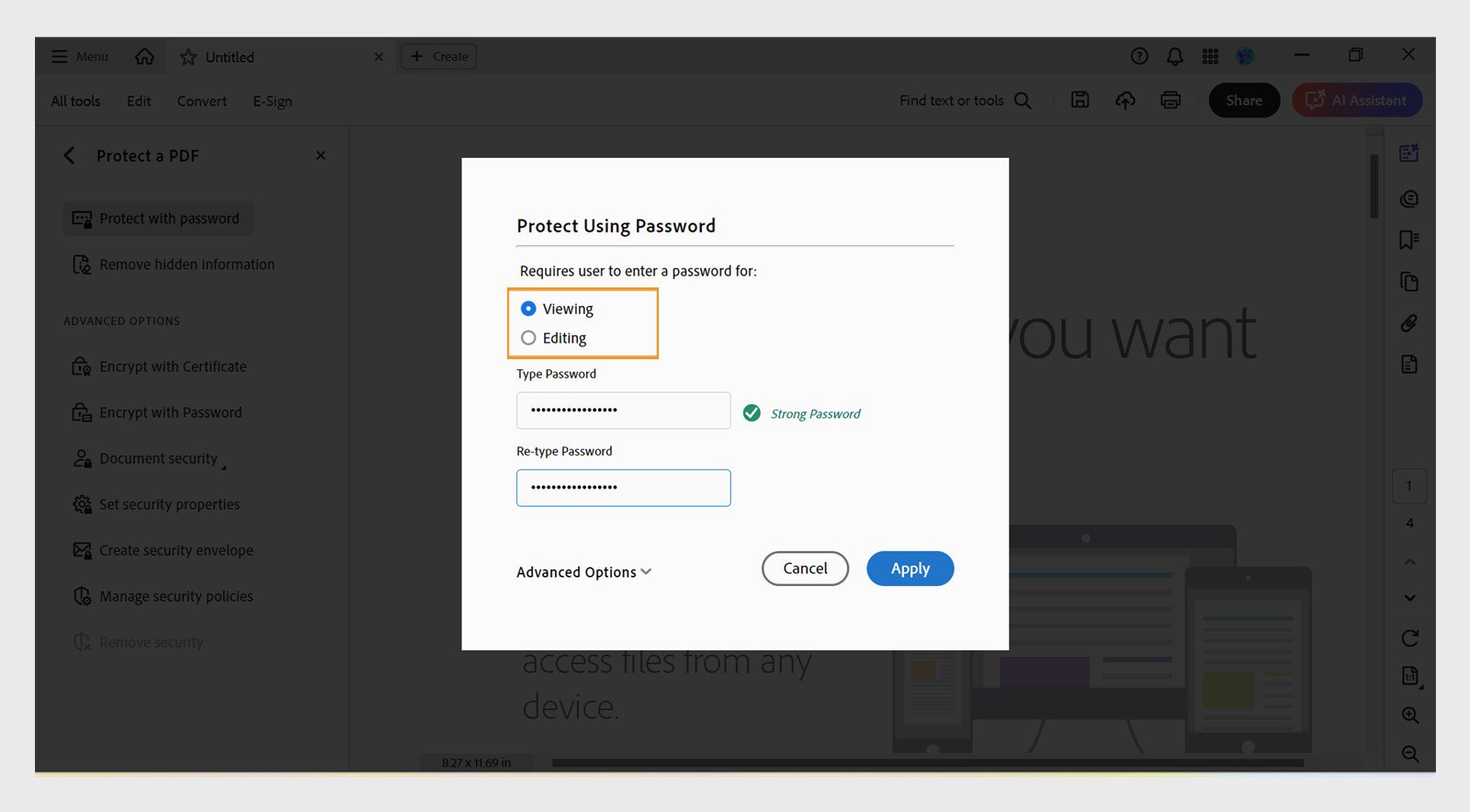
Adobe's unchanged documentation example shows Viewing and Editing as distinct choices. The masked password and strength indicator belong to Adobe's example, not a PDF tested for this guide.
In desktop Word for Windows, use File → Info → Protect Document → Encrypt with Password, confirm the password and save. Microsoft's Word guide gives separate Mac instructions and explains that Word Online cannot password-encrypt the document. Use the options supported by your version and keep the password recoverable for your own records.
For Excel, use file-level File → Info → Protect Workbook → Encrypt with Password, confirm and save the delivery copy; consult Microsoft's Excel encryption instructions. Despite the button's name, this is different from protecting workbook structure. Microsoft states that worksheet protection is not a security feature: locking cells is not a substitute for encrypting the file.
Keep the editable original according to your retention policy. Check the exact attachment and filename, keep credentials separately and confirm that the recipient can open it in their application. Encryption does not replace document review or an agreement about who may receive it.
Advanced Security With Encryption Containers
An encrypted container holds a collection of files in a volume you unlock when needed. It can suit private source files, administrative material or a portable working archive. It adds key management and recovery responsibilities rather than eliminating them.
What a Container Actually Does
VeraCrypt's beginner tutorial describes creating a file container, mounting it as a volume and using the mounted volume for files. If creating one, choose a new filename: selecting an existing file as the container destination can overwrite it. Follow the tutorial instead of treating an existing photo folder as a volume to format.
The useful roles are:
- Isolation: store selected sensitive files in an encrypted volume, keeping unrelated delivery exports separate.
- Portability: move the container to a device with compatible software, while protecting the password independently.
- Retention: keep an encrypted archive with an intentional backup and recovery plan rather than an unlocked folder left indefinitely on a shared machine.
At rest, the container stores encrypted data. While mounted, its files are available through the unlocked volume; encryption does not stop malware or someone with access to that session from reading them. Dismount it when finished. Source files, temporary outputs and copies saved elsewhere require their own protection.
Why This Isn't a Client Handoff Tool
A container can be appropriate for a technical collaborator who has agreed to use it. It is usually a poor default for a portrait client who wants to browse pictures in a browser. They must obtain compatible software, unlock a volume and know what to do with it.
Back up the container and protect its recovery information. Keep a documented recovery exercise for your studio before relying on an encrypted archive as the only accessible copy. That is a proposed practice, not a recovery result from this article.
A locked container protects stored data; mounting it deliberately makes the files available for work.
The Professional Method: Client Gallery Access
A password-controlled gallery puts browsing ahead of extracting a package. It can be the appropriate client handoff when viewing and permitted downloads are the main tasks. It still requires a clear decision about who receives the password and what they may do with the photos.
Why Browser Access Matters
The practical advantage is avoiding an archive application before the first preview. Ask whether the client needs a phone-friendly viewing link, desktop downloads, a confidential supplier transfer or only an administrative document. Choose for that task rather than assuming every delivery belongs in a gallery.
| Delivery need | Useful starting point | Decision to confirm |
|---|---|---|
| Private portraits | Gallery with password access | Who may receive the link and password? |
| Wedding or family viewing | Gallery with an agreed sharing audience | May relatives forward access? |
| Confidential vendor transfer | Encrypted archive when required and compatible | Does the application support the chosen encryption? |
| Contract or invoice | PDF or Office file with an open password | Does the recipient need viewing or editing access? |
What a Gallery Changes in the Workflow
Three practical differences are:
- Presentation: the visitor browses images in the gallery before deciding which files to download.
- Support: a link avoids initial archive extraction, though password and device questions can still need help.
- Control: the gallery's sharing and download settings govern available access; they cannot retract files someone already saved.
In SendPhoto, open the gallery's Sharing settings. Enable sharing for the intended handoff, enter a password or use Generate, and let the saved feedback finish before copying the gallery link. The current password field accepts 5–20 characters; Generate creates a random 12-character value. A password manager can supply a longer random value within the field's limit. For an enabled public gallery link, removing the password leaves access open by that link. Check that the public link is available before using this handoff; a disabled link cannot be copied for delivery.
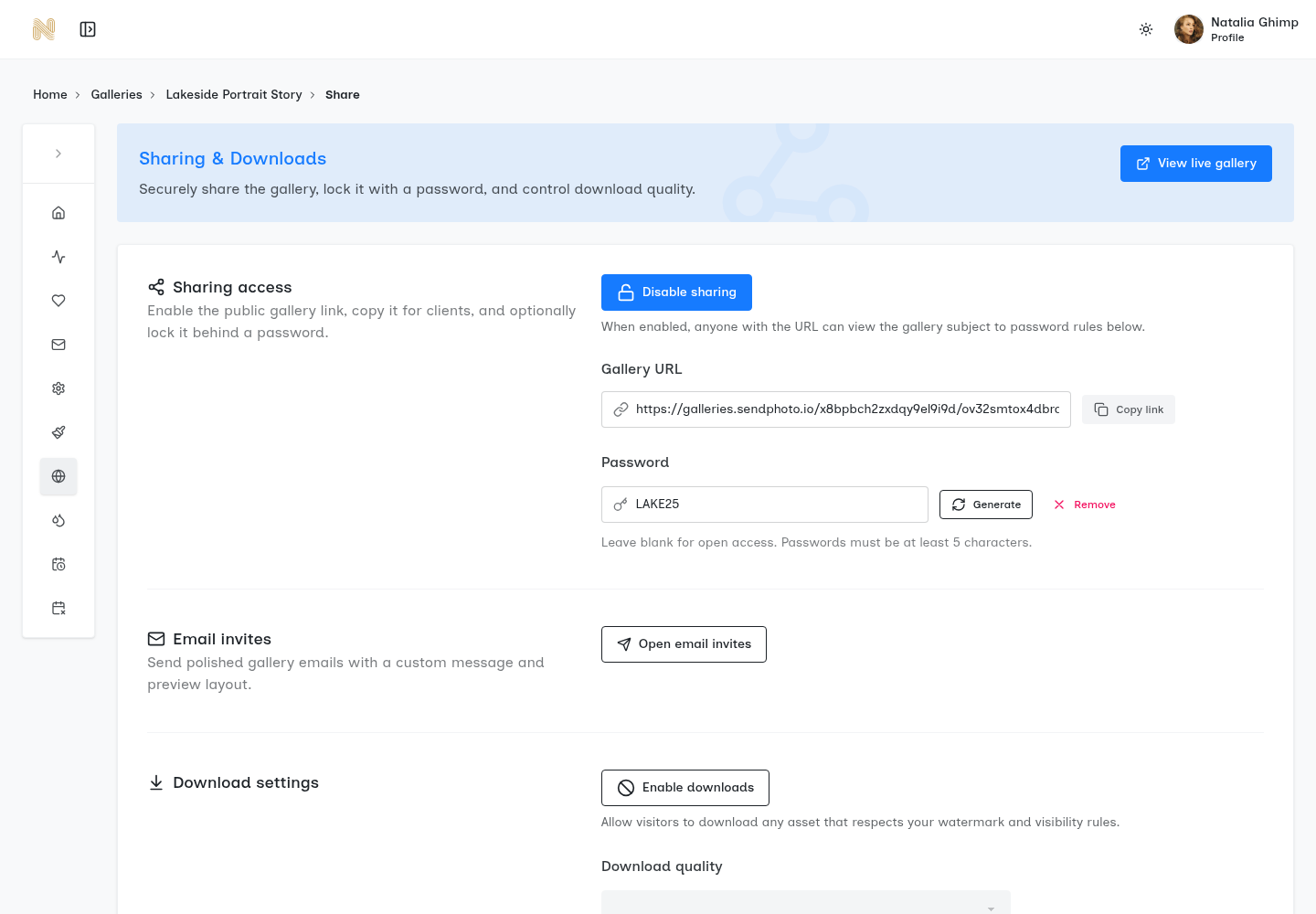
Existing SendPhoto screenshot: Sharing access, Gallery URL, Password, Generate, Remove and Download settings are visible. The short example password shown is not a recommended credential. The screenshot shows settings, not a visitor-access test or evidence of end-to-end encryption.
Copy the gallery URL and provide the password to the intended people. Review Download settings separately: allowing someone to view is a different decision from enabling downloads. For general delivery preparation, see our getting-started guide.
Do not promise confidentiality from the hosting provider merely because a password field exists. If the client requires provider-blind encryption or a particular security agreement, establish that requirement and verify the relevant service separately before uploading.
Best Practices for Passwords and Client Handoff
The right method, reliable recovery and a suitable password work together. None is a substitute for the others. Keep a record of who should receive access and which delivery version was sent.
Password Rules That Actually Hold Up
Use these four habits:
- Uniqueness: use a different credential for each confidential handoff; never reuse the studio's account password.
- Length: use a long generated secret or randomly generated passphrase within the tool's accepted limits.
- Unpredictability: let a password manager generate it rather than adding a symbol to a predictable name or date.
- Separation from the shoot: avoid client names, venues, session dates and details visible in the gallery.
NIST's current password guidance addresses centrally verified login passwords, not every archive format. It rejects mandatory character-composition rules and routine periodic changes without evidence of compromise. For a file handoff, use a unique generated secret and replace it when exposure or a changed access arrangement calls for that. Account multifactor authentication, where available, is separate from a shared gallery password.
Store archive and document passwords so you can retrieve them later; an encryption tool may not be able to recover a forgotten secret. For online access, review the people who have the password when the delivery audience changes.
A Cleaner Handoff Process
Separate channels can reduce exposure if one delivery message is forwarded or accessed. They are not a guarantee: both email and messaging may be available on the same compromised device. Putting a link and password together still leaves a password gate in place, but anyone who gets that message has both.
Three useful handoff patterns are:
- Gallery link by email, password through an agreed separate channel: confirm the contact belongs to the intended client rather than using an unfamiliar number supplied in a new message.
- Archive or PDF with credentials sent separately: include the required application and say which version of the file the password opens.
- Confirmation before the deadline: ask the recipient to confirm that they can view the expected content and, when allowed, obtain the intended files. Treat this as a handoff checklist, not proof of their device's security.
| Situation | Primary protection to consider | Keep separate |
|---|---|---|
| Working on a laptop | Suitable device or volume encryption | Recovery key and independent backup |
| Sending a private document | Document-open encryption | Password and approved recipient list |
| Sending a package to a technical recipient | Compatible encrypted archive | Credentials and instructions |
| Delivering photos for client browsing | Gallery access and download decisions | Local archive and recipient-copy expectations |
Password protection controls a particular route to a file. It does not erase other copies or make every recipient trustworthy.
For a browser delivery, SendPhoto's client galleries let you prepare the viewing handoff and review its access settings. Keep your original files and backup workflow independent of the gallery, and choose an encrypted file transfer when that is what the client's requirements call for.