
A client photo gallery needs a clear file set, a sensible order and an obvious next step. A gallery can provide visual browsing; a well-organized folder or transfer can also work when the client simply needs files.
This guide follows a gallery from curation to archive, with an illustrative portrait delivery running through the steps. It uses existing SendPhoto screenshots and documented export controls. The example is a proposed workflow, not a completed client job or an export benchmark.
Your Gallery Is the Final Impression
Start with the handoff agreement: what the client receives, what they may do with it, whether they are reviewing proofs or receiving finals, and how long access is promised. Presentation supports those decisions; it cannot replace them.
A cover, readable collection names and short instructions can make the next action easier to find. Do not assume a polished page automatically produces more referrals, faster approvals or fewer support messages. Ask the recipient to confirm that they have the intended files when completion matters.
Running example: a fictional portrait session has 18 selected images. The client needs a web set for sharing and a larger set for a separately agreed print use. Keep both sets clearly labeled, with matching image identifiers. No real client or delivery result is implied by these example numbers.
Practical rule: make the deliverables and next action clear before polishing the cover.
Curate the Story Before You Upload
Choose images that meet the brief and work together. A fixed small image count is not the goal: include the coverage the client bought, while removing accidental duplicates and unusable frames.
Cull for narrative, not volume
For a wedding, a chronological sequence might move through preparation, arrivals, ceremony, portraits, speeches and dancing. A family session might move from the setting to interactions and details. Preserve important requested images even when they interrupt an otherwise neat sequence.
- Remove technical misses first. Review focus, closed eyes, unintended motion and accidental duplicates against the job's purpose.
- Choose among similar frames. Compare expression, gesture and composition instead of including every small variation.
- Check pacing. Keep extra views when they add information or fulfill the brief.
- Preserve transitions. Mix wide, medium and close views to explain the setting and relationships.
- End deliberately. Check that the sequence and agreed coverage are complete.
In the portrait example, review the 18 selections as a set before making the two exports. Changing the selection later means updating both deliverables and their file lists.
Build a folder structure clients can understand
Use names such as Getting Ready, Ceremony, Family Photos, Portraits and Reception for a wedding. Hero Images, Detail Shots, Team Portraits and Vertical Crops can suit a commercial job. These are naming examples, not automatic categories.
- Human-readable collection names: explain what each group contains.
- Consistent sequencing: choose an order that supports the job.
- Predictable filenames: retain a stable identifier that clients can quote when requesting a change.
- Separated deliverables: distinguish proofs, web files and larger finals without implying separate access permissions.
For the fictional portrait job, pair portrait-001-web.jpg with portrait-001-print.jpg through portrait-018. Check that a revised export keeps the same identity. In SendPhoto, collections organize images; they are not separate private areas. Use separately controlled galleries when audiences must see different files.
Optimal Export Settings for Web and Print
There is no universal gallery preset. Choose settings from the intended use, source dimensions and recipient requirements. A browser preview and a downloaded original may be different files; inspect the actual deliverable.
Use settings that match real viewing conditions
JPEG is a useful common delivery format. A tagged sRGB export is a practical starting point for ordinary web sharing, while a print lab or commercial client may specify something different. Check their requirements rather than treating any color space or JPEG setting as universally correct.
A gallery may generate its own previews, so uploading two sets is not always necessary for browsing performance. Create a separate web set when it is an agreed deliverable. Keep the larger source exports available for the intended download option and maintain your own backup.
Adobe's Lightroom Classic export reference explains the JPEG quality, color-space, image-sizing and output-sharpening controls. JPEG quality changes compression; resizing changes pixel dimensions. Sharpening should match the output. The settings below are proposed starting points based on those controls, not results from a Lightroom test.
Recommended Export Settings for Client Galleries
For the fictional portrait job, assume each selected edit has at least 6000 by 4000 usable pixels before any required crop. The seven decisions below replace a one-size-fits-all preset:
- File format: use JPEG for the example web and print sets; confirm whether the recipient needs another format.
- Color space: use tagged sRGB for this example only if the recipient accepts it.
- Quality: try Lightroom Classic JPEG Quality 80 for the web copy and 90 for the larger copy, then inspect both. These are starting values, not file-size or visual-quality guarantees; quality scales differ between applications.
- Dimensions: set the web copy to a 2048-pixel long edge with enlargement disabled. Keep the larger copy at its agreed native dimensions; do not enlarge a small crop merely to reach 6000 by 4000.
- Resolution metadata: a 6000 by 4000 image corresponds to 20 by 13.3 inches at 300 pixels per inch before cropping. Changing PPI metadata alone does not create detail. Follow the print provider's specification.
- Sharpening: inspect the web copy with a screen-appropriate setting. Choose print sharpening only after the paper/output is known; do not assume one setting suits every lab.
- Watermark: label proofs if useful; supply finals according to the agreement. A watermark does not prevent copying.
Before uploading, open representative exports at 100%, inspect edges and smooth tones, confirm the color profile and pixel dimensions, and count both sets. After delivery, compare a downloaded file against the intended export. A successful ZIP request is not proof that every file was saved on the client's device.
Save a preset only after checking your own output. For related preparation choices, see compressing photos for web.
Build a Gallery That Reflects Your Brand
Use a recognizable title, suitable cover and readable navigation. These help recipients understand where they are without making the gallery look busier than the photographs.
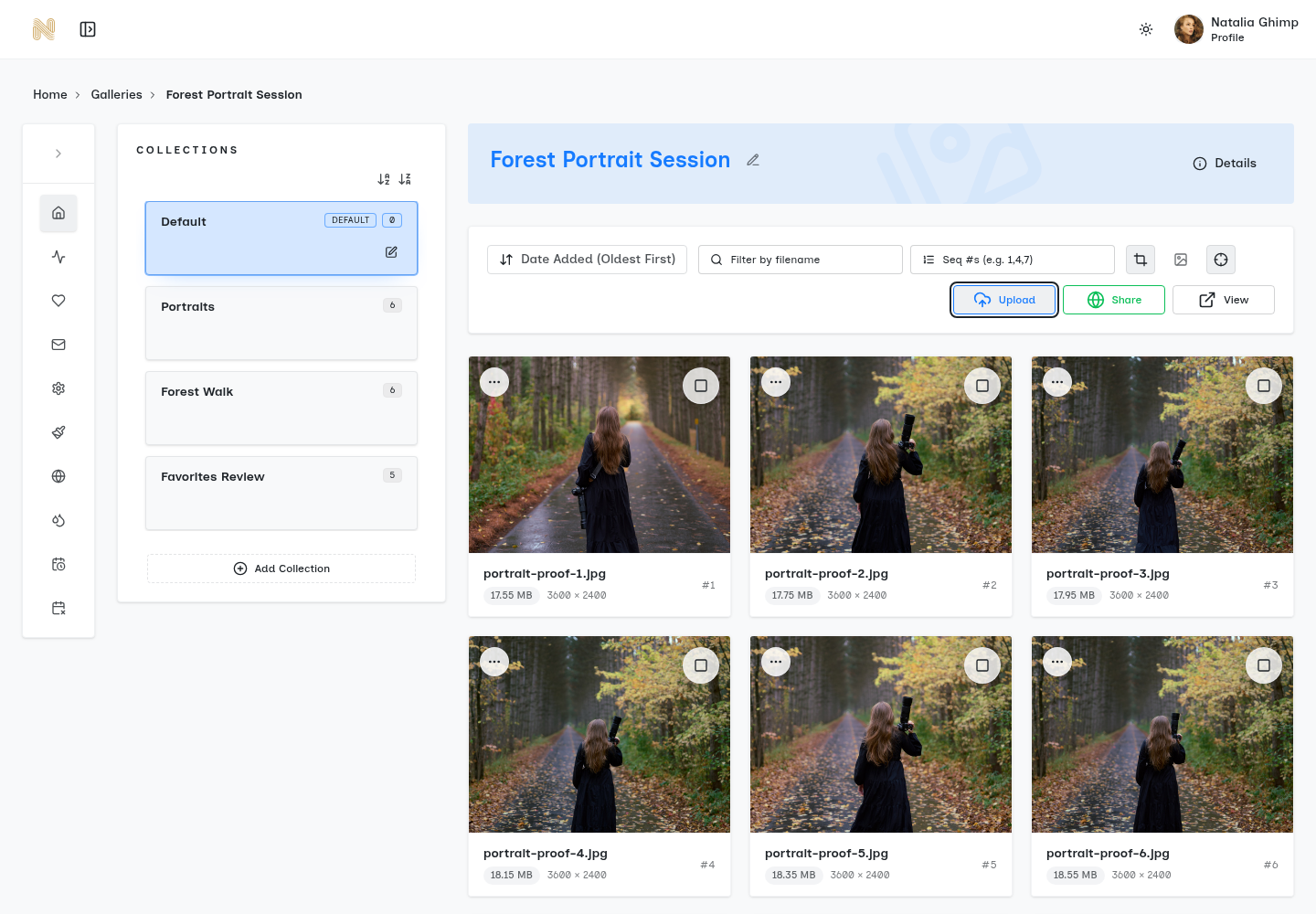
Existing SendPhoto editor screenshot. Portraits and Forest Walk are example collection names. Favorites Review is also a manually named collection, not an approval feature. The screenshot is separate from the fictional 18-image export example.
Presentation changes perceived value
Compare layouts using your actual mix of portrait and landscape images. A uniform grid may help comparison; a varied layout may suit a sequence. These are design choices, not a claim that one layout produces better business results.
SendPhoto provides gallery presentation controls and collections. A custom domain is a separate setup choice; check the available plan and configuration before promising it to a client. A branded address does not add access protection. Check the current plan terms for branding removal instead of assuming it is included in every paid tier.
Branding choices that help instead of distract
- Match the palette thoughtfully. Keep text and controls readable against the images.
- Keep typography restrained. Favor readable labels over decoration.
- Choose a suitable cover. Check the crop on both narrow and wide screens.
- Name the gallery clearly. Smith Wedding or Spring Product Launch tells the recipient more than an internal project code.
For the portrait example, use a simple session title and labels such as Web sharing and Print files. Those labels explain intended use; they do not enforce licensing or restrict a recipient to one collection.
Secure Your Work and Control Access
Decide who may see the work before sending the link, especially when the gallery includes private family photographs or unpublished commercial material. Match the delivery method to the audience and any client requirements; a password alone is not a complete confidentiality plan.
Privacy should feel seamless to the client
A SendPhoto gallery password gates access, but anyone with the link and password may pass them on. It does not establish individual identity or prevent screenshots. Use an agreed password-sharing channel, and avoid implying that the gallery is safe for every sensitive use merely because a password is enabled.
Watermarks can identify proof images and discourage casual reuse. They cannot prevent redistribution, screenshots or removal. Inspect the actual preview and download behavior appropriate to the delivery stage rather than assuming a visible mark protects every file.
Review the provider's own data-handling terms and controls for your job. The guide to password-protected photo galleries covers the access decisions in more detail.
Control downloads with intent
Agree when proofs and final files become available. Coordinate any payment or licensing condition with the client; do not treat a gallery setting as a contract or an automatic payment gate.
- Choose access deliberately. Passwords limit casual entry but can be forwarded.
- Use watermarks for a clear purpose. Explain whether the recipient is seeing proofs or finals.
- Distinguish preview and final downloads. Confirm the selected photo quality and the files made available.
- Agree an availability date. Record when you will review or end access; do not promise automatic expiry unless you have verified that feature in the chosen service.
Disabling a gallery later cannot recall files already saved. Keep the delivery copy separate from your archive, and do not rely on a public link as the only backup.
Optimize the Client Review and Selection Process
Review the gallery from the recipient's point of view: what is visible first, what needs a password, how collections are named, and where the next action appears.
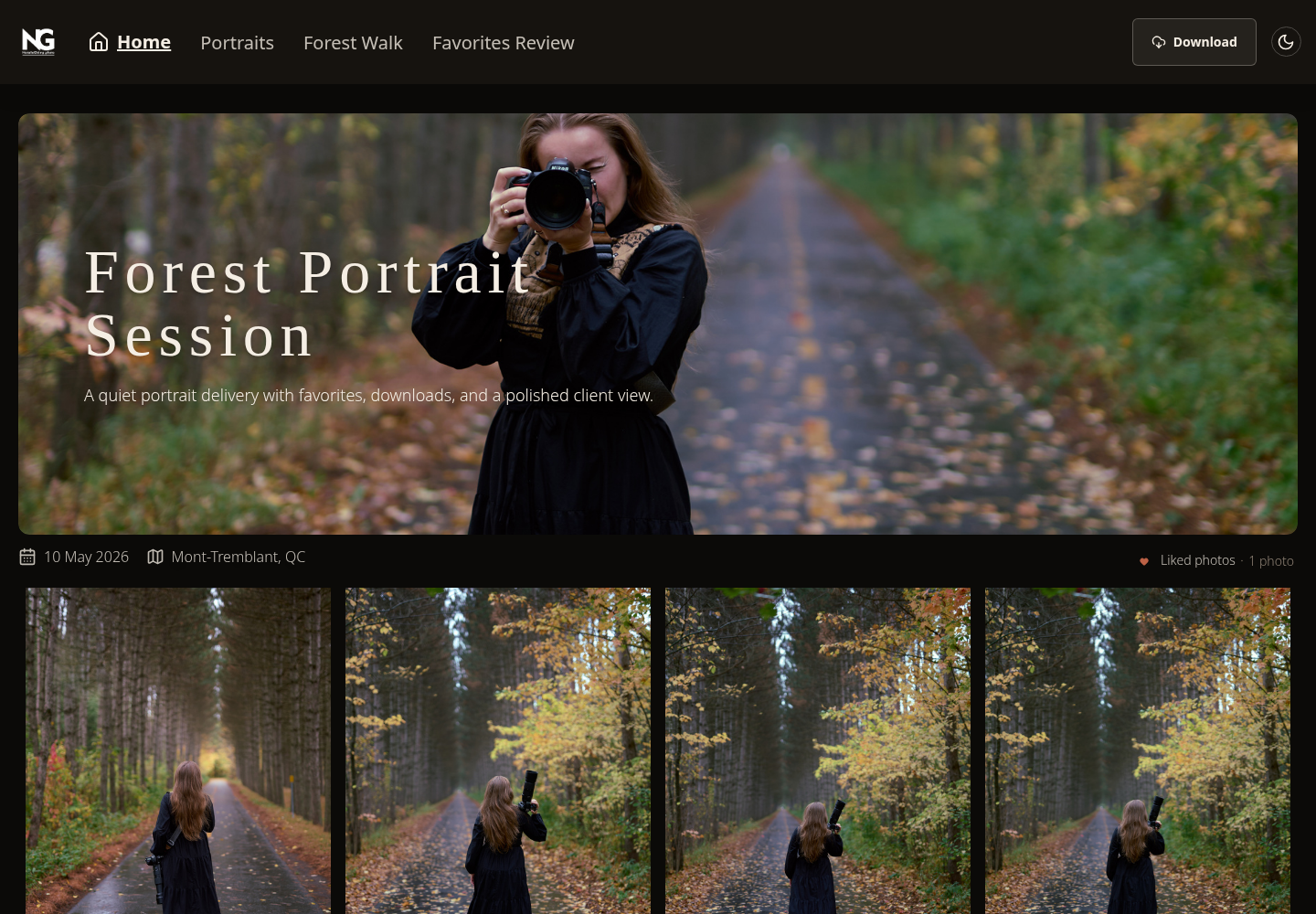
Existing visitor-view screenshot: collection navigation runs across the top, Download is at the upper right and Liked photos appears above the image grid. These visible controls illustrate the interface; they do not prove a completed download or client approval.
What the client notices first
Check a phone as well as a desktop. Ensure the cover crop, labels and instructions remain readable, and that the recipient knows whether the task is selecting images or saving finals.
For the portrait example, explain that Web sharing is the smaller set and Print files is the separately agreed larger set. If both sets are available to the same person, tell them which to use. A short, specific note is more useful than expecting the recipient to infer the difference from file sizes.
What makes proofing feel easy
Likes can help collect preferences, but a like is not final approval for retouching, publication or purchase. Ask the client to confirm stable image identifiers, requested changes and the final selection through the agreed channel.
If feedback arrives by email or another tool, keep it tied to filenames. Do not promise native per-photo commenting as part of this SendPhoto workflow. See the photo feedback guide for a way to keep requests organized.
- Mobile viewing: check the first screen and the collection labels.
- Clear selection: explain how to mark preferences and how final confirmation happens.
- Simple access: recipients can view SendPhoto galleries without creating a SendPhoto account, subject to configured access requirements.
- Visible downloads: explain the enabled option and the intended file set.
For the fictional job, request a written list such as portrait-003 and portrait-011 for the agreed next step. Keep that confirmation with the job record; do not infer it from a view count or a screenshot of the gallery.
Post-Delivery Workflow and Troubleshooting
Decide what stays online, what stays in your archive and when to contact the client again. These are studio tasks unless the service explicitly provides the automation you need.
Archive with a policy, not a guess
Keep the delivered exports, the file list and the client's confirmation together. Store your working edits and original files according to your own retention agreement and backup process.
- Mark the job delivered in your records. Separate pending work from completed handoffs.
- Set a review reminder. Record the promised availability date in your calendar or job system.
- Store finals predictably. Maintain a separate backup and check that you can retrieve it.
- Contact the client before ending access. Follow the agreed notice period and explain any later retrieval process.
For the portrait example, record 18 web files and 18 larger files only after checking that the actual exports and delivery match. A planned count is not evidence that the client received them.
Answer common questions before they arrive
Include a short note with the link: whether these are proofs or finals, how to obtain the password, which set to save, the selection deadline if applicable, and how long access is promised.
If the recipient cannot find a saved file, ask which device and browser they used and have them check the browser's download list and chosen save location. If a ZIP is incomplete, ask what error appeared and check available device space before offering a smaller batch. If colors or dimensions seem wrong, compare the actual downloaded file and embedded profile with the intended export; a thumbnail alone is not enough.
An adaptable delivery note could read: “Your final gallery contains the web-sharing and print sets we agreed. Please save the set you need before our agreed access date. Reply if a file is missing or a download fails; I will help you confirm the correct version.” This is example wording, not a sent message.
SendPhoto can support a gallery handoff with collections, password access, likes and download controls. Start with the agreed deliverables, then use gallery delivery and download controls to make the next step clear.