
Use a repeatable iPhone photography routine: check the lens, choose useful light, set focus and exposure, compose deliberately, capture a few variations and edit the selected files. Start with Photo mode before trying effects or special modes.
This tutorial covers portraits, travel, products, events, food and everyday client content. Camera and Photos instructions refer to Apple’s iOS 26 documentation; controls and available modes vary by model and software version. The credited Apple images illustrate the interface, not a shoot or device test performed for this guide. Use the linked guide’s model information to check which features your iPhone supports.
Start With the Fast Pre-Shot Check
Before changing settings, fix the basics:
- Gently clean the camera lens with a microfiber cloth, as Apple recommends for blurry photographs.
- Check the background for clutter.
- Move toward better light before you zoom.
- Hold the phone steady with both hands.
- Tap the subject so focus lands where you want it.
- Take more than one frame when the moment matters.
Fix visible smudges, distracting edges and unsuitable light before changing lots of settings. When something still looks wrong, compare another frame rather than assuming a special mode will solve it.
Use Light Before Editing
Good light makes phone photos easier to edit. Look for soft direction instead of flat brightness.
For portraits, place the person near a window, open shade, or soft outdoor light. Avoid direct overhead light that creates deep shadows under eyes. For food and products, use side light so texture is visible. For travel and landscapes, shoot when the light gives shape to buildings, clouds, trees, and streets.
If the scene is too bright, move the subject into shade or change your angle. If it is dark, find more available light or steady the phone for a still subject. A stable phone cannot stop a moving person from blurring; check the captured result. Stay clear of traffic and obtain permission to photograph or publish people and client work.
Tap Focus and Adjust Exposure
Start with automatic exposure, then adjust when the important subject or highlights need a different rendering. Apple documents the following Camera focus and exposure controls:
- In Photo mode, tap where you want the focus area.
- Move the adjacent sun control up or down to change exposure.
- Touch and hold the focus area until AE/AF Lock appears to keep focus and exposure set for upcoming frames.
- Tap the screen to unlock; refocus when the subject distance changes.
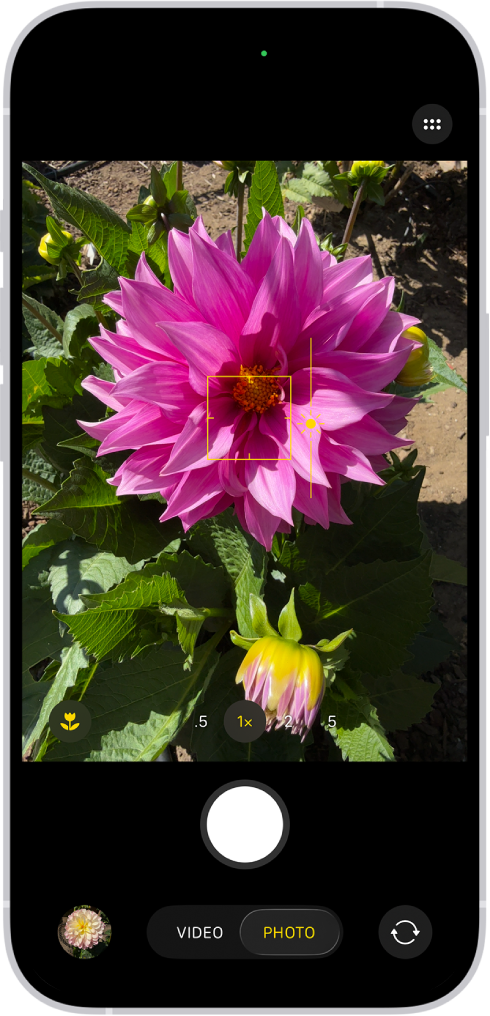
Use those controls to make four decisions:
- Tap the face, product, sign, or subject detail that must be sharp.
- If the image looks too bright, lower exposure slightly before shooting.
- If the subject is backlit, expose for the face or shoot a silhouette intentionally.
- Take a second version with a different exposure when highlights matter.
Consider the same decisions for white dresses, black clothing, bright skies, candlelight, stage lighting and reflective products. A bright sky and a shaded face may need a change of position or light rather than one slider setting. Lowering exposure later cannot reliably restore detail absent from the saved image.
Compose With Fewer Distractions
Decide which parts of the scene belong in the picture. Change position or angle when the background competes with the subject. Apple documents Settings → Camera → Grid and Level for alignment aids.
Try these habits:
- Use the grid to keep horizons and architecture straight.
- Change distance or use a tighter available camera view when the subject is small; avoid moving so close that faces distort or focus fails.
- Leave space in the direction a person is looking or moving.
- Use leading lines like roads, tables, walls, fences, or shadows.
- Check the corners before pressing the shutter.
- Avoid background objects that appear to grow out of heads or products.
If the photo feels messy, simplify it. Change height, step to the side, or wait for people and cars to leave the frame.
Know When to Use Portrait, Night, and Close-Up Looks
Portrait, Night and automatic macro features depend on your model. Check the supported-model links in Apple’s guides below. Keep a standard Photo-mode option when an effect looks wrong or a mode is unavailable.
| Feature | Documented action | Limit to check |
|---|---|---|
| Portrait | Choose Portrait and take the photograph; Photos can turn the portrait effect off afterward. | Available controls and effects depend on the model and photograph. |
| Night | On supported phones it turns on in low light; hold still during capture. | Exposure options vary; a moving subject can still blur. |
| Automatic macro | On supported phones, Camera switches to Ultra Wide near the subject. | A flower control can toggle automatic switching; other phones may need more distance. |
In Apple’s Portrait workflow, select Portrait in Camera. After capture, open the portrait in Photos, tap Edit, then Portrait to toggle the effect. Inspect hair, glasses, hands, flowers, veils and product edges. Change subject/background separation or take a normal photo when artificial blur misreads an edge.
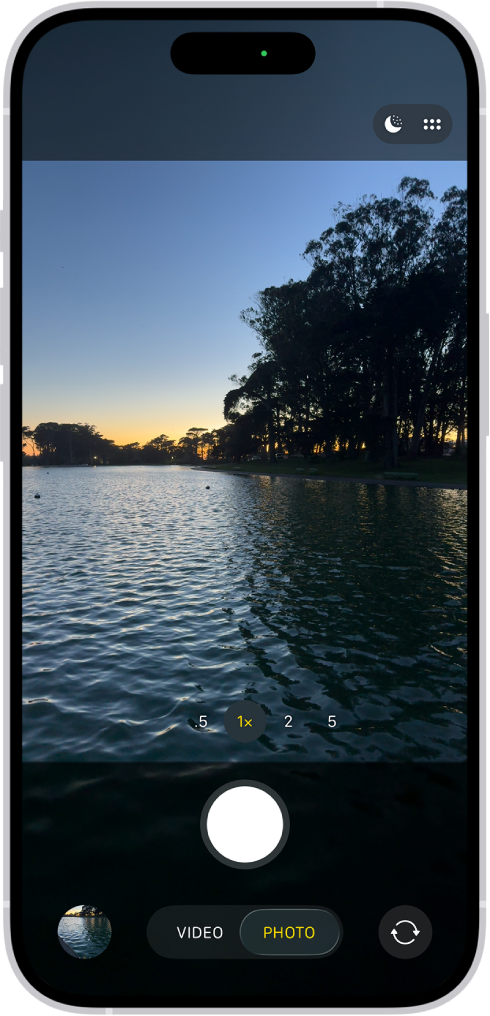
Apple’s Night mode guide explains automatic low-light activation on supported models. Tap the moon control to toggle it, or open Camera Controls and choose Night Mode for the available exposure options. Hold still through capture; align any motion crosshairs. Brace your elbows or use a stable support. People, cars, water and hands can still move during the exposure.
Apple documents automatic macro switching to Ultra Wide on supported models; tap the flower control to switch it off or on. If focus fails, move back and compare another frame. A crop can make a sharp object more prominent, but removes image area and cannot restore missed detail. Check distance and light for products, jewelry, flowers, food and other details.
Shoot Variations Instead of One Frame
Capture different views when they add useful information. The following are proposed shot options, not a requirement to take every variation:
| Scene | Shoot these variations |
|---|---|
| Portrait | Full body, waist-up, close-up, candid, looking away |
| Product | Front, detail, scale, lifestyle use, packaging |
| Food | Overhead, side angle, close texture, table scene |
| Travel | Wide scene, street detail, person in place, texture |
| Event | Room, people, details, action, quiet moments |
Select frames that serve different purposes; remove repetitions before delivery.
Try a Small Product Practice Set
This is a proposed exercise, not a performed client shoot. Choose an object you can photograph beside a window, then make three pictures:
- A front view that shows the object’s overall shape.
- A detail with the phone far enough away to focus cleanly.
- A scale view beside a familiar object, keeping its placement honest.
For one still setup, compare the default exposure with a deliberate adjustment, then use AE/AF Lock for repeated frames at the same distance. Unlock and refocus when changing distance. Record your model, iOS version, selected mode/camera view and chosen adjustment. Inspect the files for sharp detail, glare, edges and intended color. Keep the unedited images so you can compare edits later; no settings or results from this exercise are supplied by the guide.
Edit Lightly and Keep a Clean Master
Start with framing, overall brightness and distracting highlights. In Photos, open an image, tap Edit, then Adjust. Select a setting such as Exposure, Brilliance or Highlights and move the slider; compare the change, then tap Done. Judge overall color balance, shadow detail, contrast and sharpness with the controls available in your editor. Change only what the image needs.
A useful edit should:
- Make the subject easier to see.
- Keep skin tones believable.
- Preserve important highlights.
- Avoid muddy shadows.
- Keep product colors consistent with the intended reference; phone screens and lighting can affect perceived color.
- Look good at phone size and full-screen view.
Keep the original capture and a full-size delivery edit before making a social crop. Photos offers Revert to Original for saved library edits. That does not rewrite a separate edited file already exported or sent. Keep independent copies of files needed for delivery and backup; choose crops and output sizes for their actual use.
Deliver Phone Photos Like Finished Work
If you use iPhone photos for client sneak peeks, social packages, events or behind-the-scenes extras, curate and label the delivery with the same care as other camera files. Decide which photographs the recipient should receive and which, if any, may be published. Delivery access does not itself grant public-use permission.
Use SendPhoto gallery delivery to present a selected set, with collections for scenes or days. The optional gallery password restricts entry to those with the link and password; collection download controls govern the provided download actions and do not create separately password-protected collections. Viewers may still capture or forward images.
For unwatermarked photo downloads, Original uses the uploaded source; marked or scaled downloads use generated images. Upload the intended delivery files and keep your own backup rather than assuming every download is an untouched camera capture.
Common iPhone Photography Mistakes
- Shooting through a dirty lens.
- Standing in bad light because the background is convenient.
- Cropping too tightly while shooting.
- Letting the phone expose for a bright sky instead of the subject.
- Overusing background blur.
- Oversaturating skies, grass, and skin.
- Sending random files instead of a curated set.
Final Checklist
- Lens is clean.
- Subject is in useful light.
- Focus is on the right area.
- Exposure protects important highlights.
- Background is intentional.
- You shot wide, medium, and close options.
- Edits look natural.
- Final files are organized for sharing or delivery.
For broader composition habits, read how to take good photos. For editing basics, see how to edit photos for beginners. More guides are available in the SendPhoto blog.