
Good photo editing is not about changing everything. It is about making the image clearer, cleaner, and closer to what you wanted when you pressed the shutter. For beginners, the easiest way to improve is to follow the same order every time: crop, fix exposure, correct color, add contrast, refine detail, then export for the right use.
The core workflow is software-neutral; slider names and rendering vary by app. A credited Adobe example below demonstrates the decisions in Lightroom. It is a publisher tutorial, not an edit or test performed by SendPhoto. Keep an untouched original and save edits non-destructively, or work on a duplicate when your app overwrites files.
The Beginner Editing Order
A consistent review order can help you avoid unnecessary adjustments. This sequence is a learning aid, not a mandatory processing order: revisit brightness, color and crop as needed, and follow your editor's workflow for tools that create a new file.
Use this simple sequence:
- Pick the strongest frame.
- Crop and straighten.
- Adjust exposure.
- Recover highlights and shadows.
- Set white balance.
- Add contrast and shape.
- Adjust color gently.
- Clean up distractions if your app supports it.
- Apply sharpening and noise reduction.
- Export for web, delivery, or print.
If the original photo is weak because of lighting, focus, or composition, editing can help but it cannot replace better capture. Pair this workflow with photography basics for beginners if you want the full learning path.
Step 1: Choose the Best Starting Photo
Before editing, compare similar frames. Look for sharp focus, clean expression, strong timing, and fewer distractions. The best edit usually starts with the best file, not the file that needs the most rescue.
Check:
- Is the subject sharp?
- Are important highlights still visible?
- Is the expression or moment strong?
- Are there distracting objects near the edges?
- Is the image level enough to crop cleanly?
Delete nothing too quickly, but do not edit every frame. Editing fewer, stronger images produces a better final set.
Step 2: Crop and Straighten First
Cropping changes the photo more than most sliders. It decides what the viewer notices, what gets removed, and how balanced the frame feels.
Start by straightening obvious horizons, walls, or vertical lines. Then crop to remove distractions and improve the subject placement. For portraits, avoid cropping awkwardly through joints when possible. For landscapes, keep the strongest foreground, midground, and background elements.
Beginner crop checklist:
- Straighten horizons and architecture.
- Remove empty edges that do not add to the story.
- Keep enough space around faces, hands, and important details.
- Try both vertical and horizontal versions if the final use is unclear.
- Leave room for text only if the image will be used in a design.
Step 3: Fix Exposure
Exposure controls overall brightness. A dark photo can feel heavy, while an overly bright photo can lose detail and texture.
Raise exposure until the subject is easy to see, but watch bright areas such as skies, white clothing, reflective surfaces, and windows. If those areas turn flat white, lower exposure or use highlight recovery if your editor has it.
Do not make every photo bright just because the slider allows it. A candlelit dinner, concert, or moody portrait may need darker tones to feel right.
Step 4: Balance Highlights and Shadows
Highlights affect bright areas. Shadows affect dark areas. Beginners often pull shadows up too far, which makes photos look flat and noisy.
Lower highlights to reveal bright detail that remains in the file; it cannot reliably reconstruct information lost when all channels clipped at capture. A bright preview may still conceal recoverable raw data, so inspect the result rather than assuming every white-looking area is lost. Raise shadows only where needed and watch noise. See Adobe's tone controls, clipping and white-balance guidance.
| Problem | Try this first | Avoid |
|---|---|---|
| Sky is too bright | Lower highlights | Making the whole photo too dark |
| Face is too dark | Raise shadows or exposure slightly | Lifting every shadow until the image looks gray |
| Image feels flat | Add contrast after exposure is correct | Heavy contrast before fixing brightness |
| White clothing has no detail | Lower highlights and whites; inspect whether the source retains detail | Strong saturation on blown areas |
Step 5: Correct White Balance
White balance controls whether the photo feels too warm, too cool, too green, or too magenta. It is one of the fastest ways to make an image feel natural.
If using an eyedropper, sample a known neutral light-gray area lit like the subject; avoid clipped whites and reflections. Skin is not neutral gray, and black clothing or a wall is not automatically a reliable reference. If no neutral reference exists, adjust visually. Temperature moves the balance warmer or cooler; Tint adjusts green versus magenta.
Then check the subject's believable skin color without forcing different complexions toward one target. Sunset warmth may be intentional. For color-critical product work, use a suitable reference and a color-managed workflow; one global correction may not neutralize mixed lighting.
Step 6: Add Contrast Without Crushing Detail
Contrast separates light and dark tones. A small contrast increase can make a photo feel clearer. Too much contrast can destroy shadow detail and make faces harsh.
Start with a small global contrast adjustment. Then refine with blacks and whites if your editor includes them. Pulling blacks down adds depth. Raising whites adds sparkle. Keep checking important details as you go.
If you are editing a full set, do not make one image extremely contrasty while the next is soft and pale unless that difference is intentional.
Step 7: Adjust Color Gently
Saturation and vibrance both affect color intensity, but they can become obvious quickly. Beginners often oversaturate grass, skies, and skin.
Use small changes. If skin turns orange, grass becomes neon, or blues look electric, pull the color back. A clean edit usually feels polished before it feels dramatic.
Color consistency matters more in a gallery than a single image. If one photo is warm and the next is cool, the set can feel unfinished even when each photo looks fine alone.
Step 8: Review Noise and Sharpening
Sharpening increases apparent edge definition; noise reduction reduces grain and color speckles. Review both after your main tonal adjustments so you can judge visible noise. Tool order can differ by editor, particularly for AI denoise or tools that create another file. Inspect at 100% and again at the intended output size.
Use sharpening carefully on portraits, especially around skin. Use noise reduction carefully on detailed scenes, because too much can smear texture. If a photo is truly out of focus or motion-blurred, sharpening can make it look harsher rather than sharper.
For specific blur problems, the guide to improving photo quality can help you diagnose whether the issue is focus, motion, resolution, compression, or export settings.
Step 9: Compare Before and After
Every few minutes, compare the edit with the original. The edited version should look better, not simply more edited.
Ask:
- Does the subject stand out faster?
- Does the color still feel believable?
- Are faces, whites, and skies still natural?
- Did the crop improve the story?
- Is the image consistent with the rest of the set?
If you are unsure, step away for a few minutes and come back. Over-editing often happens when you stare at one image too long.
A Real Adobe Editing Example
In Adobe's basic light-and-color lesson, Seán Duggan edits a Maine lighthouse raw photo. The sequence uses Auto, then tone and color adjustments. Instruction and photography: Seán Duggan/Adobe.
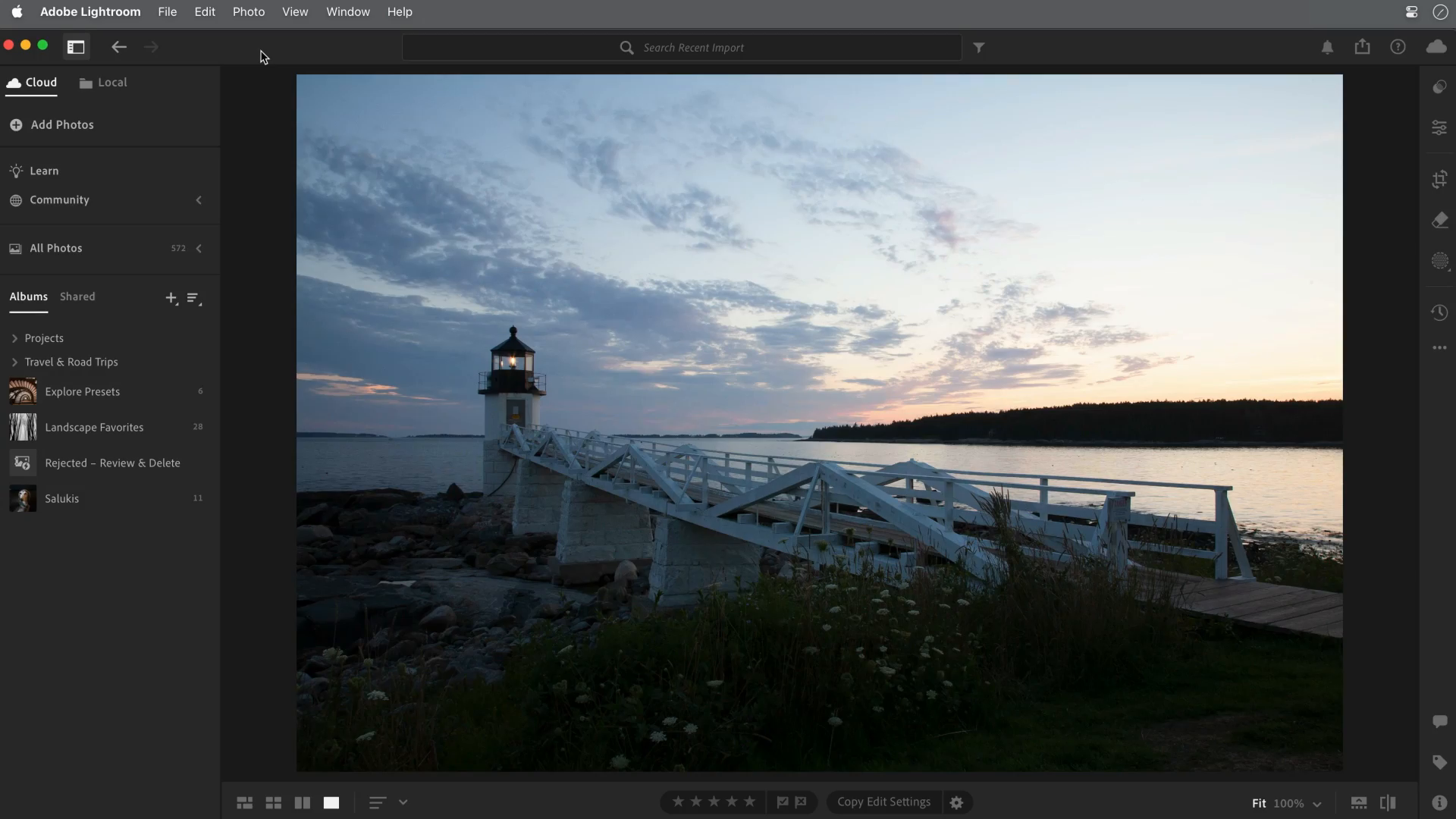
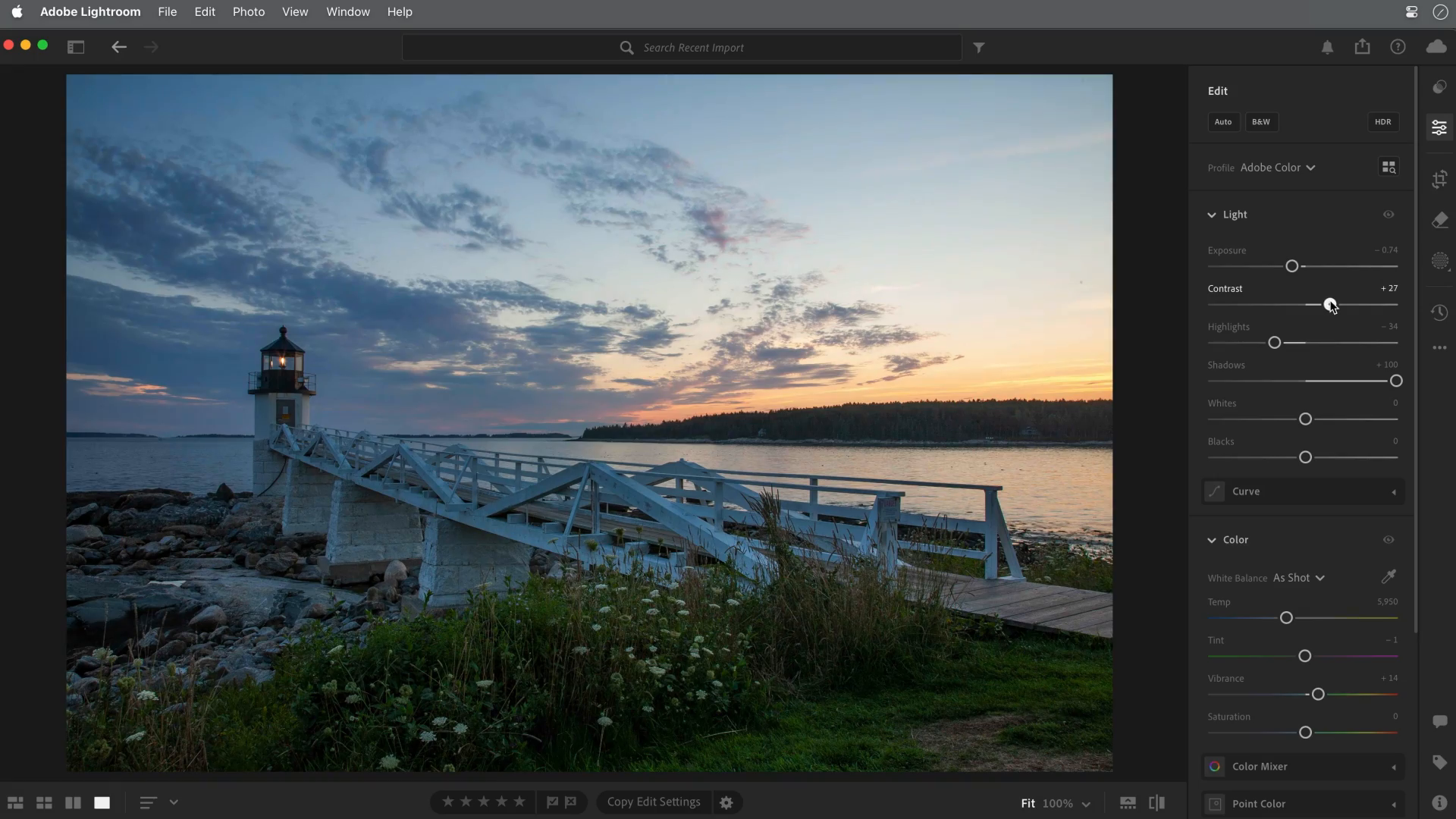
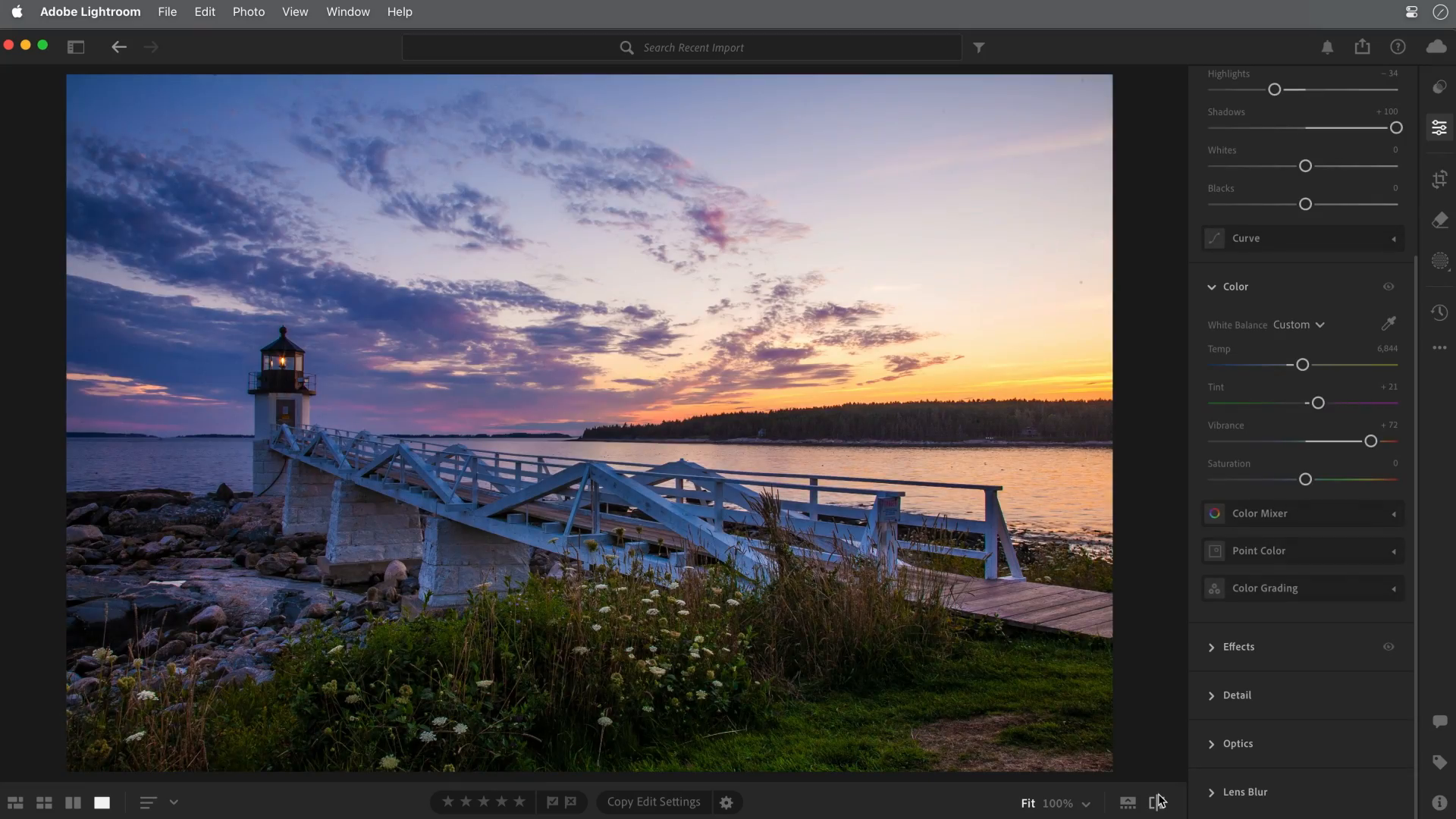
Compare the foreground, sky and overall balance. Try one adjustment at a time on your own file, then toggle the original. Keep changes that serve your intended look; the tutorial does not establish objective improvement for every photo.
Step 10: Export for the Right Use
Export settings depend on where the photo will go. A web image, client preview, print file, and archive master are not the same thing.
| Use | Starting export decision |
|---|---|
| Social or web preview | For a general screen copy, try JPEG/sRGB, 2048-pixel long edge, quality 80–90; follow the destination's requirements. |
| Client proofing | Use a clearly labeled preview size sufficient for selection; add a watermark only if intended. |
| Final download | Retain edited pixel dimensions when full-size files were promised; try JPEG/sRGB quality 90–100 and inspect detail. |
| Print handoff | Follow the lab's format/profile/crop requirements. An 8 × 10-inch print at requested 300 ppi needs 2400 × 3000 pixels. |
| Archive | Keep original sources, edits/project data and agreed master exports; preserve independent backups. |
These numeric presets are starting suggestions, not measured quality thresholds. JPEG is lossy even at maximum quality. Changing the ppi label alone does not add pixels; do not enlarge a small source automatically. Adobe documents export format, size and compression controls. Our photo-delivery export guide covers the handoff in more detail.
Do not send only giant files if the client needs quick browsing. Do not send only tiny files if the client expects final usable images. If clients need finished files in a gallery, SendPhoto can help organize delivery with branded galleries and download controls. See download control for delivery options.
Beginner Editing Checklist
- Pick the best frame before editing.
- Crop and straighten before slider work.
- Fix exposure before color.
- Reveal retained highlight detail without flattening the photo.
- Open shadows only where detail matters.
- Set white balance using a known neutral reference when available, then check believable subject color.
- Add contrast gradually.
- Keep color believable.
- Sharpen after exposure and noise are handled.
- Export different versions for different uses.
Common Beginner Mistakes
Editing Every Photo the Same Way
Presets and copied settings can speed up a set, but each image still needs a quick check. Different light, backgrounds, and skin tones may need small corrections.
Overusing Saturation
Strong color can look exciting at first, but it often ages badly. Keep skin, skies, grass, and white clothing believable.
Ignoring the Crop
A strong crop can remove clutter and make the subject clearer. Do not leave distractions at the edges just because the exposure looks good.
Exporting Without Checking Size
An edit is not finished until the exported file fits its use. Check file size, dimensions, and quality before sharing.
Where Editing Fits in the Whole Photo Workflow
Editing is only one part of making better images. Good light, clean backgrounds, steady shooting, and sharp focus make editing easier. If you want to improve the capture side first, read how to take good photos.
After editing, organize the finished set and choose a download rendition that matches the promise to your client. SendPhoto offers gallery presentation, collections and download settings through gallery delivery. Gallery passwords add an access barrier but can be forwarded; watermarks do not prevent copying, and downloads already saved cannot be revoked by later settings. Keep a separate backup of your delivered exports.
FAQ
What is the first thing a beginner should edit?
Start with crop and straightening, then exposure. Composition and brightness affect every later editing decision.
Should I edit color or exposure first?
Fix exposure first. Color is easier to judge once the image is at a believable brightness.
How do I avoid over-editing photos?
Use small adjustments, compare before and after often, and check whether skin tones, skies, whites, and shadows still look natural.
Can editing fix a blurry photo?
Editing can improve mild softness, but it cannot fully repair missed focus or strong motion blur.
What export size should beginners use?
For an ordinary screen copy, 2048 pixels on the long edge is a starting suggestion; obey the destination's requirements. Keep the edited dimensions for a promised full-size delivery. For print, multiply inches by the lab's requested ppi: 8 × 10 inches at 300 ppi requires 2400 × 3000 pixels after the correct crop.