
Picsart is useful when you need fast, visual edits for social posts, profile images, collages, product previews, or creative client extras. This Picsart photo editing tutorial walks through a practical workflow: choose the right image, crop it, fix the basics, remove distractions, add effects or text, export cleanly, and deliver the final file in the right place.
Scope: this walkthrough follows Picsart’s official web and mobile documentation checked October 5, 2026. The tool paths are documented instructions, not a report of our own completed edit. The credited web-editor screenshots below are Picsart’s 2021 examples; current layouts, account access and button labels can differ. Check a feature’s access requirement before building your design around it.
Use this as a repeatable editing order rather than a list of random tools. Creative effects work best when the original photo is sharp, the subject is clear, and each edit supports the final use.
What Picsart Can Help You Edit
Picsart describes its photo editor as a web and mobile editing tool with options for cropping, resizing, background removal, enhancement, text, stickers, effects, and AI-assisted edits. That makes it a good fit for fast creative work, especially when the final image is going to a social profile, story, thumbnail, poster, or small campaign asset.
It is not always the best place for large wedding galleries, commercial color matching, or long-term client delivery. For those jobs, use Picsart for the specific creative image and keep final sets organized through a client gallery or delivery workflow.
Start With the Right Photo
Before opening the editor, choose a photo that already has the essentials:
- The subject is sharp.
- The face, product, or main detail is easy to identify.
- The image has enough resolution for the final use.
- The background is not fighting the subject.
- The light is not so harsh that skin or product details are lost.
If the photo is blurry, poorly lit, or too heavily compressed, creative effects will usually make the problem more visible. If quality is the main issue, start with how to improve photo quality before adding effects.
Step 1: Import and Set the Crop
Mobile: choose your photo with the app’s plus button, then use Tools → Crop. Move the crop handles or select the intended ratio and confirm with Apply. Picsart’s crop instructions show this route. Cropping removes part of the frame; resizing changes pixel dimensions. Keep an untouched source.
Web: start from the photo editor. Picsart’s documented editor example uses Uploads to add a photo and Fit to place it on the canvas. Choose your canvas size before positioning the subject; fitting a photo onto a canvas is not the same as trimming it.
Open your image and decide where it will be used. A square profile picture, vertical story, website banner, and horizontal thumbnail all need different framing.
Crop early because it changes every later decision. Text placement, stickers, background edits, and effects should all fit the final format.
Common crop choices:
| Use Case | Crop Direction | Composition Tip |
|---|---|---|
| Profile image | Square | Keep the face or subject centered with breathing room. |
| Instagram post | Square or vertical | Leave space for captions or overlays if needed. |
| Story or reel cover | Vertical | Keep important details away from the top and bottom interface areas. |
| Product preview | Square or horizontal | Keep scale, shape, and edges clear. |
| Blog or gallery thumbnail | Horizontal | Make sure the subject reads at small size. |
Step 2: Fix Exposure, Color, and Sharpness
Mobile: use Tools → Adjust and confirm the correction. Web: select the photo, then use Adjust above it. This is the route in Picsart’s documented example. Change one control at a time and compare the subject’s tones with the untouched image.
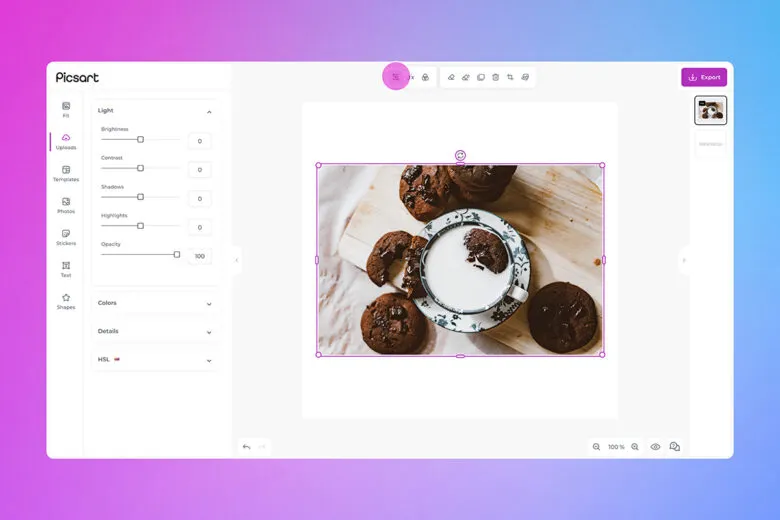
Do the basic corrections before creative edits. A filter cannot reliably fix poor exposure or strange color.
Start with:
- Brightness or exposure for overall light.
- Contrast for separation.
- Highlights to recover bright areas.
- Shadows to open dark areas.
- Temperature or white balance for natural color.
- Sharpening only when the image already has clean focus.
Keep changes moderate. If a slider makes skin look gray, colors glow unnaturally, or edges look crunchy, pull it back.
Step 3: Clean Up the Background
According to Picsart’s Remove BG help, mobile users select a photo and use Remove BG on the bottom toolbar. In the web editor, select the image on the canvas and choose Remove Background in the top toolbar. Use Erase and Restore to refine the result around fine edges.
Check availability before relying on this step. The background-remover page currently describes free access through a subscription trial. A free preview or a “free” tool heading does not establish unrestricted exports. Check the offer and renewal terms shown to your account; skip this optional edit if it requires a plan you do not want.
For a transparent cutout, Picsart’s background-removal tutorial recommends PNG. JPEG does not retain transparency. If the final design uses a solid backdrop, inspect the cutout against that actual color rather than only a checkerboard.
Use background removal when:
- The subject needs to become a sticker, thumbnail, or profile image.
- The original background is cluttered.
- You need a consistent look across several posts.
- You want to place a product or person on a branded color.
After removing or changing a background, zoom in around hair, hands, product edges, and transparent objects. Rough cutouts are easy to miss at full-screen size but obvious after export.
Step 4: Add Effects With a Clear Purpose
Choose Effects, preview one look and reduce its strength where that control is available. Picsart’s effects page describes both free and premium options; an effect’s availability is separate from its suitability. Keep a neutral version for comparison.
Effects should support the message of the image. Pick one direction before stacking multiple looks.
Examples:
- Clean and bright for profile images.
- High contrast for sports or performance photos.
- Soft color for romantic or lifestyle images.
- Bold color and graphic overlays for event promotion.
- Minimal retouching for professional headshots.
Avoid combining too many effects, stickers, frames, and overlays in one image. If the viewer notices the editing before the subject, simplify.
Step 5: Use Text and Stickers Carefully
For web editing, the official Text Editor FAQ directs you to Text in the left toolbar. Add the words, select the text layer and adjust its position, size and color. Free fonts are available, while some fonts and styles require a subscription. Check the license for any font, sticker or stock asset used commercially.

Text can make a social image easier to understand, but it can also make a photo feel crowded. Use short copy, strong contrast, and enough margin from the image edge.
Good text overlay habits:
- Use one main message.
- Keep fonts readable at phone size.
- Place text on simple areas of the image.
- Avoid covering faces, hands, product labels, or important details.
- Export a no-text version when the image may also be used in a gallery or website.
Stickers work best as accents. If they are carrying the whole image, the original photo may not be strong enough.
Step 6: Try AI Enhance When the Image Needs a Lift
AI Enhance is optional and premium. The AI Enhance help article says an active Picsart subscription is required to apply the enhancement and save the high-resolution result. It covers still photos, not video. A preview does not prove that the result can be saved without payment.
Documented mobile path: open your photo, choose Tools → AI Enhance, wait for processing, then Apply and save if you have the required access. Documented web path: create a New Project, upload the photo and choose AI Enhance from the toolbar above the image. Compare details before accepting the result; there is no guarantee that added detail matches the original scene.
Review the result closely. AI-assisted enhancement can change texture, edges, or fine detail, so compare before and after at full size. For client work, avoid altering a person, product, or brand detail in a way that changes what the image represents.
Step 7: Export for the Final Destination
In Picsart’s web example, Export is at the upper right. Its mobile example ends with Next and saving/sharing; labels may vary by app version. Save to your device before sending the image anywhere.
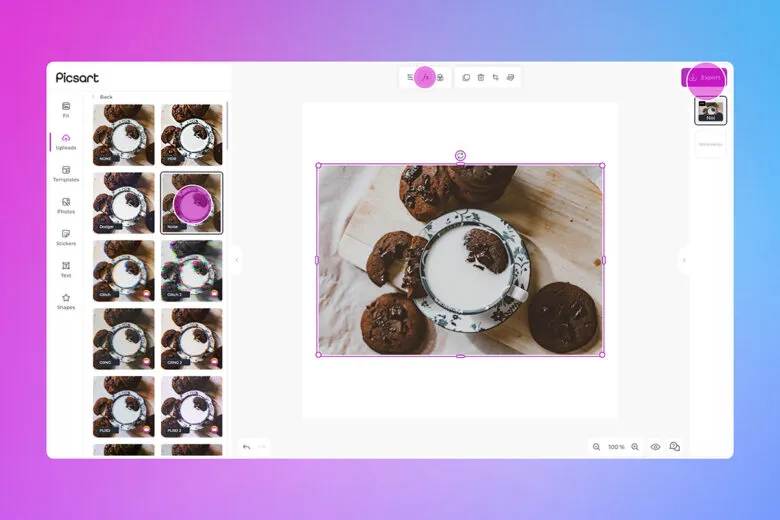
Choose an available format for the output: JPEG suits a flattened photograph; PNG preserves transparency when needed. Reopen the saved file and inspect its pixel dimensions, crop, text and cutout edges. A project preview or a larger canvas does not prove that the exported photograph gained real detail. Confirm any printer’s required dimensions and resolution separately.
If a download requests payment, check for premium effects, assets or AI tools in the project. Remove or replace those items, or deliberately choose an appropriate plan; do not assume every visible tool is included for free. Retain your original and an editable project where available so the exported file is not your only copy.
Export settings should match the final use. A social thumbnail, client preview, and printable file are not the same thing.
Before exporting, check:
- Crop ratio matches the destination.
- Important details are not too close to the edge.
- Text remains readable on a phone.
- The image is not over-sharpened.
- The file name makes sense if it is going to a client.
Save an editable version when possible, then export a final image. If the image belongs to a larger client set, keep both the original and final edited version organized.
When to Use Picsart and When to Use Another Workflow
Picsart is strongest for fast creative edits, social graphics, background changes, simple text layouts, and stylized images. A desktop editor may be better when you need batch color consistency, detailed retouching, calibrated product color, or a large professional gallery.
Use this simple decision table:
| Need | Picsart Fit | Better Alternative |
|---|---|---|
| Quick profile image | Strong fit | Only use a desktop editor if detailed retouching is needed. |
| Social post with text | Strong fit | Use a design tool if the layout has many brand rules. |
| Product color matching | Limited fit | Use a calibrated editing workflow. |
| Wedding or event gallery | Limited fit | Edit in a batch workflow and deliver through a gallery. |
| One creative cutout | Strong fit | Use desktop masking for complex hair or transparent objects. |
For social-specific edits, see Instagram photo editing.
Deliver Finished Edits Without Losing Quality
Messaging apps and social apps are convenient, but they are not a complete delivery system for client work. If a finished image is part of a professional set, deliver it somewhere the client can find it later, download it properly, and understand which files are final.
SendPhoto can organize exported finals into galleries and collections. Use gallery delivery for handoff and download control to choose permitted downloads. For images, an unwatermarked Original download uses the uploaded source; scaled or watermarked options use generated images. That source is the file you upload from Picsart, not an earlier camera master or an editable Picsart project.
Password protection restricts entry, but a shared password can be forwarded. Collections organize files rather than create separate permissions. Disabling downloads cannot revoke copies already saved, and gallery expiry closes sharing without automatically deleting files. Keep your originals separately and identify the final version clearly for clients.
Picsart Editing Checklist
Before editing:
- Pick a sharp source image.
- Confirm the final use.
- Decide the crop ratio.
- Save the original file.
While editing:
- Crop first.
- Fix exposure and color.
- Clean the background.
- Add effects with restraint.
- Keep text readable.
- Check subject edges after cutouts.
Before delivery:
- Compare before and after.
- Export the right crop, pixel dimensions and format; preserve transparency with PNG where needed.
- Check premium-tool access and reopen the saved file.
- Keep a no-text version if useful.
- Organize final files by project or client.
- Deliver client images through a gallery instead of scattered messages.
Related Guides
- Browse the SendPhoto photography blog
- Instagram photo editing
- How to improve photo quality
- Gallery delivery for photographers
- Download control for client galleries
FAQ
Is Picsart good for beginner photo editing?
Yes, Picsart can be useful for beginners who want quick crops, background edits, text, effects, and creative images. Start with basic exposure and crop changes before adding heavy effects. AI Enhance and some assets require paid access; check availability before depending on them.
Should I edit client photos in Picsart?
Use Picsart for specific creative outputs when it fits the job. For full client galleries, portraits, weddings, or product sets, keep a more controlled editing and delivery workflow so final files stay consistent and organized.
How do I avoid over-editing in Picsart?
Edit in stages and compare before and after often. If the effect hides the subject, changes important details, or makes skin and product color look unnatural, reduce the edit.
What should I do after exporting a Picsart edit?
Check the exported file at the size where it will be viewed. For client work, store the final version with the rest of the project and deliver it through an organized gallery.