Photography Articles

Anni Graham Presets: A Photographer's Complete Guide

Master your workflow with Anni Graham presets. This guide covers installation, customization, troubleshooting, and delivering stunning client galleries.

Published June 12, 2026
Anni Graham Presets: A Photographer's Complete Guide

A lot of photographers arrive at Anni Graham Presets the same way. They love the color palette, buy a pack, import it, click once, and then hit the same wall. Skin shifts warmer than expected, snow turns strange, deep greens get heavy, or the edit feels perfect on one image and wrong on the next. That doesn't mean the presets failed. It usually means the preset was treated like a finish instead of a starting point.

That distinction matters with Anni Graham Presets more than with many simpler packs. The original Yosemite Pack was built as a focused set with 4 color presets and 2 black-and-white presets for Lightroom and Photoshop, and Anni Graham described having one pack out at the moment called the Yosemite Pack in a Photobug Community interview. That early structure tells photographers something useful. These presets were never built as a one-button replacement for editing judgment. They were built as a compact toolkit.

A professional workflow with Anni Graham Presets starts before the first click and ends after export. Installation matters. Version compatibility matters. Crop order matters. Local masking matters. Delivery matters too, because a polished gallery handoff is part of the product clients remember.

Table of Contents

What to Expect from Anni Graham Presets

Most photographers looking at Anni Graham Presets want a natural edit with atmosphere. They don't want trendy color tricks. They want warmth without fake orange skin, greens that feel grounded, and images that still look believable a few years later.

That's also how the brand has been positioned. Anni Graham's site has described the presets as tools designed to enhance the natural colors of photos across varied scenes and lighting conditions, and the Yosemite Pack specifically points to use across different scenarios rather than one locked visual formula. The practical reading is simple. These presets are designed to get a photographer into the right tonal neighborhood fast, not to remove decision-making.

The look they help create

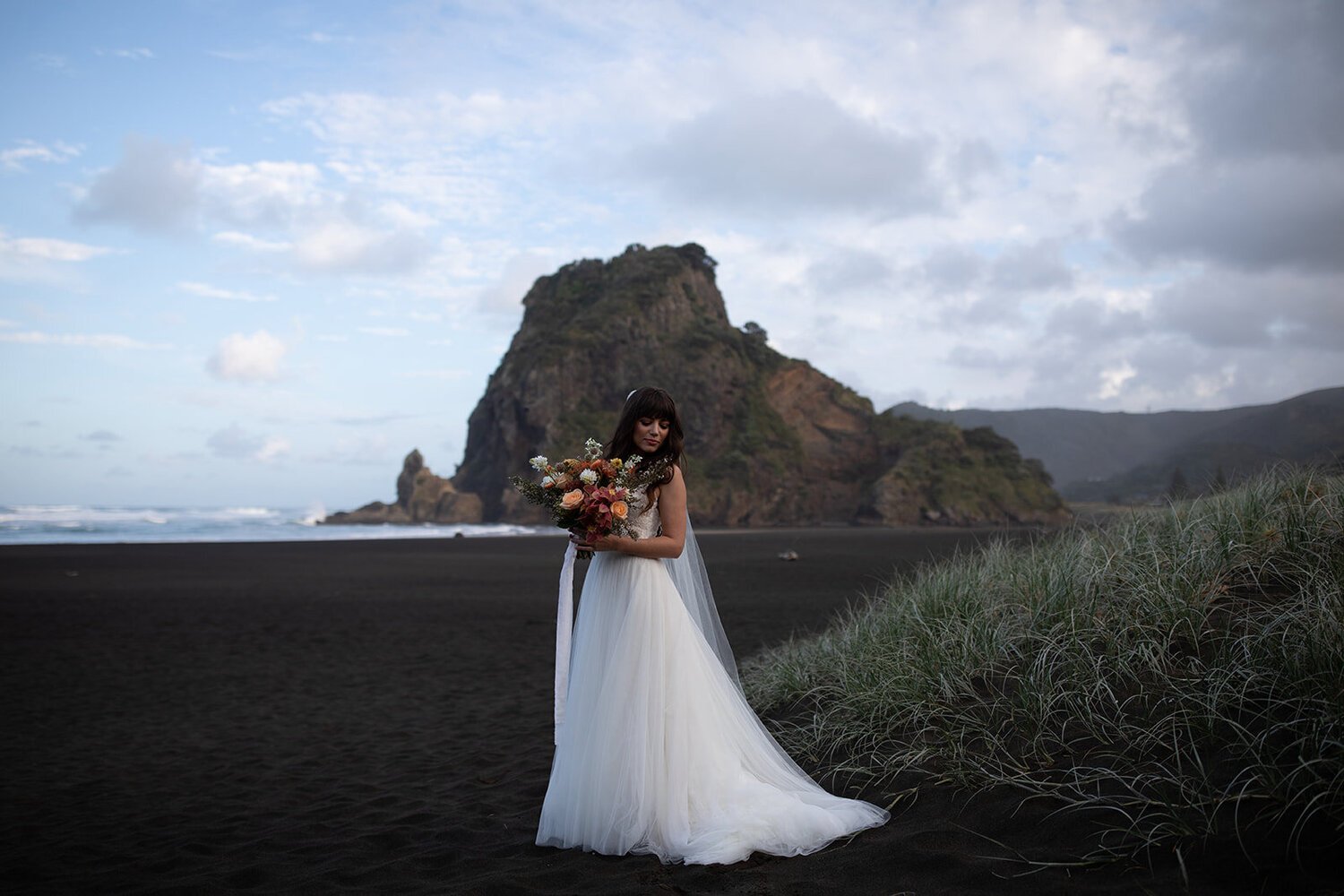
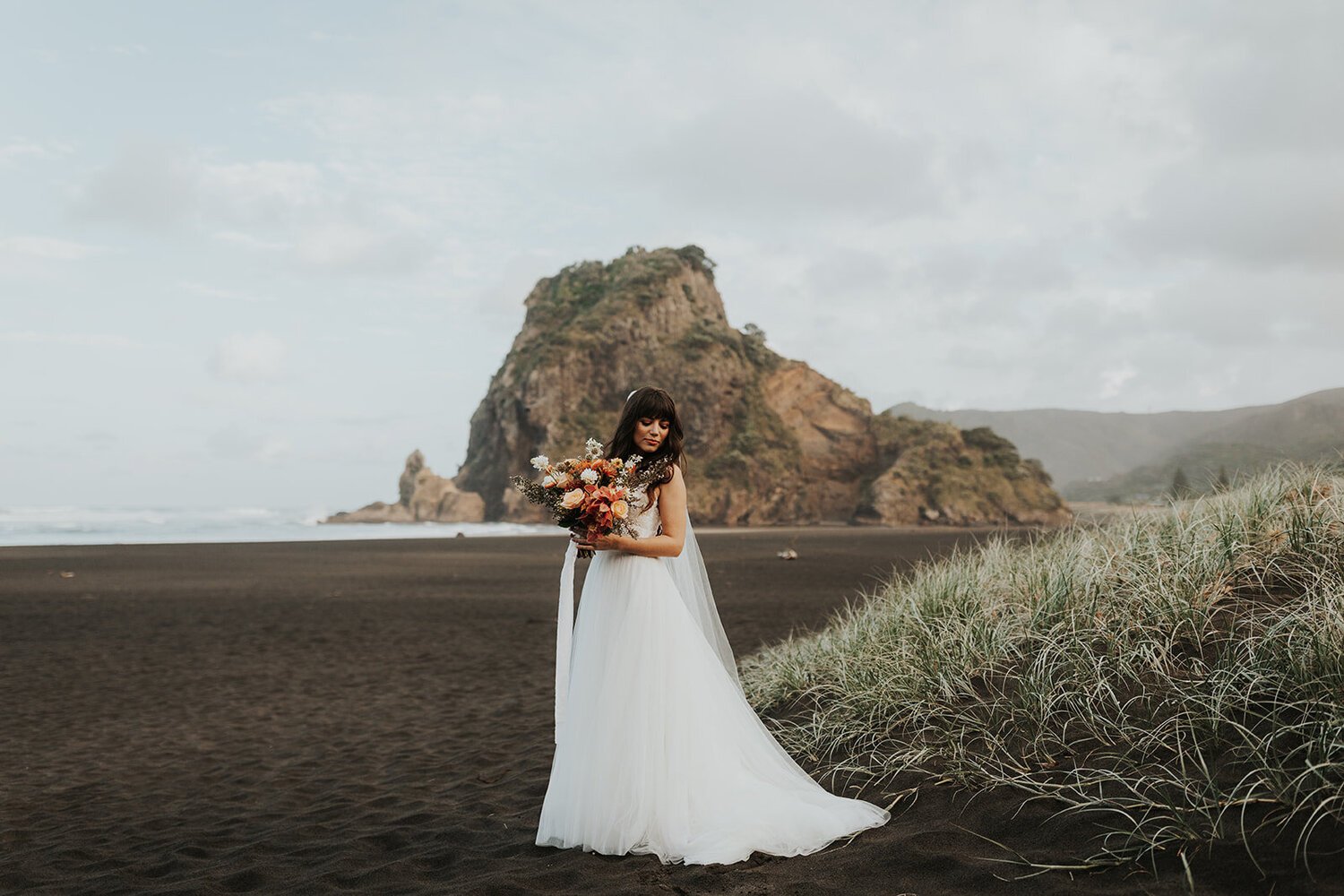
The strongest results usually happen when the original file already suits the preset's intent. Outdoor portraits, travel sessions, elopements, mountain scenes, backlit couples, and open shade tend to respond well because the color design leans toward natural atmosphere instead of aggressive stylization.

That doesn't mean every frame in a wedding gallery will match on one click.

Practical rule: Treat Anni Graham Presets as a consistent base for mixed conditions, not as a universal finish.

A reception dance floor, fluorescent getting-ready room, and snowy midday portrait won't need the same treatment after the preset lands. That's normal editing, not failure.

What they are not

Photographers run into trouble when they expect one preset to solve all of this at once:

  • Mixed white balance
  • Uneven exposure across a sequence
  • Strong skin reflections from grass or walls
  • Backlit haze plus dark clothing
  • Heavy subject-background contrast

Anni Graham Presets can give cohesion. They can't replace clean source files and selective adjustments.

A useful mindset is to stop asking, “Does this preset work?” and start asking, “What does this preset do well, and what does this frame still need?” That shift changes the whole workflow. It also keeps editing faster, because the photographer stops chasing a mythical one-click result and starts making a small set of repeatable corrections.

Installation Guide for All Your Devices

Installation is usually straightforward, but small mistakes create a lot of wasted time. Most problems come from the wrong app version, importing the wrong file type, or placing presets into the wrong part of Adobe's ecosystem.

Check compatibility before importing

Before anything gets installed, check the Adobe version. Anni Graham's Lumine presets are designed for Lightroom Classic 7.5+ and Camera Raw 10.5+, which means version gating matters before purchase or deployment, as noted on the Meridian Presets product page.

An infographic showing a five-step installation guide for Anni Graham presets, from downloading to mobile editing.

Two file types usually show up in modern preset packs:

File type Best use Why it matters
XMP Lightroom Classic, Lightroom desktop, Camera Raw This is the standard format Adobe uses for current desktop preset workflows
DNG Lightroom Mobile Mobile users often build presets by importing DNG files and saving settings from them

If a pack includes both, desktop photographers should usually start with XMP. Mobile users should keep the DNG files accessible in cloud storage or on-device files.

Lightroom Classic

For most working wedding and portrait photographers, Lightroom Classic is still the main hub.

  1. Download and unzip the preset folder. Don't try importing from a compressed archive.
  2. Open Lightroom Classic and move to the Develop module.
  3. In the Presets panel, click the plus icon and choose Import Presets.
  4. Select the XMP files or the folder containing them.
  5. Confirm that the preset group appears in the left panel.

After installation, test on a RAW file instead of a JPEG. That gives a better read on how the preset behaves and whether the tones are landing as expected.

Lightroom desktop and Lightroom Mobile

The cloud-based Lightroom app handles presets differently, but the logic is similar. Import the XMP files into Lightroom desktop, then let Adobe sync them across devices if the account is connected properly.

For mobile-only workflows, DNG files are often easier:

  • Import the DNG image files into Lightroom Mobile
  • Open one DNG file
  • Tap the three-dot menu and choose Create Preset
  • Save it into a named preset group

Photographers doing quick edits on a phone can pair that workflow with a more practical mobile editing routine, especially when reviewing how Lightroom behaves on smaller screens. This guide on editing photos on iPhone is useful for keeping that process efficient.

Mobile is best for selects, previews, and light adjustments. Full gallery finishing still belongs on a calibrated desktop setup.

Adobe Camera Raw in Photoshop

Photoshop users who open RAW files through Adobe Camera Raw can use the XMP presets there as well.

The process is simple:

  • Open a RAW file in Photoshop so it launches in Camera Raw
  • Find the Presets panel
  • Use the import option to add the preset files
  • Apply the preset to confirm it renders correctly

One workflow detail matters here. The creator's own tutorial guidance warns that the effect should be applied before crop or transform adjustments, because cropping first can create misalignment. After the preset is on, then adjust crop, straightening, and transform. For edge-heavy frames, local brush work may still be needed where clothing, skin, and background contrast meet.

Applying and Customizing Your First Edits

A good first edit with Anni Graham Presets usually starts with restraint. The fastest way to make the file worse is to apply a preset, panic, and start moving every slider. Strong edits come from correcting a small number of things in the right order.

A person editing a landscape photograph on a computer monitor using professional photo editing software.

Start with the right frame

Pick one image that represents the scene well. For a couple portrait set, that usually means a frame with:

  • clean exposure on skin
  • no blink or awkward pose
  • representative background color
  • the lighting condition that repeats through the sequence

The Yosemite Pack itself makes the larger point clear. Its structure includes 4 color and 2 B&W presets, and the pack positions each as useful in slightly different situations on the Yosemite Pack page. That means the value is less about a single fixed look and more about a consistent starting point across changing conditions.

A backlit portrait at golden hour might need one tonal base. Flat overcast portraits might need another. Indoor window light might need a cooler or cleaner start before skin looks right.

Adjust the big three first

After choosing the closest preset, work in this order.

  1. White Balance
    If skin is wrong, almost everything else will feel wrong. Correct temperature and tint before touching HSL.

  2. Exposure
    Presets often assume a certain starting brightness. Raise or lower exposure until faces sit where they should.

  3. Tone Curve or basic tonal sliders
    If the image feels too heavy or too airy, don't jump to color first. Open shadows, lower highlights, or ease contrast.

Most photographers use this to recover consistency.

A preset can carry mood and color direction, but exposure still controls whether the photo feels usable.

For a backlit outdoor portrait, a practical sequence often looks like this:

Adjustment What to check Common fix
Temp and Tint Skin goes yellow, magenta, or green Neutralize skin before judging the preset
Exposure Faces too dark compared with bright background Raise exposure slightly, then recover highlights
Highlights and Shadows Sky clips or clothing loses depth Pull highlights down, lift shadows carefully

After those changes, the preset usually settles into place.

A useful walkthrough of the editing process appears below.

Refine skin and environment color

Once the global edit is stable, move into HSL. In HSL, the difference between a decent preset edit and a deliverable gallery edit becomes clear.

For skin:

  • lower orange saturation if faces feel too heated
  • raise orange luminance if skin looks dense or muddy
  • adjust red hue only in small moves, especially with flushed cheeks or lips

For environment:

  • shift green hue carefully when foliage starts to overpower the subjects
  • reduce yellow saturation if dry grass pulls attention
  • watch blue luminance in skies and water so they stay believable

Local masks finish the frame. Brush or subject masks help remove unwanted color buildup on skin edges, dark jackets, or bright veils. That matters because strong contrast transitions can carry preset effects unevenly, especially in files with backlight or reflective surfaces.

Advanced Workflow and Batch Editing

Editing one hero frame is easy. Editing an entire wedding is where discipline matters. The photographers who move quickly with Anni Graham Presets don't sync blindly. They group scenes first, choose the closest tonal variant, then sync only what should repeat.

A professional photo editing workspace with a computer monitor displaying a photography software interface on a desk.

Build lighting groups before syncing

The cleanest batch workflow starts in Grid View or Survey View. Break the gallery into lighting groups before touching sync:

  • Open shade portraits
  • Direct sun ceremony
  • Indoor window light
  • Reception ambient
  • Flash-heavy dance floor

This takes less time than fixing bad sync decisions later. Once the group is set, edit one anchor frame thoroughly, then copy that edit across the cluster.

Photographers working with Nikon RAW files often handle conversion and export prep as part of that same grouped workflow. This guide on how to convert NEF to JPG is helpful when building a predictable handoff pipeline after editing.

Use preset variants as scene starters

Multi-variant packs prove useful. The Glacier pack is presented as a bundle with a base preset plus modifications for tones like cool green, pink highlights, blue shadows, soft blues, grain, lens corrections, and two black-and-white options on the Glacier bundle page. That structure supports a more professional approach. Pick the nearest starting point for the scene, then refine from there.

A practical wedding workflow might look like this:

Scene Better approach
Forest portraits Start with the base or cool-green-adjacent variation if foliage dominates
Snow or blue-heavy environments Test a softer blue variation before forcing a warmer preset to behave
Sunset portraits Choose the version that preserves warmth without overloading skin
Black-and-white storytelling frames Apply a dedicated B&W option instead of converting a color preset afterward

What to sync and what to leave alone

The fastest editors know what not to batch.

Safe to sync often

  • Preset selection
  • White balance within the same sequence
  • Basic contrast direction
  • HSL changes for a uniform environment

Usually unsafe to sync globally

  • Crop
  • Spot removal
  • Subject masks
  • Local brushes
  • Exposure across changing angles

A gallery stays cohesive when the broad color language matches, not when every slider is identical. Sync should handle the repeatable work. Individual attention should stay reserved for hero images, difficult skin, and any frame where the light shifts even slightly.

Troubleshooting Common Preset Issues

A preset usually fails for one of two reasons. The light changed, or the file needs cleaner starting corrections before the color profile can do its job.

At a wedding, this happens constantly. A bride steps from open shade into window light. A groom turns toward a green hedge. A reception speech starts under mixed tungsten and DJ LEDs. The preset is not broken. The scene is different, and the fix is usually smaller than people expect.

Skin tones look too orange, red, or green

Skin is the first thing I check, and I check it before I worry about mood. If skin is off, the whole gallery feels off, even when the rest of the frame looks beautiful.

Three causes show up again and again:

  1. White balance started in the wrong place
  2. Color bounce from the environment is contaminating skin
  3. Orange and red channels are pushed harder than the file can handle

Work in a set order so you do not chase the problem around the panel:

  • correct Temp and Tint first
  • reduce Orange Saturation in small moves
  • raise Orange Luminance if skin looks heavy or muddy
  • shift Red Hue slightly if cheeks or lips go too magenta
  • use a local mask when the color issue only affects part of the face

Green skin almost always starts with tint, not HSL. I see this a lot with grass bounce during outdoor portraits. Fix the global cast first, then decide whether the oranges still need work.

A practical rule helps here. If every face in the sequence looks wrong, correct white balance. If one face looks wrong, correct the local light on that subject.

Highlights blow out or shadows block up

Anni Graham presets often give a strong tonal shape fast, which is part of why photographers like them. The trade-off is that high-contrast files can break quickly if exposure was slightly off in camera.

Wedding work makes that obvious. White dresses clip before you notice. Black suits lose texture. A bright sky disappears while the couple still looks properly exposed.

Use a correction pass like this:

Problem Likely cause Fix
Dress detail disappears Highlights are pushed too hard Lower highlights, then recheck whites
Black suit loses texture Shadows and blacks are too deep Raise shadows first, then adjust blacks carefully
Face looks right but sky is gone Exposure was lifted too much Pull exposure down slightly, then recover the subject with masking
Recovered file feels dull Global contrast was flattened too far Add shape back with the tone curve

Tone curve adjustments usually hold the preset character better than pushing the main contrast slider back and forth.

Whites, blacks, and neutrals pick up color casts

Veils, shirts, tablecloths, and painted walls reveal bad color fast. They are useful diagnostic tools because they show contamination that skin sometimes hides.

Check neutrals in layers:

  • use the White Balance Eyedropper on a believable neutral if the frame gives you one
  • adjust Tint when whites lean green or magenta
  • adjust Temperature when blacks look brown, blue, or strangely warm
  • apply a local mask if only one neutral area is contaminated

Calibration can help, but only with restraint. A big calibration move may rescue one frame and throw the next twenty out of balance, especially in a wedding sequence shot under shifting light.

One preset works on one frame and falls apart on the next

This is usually a lighting consistency problem, not a preset problem. Two images from the same five-minute portrait block can still need different treatment if one subject turned toward the sky and the next caught bounce from grass or brick.

Handle it like a working photographer, not like someone trying to force preset uniformity:

  • compare the two frames side by side
  • match exposure before judging color
  • match white balance before touching HSL
  • switch to a nearby preset variation if needed
  • save detailed local work for the keeper frames, not every image in the sequence

That last part matters for delivery speed. If a difficult frame is headed for the client gallery but not for the album or portfolio, fix it cleanly and move on. Hero images deserve more time than transitional moments.

Files look great in Lightroom and weaker after export

Sometimes the problem is not the edit. It is the export. Heavy compression, the wrong output sharpening, or a weak web preset can flatten color and texture enough to make a good preset look inconsistent. A separate export recipe for online delivery fixes a lot of that. This guide to compressing photos for web without wrecking image quality is a useful reference if your previews keep coming out softer or duller than the Lightroom version.

Protecting your edited files

Troubleshooting also includes what happens after the edit leaves your catalog. If you are delivering polished wedding galleries online, file misuse is a real business issue, not a theoretical one. Photographers who want stronger process around ownership, licensing, and misuse can review this legal guidance for securing digital assets.

Exporting and Delivering Your Final Gallery

The edit is finished, the color is consistent, and the gallery feels like your work. Then export settings undo some of that effort. I see this most often with wedding galleries that looked polished in Lightroom but arrive softer, flatter, or less cohesive once the client opens them.

Delivery starts with export discipline. Anni Graham presets hold up well when the files leaving Lightroom are built for their actual use, not pushed through one generic export preset for everything.

Export settings that keep the work intact

I keep two export presets and rarely deviate from them.

For print files

  • full-resolution JPEG
  • high quality setting
  • output sharpening for the intended medium if needed
  • consistent color space based on the lab workflow

For web or client preview

  • resized long edge for fast loading
  • moderate compression
  • output sharpening for screen
  • filenames that are clean and searchable

That split matters. Print files need room for texture and tonal transitions, especially in dresses, skin, and dark reception scenes. Preview files need to load fast without making the preset feel muddy or oversharpened. If you need to fine-tune that balance, this guide on compressing photos for web without wrecking image quality is a useful reference.

Why delivery quality matters

Clients do not separate the edit from the handoff. They experience it as one finished product.

A generic transfer link sends files, but it does very little for presentation. Wedding clients usually need a gallery that is easy to browse, easy to share with family, and organized in a way that matches the story of the day. Cover image choice, folder structure, download settings, and mobile viewing all affect how polished the work feels.

Protection matters too. Once the files leave your catalog, they enter an online environment you do not fully control. For photographers reviewing ownership, licensing, and broader legal guidance for securing digital assets, that resource is worth reading before galleries go live.

Screenshot from https://sendphoto.io

Clean delivery is part of the brand. The client may never know how much work went into refining skin tones or balancing mixed light, but they will notice whether the final gallery feels polished, secure, and easy to use.

The way you deliver the gallery is the last step in the client experience, and it should match the standard of the edit itself. SendPhoto gives photographers a clean way to deliver polished galleries, control downloads, protect client work, and present finished images in a format that matches the quality of the shoot.

Need a cleaner way to deliver the finished gallery?

SendPhoto gives photographers client galleries with passwords, watermarks, collections, and download controls.