
For a cinematic still-photo look on your phone, start with Lightroom for deliberate color control, VSCO for a preset-led workflow, or Snapseed for a free editor with film effects. The best choice depends on the files you shoot, the adjustments you want to make and how you need to export.
Reviewed September 27, 2026. This is a comparison of documented features, access models and export workflows, not a hands-on ranking of image quality. Features can differ by phone, app version and membership. Check the linked official information and your store checkout before paying; a free download does not mean every tool is free.
Choose an app by the work you need to do
- Fine-tune a portrait or a consistent client set: consider Lightroom when you want separate color-channel and tonal-range controls, plus explicit export settings.
- Start with a film-inspired preset: consider VSCO when browsing a look and saving a reusable recipe matters more than a detailed file-format workflow.
- Try film effects without a subscription: start with Snapseed. Its current store listings include film simulations, grain, bloom, halation and adjustment tools.
These are workflow recommendations based on the tools below. They do not establish that one app produces a more authentic film look or better skin tones. Try your own portrait, bright outdoor scene and low-light image before moving a whole project into any app.
Lightroom: separate color control and export choices
Platforms: iPhone/iPad and Android. Cost model: free core editing with a paid subscription for premium functions. Adobe lists RAW editing, masking, healing, batch editing and device sync among premium features in its mobile FAQ. Check whether your existing Adobe plan already includes the features you need.
Why consider it: Color Mix adjusts individual color channels, while Color Grading adjusts shadows, midtones, highlights or the whole image. That distinction helps when you want to reduce an intense blue background without applying the same change to every color, or add a tint to a tonal range. Neither adjustment is a guarantee that skin will remain unchanged; inspect the subject after each change.
What the color-grading controls actually do
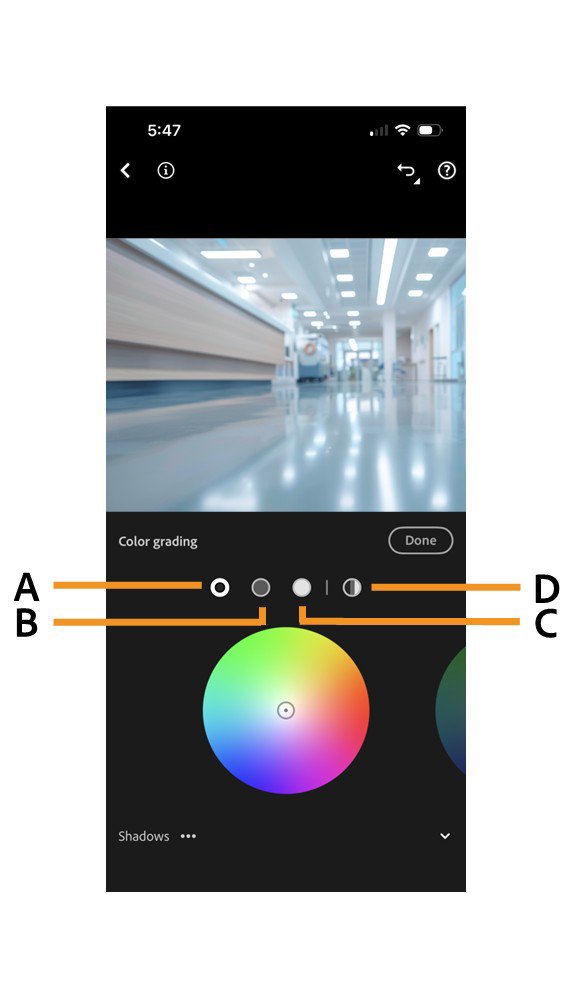
Adobe's mobile color guide documents both iOS and Android: open Edit, then Color, then Grading. Choose the tonal range and adjust hue and saturation; Blending and Balance change how the ranges combine. Use small changes and compare with the ungraded version.
Export: Adobe's Export as documentation lists JPG, DNG, TIF and other formats, with dimensions and quality options depending on the format. Export an edited JPG for ordinary photo delivery; exporting an original or DNG is a different handoff. Confirm that the saved file shows the intended grade outside Lightroom.
Tradeoff: more controls mean more decisions. Check the premium boundary before planning a RAW or masking workflow; the free editor and a paid Lightroom workflow are not identical.
VSCO: presets and reusable looks
Platforms: the main VSCO app is available on iOS and Android. Cost model: Starter is free; Plus and higher memberships are paid. The current plan comparison lists 15 standard presets for Starter and 200+ for Plus. Compare the annual total with monthly billing and your local app-store offer, rather than treating an advertised monthly equivalent as a month-to-month price.
Why consider it: a preset provides a starting palette that you can refine instead of building every adjustment from scratch. VSCO's Plus documentation includes Film X presets and unlimited Recipes for saving and reusing looks. Plus does not include Pro presets. A saved recipe still needs exposure and white-balance checks on the next photograph.
RAW limitation: VSCO's RAW and ProRAW FAQ says editing support is available on supported iOS devices, not Android or web. It warns that importing RAW on those unsupported platforms can yield a low-resolution JPEG preview. Edited RAW files export as JPG, not the original RAW format. Do not choose the Android app for a RAW workflow on the assumption that the iOS feature list applies.
Export: save the edited image from Studio to your camera roll. VSCO's save/export guide identifies Studio as the highest-quality source and warns that saving from the app's public Profile may give a compressed version. Saving a local copy and publishing to a profile are different actions; a client delivery does not require a public post.
Tradeoff: the preset library and platform limits matter more than the brand name alone. The separate VSCO Studio Pro app is an iOS batch-editing product; its launch guide says RAW support is not yet available. Do not confuse it with the main app or assume every VSCO product has the same features.
Snapseed: a free route to film effects
Platforms: iPhone/iPad and Android. Cost model: Google's current App Store listing and Google Play listing describe the editor as free, without subscriptions or in-app purchases.
Why consider it: the current listings include film simulations, Grain, Bloom, Halation, Curves and selective adjustments. That makes it a useful first option for exploring texture and color without committing to a preset subscription. Film names and a glow effect describe tools, not proof that a digital image matches a particular film stock.
Export: Google's save and export guidance distinguishes saving edits from making a flattened copy. Its iOS instructions identify Export as a JPEG copy with edits applied so other apps can display them. Interface labels can change across versions; open the saved file in another viewer and check the grade and pixel dimensions before delivery.
Tradeoff: check your particular camera's RAW files rather than assuming all formats behave alike. A broad RAW-support claim is not a guarantee for every camera or phone file. If your project depends on specific output formats or pixel dimensions, verify that route before editing a large set.
What makes a photo feel cinematic?
A cinematic photograph borrows from film storytelling: intentional light, a clear subject, an appropriate palette and a sense of place. A film-inspired preset is one way to influence color and contrast, but it cannot supply a missing subject or change the direction of the light that was captured.
There is no required orange-and-teal palette, saturation percentage or crop. A quiet neutral portrait, a saturated night scene and a black-and-white street photograph can all draw on cinematic ideas.
Capture and crop before adding a look
- Use the light you have deliberately. Directional light can give shape; a softer scene may call for gentler contrast.
- Choose framing for the subject. A wide crop such as 2.39:1 is an option, not an instant cinematic upgrade. Keep the uncropped original and check that important hands, faces or context survive.
- Keep depth purposeful. A shallow depth of field can isolate a person, but a detailed background may be essential to the story. Inspect artificial blur around hair and edges.
- Treat grain as texture. Judge it at the final viewing size; extra grain does not recover missed focus or clipped highlights.
For a broader mobile workflow, see editing photos on iPhone. This comparison focuses on choosing a still-photo editor; video editors and phone video capture modes solve different jobs.
A repeatable grading workflow
- Keep an original. Work on a copy or use the app's reversible edit workflow, with a separate backup.
- Correct the starting image. Adjust exposure and white balance before judging a stylized preset. Make sure the face and important highlights still have useful detail.
- Choose one direction. Try a restrained preset or a small tonal color shift. Avoid stacking several effects simply because each looks striking on its own.
- Check the subject. If skin changes too far, reduce the effect, adjust the affected color or choose another look. There is no universal 15–20% saturation reduction.
- Refine contrast and texture. Compare the curve, shadow detail and grain with the unstyled version. A stronger S-curve may suit one frame and crush another.
- Export and inspect. Open the saved result outside the editor, inspect fine detail and confirm the dimensions. Compare a small set together so one image does not have unexpectedly different color.
This is a proposed evaluation workflow, not a measured test of the three apps. If you want a fair personal comparison, start from the same source photo and use similar output dimensions; do not compare one app's screenshot with another app's full export.
Common mistakes to avoid
- Buying a membership before checking the exact tool, platform and export path you need.
- Assuming a filter can repair every capture problem or that a wider crop always improves the composition.
- Over-editing skin, crushing shadows or adding texture that becomes distracting at delivery size.
- Deleting originals or relying on an app library as the only backup.
- Applying a dramatic grade to a whole client set before agreeing on the intended look.
Choose one editor, then deliver finished files
Start with Snapseed if avoiding a subscription is the priority, VSCO if its available presets match the direction you want, or Lightroom if you need deliberate grading and export control. Judge the saved file and your editing process, not just the filter preview.
For client work, export the agreed final images, keep originals and backups separately, and organize the finished set in a SendPhoto gallery. Follow the gallery setup guide for sharing and download settings. SendPhoto delivers the exported photographs; the cinematic grade is created in your editor.
Create a SendPhoto gallery when the final set is ready.