
Cinematic photo editing is not a single preset, a heavy teal-and-orange grade, or a black bar placed on top of a weak image. It is a controlled editing approach that uses tone, contrast, color, light direction, crop, and restraint to make a still photograph feel intentional.
The strongest cinematic edits usually start with a clear visual goal: deeper shadows without muddy faces, shaped highlights without harsh clipping, a limited color palette, and consistent mood across the set. These cinematic photo editing techniques will help you build that look without losing the photograph underneath.
Start With a Visual Goal
Before moving sliders, decide what the image should feel like. A romantic evening portrait, a moody street frame, and a polished fashion image should not receive the same grade.
Ask five questions:
- Where should the viewer look first?
- Should the image feel warm, cool, neutral, or mixed?
- Do the shadows need depth or softness?
- Should skin look natural, stylized, or intentionally muted?
- Will this image sit beside others in the same gallery?
Write the answers in plain language. "Warm window portrait with soft shadows and natural skin" is more useful than "cinematic."
Correct Before You Grade
Color correction and color grading are related, but they are not the same job. Correction makes the image technically balanced. Grading gives it a creative style.
Correction Pass
Handle these first:
- Exposure and highlight detail where the source file retains it; clipped detail cannot always be recovered.
- White balance.
- Lens corrections if needed.
- Crooked horizon or distracting crop issues.
- Skin tone that has been pushed too red, green, yellow, or gray.
- Obvious distractions near the subject, where removal is appropriate for the intended use. Preserve documentary accuracy when the image is presented as a record.
If the correction is weak, the creative grade will fight the image. A cinematic edit built on bad white balance often turns into muddy shadows and unnatural skin.
Creative Grade
After the image is clean, shape the look:
- Add contrast through curves, not only a global contrast slider.
- Lower or redirect saturation in distracting colors.
- Warm highlights or cool shadows with restraint.
- Add subtle grain only when it supports texture.
- Use local adjustments to guide attention.
- Crop for composition and pacing.
Use Tone Curves for Film-Like Contrast
Tone curves give more control than a single contrast slider. They let you decide which parts of the image should deepen, soften, or lift.
Try this sequence:
- Set overall exposure first.
- Pull down deep shadows slightly.
- Lift the midtones only if faces need life.
- Protect highlights so skin and bright clothing do not look harsh.
- Add a gentle fade only if it fits the image.
Avoid crushing shadows just because the edit feels cinematic. Detail can disappear quickly in dark clothing, hair, and background areas.
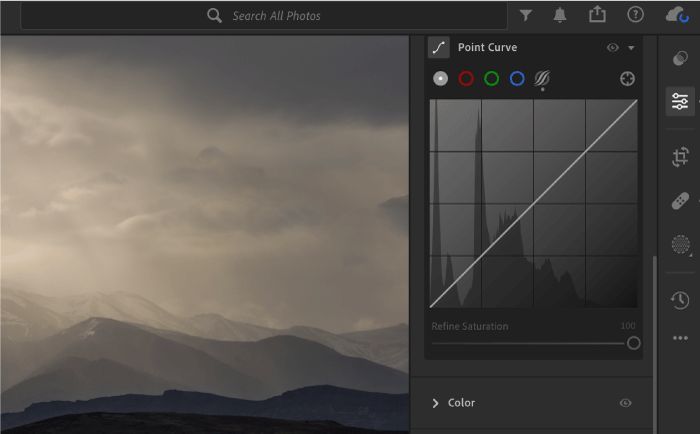
Read the curve from dark input tones on the left to bright tones on the right. Raising a point lightens the affected tones; lowering it darkens them. The straight diagonal shown here leaves the curve’s input and output tones equal. It does not mean the photograph has no other edits. This is Adobe’s interface example, not our before-and-after edit.
Control Color Palette
Cinematic editing often works because the palette is limited. That does not mean every image needs the same color formula. It means the strongest colors are chosen on purpose.
Use HSL or color-mix controls to reduce attention-grabbing colors that do not support the frame. Grass, neon signs, bright clothing, and mixed indoor lighting can pull the eye away from the subject.
- Grass is too bright: Lower green saturation or shift green slightly warmer
- Skin looks orange: Reduce orange saturation or adjust white balance
- Shadows look dirty: Check blue and green contamination
- Background competes: Lower saturation or luminance in that color range
- Whole image feels flat: Add tonal contrast before adding saturation
A color-range adjustment can also change skin or clothing elsewhere in the image. Check the whole frame; use a local mask when only the background should change. Keep skin believable unless the image is intentionally stylized. Viewers can accept strong grades in backgrounds more easily than strange skin.
Study a Documented Color-Grading Example
In Adobe’s color-grading demonstration by Kenneth Hines Jr., the Grand Central example begins around 2:36. He shifts the reddish-orange interior toward a greenish vintage treatment using tonal color tints. This is a credited external demonstration, not a photograph we edited or a universal cinematic recipe.
Watch the architecture and neutral surfaces as the look changes. Then compare the later examples around 3:12: different photographs receive different tonal treatments. The lesson is to choose a grade for the scene, rather than apply one tint to every file.
Color Mixer targets color ranges; Color Grading targets tonal ranges such as shadows, midtones and highlights. A tonal tint can reach skin as well as backgrounds. Neither control automatically isolates your subject.
Shape Light With Local Adjustments
Local adjustments help a still image feel directed. They can mimic the way a viewer would experience a scene in motion: face first, then environment, then details.
Use masks to:
- Brighten the subject's face slightly.
- Darken frame edges.
- Reduce background saturation.
- Add contrast to clothing or texture.
- Soften a bright distraction.
- Bring attention to hands, eyes, or a key detail.
Local edits should be invisible. If the viewer notices the mask before the subject, pull it back.
Add Grain With Purpose
Grain can make a digital image feel more tactile, but it can also make files look noisy or unfinished. Use it lightly and check the image at both full view and closer zoom.
Grain usually works best when:
- The image already has a moody or editorial direction.
- Shadows are not filled with heavy digital noise.
- The final gallery will be viewed as a cohesive set.
- The image does not require a perfectly clean commercial look.
Avoid using grain to hide exposure mistakes. Fix the exposure first, then decide whether texture belongs.
Crop and Aspect Ratio
A cinematic crop can help the image feel more intentional, but it should not be a trick. Crop to improve composition, remove distractions, and control the subject's position in the frame.
Consider wider crops for environmental portraits, street images, and scenes with strong horizontal lines. Use tighter crops when expression, hands, or wardrobe details matter more than the setting.
If the images will be delivered to clients, keep practical outputs in mind. A dramatic crop may look strong on a website but awkward in standard print sizes or mobile viewing.
Build a Repeatable Editing Sequence
Use a repeatable order, returning to earlier adjustments when the grade reveals a problem. Keep the original file and save a version before creative grading so you can compare without losing the correction.
- Choose hero image and visual goal
- Correct exposure and white balance
- Clean distractions
- Set contrast with curves
- Control palette with color adjustments
- Apply local masks
- Add grain or texture if useful
- Crop and straighten
- Compare against the full set
- Export for delivery
If you need foundational editing practice before this sequence, start with how to edit photos for beginners.
Common Cinematic Editing Mistakes
- Applying one preset to every image without checking skin and exposure.
- Making every shadow blue and every highlight orange.
- Crushing blacks until clothing and hair lose detail.
- Lowering saturation so far that the image looks lifeless.
- Adding black bars to compensate for weak composition.
- Overusing grain or blur.
- Editing one image beautifully but failing to match the rest of the gallery.
Export and Deliver the Finished Set
Export for the intended use: choose the requested file type, dimensions and color space, then reopen an exported file to check appearance, crop and detail. For ordinary web viewing, an sRGB JPEG is a practical starting point; follow the lab or client specification for print. Keep an editable master separately.
After editing, check the images as a set. Look for sudden shifts in warmth, contrast, crop, and skin tone. A cinematic gallery should feel varied but not random.
Use download controls to configure downloading from the gallery. They do not prevent screenshots, later sharing or access to copies already saved. A gallery delivery workflow can present the finished sequence in a way that supports the mood of the edit, especially when you group images by scene, look, or story.
For limited-access editorial portraits, password settings can gate gallery access. A shared password is not an identity check, and recipients can forward it. Finish the color and tone work in your editor, then choose gallery access and download settings for the agreed delivery. If the finished files would otherwise go out through a generic cloud folder, the Dropbox alternative for photographers guide can help frame the delivery choice.
FAQ
What makes a photo edit look cinematic?
A cinematic edit usually has intentional contrast, shaped light, controlled color, a clear subject, and a consistent mood. It should feel directed rather than simply dark or heavily filtered.
Do I need LUTs for cinematic photo editing?
No. LUTs can be a starting point, but tone, exposure, skin color, and local adjustments still need manual attention.
Is teal and orange required for cinematic photos?
No. Teal and orange is only one possible color relationship. Cinematic editing can be warm, cool, muted, neutral, or high contrast depending on the image.
Should cinematic photos have grain?
Only when grain supports the look. It should add texture, not hide technical problems.
How do I keep a cinematic gallery consistent?
Edit from a chosen hero image, compare images side by side, keep skin tone stable, and use the same correction-to-grade sequence across the set.