
To deliver high-quality photos, export the right files first, then give clients a way to download those files rather than saving a gallery preview. A sharp-looking thumbnail does not establish the size, color profile or compression of the download.
This guide provides starting export presets and a delivery checklist. The settings below are recommendations to adapt to a client or print lab, not results from a transfer benchmark.
Professional Photo Delivery Best Practices
Agree on the deliverable before exporting: finished JPEGs for everyday use, a separate smaller set for online sharing, or a format requested by a retoucher or print lab. Specify image count, crop, pixel dimensions, intended use and how long the delivery link will remain available.
Full resolution is not the same as an unchanged file
- Pixel dimensions: a 6000 × 4000 export contains 24 million pixels. A 2048 × 1365 copy is smaller, even if both carry a 300 ppi label.
- Compression: two JPEGs can have identical dimensions but different detail and file sizes. Exporting JPEG uses lossy compression; maximum quality is not lossless.
- File integrity: an unchanged transfer preserves the exported file's bytes. It does not undo compression applied during export or guarantee identical color on every display.
Keep the edited master and an independent backup. Deliver a clearly named export set; avoid repeatedly opening and saving a JPEG as part of handoff.
Starting presets for screen and print
These are proposed settings for ordinary SDR photographs, not universal specifications. Check a representative export at 100% magnification and follow a lab's requirements when they differ.
| Deliverable | Suggested starting settings | When to adjust |
|---|---|---|
| Finished client JPEGs | JPEG, sRGB, quality 90–100; retain the edited image's pixel dimensions. | Confirm the client's intended use and inspect detail before choosing a lower quality. |
| Separate screen-sharing set | JPEG, sRGB, 2048-pixel long edge, quality 80–90; no enlargement of smaller originals. | Use the destination's size requirements. Label this set Screen, not Full Resolution. |
| Specific print size | Use the lab's format/profile. If it requests 300 ppi, an 8 × 10-inch print needs 2400 × 3000 pixels after the correct crop. | Confirm crop, pixels, sharpening and profile with the lab; 300 ppi is a planning example. |
| Retouching handoff | Use the TIFF/PSD or other format and bit depth agreed with the recipient. | Do not assume a gallery can display or deliver every production format. |
The print calculation is inches × pixels per inch for each side. Changing the ppi metadata alone does not add captured detail. Cropping a 3:2 image to 4:5 also removes part of the frame.
In Lightroom Classic, use File → Export; review File Settings, Image Sizing, Metadata and Watermarking. Turn off resizing for a full-size edited export, and avoid an unintended file-size cap. Adobe documents export controls and lossy JPEG versus lossless TIFF compression. The numeric JPEG ranges above are editorial starting points, not Adobe guarantees.
For general web/email delivery, sRGB is a practical default; Adobe describes its sRGB uses in Lightroom Classic. A lab may request another profile. A shared profile helps color management but cannot make uncalibrated displays match.
Save separate presets for each deliverable so an online-sharing size is not accidentally reused for a print order. See Adobe's export preset instructions.
Essential Delivery Components
Choose a method for the client's job
| Method | Useful for | Limits to check before sending |
|---|---|---|
| Client gallery, such as SendPhoto | Browsing a session, organizing collections and providing a download route. | Supported formats, storage, download allowance, sharing access and the selected download quality. |
| Shared file folder, such as Google Drive | A folder of final exports or agreed production files. | Available storage, file-size limits, recipient permissions and whether downloading is allowed. |
| Transfer service | A one-time handoff with little need for a lasting presentation. | Per-transfer size, link expiry, recipient requirements and whether the link needs a password. |
| External drive | A large handoff agreed in advance with a local client or production team. | Connection, file-system compatibility, spare space and safe physical handoff; retain your own backup. |
This compares method tradeoffs, not provider speeds or reliability. Google currently documents a maximum of 5 TB for other file types; that is not an included storage entitlement. Its preview is a scaled-down representation. Use Drive's Download action to obtain the file, subject to the owner's restrictions. Check current limits for your actual account rather than assuming a service accepts any size.
For a gallery, check these components:
- Presentation: clear collections and filenames that let clients find their images.
- Access: a password adds an access barrier, but a recipient can still share it or redistribute downloaded files.
- Watermarks: decide whether proofs need them and whether final exports should be unwatermarked. A watermark is a visible deterrent, not a guarantee against copying.
- Downloads: explicitly enable them when delivery is intended and select the appropriate rendition.
- Client instructions: explain how to download and extract a set on the client's device instead of promising identical behavior on every device.
- Branding: use the available presentation controls; check which branding options your plan includes.
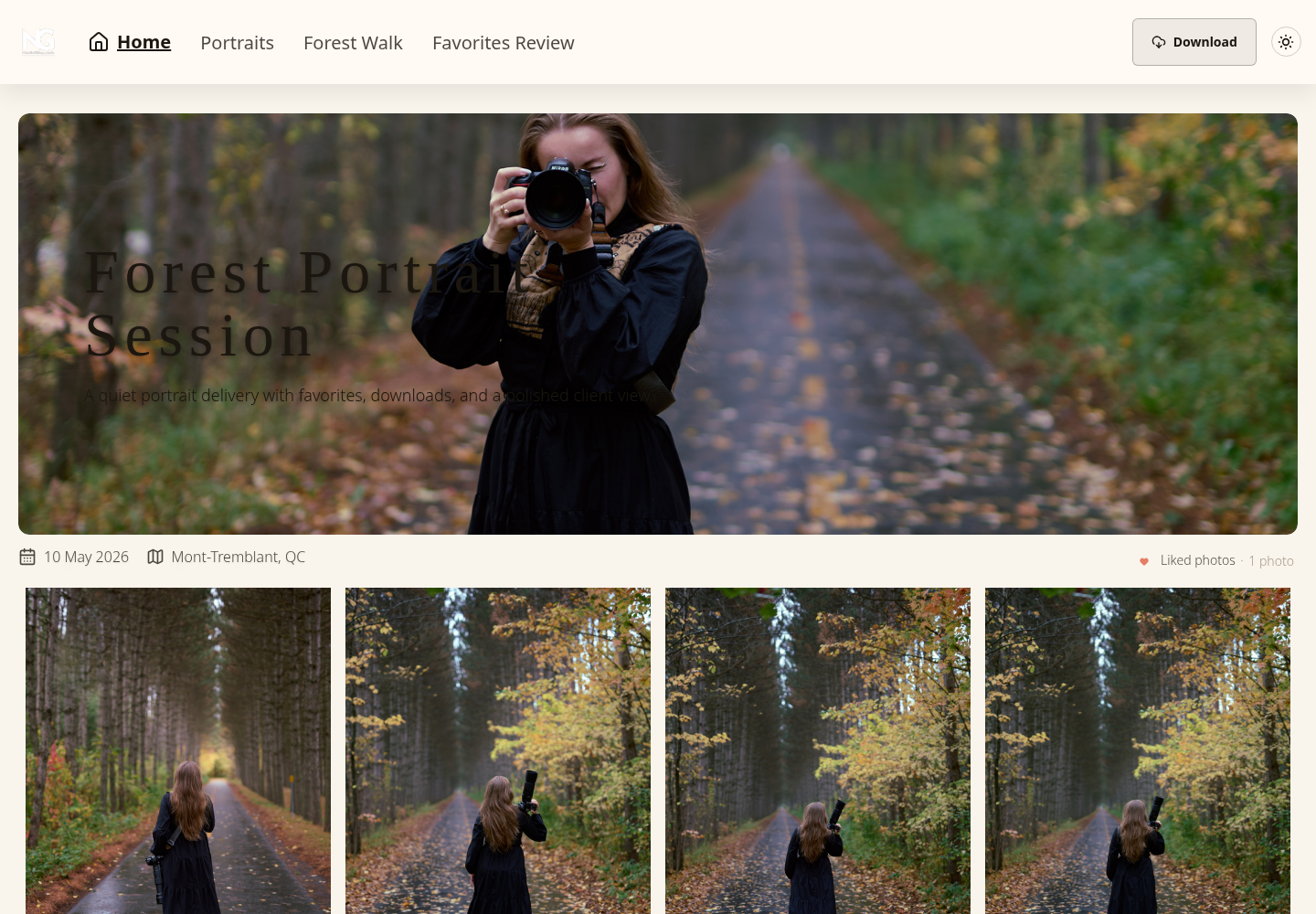
SendPhoto's sharing configuration includes download permission and quality controls, with collection-specific download settings. Review those separately from viewing access. Choose the quality intended for the handoff; an option named Original is not, by itself, evidence of byte-for-byte identity. For current account allowances, use SendPhoto's pricing information; for detailed platform comparisons, see photography sites for galleries, portfolios and sales.
Streamlining Your Workflow
- Prepare: finish selection and edits, confirm the agreed count and retain a master backup.
- Export: create separate Full Size and Screen folders if both were promised. Review faces, edges, color and crops in representative files.
- Record: note filenames, count, total size and expected pixel dimensions. Remove sensitive location metadata when it is not needed.
- Upload: use the finished deliverables, organize collections or folders and wait for upload processing to finish.
- Configure: set viewing access, download permission, rendition and any collection-specific restrictions.
- Send clear instructions: say which set to download, what it is for, how to extract an archive and when to save a local copy.
- Retain: keep the delivered export set as well as your master according to your own agreed retention policy. A delivery platform is not your only backup.
A suggested integrity check for an important handoff
If unchanged-file delivery matters, download a representative file through the recipient's download route and compare it with the exact exported file you uploaded. Check pixel dimensions, file size and opening in the intended application. For an archive, extract it first and compare the enclosed file, not the ZIP container.
For stronger evidence, compare SHA-256 hashes of the two files. On Windows PowerShell, run Get-FileHash -Algorithm SHA256 -LiteralPath 'C:\Photos\final-001.jpg' for each path. Microsoft documents Get-FileHash and content comparisons. Matching hashes provide strong evidence that those two files have the same bytes. A mismatch may indicate a different rendition or changed metadata; inspect the cause rather than assuming every mismatch means visible damage.
This is a procedure you can apply to your delivery, not a claim that the example gallery above has undergone a new integrity test. Matching one file also does not verify the count or completeness of an entire session.
Common Mistakes to Avoid
- Rushing preparation: sending an unfinished export folder or forgetting a promised image.
- Confusing a number with quality: a 300 ppi label does not restore missing pixels; a larger file is not automatically a better edit.
- Over-editing or re-encoding: check the finished export rather than judging only the editor preview; avoid needless repeat JPEG saves.
- Skipping backups: retain masters and final exports independently of the delivery link.
- Leaving expectations vague: distinguish proofs, full-size final files and screen copies; explain access and retention.
- Saving a preview: a browser screenshot or saved thumbnail may be smaller than the available download.
- Assuming compression means the same thing everywhere: ordinary ZIP packaging bundles files without JPEG re-encoding, while exporting a smaller JPEG changes the image. Already-compressed JPEGs may gain little size reduction from ZIP.
Next Steps
Write one reusable delivery note: image count, format, intended use, the correct download route and the date by which the client should save a copy. Save the export presets beside your workflow checklist, then update them when a lab or client supplies different requirements.
For example: “Your final set contains 60 full-size JPEGs. Use Download to save the files, extract the archive if provided, and keep a local backup. The separate Screen folder contains smaller copies for online sharing. Contact me before ordering a print size that requires a different crop.” Replace the count and terms with your actual deliverable.
For related instructions, see getting started with SendPhoto and password-protected photo galleries.