
To speed up file transfers, first identify what is slow: reading the files, sending their bytes, retrying failed requests, or processing the uploaded media. Then change one part of that chain at a time. A faster download plan, a new SSD or a different uploader cannot fix every bottleneck.
For photographers, the safest reduction is a smaller delivery selection, not deletion of camera originals. Keep verified independent backups and follow your retention agreement. Never delete a percentage of RAW files simply to make a progress bar finish sooner.
Why File Transfers Still Feel Slow After the Shoot
A wedding delivery may contain hundreds of JPEGs, several films and multiple versions. Total bytes matter, but so do the number of requests, local disk activity, network conditions and destination processing. A gallery can finish receiving a file before its preview or video playback is ready.
Use the upload figure when estimating an internet handoff. An internet plan's advertised download speed is not necessarily its upload speed. A local copy to another drive is a different transfer and does not use your ISP's upload capacity.
For decimal units, the ideal transfer time is:
Seconds = file size in gigabytes × 8,000 ÷ upload rate in megabits per second.
For a 1 GB file, that gives 80 seconds at 100 Mbps, 32 seconds at 250 Mbps, 16 seconds at 500 Mbps and 8 seconds at 1,000 Mbps. These are arithmetic lower bounds assuming the full rate is available continuously, not measured SendPhoto speeds. Protocol overhead, other traffic, retries and processing add time. At a continuous 100 Mbps, the arithmetic ceiling is 45 decimal GB per hour; it is not a practical throughput guarantee.
The Photographer's Transfer Chain
Follow five stages:
- Source storage: can the computer read the exported files without waiting for another intensive job?
- Local connection: is the adapter, dock, cable, router or wireless link limiting the path?
- Internet upload: what sustained upload rate is available at this location?
- Transfer client: are requests progressing, retrying or waiting for a response?
- Destination processing: have uploaded images or videos become ready for viewing?
A proposed comparison is a representative batch uploaded twice with one controlled change, such as Wi-Fi versus Ethernet. Use non-sensitive copies, the same destination and the same file set. Only compare an archive with individual images when the destination accepts archives as files; a ZIP is not a substitute for images in a gallery.
Where the Real Bottlenecks Hide in Photo Workflows
Write down the batch's file count, total bytes, largest file, formats, connection type, browser or app version and timing. Separate the start of upload, completion of byte transfer and readiness of the destination. A speed-test result alone does not establish the rate to your gallery's storage or the time spent processing.
A Pipeline Rather Than a Single Speed
| Stage | What to observe | Useful next comparison |
|---|---|---|
| Source storage | Disk activity, read pauses, other export or backup work | Read the same copies from another already available drive |
| Network interface | Negotiated link speed, dock or adapter path | Check the existing wired connection before buying equipment |
| Router and local network | Wireless signal, other active devices, competing transfers | Compare the same batch on Ethernet where available |
| ISP upload path | Upload rate and changes by time of day | Repeat at another time with the file set unchanged |
| Transfer client | Per-file progress, failed filenames and actual error messages | Distinguish repeated failures from steady but slow progress |
| Destination processing | Bytes received versus previews or video ready | Allow processing to finish; report persistent errors separately |
Many small files and one large file need not take the same time at the same total size. Opening files, creating requests and handling responses add work. That suggests a comparison to investigate, not a universal reason to package every shoot into one archive or increase every connection limit.
Illustrative calculation: 600 JPEGs averaging 4 MB total about 2.4 GB. At a continuous 100 Mbps, their bytes alone need about 192 seconds; at 20 Mbps, about 960 seconds, or 16 minutes. Real elapsed times will be longer. Those figures do not include per-file operations or gallery processing and do not describe a benchmark we performed.
A useful delivery record states what changed and what happened. For example, record both transfer and readiness time for a Wi-Fi run and an Ethernet run, rather than attributing a faster second run to the cable without checking the other conditions. Keep confidential filenames, credentials and client footage out of public reports.
Network and Hardware Tweaks That Actually Help
Start with reversible comparisons using equipment you already have. A wired connection can remove wireless signal and airtime variables, but a slow adapter or cable can still limit it. Check the negotiated connection and the router's port capabilities; do not assume a “gigabit” internet plan makes every link gigabit.
If Wi-Fi is necessary, move nearer the access point and reduce interference. Apple's wireless-interference guidance recommends reducing physical obstructions and competing wireless devices, and notes that supported devices may benefit from the 5 GHz band. Results depend on the environment; there is no reliable percentage of plan speed for every room or distance.
The High-Impact Setup
- Compare Ethernet first. Keep the file set and destination constant. If nothing improves, investigate another stage rather than purchasing a router immediately.
- Check the wireless environment. Use supported bands and suitable placement. Do not weaken network encryption or disable security features to chase speed.
- Pause avoidable competing transfers. Reschedule large syncs, streaming or updates when appropriate. Do not interrupt the only backup of unprotected originals.
- Check the adapter path. Include the dock, cable, switch and router port; one slower component can limit the connection.
- Watch source reads. Wait for heavy exports or catalog work to finish, or use already available storage for delivery copies. An NVMe purchase is not automatically useful when the internet upload is the ceiling.
- Leave low-level tuning to a demonstrated need. Do not copy TCP-window or parallel-stream settings from a scientific-network benchmark into a browser gallery workflow. Use the service's supported controls and documented limits.
For the relationship between file volume and capacity, see bandwidth efficiency for photo delivery. Keep the comparison grounded in your actual route.
Preparing Files for Faster and More Reliable Transfers
Create the deliverable the client needs. Proofs, final JPEGs, camera originals and production masters have different purposes. A smaller proof export can reduce transfer volume, but it cannot fulfill a promise to deliver full-resolution final files.
Adobe's Lightroom Classic export documentation explains JPEG Quality, color space and Resize To Fit. JPEG quality changes lossy compression; resizing changes pixel dimensions. Save an export preset for the agreed purpose and write new delivery files to a separate folder. Do not overwrite your originals to prepare a quicker upload.
Build a Transfer-Ready Folder
- Select without destroying source files. Exclude rejects and unnecessary alternates from the delivery export. Keep originals and backups according to your agreement and retention policy; no deletion percentage is a speed target.
- Create the right proof or final export. Check dimensions, color profile and compression against the intended viewing or print use. Examine representative exported images before committing to a large set.
- Use clear names. Give files stable, distinguishable names and versions. Follow a destination's naming restrictions when documented; spaces do not inherently make every upload fail.
- Divide the delivery logically. Ceremony, reception and portraits can be separate batches or collections. Organization makes failures easier to locate; it does not establish a faster server processing rate.
- Separate different deliverables. Keep a film, a photo selection and a production package distinct. Use an archive only when the transfer destination accepts it and the recipient needs an archive; do not upload ZIPs expecting gallery thumbnails.
- Verify the intended package. Check file counts and sizes. For an archive or byte-preserving file handoff, compare SHA-256 hashes before and after transfer using a trusted tool, such as PowerShell's documented Get-FileHash. A checksum compares bytes, not visual quality or authorship; it will differ when a service re-encodes a file.
Archive packaging and compression are different. Packaging can reduce the number of separately transferred objects, while already compressed JPEGs or video may not shrink much further. Consider the cost of creating, retrying and extracting one large archive before choosing it.
Keep a delivery manifest with filenames, counts, versions and export purpose. It helps distinguish a missing upload from a wrong selection. The bulk file upload guide covers batch organization; keep your independent archive outside the client gallery.
Choosing the Right Transfer Protocols and Parallel Settings
Use the destination's supported method. You cannot change a browser gallery into an SFTP endpoint simply by installing a different client. Likewise, a desktop sync app is useful only when the service and the recipient's workflow support it.
Plain FTP sends passwords and data without encryption, as RFC 2577 explains. Do not choose it for confidential client material. SFTP transfers through SSH; OpenSSH documents its encrypted transfer support. FTPS uses TLS and is a different protocol from SFTP. Check the actual connection and server identity instead of relying on a similar name.
| Method | Suitable job | Resume behavior | Parallelism | What to confirm |
|---|---|---|---|---|
| Browser gallery upload | Publishing supported media into a gallery | Depends on that uploader and failure type | Usually controlled by the service | Supported formats, processing and available recovery steps |
| Plain FTP | Legacy context requiring a separate security decision | Client and server dependent | Client and server dependent | Unencrypted transport; avoid for confidential delivery |
| SFTP | File delivery to an authorized SSH/SFTP server | Client and server dependent | Respect server and client limits | Correct server identity, permissions and client support |
| Native sync client | A supported service's recurring folder workflow | Check the particular app's documentation | Often managed by the app | Sync direction, local deletion behavior and account access |
| Peer-to-peer sync | An agreed workflow between controlled endpoints | Check the chosen tool | Tool and network dependent | Recipient availability, access controls and deletion rules |
Parallel files are not the same as pieces of one file. More concurrency can fill an underused connection, but it can also overload storage, trigger service limits or increase retries. Change a setting only if the tool exposes it and the destination documents it.
For a specific example, Files.com's performance documentation recommends 10–25 parallel connections for its third-party FTP, SFTP and WebDAV workflows, with an explicit exception: those methods must not use parallelism with its two-factor authentication. This is Files.com guidance for that environment, not a SendPhoto setting or a universal starting range. Keep authentication enabled and follow the supported workflow.
Do not assume that chunking guarantees recovery after closing a tab. A service may retry a part during the current session without storing enough state to continue after a browser restart. Check what its recovery feature actually promises.
Optimizing Gallery Delivery Platforms for Speed
Separate receiving media from preparing it for viewing. Image previews and video processing can continue after transfer. Changing download quality or the gallery's cover does not shrink a file that you are about to upload; export preparation happens before that upload.
When evaluating a workflow, use a representative set of supported formats and sizes. It can include photographs and a film when needed, but do not assume all RAW camera formats, archives or video codecs are accepted. Record failures separately from time spent waiting for processing.
Platform Settings That Deserve Attention
- Upload and retry controls: use the actual uploader. SendPhoto selects single-file or multipart handling automatically; there is no “Enable Chunked Uploads” switch to turn on. Multipart handling applies to qualifying large videos, not every photo.
- Collections: use them to organize the recipient's handoff. Separate collections do not prove separate security boundaries or a processing-speed improvement.
- Processing status: wait for supported files to become ready. SendPhoto does not expose a setting to postpone thumbnail generation.
- Video preparation: use a compatible delivery export, keeping production masters independently. Processing can transform a video into an optimized MP4; see how to share video online.
- Browser errors: read the actual error and check the failed filename, file limit, storage allowance and connection. Investigate an extension only when evidence points to blocked requests; clearing cache or disabling all extensions is not a routine speed fix.
- Scheduling: compare another time using the same supported batch if the connection varies. Do not assume late evening is faster in every location.
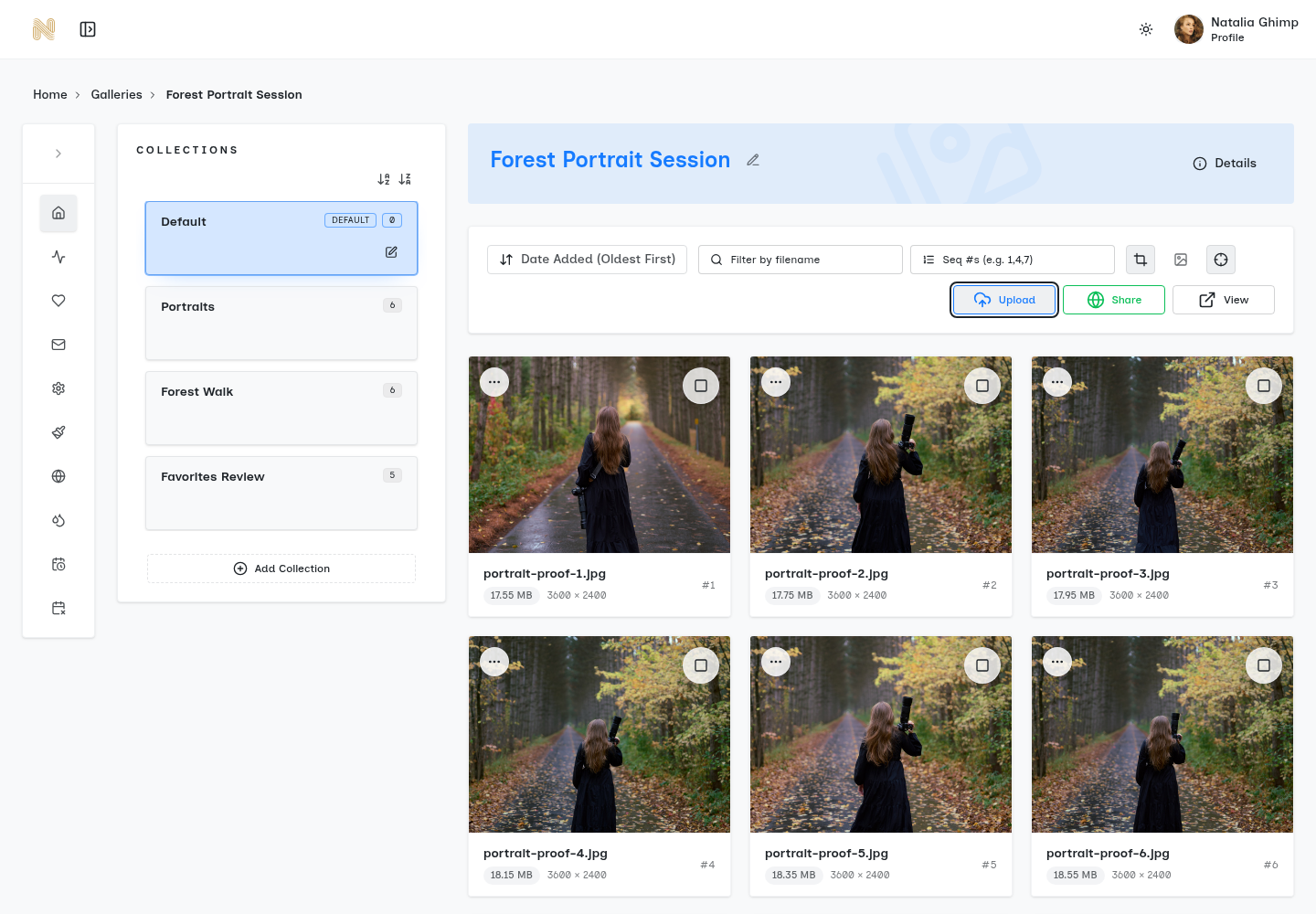
Existing real SendPhoto screenshot, reused unchanged. It shows the Upload action, collections and file cards in a portrait gallery. It does not show a chunking switch, an upload-progress measurement or a newly performed speed comparison.
For SendPhoto, open the intended gallery and collection, choose Upload and select the supported delivery files. Watch the job's progress and errors before adding another batch. The uploader manages concurrent files and retries some transient failures automatically. Keep the tab and computer available while uploading; do not promise that refreshing or restarting the browser resumes an unfinished file.
When a batch ends, reconcile successful and failed files before retrying or sharing. A gallery containing some images is not proof the entire job succeeded. Gallery viewing, password and download controls help the handoff, but are not upload-speed settings.
For export preparation, see compressing photos for the web. Match the file to the agreed use rather than reducing every client's final delivery to a small preview.
A Practical Speed Checklist and Common Fixes
Use this proposed checklist for your own delivery:
- Use a stable connection: compare wired and wireless paths where available.
- Check source storage: avoid competing disk work; use safe delivery copies.
- Package only when appropriate: confirm the destination accepts the package and the client needs it.
- Check recovery support: distinguish automatic retry from restart-persistent resume.
- Respect parallel limits: leave a managed gallery uploader's concurrency alone; use documented settings for other tools.
- Reschedule competing services: protect unbacked originals first.
- Use a representative sample: keep the file set and destination constant for comparisons.
- Record the failure point: filename, error, time, file size, storage allowance and processing status help diagnose a stalled job.
- Compare time windows: repeat under known conditions rather than judging by a single speed test.
- Confirm upload capacity: use the upload rate, not the headline download rate.
If transfers remain slow, send support a concise description of the affected batch and exact error, with sensitive details removed. Distinguish steadily progressing bytes, repeat failures and completed uploads awaiting processing. These require different responses.
Consider another already available trusted connection when a deadline requires it, keeping client-access and network-security obligations intact. Purchase a faster plan or new hardware only after identifying a limit that it would address.
SendPhoto can organize supported photo and video deliveries into client galleries. Prepare the correct files, use its uploader's actual controls and give processing time to finish. A clear, verified handoff is the goal; no gallery can promise a universal upload speed.