
A 40 GB shoot is a collection of files, not a 40 GB RAW image. Before you upload it, decide what the recipient needs: JPEG previews for choosing photographs, native RAW files for editing, or both. Those are different deliveries.
This guide covers preparation, transfer choices and SendPhoto's documented gallery behavior. The file-size example and checklists are planning tools, not results from a measured camera or upload test.
Why RAW uploads are harder than they look
RAW files contain camera image data that needs compatible software to interpret. A JPEG is a processed image intended for viewing. Sending RAWs gives an editor access to the source data; it does not automatically give a client your finished color, crop or retouching.
File size depends on the camera, recording settings and image content. Use the sizes of your actual files when planning a delivery. As a hypothetical example, 1,000 files averaging 40 MB total 40,000 MB, or 40 GB using decimal units. That is 40 MB per file and 40 GB for the batch. It is not a specification for a particular camera.
The job also includes local copying, uploading, preview processing and recipient downloading. A completed upload alone does not establish that the recipient has the intended files.
The recipient problem
Ask which camera model, editing application and version the recipient can use. A familiar extension such as CR3 or NEF is not enough to establish compatibility with every camera that produces it. Adobe's supported-camera tables list minimum Camera Raw and Lightroom versions by model.
For client selection, export JPEG previews with filenames that map clearly to the RAWs. An editor who needs your adjustments may also need sidecars or another agreed edit-transfer format. Do not assume a browser preview reproduces your Lightroom work.
Why ordinary links struggle
A link is an access mechanism, not a transfer specification. Check the destination's accepted file types, per-file limit, available storage, retry behavior and recipient access requirements before choosing it.
Browser uploads can be suitable for large sets when the service supports them. A desktop app can still fail or reject a file. Choose based on the service's documented behavior and the recipient's job, rather than treating either interface as universally reliable.
Preparing RAW files before you upload
Separate your working archive from the delivery copy. A simple folder plan has four roles:
- Job folder: a neutral date and job label, such as
2026-10-04-studio-session. - Camera folders: keep two cameras' identically numbered files from colliding.
- Shoot segments: group portraits, details or other useful parts of the job.
- Delivery folders: distinguish
PREVIEWSfromRAW_SELECTSso their purposes are clear.
These are local organization examples. A gallery's collections do not promise to recreate a nested disk folder tree. Avoid sensitive client information in public filenames or gallery titles. See photo organization ideas for a broader archive workflow.
Ingest, verify and back up
Copy the card contents to your working storage without discarding files merely because the client will not receive them. Compare expected file counts and sizes, open representative files from each camera and make a separate verified backup before formatting or reusing the card.
Counts and opening a few files are useful checks, but they do not establish the integrity of every file. Where your copy tool provides verification, use it. Keep sidecars and other files your editing workflow needs with the corresponding originals.
For an exact-content comparison, PowerShell's Get-FileHash uses SHA-256 by default. Compare the source and destination hashes of files that are supposed to be unchanged. Matching filenames or file sizes alone are weaker evidence; a hash does not establish that a photograph is correctly exposed or supported by an editor.
Add ratings or selection labels in your editing application if useful, then create a delivery list. Those organizational choices do not require deleting the unselected archive files.
Native RAW or DNG?
Keep native RAW when the recipient requests it or needs the camera manufacturer's workflow. DNG is an alternative to discuss with the recipient, not an automatic upload optimization.
Adobe's DNG Converter instructions let you select a source folder, choose a separate output folder, set naming and compatibility preferences, then convert. Choose compatibility for the recipient's application. Adobe notes that conversion may omit proprietary camera metadata; embedding the original RAW retains it inside the DNG but adds data. Keep the native originals separately while validating the handoff.
There is no fixed percentage saving for your files. Lightroom Classic's DNG export settings include embedded originals and fast-load data, which add data, and lossy compression, which can reduce quality. Do not enable a lossy option merely to meet a deadline without agreement. Compare actual output sizes and compatibility before replacing a requested native delivery with DNG.
Choosing the right upload method for large sets
Compare methods using requirements you can check. An archive is a packaging choice; it still needs a service to transfer it.
| Method | Useful when | Check before starting | Recovery question | Recipient requirement |
|---|---|---|---|---|
| Browser upload | The destination accepts your selected media files | File types, per-file limits and storage | Which failed files can be retried? | Access to the gallery or download link |
| Desktop uploader | The chosen service provides a suitable application | Supported formats, application version and destination | Does it resume this transfer after interruption? | Access to the resulting files |
| ZIP package | RAWs, sidecars and a folder structure must travel together | Archive acceptance, total size and extraction space | Does the transfer service retry or resume the archive? | Software and space to extract it |
Browser uploads
Start with a manageable selection so you can identify completed and failed files. There is no universal 50- or 100-file batch size: file sizes, browser memory and service limits matter. Keep the device awake and the connection stable while the job runs. Avoid launching duplicate uploads while an earlier job is still active.
Record the service's error message before changing anything. Retry failed files rather than blindly submitting the whole set again. If you need to estimate time, use your measured upload rate and total bytes, allowing extra time for interruptions and processing. The file-transfer speed guide explains how to separate bottlenecks from ideal-rate arithmetic.
Desktop uploaders
Use a desktop uploader only where the destination actually offers or supports one. Check whether its resume function covers an interrupted transfer, an application restart or both. A progress bar is not proof of persistent recovery.
A wired connection can remove a weak Wi-Fi link from the path, but it cannot improve a destination's file limit or a slow upstream connection. Keep authentication and security protections enabled. There is no defensible universal percentage by which desktop uploading reduces failures.
ZIP archives
An archive can keep RAWs, XMP sidecars and delivery notes together for an editor. Many camera files are already compressed, so do not assume ZIP will substantially reduce their size. Packaging a large set may also create one large file that exceeds the destination's limit.
SendPhoto's gallery media picker does not accept ZIP archives or XMP sidecars. If those are part of the handoff, use a separate file-transfer destination that accepts them and explain that route to the recipient. A gallery download archive and uploading a ZIP into a gallery are different operations. Keep the bulk delivery checklist separate from your archive packaging decision.
Delivering RAW files through SendPhoto galleries
SendPhoto's upload validation accepts RAW extensions including CR3, NEF, ARW and DNG. Acceptance of an extension does not guarantee that every camera model or recording variant will produce a usable preview. Check your plan's available storage and any file-limit message instead of relying on a universal size allowance.
For RAW media, the preview-processing path creates JPEG images for viewing. A full-resolution preview is still a processed image, not the camera RAW. Preview color or missing editing adjustments should not be treated as evidence that the original was changed or that your finished edit was delivered.
Create a gallery, use its Upload action and select supported media. Organize the delivery with collections where helpful. The current RAW upload path uses whole-file requests with bounded retries for some errors; it does not establish resume support after a browser restart. A RAW upload error should be handled using its actual message, not a supposed user-facing chunking switch.
If the client only needs to choose photographs, upload finished JPEG previews and agree separately on any RAW handoff. That avoids making camera-file compatibility a prerequisite for selection.
Configure viewing and downloads
Set these five parts of the handoff deliberately:
- Viewing: give the recipient clear previews and filenames that map to the delivery list.
- Downloads: enable them only when intended and check applicable collection permissions. For native RAW delivery, choose Original download quality and ensure the relevant collection's watermark rules are disabled. With a watermark applied, even Original mode uses a generated image; scaled-down downloads also use processed images. Check the delivered file type and, for an unchanged original, its hash. A RAW-looking filename alone does not prove RAW contents.
- Password: optionally restrict access with a gallery password and share it through the agreed channel. A password does not prevent an authorized recipient from copying a downloaded file.
- Access expiry: set a sharing deadline if appropriate. Expiration controls access; it does not by itself establish that stored RAW files have been deleted.
- Delivery notes: explain the file types, editor requirements, sidecar route and permitted use in your handoff message. Do not assume the gallery includes a README-upload control.
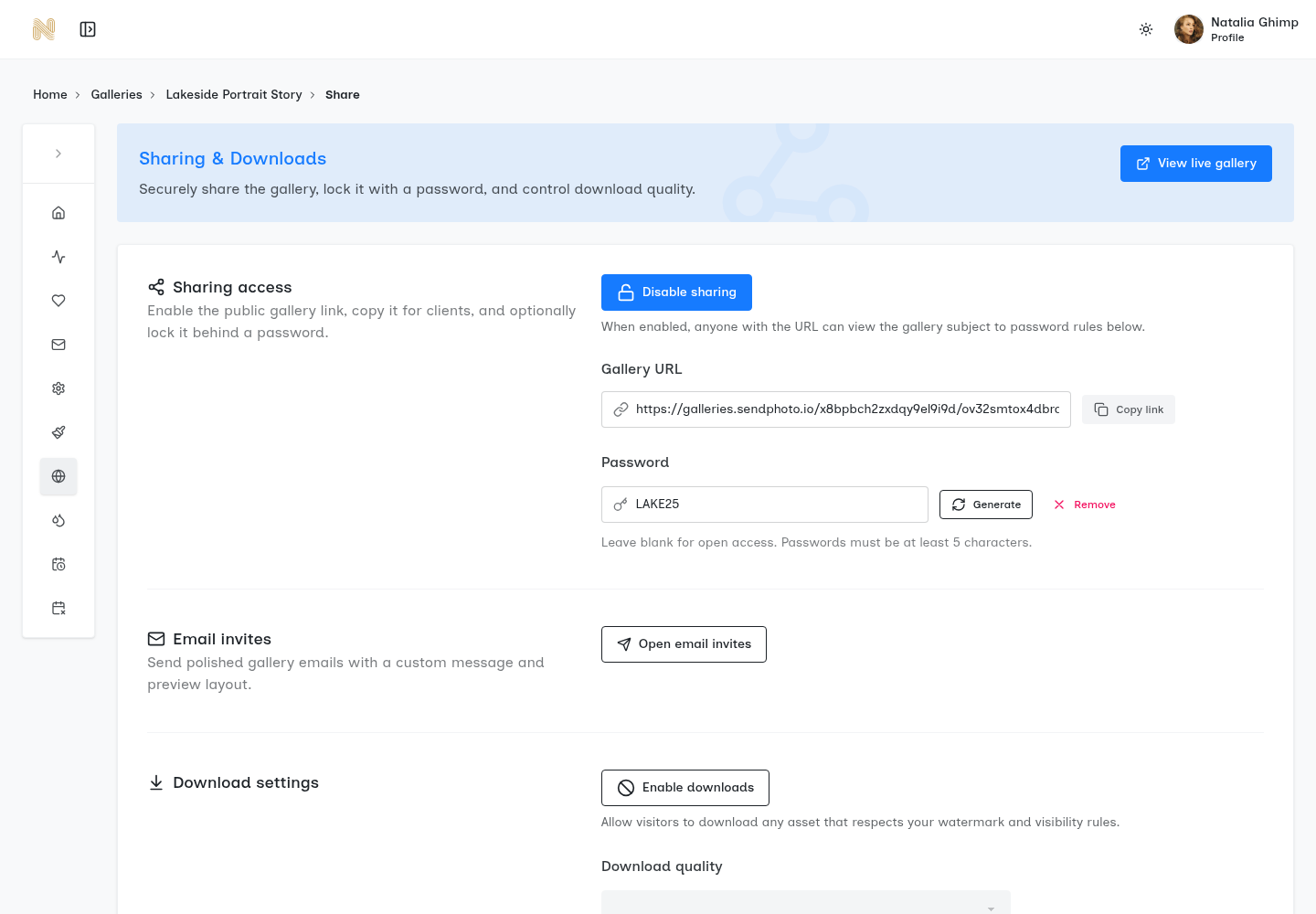
Existing real SendPhoto screenshot: Sharing and Downloads, with password and download controls. The download-quality choices are below this crop. This is not a RAW-preview or file-integrity demonstration.
These instructions describe the current implementation and an existing product screen; they are not a newly performed RAW upload-and-download test. The getting-started guide covers general gallery setup.
Explain the file handoff
Tell the recipient which link contains viewable previews and which supplies camera originals or an external archive. Include the expected file count, camera model, required editor and any sidecars. In Lightroom Classic, exporting an original RAW can write metadata changes to an accompanying sidecar; sending the RAW alone may omit those changes.
Keep matching names across previews, selected RAWs and the delivery list. Confirm receipt against the agreed deliverables rather than assuming an upload notification means the editor has downloaded everything. Keep an independent master archive; a client-facing gallery is not your only backup.
Troubleshooting common RAW upload errors
Start with the visible error and the affected files. These are possible causes and next checks, not diagnoses of a particular failed upload.
| Symptom | Possible cause | Next check |
|---|---|---|
| Upload times out | Connection interruption, service timeout or an oversized request | Record the error; check limits and retry the failed file on a stable connection |
| Progress stalls | An active transfer, slow upstream connection or later processing | Check upload status separately from preview status; avoid duplicate jobs |
| File is reported as corrupt or unsupported | Unsupported camera variant, incomplete local copy or actual damage | Open the local copy in compatible software and compare it with the backup |
| Browser closes or crashes | Resource pressure or an application failure | Reopen the gallery, identify completed files and retry only what is missing |
| Transfer slows repeatedly | Competing traffic or service-side limits | Compare a controlled retry with other transfers paused; check service guidance |
A service limit is not evidence of file corruption. A RAW that opens locally but lacks a gallery preview may require a supported viewing copy; keep the original and investigate compatibility rather than repeatedly recompressing it.
For a large delivery, make a list of expected filenames and counts for each batch. If byte-identical source delivery is required, compare hashes across that delivery, not just a single representative file. For a ZIP, check extraction and the required contents as well as the archive transfer. Do not delete source files while troubleshooting.
Final checklist and archival considerations
Use this nine-step checklist for a future delivery:
- Copy the complete card contents to working storage.
- Verify the copy and make a separate backup before reusing the card.
- Keep cameras and shoot segments identifiable without filename collisions.
- Agree whether the recipient needs previews, native RAWs, DNGs or sidecars.
- Create delivery copies and a filename/count list without deleting archive rejects.
- Check format, per-file and storage limits for the actual destination.
- Upload supported media or transfer an agreed archive through a suitable service.
- Confirm access, download settings and receipt of the intended file types; verify unchanged originals where required.
- Retain independent masters under your agreed backup and retention policy.
For archiving, the Canadian Centre for Cyber Security's backup guidance describes 3-2-1: three copies, two media types and one copy offsite. It also recommends testing recovery. Count recoverable copies, not merely sync locations, and keep a restore procedure. This is a baseline, not a guarantee against every loss.
Treat gallery access expiry and archive retention as separate decisions. Document when delivery copies may be removed, confirm the recipient's receipt and verify backups before deleting anything you intend to preserve. Converting to DNG or building a ZIP does not replace that process.
SendPhoto can provide a client gallery for supported media and previews. Choose the gallery settings for the actual deliverable, and use a separate agreed transfer route when the editor needs files the gallery picker does not accept.