
iPhone cinematic photography starts with choices made before editing: light direction, a clear subject, exposure, color and a crop that supports the scene. A film-like still can be bright or dark. Choose what the viewer should notice and build the photograph around it.
This guide uses the built-in Camera and Photos apps, with controls documented in Apple’s iOS 26 guide. Button placement and camera options vary by model and software version; use the controls available on your phone. The genuine Apple examples below illustrate controls and framing. They are not photographs from a shoot we performed or proof of a guaranteed professional result.
What Makes an iPhone Photo Look Cinematic?
For this workflow, look for three qualities:
- A subject that is easy to understand.
- Light that creates mood, shape or contrast.
- Composition that supports the intended story.
Editing can redirect attention, but changing the camera position or light may give you a more useful starting frame. Decide what matters, where the light comes from and what should stay outside the image.
These are still photographs in Photo mode. Apple’s Cinematic mode records video with a depth-of-field effect on supported models; you do not need that mode to make film-like stills.
Choose Light Before Location
The same location can look different at noon, near a window, under streetlights or during low sun. Find a direction of light that fits the mood.
- Window light from one side of the subject.
- Backlight around hair, shoulders or an object’s edge.
- Streetlights, neon, headlights or signs at night.
- Soft overcast light for quiet portraits and muted scenes.
- A bright doorway or shaded passage for contrast.
Keep people and equipment out of traffic, and use locations where you are permitted to shoot. If warm indoor light and greenish spill make a face difficult to edit, move the subject or simplify the lighting before taking more photographs. A color adjustment can change the whole image without fixing every differently lit area.
Control Exposure for Mood
Judge brightness from the important subject and highlights. A darker rendering is one creative choice, not a requirement for a cinematic photograph.
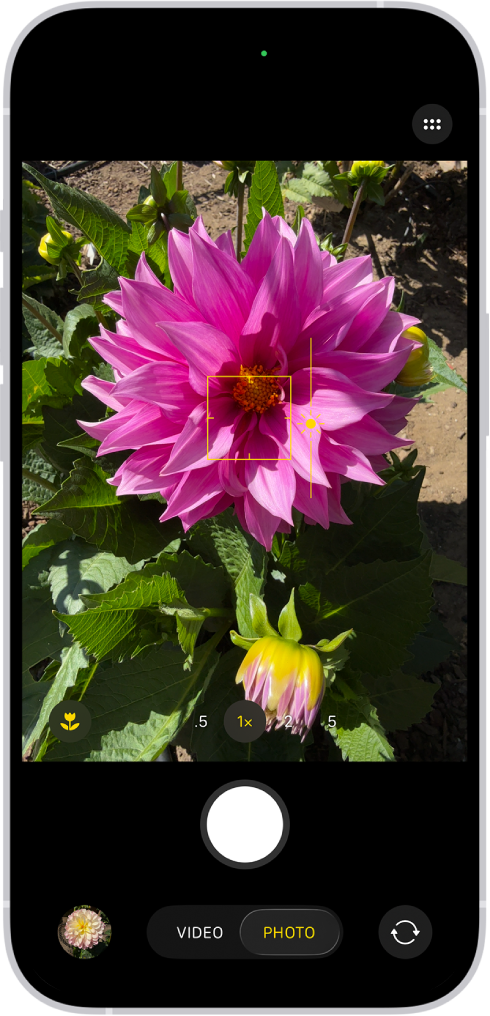
Apple documents the following focus and exposure controls:
- In Camera, tap the part of the viewfinder that should be in focus.
- Drag the sun control beside that area up or down to adjust exposure.
- For repeated frames at the same subject distance, touch and hold until AE/AF Lock appears.
- Tap the screen to unlock when the distance or lighting changes.
When making your own frames:
- Choose the main subject rather than an unrelated bright area.
- Lower exposure only if important highlights need restraint.
- Keep readable detail in faces and objects that matter.
- Let unimportant shadows remain dark when they support the mood.
- Take a second exposure option and compare both photographs.
A pale sky or a light source can remain bright by intention. Do not darken the entire scene merely to imitate a film look. Review the captured image: reducing Highlights later cannot reliably restore detail absent from the saved file.
Compose Like a Scene
Think in layers: foreground, subject and background. Keep each layer relevant to the photograph’s purpose.
- Use doorways, windows, mirrors, fences or shadows as frames.
- Place the subject where lines lead the eye.
- Leave space in front of a person who is walking or looking.
- Use a silhouette when its shape communicates the subject.
- Change position to exclude distracting signs, cars or clutter from the edge.
If the scene is busy, move or change angle before editing. Keep your working distance appropriate for the subject; moving very close can exaggerate nearby features. For alignment, Apple documents Settings → Camera → Grid and Level in the camera-tools guide.
Pick the Lens Look Intentionally
Choose a view that shows the right amount of context. Available camera and zoom buttons depend on the iPhone model; do not assume every phone has an Ultra Wide, a telephoto camera or the same close-focus capability. Compare the actual photographs rather than treating a zoom label as a quality guarantee.
| Scene | View to try | What to check |
|---|---|---|
| Street portrait | A tighter available view, or a considered change of distance | Less distracting background, comfortable facial perspective |
| Architecture | A wider view with deliberate alignment | Scale, geometry and whether converging lines are intentional |
| Food or objects | A detail within the camera’s usable focus distance | Texture is sharp and the background stays relevant |
| Moody landscape | A wider frame with foreground context | Foreground supports the scene instead of obscuring it |
Try a wide frame, a medium frame and a detail, keeping the lighting consistent. If a tight view looks soft, change position or use another available view. There is no need to force every frame into the same crop.
Edit for a Film-Like Mood
Start with a clean base edit before adding style. Use these six decisions as an order of work, not fixed slider values:
- Correct an unintended overall color cast while keeping purposeful light color.
- Reduce distracting highlights only where the file contains usable detail.
- Keep shadow shape while checking important objects remain readable.
- Add contrast cautiously, especially around faces.
- Restrain colors that compete with the subject.
- Add an optional color treatment after the basic image works.
Warm highlights with cooler shadows, muted greens or controlled reds are possible directions, not a universal film recipe. Check skin and product colors against the intended delivery. A global color change can affect both the subject and background; use an editor with suitable selective controls when those areas need different treatment.
Use Photos for the Base Edit
In Photos, open the image, tap Edit, then Adjust. Select a control such as Exposure, Brilliance or Highlights and move its slider. Compare the change with the original, then tap Done.
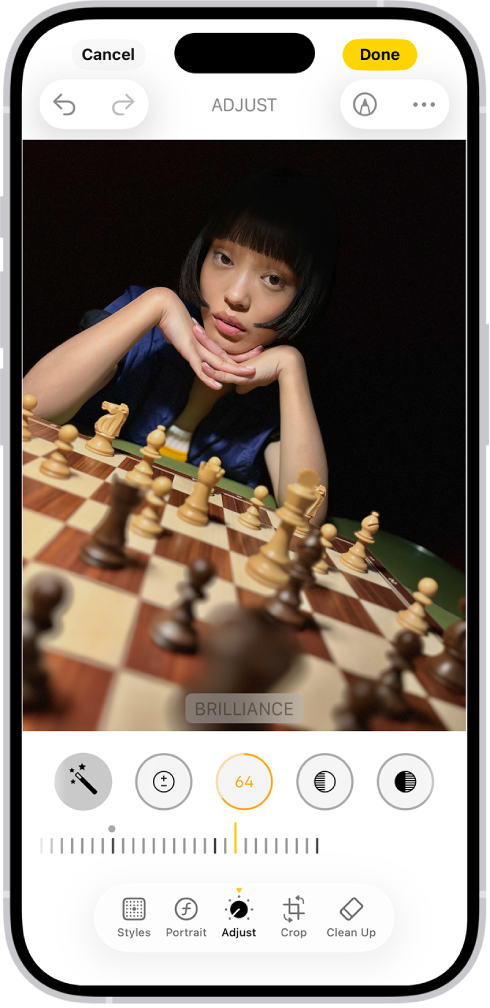
The example also shows a framing decision: the foreground chessboard leads toward the face, with a dark background around it. Consider that relationship when composing your own still. The screenshot provides no original/edited pair, capture model or shooting settings, so it cannot establish how the photograph was made.
For an optional wider crop, use Photos’ Crop tool and adjust the frame corners or choose an available ratio. Keep a copy with the original framing for other uses; cropping removes part of the delivered image. A wide ratio alone does not supply mood or story.
Photos supports reverting saved edits to the original in the library. A separately exported or uploaded edited file is its own copy; changing the library edit does not rewrite files already delivered.
Use Grain and Blur Sparingly
Grain, blur and softness are optional stylistic effects. Judge them against the subject: a textured editorial look may suit a portrait, while heavy grain can obscure food, product or fine detail.
Use an editor that actually offers the effect you need. This Photos base-edit workflow does not depend on a grain control or separate highlight/shadow color wheels. Read the tool’s documentation before adding effects or buying another app. For a broader comparison, see cinematic photo editing apps.
Inspect the face, hair and object edges if you use artificial blur. Keep a sharp source frame when possible; added blur can direct attention but does not restore missed focus or motion detail.
Build a Cinematic Mini-Story
A small sequence lets you show context, subject and detail. Choose only the roles useful for the story; the following five-frame structure is a planning option, not a claim that five images outperform a single photograph:
- Establishing frame: where the scene is.
- Character frame: who or what the story is about.
- Detail frame: hands, texture, an object, clothing or light.
- Movement frame: walking, turning, wind, gesture or action.
- Closing frame: a quiet moment or a deliberate final composition.
Adapt those roles to engagement sessions, travel, small business shoots, music sessions, restaurant content or event previews. Ask for the appropriate permission before photographing people or publishing client work.
Try a Three-Frame Window-Light Exercise
This is a proposed practice plan, not a completed shoot or test result. Choose a willing subject or a tabletop object beside a window, with a background you are allowed to photograph.
- Make a context frame that includes the window-side setting.
- Make a medium frame with a readable face or object, changing position to simplify the background.
- Make a detail that contributes something different, such as hands or texture. Refocus at the new distance.
- For each frame, compare the default exposure with one deliberate adjustment. Keep the version that retains the detail you need.
- Edit the selections with the same mood in mind, then review them together. Keep the unedited sources.
Record your iPhone model, iOS version, selected camera/zoom button, lighting position and edit choices. Compare the source and edited version of each photograph for highlight detail, subject readability, distracting edges and color. Those records make your own sequence repeatable; the examples in this guide do not supply those capture settings.
Deliver Cinematic Phone Photos Cleanly
Separate the approved delivery from experiments and source files. Name the set clearly, arrange it in a useful order and retain an independent backup. Before sharing, inspect the actual files for size, framing and sensitive background details. Decide separately which images may be public.
SendPhoto provides gallery delivery for presenting a selected set. Its optional gallery password and download controls serve different purposes: a password restricts entry to people with the link and password, while download settings govern the provided download actions. Anyone who can view images may still capture or forward material.
Collection download controls do not make collections separately password-protected. Original downloads of unwatermarked photos use the uploaded source; marked or scaled photo downloads use generated images. Prepare the intended delivery files before uploading instead of assuming every download is an untouched camera original. See mobile gallery viewing for presentation on smaller screens.
Quick Shooting Checklist
- The subject is clear before editing.
- The light direction suits the mood.
- Important highlights retain the detail you intend to show.
- Shadows add depth without hiding the main subject.
- The background supports the story.
- The crop suits the intended use.
- Color changes respect the intended skin or product rendering.
- The sequence includes context, medium and detail views when useful.
For broader mood choices, read how to make photos look cinematic. For an expanded built-in editing walkthrough, see editing photos on iPhone. For planning public selections, see social media photography tips.