
If a client cannot open a gallery, an upload stops, or a download fails, start by recording the exact step that failed. Technical assistance is more useful when the request identifies an observable problem and the checks already attempted.
For SendPhoto, use the support contact form. This guide explains what to check, what to include in that form, and when to stop retrying. It does not promise a response deadline or a particular recovery outcome.
Table of Contents
- When the Gallery Stalls Mid-Delivery
- What Technical Assistance Means for Photographers
- The Most Common Delivery and Download Issues
- A Step-by-Step Troubleshooting Workflow
- Writing a Clear Support Request
- Support Paths, Response Expectations and Follow-up
- Habits That Make Delivery Easier to Check
- Putting It Together and Answering Common Questions
When the Gallery Stalls Mid-Delivery
Suppose a wedding gallery is due this evening and some files are still missing. That is a hypothetical delivery problem, not a reported SendPhoto incident. The immediate job is to find out whether the files are still uploading, the gallery link is inaccessible, or the visitor cannot download the intended selection.
Preserve the local originals and note the time, including the time zone. Avoid deleting the gallery, replacing all files, or changing several settings at once: those actions can remove useful context and introduce another problem.
Why delivery problems hit harder than editing problems
A delivery problem reaches the client directly. Send a brief factual update if a deadline is affected: what is delayed, what remains available, and when you will provide another update. Do not promise a fix time you cannot support.
Identify the blocked step before contacting support. The bulk file upload guide covers preparation and upload workflow; this article concentrates on incident evidence and the support handoff.
Keep the expected result, the observed result, and your explanation of the cause separate.
What Technical Assistance Means for Photographers
For a gallery delivery problem, technical assistance means checking the transfer, access, download, and account conditions that affect the handoff. A support request can help investigate those conditions; it is not a guarantee that every file can be recovered.
The four buckets that actually matter
- Delivery setup: which gallery and collection received the upload, whether files have appeared, and which sharing settings are active.
- Transfer and download: the failing filename or selection, displayed progress or error, and whether a downloaded file can be opened locally.
- Gallery access: the current link, sharing state, password requirement, and the visitor's observed result.
- Account conditions: the exact storage, upload allowance, sign-in, or payment message shown, if any. Do not infer a billing failure from a blank page alone.
What does not belong in this bucket
Editing style, pricing strategy, and marketing advice do not identify why a particular delivery step failed. Keep those questions separate so the support request remains specific.
Describe the failing action: “Selecting Download did not start a file transfer,” for example. Only use that description if it matches what happened. Include creative or contractual context when it affects the requested result, such as an agreed original-file delivery.
The Most Common Delivery and Download Issues
Similar symptoms can have different causes. Use the following checks to narrow the question, not to assign fault to a browser, client, or account.
Upload and gallery creation
In SendPhoto, the gallery editor provides Upload, Share, and View actions. Check that you are working in the intended gallery and collection before retrying files.
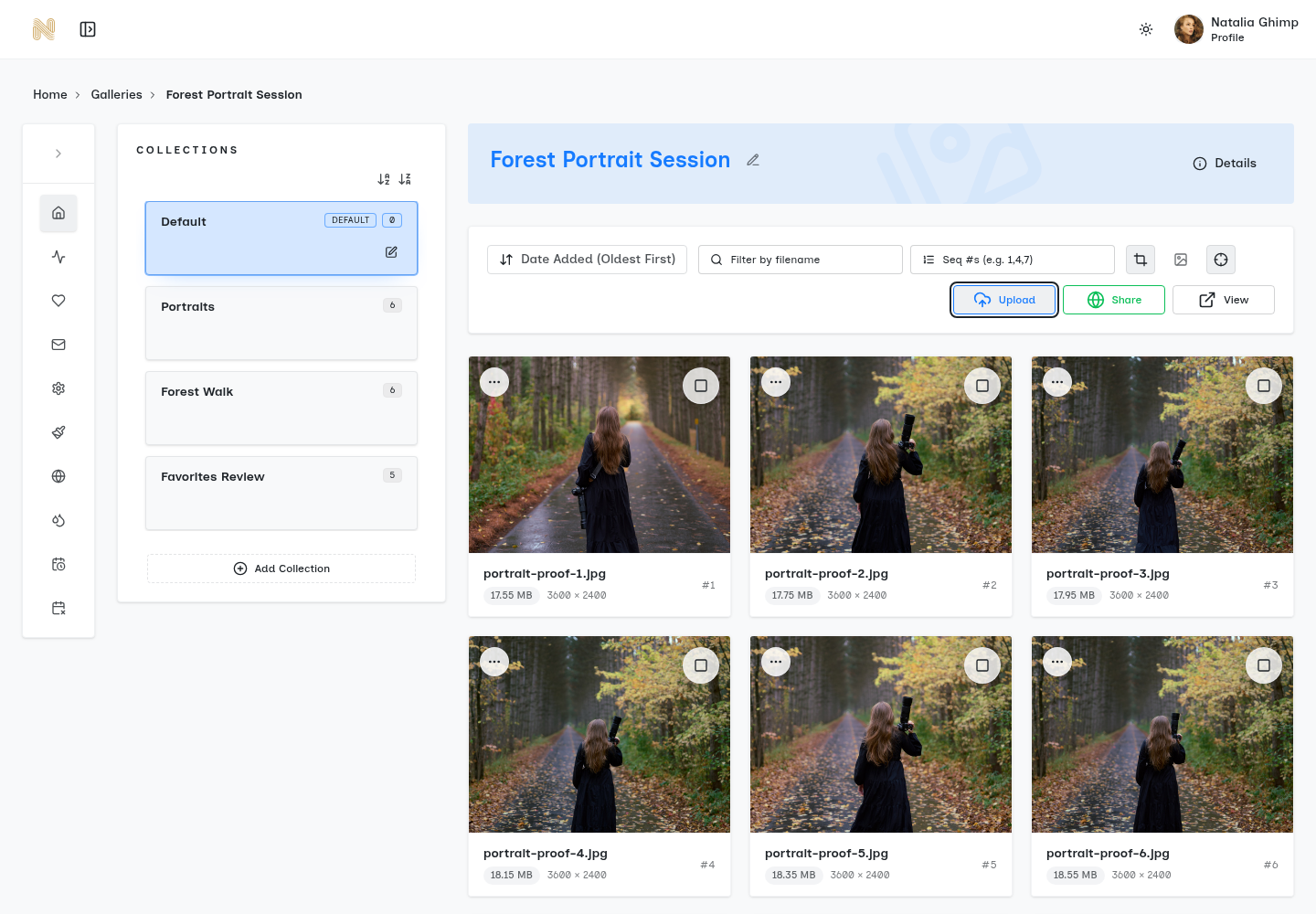
Existing SendPhoto interface capture. It shows the editor actions and file cards, not an upload failure or a recovery test.
If an upload fails, copy its complete notification. SendPhoto's uploader can display “Upload failed for” followed by a filename; the detail underneath matters. A format rejection may say “format is not supported”. Copy the message you actually receive, including its detail.
If the detail identifies an unsupported format, check the actual exported file and the uploader's accepted formats. Renaming an extension is not conversion. If the message instead identifies storage or upload allowance, record that message and the account information it references; a format conversion may not address it.
For a repeated file-specific failure, preserve the original and try a small, non-client sample you have the right to use, if it can reproduce the same issue. Record its type and size. Do not repeatedly re-upload the entire job or assume every RAW or video variant is accepted.
Client access problems
Use the current gallery URL from Sharing access. Confirm that sharing is enabled and determine whether a password is required. Review these sharing controls rather than assuming the editor view proves visitor access.
Ask what the visitor actually sees: a password prompt, an error message, an empty page, or a page that never finishes loading. A password prompt is different from a failed page load. Do not send the password or a private access token in a public screenshot.
A comparison in another browser or a private window can be useful, but it changes more than the cache. Different cookies, extensions, sessions, and timing can affect the result. Success in one window does not prove the server or account is healthy, and failure in two devices does not prove the visitor caused it. Google explains the separate session and cookie behavior in its Chrome Incognito guidance.
Download failures
If the gallery opens but download options are missing, review Download settings in Sharing. The action label Enable downloads indicates downloads are currently off; Disable downloads indicates they are on. Also check applicable collection download settings.
If the file is smaller than expected, compare the delivered file's pixel dimensions and filename with the intended export. Download quality offers Original and Scaled down. Watermark and collection rules can affect what is delivered; an option named Original is not sufficient evidence that every resulting file is byte-identical to your local master.
If a ZIP is preparing, note its displayed stage. A preparation message is not a completed download. If a downloaded archive will not open, record its size and the application's error, and check whether the browser marks the transfer complete. Neither an email notification nor a progress label alone proves that a usable file reached the client. If Chrome reports a transfer error, use its download error guidance for that specific message.
Before moving on, answer four questions: Is sharing enabled? Is the link current? What browser or device result was actually observed? Which file, selection, and download setting were involved?
A Step-by-Step Troubleshooting Workflow
Make one change at a time and note the result. You can contact support without completing every comparison; a deadline, repeated failure, or concern about losing work is a reason to stop sooner.
Run the gallery status check first
Open the correct gallery and review Sharing access. If sharing is disabled, decide whether enabling it is appropriate for this audience. If a sharing expiry has passed, review the access agreement before extending it.
Sharing expiry disables shared access; it does not by itself mean the stored photographs were deleted. Keep access expiry separate from any deletion or retention setting. Do not change deletion settings as a troubleshooting shortcut.
Verify the link and file basics
Copy the current permitted link instead of reconstructing it from an old message. Check the gallery, collection, filename, file type, and completed upload state against your local delivery list. Keep local originals and backups independent of the gallery.
For routine settings checks, use gallery troubleshooting tips. When a check does not resolve the issue, record the result rather than restarting the same sequence indefinitely.
Test like the client would
If practical, compare the permitted visitor link in a session that is not relying on your editor login. Do not bypass a password or other access restriction. Record the browser version, device, and exact outcome.
You may ask the client for one focused observation or compare another browser yourself. Do not require repeated phone and desktop tests before allowing a support request. A difference between sessions is evidence to report, not a complete diagnosis.
Review download settings and limits
Review the download toggle, quality choice, and applicable collection permissions against the agreed delivery. If an account-limit message appears, copy it exactly. Do not change a plan or payment method merely because a download failed.
Use this decision order:
- An explicit format rejection: check the exported file and accepted format; report a persistent failure with the message and a safe sample description.
- The visitor cannot open the link: check sharing, URL, password requirement, and expiry; report the observed page or error.
- The gallery opens but downloading is unavailable: check gallery and collection download controls.
- A transfer starts but never yields a usable file: record progress, filename or selection, file size, and the browser or archive error.
- The relevant check does not explain or resolve the failure: stop and send the evidence to support.
These branches do not exclude a service-side problem. An error without a clear cause belongs in the support request too.
Stop when the answer is no longer obvious
Use the SendPhoto contact form rather than repeating destructive or speculative fixes. Mention the delivery deadline and what is blocked, without treating urgency as a guaranteed priority queue.
Record what you tried and what happened. You do not need to prove who is at fault before asking for help.
Writing a Clear Support Request
A complete request can reduce questions about missing context, but it cannot guarantee a fast resolution. The contact form asks for Your Name, Your Email, and Your message. Put the diagnostic summary in the message; it does not provide a file-attachment field.
The information that actually shortens the thread
Include the gallery identifier or name, the failing action, when it happened, browser and device details, expected and observed results, and checks already completed. Identify the affected selection or file using non-sensitive names where possible.
Here is an illustrative ticket format, not a real incident or a message already sent:
- Subject: Gallery download starts but does not complete.
- Gallery: Your gallery identifier; avoid posting its private visitor link publicly.
- Time: Date, time, and time zone of the failure; distinguish the first report from your later attempt.
- Environment: Browser name and version, operating system, and device.
- Expected result: Download the agreed selection and open the resulting archive.
- Observed result: The exact displayed stage or error, elapsed time, and whether a file appeared. Replace this field with what you actually saw.
- Checks completed: Sharing state, gallery and collection download controls, selected quality, and any browser comparison, with each result. Say “not checked” where appropriate.
- Recent change and impact: What changed just before the failure, what still works, and the actual delivery deadline.
- Evidence available: A cropped, redacted error image or a non-client reproduction. Ask how to provide it through an appropriate private support channel before transferring files.
How to capture evidence without oversharing
Capture the relevant application area and error text, not your entire desktop by default. Remove unrelated tabs, client identities, payment information, passwords, access tokens, and private URLs. Review the final redacted image before sending it.
A browser network export or log can contain cookies and credentials. Do not paste a whole export into the contact form. If support needs one, ask what to capture and how to transfer it safely.
Prefer a non-client file you own for reproduction. If the original client file is essential, first establish permission to disclose it and an appropriate private transfer method with support. Include only what is needed; embedded metadata and sensitive subjects need consideration too.
One useful sentence is: “The last change before this failure was…” If you do not know, say so.
Support Paths, Response Expectations and Follow-up
SendPhoto's public contact page offers a form and says the team will get back to you as soon as possible. That is not a fixed response-time commitment. This guide does not establish a paid priority tier, an urgent hotline, or a contractual service-level agreement.
A simple view of the channels
The table describes how to present four kinds of requests through the verified support path, rather than promising separate queues.
| Request | Useful action | Response expectation |
|---|---|---|
| Setup question | Consult the relevant guide or describe the setting in the contact form | Self-service guidance is available to read; no human reply time is promised here |
| Broken upload, access, or download | Send the diagnostic summary through the contact form | Wait for the response or conversation details provided; no fixed deadline stated |
| Delivery blocker near a deadline | State the deadline, time zone, client impact, and any remaining working option | Urgency explains impact; it does not guarantee faster handling |
| Unresolved existing case | Continue the provided conversation or reference the earlier request | Ask for further review with new results; do not assume a special escalation tier |
If a separate written support agreement applies to your account, consult its actual terms. Do not infer those terms from a generic description of service-level agreements.
When escalation is justified
Follow up when the suggested action does not address the failure, the issue remains after you tried it, or an account message still blocks delivery. State what you tried, when, and what changed.
If SendPhoto provides a View conversation link after the request, bookmark it and keep it private. Continue that conversation when available; otherwise use the reply instructions you receive and reference the original case. This avoids creating several disconnected reports of the same incident.
Habits That Make Delivery Easier to Check
Preparation can make delivery and investigation clearer, but it cannot prevent every failure. Keep settings, local files, and client instructions consistent enough that you can tell what changed.
Keep the workflow consistent
Organize local files by job, check the collection receiving each upload, and keep a delivery list of expected filenames. Preserve local originals and an independent backup.
Agree access dates with the client. Do not adopt a generic 30–60-day expiry window as policy. Explain password and expiry arrangements in the delivery message, and distinguish the end of shared access from any separately agreed file-retention or deletion decision.
Test from the client's side before sending
A permitted visitor-view check can reveal a wrong link or mismatched download setting before delivery. Compare the agreed selection and quality with what the visitor is offered. Treat that observation as a check at that time, not a guarantee that every later device or download will work.
The secure online photo sharing guide explains access controls and their limits. Download restrictions and passwords cannot recall files already copied or resolve publication permission.
Don't create avoidable friction
Explain what the client should download, which versions are final, and what an intentional watermark means. Keep file and version names understandable. Different file types may require different applications; do not call a file corrupt solely because one application cannot open it.
Avoid promising a reply or download notification that you have not confirmed for the workflow. Give the client a clear way to report the failing step.
Clear filenames, agreed access conditions, and a factual delivery message make failures easier to describe.
Putting It Together and Answering Common Questions
What if the client cannot see the gallery? Check the current URL, Sharing access, password requirement, and expiry. Report whether the page shows a prompt, an error, or an incomplete load. Browser comparisons can help, but are optional evidence rather than a requirement to contact support.
What if an upload repeatedly fails? Preserve the original, copy the notification, and record the file type and size. Try a safe small reproduction if appropriate. Do not send client photographs or an entire archive without first agreeing a private, permitted transfer method.
What if sharing expired? Review the agreed access period and sharing settings. Expired sharing does not itself prove deletion. Describe the gallery and last successful access time if its state remains unclear.
What if none of the checks resolves it? Use the SendPhoto support form with the ticket format above. Add results to the existing conversation when available. An exact symptom and a concise history are more useful than repeated guesses about the cause.
SendPhoto's gallery delivery tools provide a place to share finished work with access and download controls. Keep the local backup separate and use the support path when a specific handoff step needs investigation.