
A client cannot find a photo, enter a password, locate an invitation or download a final file. Start with the exact symptom, not an assumed cause. An incomplete upload, a filtered view, an access setting, a mail problem and a service failure require different responses.
Keep the gallery unchanged while you identify the failure layer. Record the affected filename or action, the approximate time and the device/browser. Do not delete files, replace a whole gallery or weaken access controls just to see whether the problem disappears.
The checks below are for photographers managing a SendPhoto gallery. Recipients should ask the photographer to review settings rather than try to bypass them. The examples are illustrative troubleshooting exercises, not reports of incidents reproduced for this guide.
Table of Contents
- 1. Missing files or incomplete previews
- 2. Password or access failure
- 3. Activity records do not explain the complaint
- 4. Watermark or branding looks wrong
- 5. Slow or awkward mobile viewing
- 6. The client cannot find the right collection
- 7. The invitation did not arrive
- 8. The client needs revised image files
- 9. Download missing, blocked or unexpected
- 10. Gallery closed or scheduled for deletion
- 10-Point Gallery Troubleshooting Checklist
- Confirm Recovery or Contact Support
1. Missing files or incomplete previews
First establish what is missing: a filename in the manager, a rendered preview, a recipient-visible image or a downloaded file. A blank thumbnail is not the same observation as an absent upload.
- Compare the agreed export list with filenames in the correct gallery and collection.
- Clear filename or sequence-number filters before treating a short visible list as a missing-file count.
- Check the upload result and whether a preview is still being prepared. Record any actual error rather than calling every delay a failed transfer.
- Open an affected file and a known-working file. Note whether the issue affects one item, a collection or the entire gallery.
- Check the recipient's authorized view separately from the manager's view.
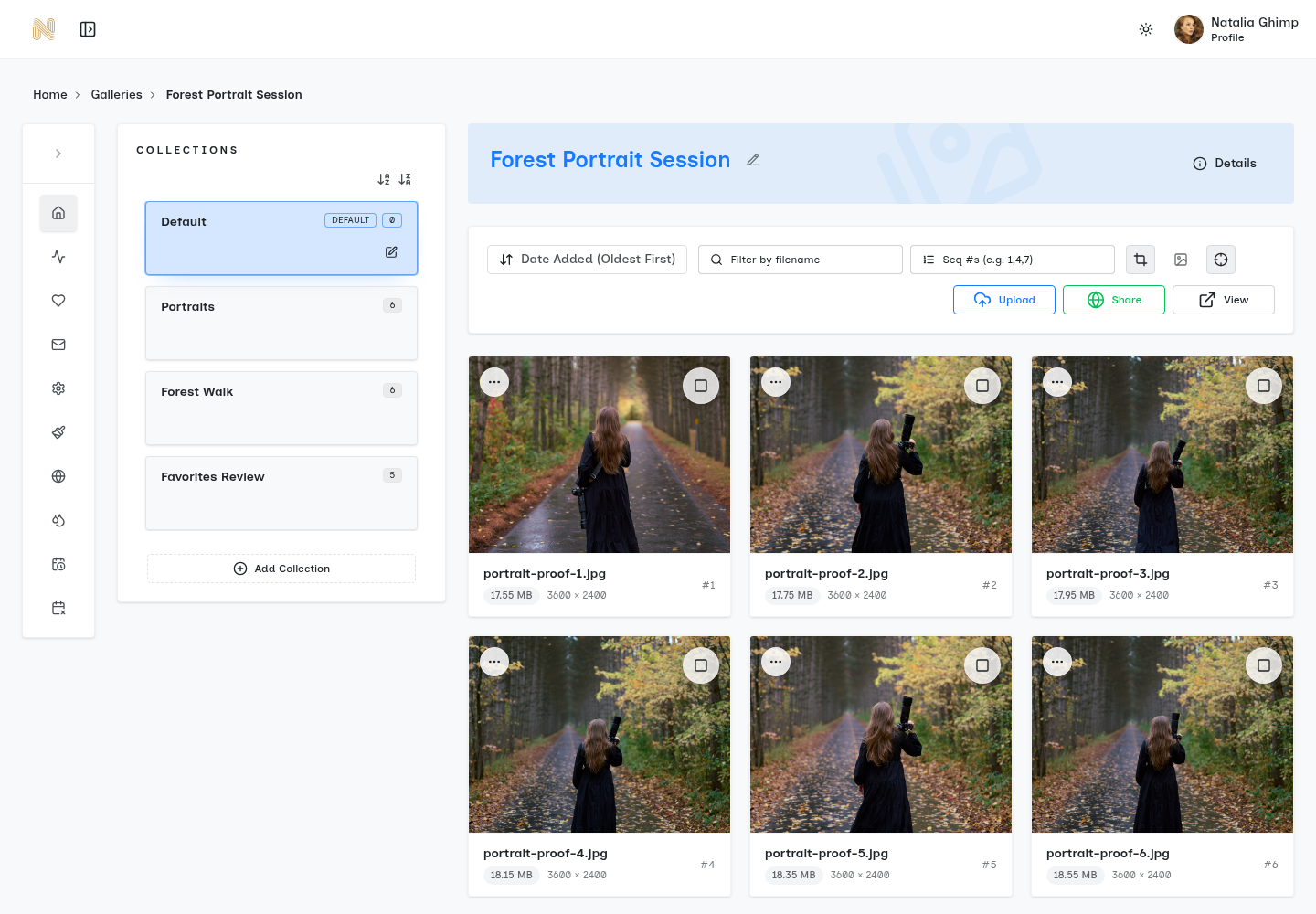
Illustrative upload case: a brief lists twelve final JPEGs, but a filtered view displays eleven. Clear the filter and inspect the filenames. If the twelfth file appears, the observation was a view/filter issue. If it remains absent, review its upload result and collection placement before deciding whether to retry that file. The count alone does not establish a cause.
If a transfer actually failed, keep the local source and try a small, agreed set of supported files after checking the error and connection. Review any duplicate-file prompt before replacing or adding copies. Do not repeatedly upload the whole shoot. The bulk-upload guide covers preparation and batch checks.
RAW support and a rendered preview are not promises that the client will receive your editing master. Keep your source files independently and check the intended download version.
Separate "file absent" from "preview unavailable" and "recipient cannot see it." Preserve the original while you investigate.
2. Password or access failure
Check the authorized route first: the correct gallery, current sharing state and the link intended for that recipient. A manager preview working does not prove a recipient link is accessible.
In Sharing & Downloads, review sharing access and the password. Also check Allow public gallery link: when it is off, a general gallery URL alone may not allow entry; supply the recipient's appropriate personal or invite link. Do not enable public access just to test a private delivery.
Check Share Expiration separately. Closing sharing is different from deleting the gallery, and an inaccessible link does not prove the files were deleted. Gallery availability can also depend on account or plan state; contact support if the intended settings appear correct but access still fails.
Use the intended access route
SendPhoto's password validation can show "The password is incorrect." Check that the client has the current gallery password, without accidental spaces or an older copy. Send the password through a separate agreed channel from the gallery link. Do not ask them to paste a password into a public comment or support screenshot.
Illustrative access case: a general link fails while the intended personal link opens. Check the public-link setting and which URL was supplied; this does not justify disabling password protection or opening the gallery to everyone. If both authorized links fail, record the exact message and continue checking sharing, expiry and account state.
A shared password and a personal link are access mechanisms, not a guarantee that the original recipient cannot forward them. Choose access around the actual audience and agreement. The password-protection guide explains the wider handoff.
A missing or expired link is an observation. It is not proof that the client made a mistake or that the gallery was deleted.
3. Activity records do not explain the complaint
Keep four questions separate:
- Did SendPhoto record an invitation send attempt and its status?
- Did the recipient find the message in their mailbox?
- Was gallery access recorded?
- Did the recipient obtain and open the intended file?
In the gallery's Email history, Status, Sent and Visited are different fields. A SENT status is not proof of inbox placement. Visited is not an email-open rate or proof that a particular person reviewed every image.
Treat activity as a signal, not proof
- Visited but no expected download: ask which action failed, then check the actual download permissions and file version. The client may only have been reviewing.
- No recorded visit: confirm the address and intended link through an agreed channel. Do not assume the message bounced.
- Repeated visits: ask what remains unresolved. Repeated access does not establish approval or identify a technical problem.
- A reported download: confirm that the recipient can open the file they needed. An activity entry alone does not establish that a complete file reached their device.
Use favorites to discuss selections, not to infer licensing, payment, publication permission or retouching approval. The technical-assistance guide covers broader handoff preparation; this page focuses on isolating a reported failure.
4. Watermark or branding looks wrong
Distinguish a display problem from a delivery-version problem. Ask whether the client means the thumbnail, opened preview, downloaded image, gallery cover or email.
Review the gallery's Watermark settings, the selected watermark and any applicable collection controls. Inspect an image with a light area and one with a dark area rather than assuming one placement is readable everywhere. Avoid changing the underlying image just because a preview mark is hard to see.
Check presentation and the delivered version
Check that the mark does not hide the detail the client needs to assess. A mark can identify a source or discourage casual reuse, but it cannot prevent screenshots, cropping or all unauthorized copying.
For downloads, Original is a quality setting, not a promise of an unmarked earlier RAW or editing master. Enabled watermark settings can select a generated marked image. Compare the intended deliverable with the actual permissions and version before removing a watermark.
Watermarking and access control do different jobs. A visible mark is not proof that a gallery is private.
Keep the gallery name, cover and studio branding consistent where the brief calls for it. The watermarking guide covers placement and delivery choices.
5. Slow or awkward mobile viewing
Record what is slow or broken: opening the page, loading a particular preview, scrolling, opening an image, playing a video or preparing a ZIP. "The gallery is slow" is not enough to distinguish network, browser, media-processing and service problems.
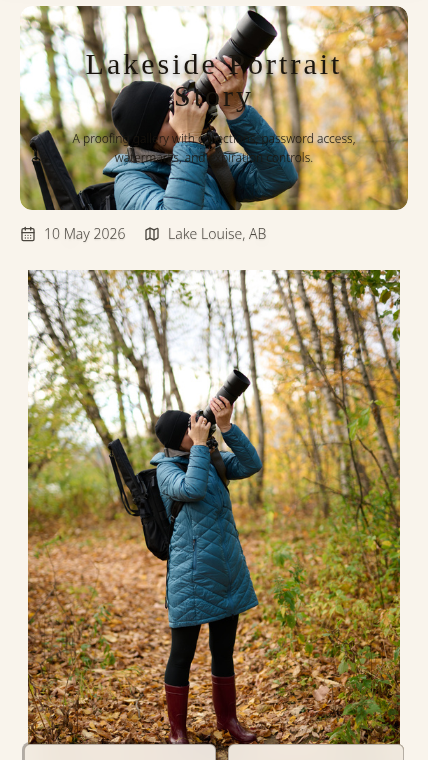
Check the same authorized view without changing its privacy settings. If the problem is in a social or mail app's embedded browser, ask whether it also occurs in the device's normal browser. Keep the original failure details; a successful second test does not erase the first observation.
Compare one variable at a time
A proposed diagnostic sequence:
- Note the phone model, operating system, browser and approximate failure time.
- Compare the same action on a stable connection and another connection where available.
- Try one known-working image and the affected image or video.
- Note whether the symptom occurs before a preview opens, during playback or during download preparation.
- Stop repeated retries if the same failure persists; send the evidence to support.
Illustrative mobile case: a gallery opens on Wi-Fi, but one clip stalls in an embedded browser on cellular data. That leaves several variables unresolved. Compare the same clip in the normal browser on the same connection before concluding that the video file or SendPhoto service is the cause.
There is no universal load-time guarantee or device checklist that identifies the cause. Replacing the client's phone is not a diagnosis. For a layout problem, describe the clipped control or failed gesture and use a privacy-safe screenshot only if support needs it.
Change one variable, record the result and keep the failing case identifiable.
6. The client cannot find the right collection
Ask for the filename or subject they expected, then locate it in the manager. Use clear collection names and Filter by filename where appropriate. Manager filename filtering and collection-name search are not evidence of a recipient-side photo-tag search workflow.
Use collections for meaningful groups such as ceremony, portraits or approved product exports. Use explicit collections and filenames rather than relying on assumed nested folders, keyword tags or an automatically maintained Favorites folder. A collection named "Favorites Review" can be a studio's chosen label, not an automatically maintained feature.
Separate client choices from approval
Give the client a specific task: choose proofs, confirm selected filenames or download finals. A favorite starts that discussion; it does not automatically establish the approved revision or permission to publish.
If a file is in the wrong place, confirm where it belongs before moving it. Collection organization does not create a separate audience boundary. Different viewers or access rules may require separate galleries or another suitable workflow.
A brief message identifying the collection and filenames can solve a navigation misunderstanding without rebuilding the gallery. If the file is actually absent, return to the upload checks.
7. The invitation did not arrive
Email invites require an active paid plan and a verified account email. If the interface shows Email invites unavailable, review its account-eligibility message; that is not a recipient-mailbox failure.
Start in Email history. Check the intended recipient, the relevant attempt, its status and time. A preview looking correct does not prove that a message was sent or delivered.
- PENDING: a recorded attempt is not yet a successful send; investigate an unresolved attempt rather than repeatedly submitting it.
- FAILED: check the send result and ask support if the reason is unclear or persists.
- SENT: the send operation succeeded, but inbox placement and recipient reading remain separate questions.
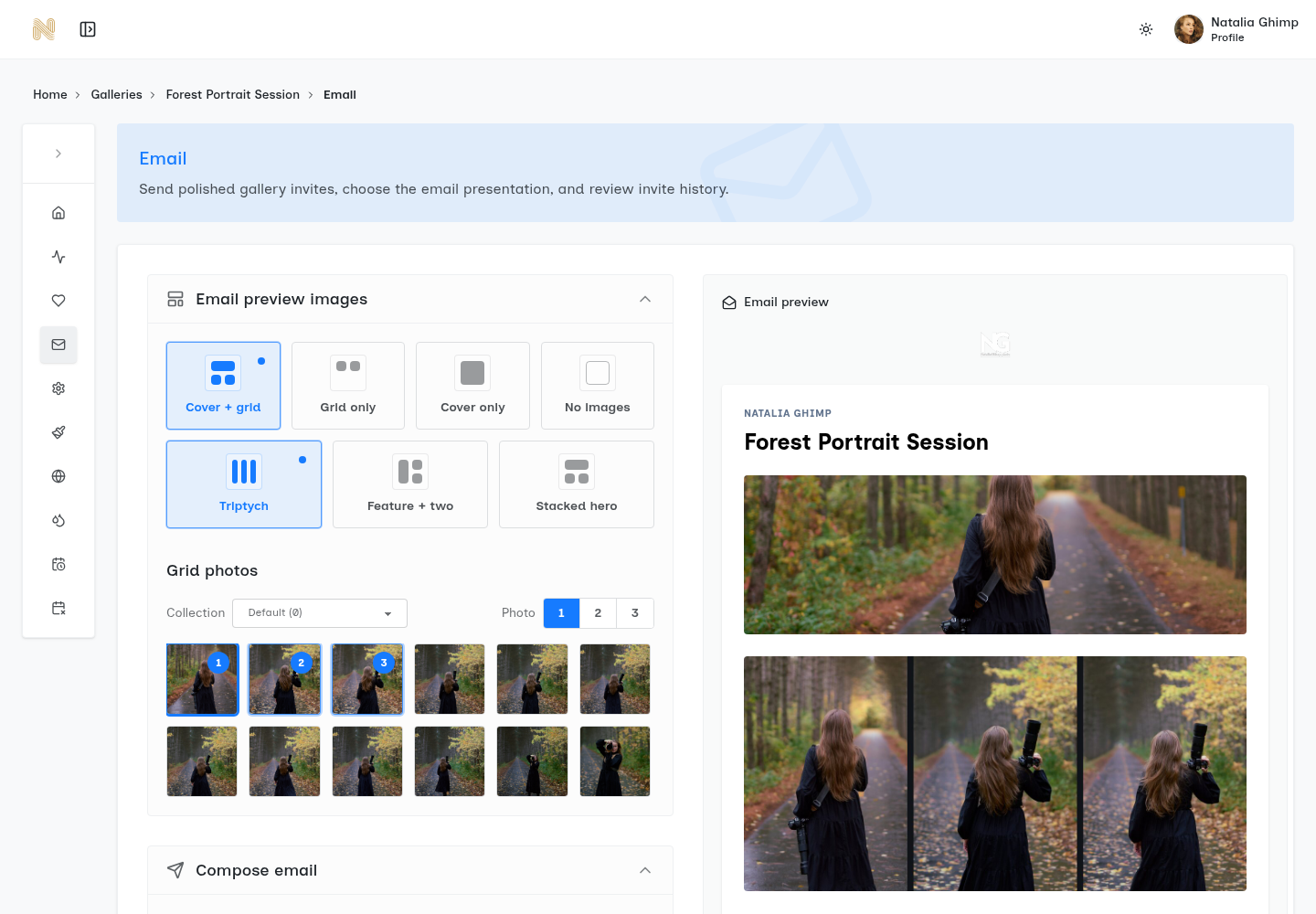
Illustrative email case: history shows SENT, but the recipient reports no message and no gallery visit is recorded. Confirm the address, ask them to search the mailbox including spam, and use an agreed alternate channel for the intended link if appropriate. This does not prove spam filtering, a bounce or a gallery failure.
For Gmail recipients, Google's missing-message guidance covers searching Mail & Spam & Trash, filters and storage. Follow the recipient's actual provider guidance; do not ask them to disable security controls. Persistent delivery trouble may require support to inspect send errors or mail-provider events.
Give the invitation one clear task
- Identify the photographer and gallery.
- Supply the intended link and one action, such as choosing proofs or downloading agreed finals.
- Deliver any gallery password separately through the agreed channel.
- State the actual access deadline and contact path.
- Avoid including private images or identifying details in an email preview when the audience should not receive them.
If an expiration reminder is enabled, check the setting and intended recipients rather than assuming it proves delivery. A reminder does not replace confirmation that the client has the correct link and deadline. Do not resend the same invitation repeatedly just to generate activity.
The email-wording checker is an optional copy-review resource, not a trace of a SendPhoto send attempt or proof of inbox delivery. Do not paste gallery passwords, private links or client details into third-party tools.
8. The client needs revised image files
A request for a brighter image, a different grade or a crop is an editing request, not automatically a broken gallery. Confirm the exact filenames, revision and intended use.
Make exposure, white-balance, contrast and retouching changes in your image editor. Do not treat SendPhoto as a gallery-side batch photo-adjustment or editing-master version-control system.
Make image changes in your editor
For a group of images, compare representative files before applying a shared adjustment. Different lighting or subjects may need different treatment; a global exposure change is not always the safest first move.
Keep an independent master, export the agreed revision and use filenames or a version record that distinguish proofs from finals. Review the upload's duplicate-file choices deliberately. Replacing an uploaded file is not a substitute for retaining the previous editing master yourself.
Check one revised export in the intended gallery view and explain which version the client should review. If previews and downloads disagree, record which file and view differ rather than applying another color edit.
Agree the revision, preserve the master, then verify the exported version.
9. Download missing, blocked or unexpected
Confirm whether the complaint is no Download control, a refused individual file, a ZIP that does not complete or a different version than expected. These are separate symptoms.
In Sharing & Downloads, inspect whether downloads are enabled and the selected quality. Check the applicable collection permissions, watermark settings and whether the affected item is ready. Individual and ZIP downloads depend on those permissions; a ZIP is not an unconditional copy of every upload.
For proofs, viewing without downloads may be the agreed behavior. For finals, compare the intended format and version with the actual setting. Original can return a watermarked variant where marking is enabled; it does not recover a RAW file or an earlier editing master that was never uploaded.
If one allowed image downloads but a ZIP fails, record the selection and the preparation/download stage where it stops. Do not disable access protections or re-upload the whole gallery to diagnose that distinction. The download-control guide explains the product controls.
A download setting does not grant a usage license or enforce payment by itself. Sharing closure cannot recall downloaded copies. Keep the agreed rights and audience separate from the technical delivery settings.
Confirm the recipient's permitted action and the actual file version, not just the button label.
10. Gallery closed or scheduled for deletion
Review Share Expiration and Auto-Delete as separate decisions:
- Sharing expiry closes sharing; it is not an archive or a file-deletion command.
- A self-delete schedule initiates deletion through the deletion workflow. It is not an access deadline, an archive service or a promise of immediate physical erasure.
- Your independent originals and exports remain your responsibility. A closed link does not prove that you have a usable backup.
Check the gallery's current sharing and deletion state. If it is still present but no longer shared, decide with the owner whether renewed access is appropriate. If it is missing or in deletion, contact support promptly; do not promise restoration or assume changing an access date brings deleted files back.
Use labels such as active, past delivery or archive in your own records if helpful, but do not mistake them for guaranteed product lifecycle states. Confirm contractual and retention requirements before setting deletion dates; gallery cleanup alone does not prove legal compliance.
Keep a periodic record of storage, agreed deadlines and independent backups. Preserve the files you need before approving removal, without retaining unnecessary client data merely because it is easy to keep.
10-Point Gallery Troubleshooting Checklist
Use this map to choose the next check. It does not establish a cause by itself.
| Symptom or task | First check | Next action |
|---|---|---|
| Missing image or preview | Filename, filters, collection and upload result | Separate absent file from processing or visibility; retain source |
| Password or access failure | Intended link, sharing, password and expiry | Correct the authorized route; do not open access as a test |
| Activity does not match the report | Invitation status versus visit and file result | Ask which action failed; do not infer email-open or approval |
| Watermark or branding mismatch | Preview versus download and applicable mark | Check the agreed version; marking is not copy prevention |
| Mobile loading or navigation problem | Exact action, browser, device and connection | Change one variable and keep the failure details |
| Client cannot find the collection | Names, filename and supplied task | Clarify organization; do not promise photo-tag search |
| Invitation not received | Recipient, send status and time | Check mailbox/provider evidence, not only email wording |
| Revised file requested | Filename, intended use and approved change | Edit independently, preserve masters and label exports |
| Download blocked or unexpected | Global/applicable collection permission and quality | Isolate individual versus ZIP and the delivered variant |
| Gallery closed or disappearing | Sharing expiry versus deletion state | Check independent backups and contact support if unresolved |
Confirm Recovery or Contact Support
Confirm the same action that originally failed: the right filename appears, the authorized client can enter, the intended version can be obtained or the affected preview works. Record what changed and what remains unresolved. One successful action is not proof that the entire delivery or service is healthy.
Contact SendPhoto support when the expected settings appear correct, an error repeats or the cause remains unclear. Send:
- The gallery name or identifier and affected filename, without a public share token.
- The exact error text, failing action and approximate time with timezone.
- Device, operating system, browser and connection context.
- Expected versus observed behavior.
- One or two checks already performed and their results.
Redact passwords, invite tokens, private share URLs and unrelated client data from screenshots or attachments. Provide sensitive identifiers only through the support channel when needed. Do not send a full confidential client shoot just to illustrate a thumbnail problem.
For a separate review of your studio's public website, the website accessibility audit checklist is supplemental reading. It is not a SendPhoto incident log or a substitute for the checks above.
When the agreed exports and access rules are ready, create a SendPhoto gallery for the handoff. For an existing failure, resolving that gallery takes priority over creating a replacement.