
A TIFF files converter can create a smaller JPEG copy for a client gallery without replacing the TIFF you edited. The useful question is not just “can this tool open a .tif?” It is whether the copy has the right dimensions, color profile, page selection and metadata for its destination.
This is a conversion guide, not an online upload tool. For a normal SDR photo preview, start with a flattened, single-image RGB copy, export a tagged sRGB JPEG into a separate folder, and inspect one result before processing the rest. Keep the editing master and any agreed print deliverables separate.
If your client, retoucher or print lab requests a TIFF, supply the required TIFF. A small gallery preview is not a substitute for that file. The worked command below deliberately makes an 800-pixel preview, not a full-resolution download or a print master.
Table of Contents
- Why separate masters from delivery copies?
- Choose the delivery format
- Lightroom and Photoshop
- Free and command-line tools
- Delivery settings and checks
- Troubleshooting
Why Your TIFF Files Need a Conversion Workflow
One photograph can have several legitimate deliverables: an editable master, a retouching handoff, a browser preview and a print file. Giving all four jobs the same export settings creates confusion.
A client choosing favorites may need a quickly opening preview. A designer may need transparency or further editing latitude. A lab may have its own format, profile and size requirements. Decide which job the copy serves before opening the converter.
Preserve the source that you may need to edit again. Make delivery copies for a stated purpose, rather than treating conversion as an upgrade or replacement.
Where TIFF shines and where it drags
TIFF can carry high-bit-depth image data and use lossless compression. Some applications also save editing information in TIFFs. That makes it useful in certain editing and production workflows, but it does not make every TIFF an ideal browser-viewing file or the only valid archive format. Preserve your RAW files, catalog edits or layered documents when they are part of the master workflow.
| Job | TIFF can be appropriate when… | A separate delivery copy helps when… |
|---|---|---|
| Editing master | Its data and application-specific structure meet your editing needs | You need a simpler viewing file without altering that master |
| Retouching or design handoff | The recipient requests its bit depth, profile or editable content | The recipient only needs a visual reference or approval preview |
| Print production | The lab or client specifies TIFF and the required settings | The lab instead accepts a correctly prepared JPEG; follow its specification |
| Browser gallery or casual sharing | The service explicitly accepts and handles the TIFF as needed | A JPEG preview is supported and fits the recipient's viewing task |
The handoff problems to prevent are practical:
- Upload effort: do not upload a much larger file solely to show a small preview when a supported smaller copy will do.
- Review confusion: distinguish preview files from print or final-download files in names and delivery instructions.
- Version confusion: avoid replacing a source with an export, or sending an obsolete copy after making further edits.
Conversion does not establish permission to share the photograph. Check consent, contractual restrictions and the recipient before uploading either format.
Choosing the Right Format for Client Galleries
Choose a format that the gallery service accepts and the recipient can use. A converter's ability to create a file does not prove that your intended app will display it, preserve its metadata or offer it as a download.
JPEG for most galleries
For ordinary SDR photographs, JPEG is a practical option where the service and recipient support it. It provides adjustable lossy compression, but a smaller file may lose fine detail. Standard JPEG does not preserve an editable layer stack or transparency.
Do not overwrite a master with successive JPEG exports. Return to the master for each new size or quality setting. Keep a separate full-resolution delivery copy if that is what the client purchased; an 800-pixel preview is not that product.
PNG for graphics and overlays
PNG is useful when the destination supports it and the asset needs transparency, crisp graphics or lossless raster storage. For a detailed photograph it can produce a substantially larger file than a lossy alternative; measure your own export rather than assuming a saving.
Converting an already compressed or low-resolution source to PNG does not recover missing detail. Likewise, putting a JPEG-derived image inside a TIFF does not turn it into an original high-bit-depth capture.
Pick the format for the asset and destination. “Lossless output” describes the new encoding, not a repair of information already missing from the source.
WebP when speed is the priority
WebP is worth testing for web previews where your publishing system and recipient workflow support it. Compare equivalent dimensions and an acceptable visual result; a format name alone does not guarantee smaller files or a faster gallery.
Use JPEG as a separate download if your client needs it. Do not assume a WebP preview is suitable for every print, editing or submission workflow. The photo-compression guide shows a separate format comparison; this TIFF guide tests only the JPEG recipe below.
A simple decision is:
- Photo preview: supported JPEG, with dimensions and quality chosen for that preview.
- Transparent graphic: supported PNG or another explicitly supported transparency format.
- Website-controlled preview: test WebP against an acceptable JPEG at the same dimensions.
Once you have the files, an online client gallery is the delivery step, not the conversion step.
Converting TIFFs with Photoshop and Lightroom
Use the editor you already have when you need to inspect layers, resolve an unknown profile or decide how transparency should look. Those are image decisions, not tasks a blind format-change command can safely make for you.
The Adobe paths below follow current official documentation. The measured source/output example later in this guide uses ImageMagick; it is not a claim that these files were exported in Adobe software.
Lightroom Classic for gallery batches
In Lightroom Classic, select the photos in Grid view and choose File > Export, then Export To > Hard Drive. Use a separate destination and descriptive filenames. In File Settings, choose JPEG and sRGB for the SDR copy; use Image Sizing for the intended dimensions. Save a reusable preset with Add, then select Export. These panels and steps are described in Adobe's export workflow.
Treat output sharpening and metadata as deliberate choices. Check the resulting file before applying a preset to a full job. Do not copy an email preset or a small preview preset into a full-resolution delivery job just because it creates a JPEG.
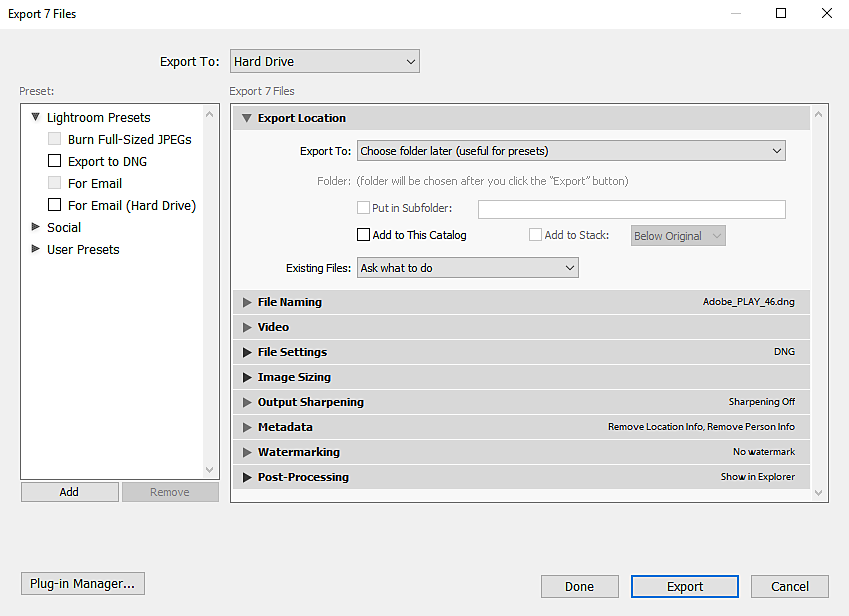
The screenshot is a panel-location reference, not a completed TIFF-to-JPEG preset. Current Lightroom also has HDR export options; this guide's recipe is for ordinary SDR output, not an HDR or gain-map delivery workflow.
Photoshop for single files and folders
For one document, File > Save a Copy provides a copy workflow while keeping the original document open. Choose JPEG and a separate location after preparing the appearance and color conversion you intend. See Adobe's Save a Copy instructions. Work on a duplicate if further mode, size or flattening changes would alter the editing document.
For a folder, open File > Scripts > Image Processor. Select the source and destination, enable Save As JPEG, and choose its Quality setting on the 0–12 scale. Use Resize to Fit if needed. Select Convert Profile To sRGB and Include ICC Profile, then run and inspect an output. These are the current options in Adobe's Image Processor documentation.
The Photoshop 0–12 quality scale is not the same scale as ImageMagick's 1–100 setting. A number copied between programs is not a verified quality match.
A repeatable preset includes the destination, format, profile, dimensions and metadata policy. A saved preset name alone is not proof that today's job uses the right settings.
What to watch with layered and multi-page TIFFs
“Layers” and “pages” are different problems. A Photoshop TIFF may contain editing information beyond its flattened image. A multipage TIFF may contain several raster images. A decoder can open one without preserving or exposing every part in the way your editor does.
Before batching, check:
- Layers and appearance: prepare a flattened copy in the originating editor when needed. Keep the editable original. The command below does not validate Photoshop's private layer data.
- Pages: determine whether you need every page or one deliberately selected image. The recipe rejects multipage files rather than silently choosing the first.
- Transparency and color: decide the background for transparent content, and resolve CMYK or missing-profile inputs with a suitable color-managed workflow. JPEG will not retain alpha.
- Names: choose output names that cannot be mistaken for masters. Keep page selection and version labels explicit.
A batch stopping at this check is preferable to a plausible-looking file that omits something the recipient needs. If your source is RAW rather than TIFF, use a RAW-aware workflow such as the NEF conversion guide; changing its extension is not conversion.
Using Advanced and Free TIFF Converter Tools
A local converter can keep the photo-processing step on your computer. Install ImageMagick from a trusted source, check that your version can read your TIFFs, and process working copies. Do not download an unknown executable merely because a page promises many supported formats.
ImageMagick for repeatable batch jobs
This Bash script was tested with ImageMagick 7.1.2-31. It accepts prepared, single-page, opaque RGB TIFF copies with an embedded ICC profile. It checks all inputs before creating the output folder. Unprofiled, multipage, CMYK and transparent photographic fixtures were rejected in our checks. Those checks are not a guarantee that any arbitrary or malformed TIFF is safe or visually correct.
Setup: save the script as batch-convert.sh outside your source folder. Open Bash in a folder containing only the prepared TIFF copies. Locate a genuine, trusted sRGB ICC profile on your system; use its actual path when you run the script. A readable file is not necessarily a valid or appropriate profile. The script does not guess a missing source profile or inspect whether an embedded profile truthfully describes the pixels.
#!/usr/bin/env bash
set -euo pipefail
shopt -s nullglob

# Run in a folder of prepared TIFF copies. Supply a trusted sRGB ICC profile.
profile=${1:?Usage: bash batch-convert.sh /path/to/sRGB.icc}
[[ -r "$profile" ]] || { echo 'ICC profile not readable' >&2; exit 1; }
files=(./*.tif ./*.tiff ./*.TIF ./*.TIFF)
((${#files[@]})) || { echo 'No TIFF files found' >&2; exit 1; }

# Check every input before creating the output folder.
for file in "${files[@]}"; do
    frames=$(magick identify -ping -format '%n' "$file")
    space=$(magick identify -ping -format '%[colorspace]' "$file")
    opaque=$(magick identify -format '%[opaque]' "$file")
    profiles=$(magick identify -ping -format '%[profiles]' "$file")
    [[ "$frames" == 1 && "$space" == sRGB && "$opaque" == True && "$profiles" == *icc* ]] || {
        printf 'Stop: check pages, RGB/ICC profile or transparency in %s\n' "$file" >&2
        exit 1
    }
done

# Fails if the folder already exists, protecting earlier output.
mkdir client-jpegs
for file in "${files[@]}"; do
    name=${file##*/}
    magick "$file" -auto-orient -profile "$profile" \
        -resize '800x800>' -depth 8 -strip -profile "$profile" \
        -quality 85 "client-jpegs/$name.jpg"
done

magick identify -format '%f: %m %wx%h, %z-bit, profiles=%[profiles]\n' client-jpegs/*.jpg
Run it with a real profile path. On the Linux machine used for this example, the invocation was:
bash /path/to/batch-convert.sh /usr/share/ghostscript/iccprofiles/srgb.iccThat ICC location is an example from this machine, not a universal Windows, macOS or Linux location. Keep the first script argument quoted if your actual path contains spaces.
The client-jpegs folder must not already exist: the script stops rather than overwriting an earlier batch. Output names keep the input extension before .jpg, so same.tif and same.tiff produce distinct filenames. The script handles spaces in input filenames and does not search subfolders. If a conversion fails partway through, inspect the error and partial output; use a fresh, separate working folder for a new attempt.
The recipe applies orientation, converts using the embedded source profile and the supplied sRGB profile, limits the long edge to 800 pixels without enlarging smaller inputs, and writes an 8-bit JPEG at quality 85. After stripping metadata it embeds the destination ICC profile again. See the ImageMagick option reference for profile operations and metadata stripping. An ICC transform depends on the profiles supplied; it cannot fix a falsely tagged original.
Metadata warning: this recipe intentionally removes source metadata, including any embedded attribution, before retaining the color profile. If you must retain copyright or other agreed fields, use a workflow that preserves or restores those selected fields and then verify it. Removing metadata does not remove licensing obligations.
Here is the actual photograph used for the example:
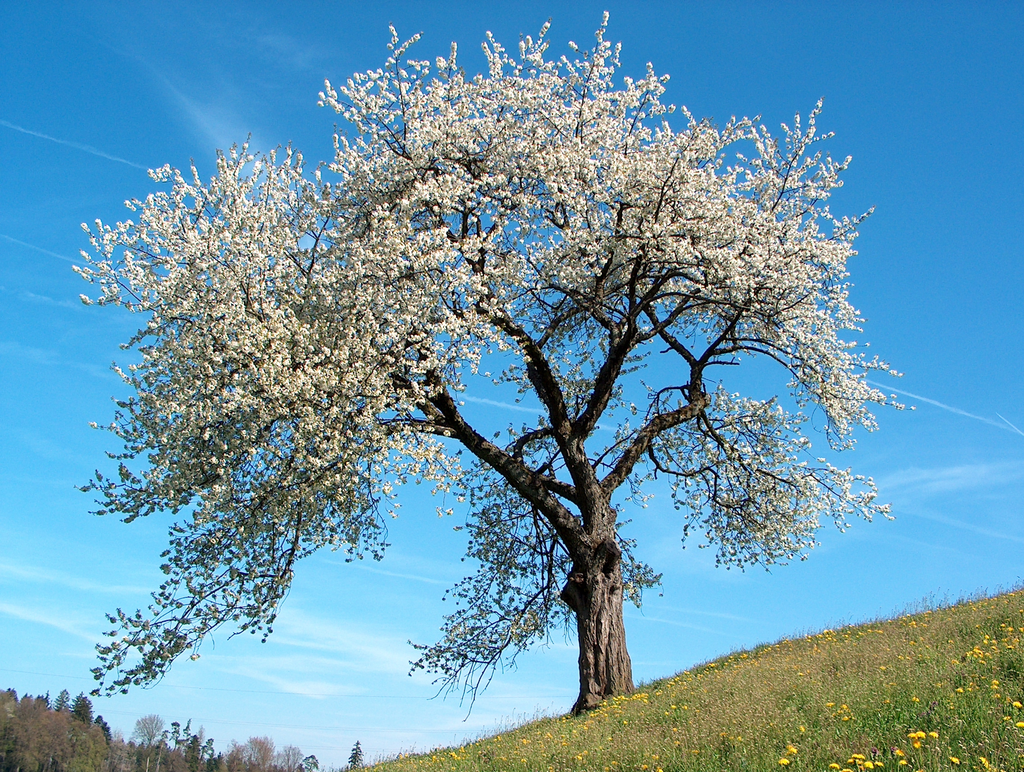
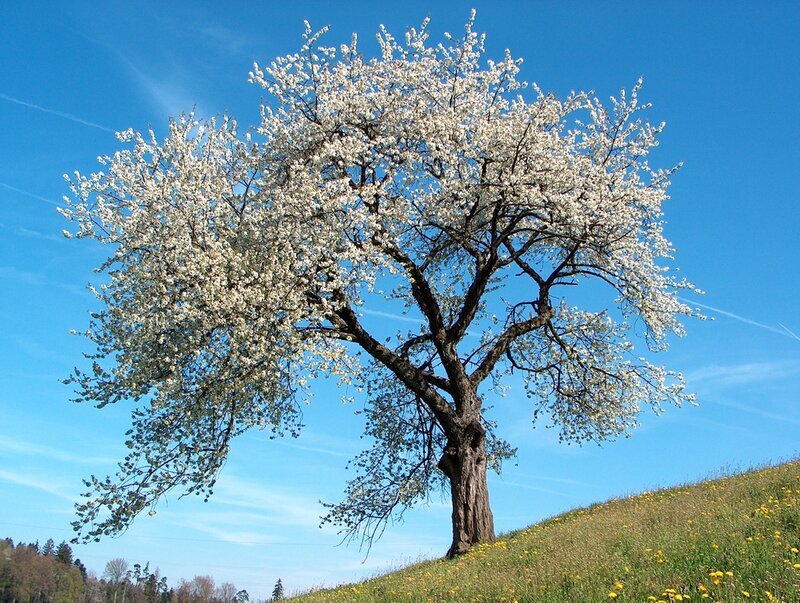
Download the prepared TIFF and download the resulting JPEG. The underlying photograph is credited to Benjamin Gimmel, with the PNG and license identified in Google's gallery credits. The prepared TIFF and resized JPEG are derivatives shared under CC BY-SA 3.0.
The input was made from Google's 8-bit PNG, tagged with the known sRGB profile used for this demonstration, and saved as LZW-compressed TIFF. A clearly labeled demonstration UserComment was added so removal could be checked. This does not test 16-bit editing latitude, original camera metadata, an untagged photograph's true color space or a layered client master.
| Measured item | Prepared TIFF input | Script JPEG output |
|---|---|---|
| Pixel dimensions | 1024 × 772 | 800 × 603 |
| Exact bytes | 2,197,466 | 183,815 |
| Bit depth | 8 bits per RGB sample | 8-bit |
| Embedded ICC description | Artifex Software sRGB ICC Profile | Artifex Software sRGB ICC Profile |
| Demonstration UserComment | Present | Not reported by ExifTool |
| Input preservation | Same file hash before and after conversion | Separate file in client-jpegs |
The size difference combines resizing, encoding and metadata changes. It is not a like-for-like codec benchmark or a prediction for your images. The source and output retain the same scene and framing on inspection, but detail changes at the smaller size. We did not perform a calibrated color-equivalence test.
How to judge a free online converter
If you use an online service, review its terms and test a non-sensitive copy first. Do not upload private portraits, confidential client work or personal metadata just to see whether the upload button works.
Before using it for a real job, establish:
- Data handling: who receives the upload, what its published retention and deletion policy says, and whether your client agreement permits it. A claim of automatic deletion is not your own verification.
- Output: whether you can control dimensions, quality, profile and metadata, and download a sample without a watermark or unexpected re-encoding.
- Input handling: whether pages, layers, transparency and CMYK have documented treatment rather than a silent default.
- Batch and limits: supported file sizes and counts, paid restrictions and filenames that distinguish separate outputs.
Do not choose a tool based on unrelated document-format counts. A successful small RGB sample also does not prove that a layered, large or multipage TIFF will be handled correctly.
Export Settings for Reliable Client Delivery
The settings should follow the delivery agreement and destination. There is no universal combination that guarantees flawless viewing, maximum quality and the smallest possible file.
The delivery settings that matter most
Color profile: for ordinary supported SDR web viewing, a correctly converted and tagged sRGB copy is a sensible starting point. Converting maps the source through a color transform; assigning a profile changes the interpretation of the existing numbers. These are not interchangeable repairs. See ImageMagick's color-management guidance and our sRGB versus Adobe RGB delivery guide.
Dimensions and quality: choose pixel dimensions for the task before reducing JPEG quality. The worked recipe's 800-pixel long edge and quality 85 are demonstration settings. For paid full-resolution files, keep the agreed dimensions; for prints, follow the lab's specification. Changing a DPI label alone is not a reliable way to reduce a browser file's bytes.
Metadata: decide which fields should survive. Location, names and comments may be sensitive, while copyright and contact details may be intentionally retained. Inspect the actual output, not just the export dialog. The sample verifies its known UserComment removal and ICC presence; it does not certify every possible private field in every source.
“Small enough” and “good enough” need a destination and a sample. Record the export purpose so the next batch is not accidentally sent with the wrong preset.
A practical export checklist
Use this before sending a full batch:
- Keep the master: work on separate copies and confirm that the original file has not been replaced.
- Confirm the input: check the intended image/page, flattened appearance, profile and transparency treatment.
- Export one representative file: choose a photo with detail, smooth tones and important colors, not only an easy-looking thumbnail.
- Inspect the output: verify dimensions, bytes, format, profile and the metadata fields that matter. Look at the downloaded file at its actual pixel size.
- Check the handoff: separate previews from full-resolution or print files; use clear filenames and upload only the intended copies.
For the downloadable sample, the following ExifTool check reports the recorded fields without changing either file:
exiftool -FileSize# -ImageWidth -ImageHeight -BitsPerSample -ProfileDescription -UserComment cherry-sample.tif client-jpegs/cherry-sample.tif.jpgExifTool is a separate tool; install it from its official site if you want to run that check. No output for a particular tag means it was not reported in that check, not that all metadata has been exhaustively audited.
Inspect the result in the destination workflow before a bulk handoff. The web-compression guide covers a separate equal-dimension comparison if file weight remains the problem.
Troubleshooting Common Conversion Problems
When an export looks wrong, return to the source and settings. Repeatedly converting the already degraded output is unlikely to fix the cause.
Colors look wrong after export
First check whether the source profile is known and embedded. Then inspect the destination profile and compare in a color-managed application. An untagged source is not automatically sRGB; assigning sRGB without knowing its origin can produce a plausible but incorrect interpretation.
If the source is CMYK, stop using the scoped RGB script. Use the intended source ICC profile and an appropriate RGB destination in a color-managed editor, then inspect the result. Display settings, monitor profiles and viewing software can also affect the comparison; a tagged JPEG alone cannot guarantee identical appearance on every client device.
The JPEG is still too large
Check these in order:
- Dimensions: did you accidentally export full-resolution files for a small preview? Do not reduce paid full-resolution deliverables merely to meet a preview target.
- Encoding: try a different quality setting on a new export from the master, and inspect difficult details. The same number across different converters is not equivalent.
- Contents and destination: metadata, image complexity and the service's actual file limits matter. If the file is for print or retouching, ask about the required handoff rather than treating a browser limit as the specification.
In the worked example, 183,815 bytes is an observed file size, not a universal target. Your image may need a different size or quality choice.
Fine detail changed after conversion
The sample's resize reduces the number of pixels, and its JPEG encoding is lossy. Compare files at equivalent display sizes for an overall view and at actual pixels for detail; do not interpret different zoom levels as a fair sharpness test.
Returning to the master with a larger output or a different compression setting can improve a new copy. Exporting a 16-bit master through this ordinary 8-bit recipe will not preserve all its precision, and saving that JPEG back as TIFF will not restore it. Keep the higher-precision master when future editing requires it.
The finished job is a suitable, checked delivery copy plus an intact master, not simply a file whose extension changed.
Once the exports are ready, SendPhoto is the gallery-delivery step, not a TIFF converter. Upload the supported files you intend clients to view or download, configure the gallery's access and download settings, and make clear which files are previews versus final deliverables. Create a SendPhoto gallery when you are ready to share the finished copies.